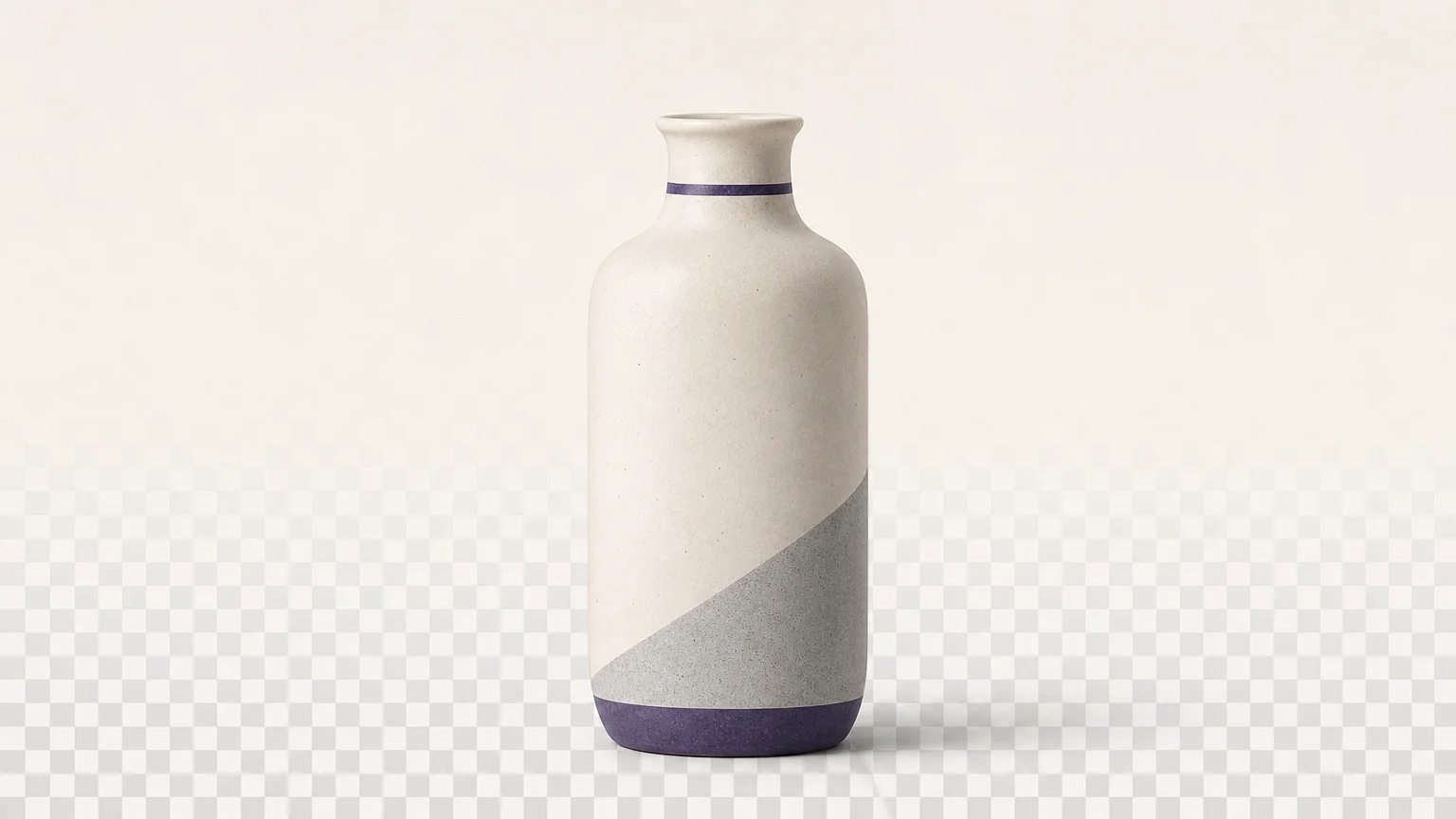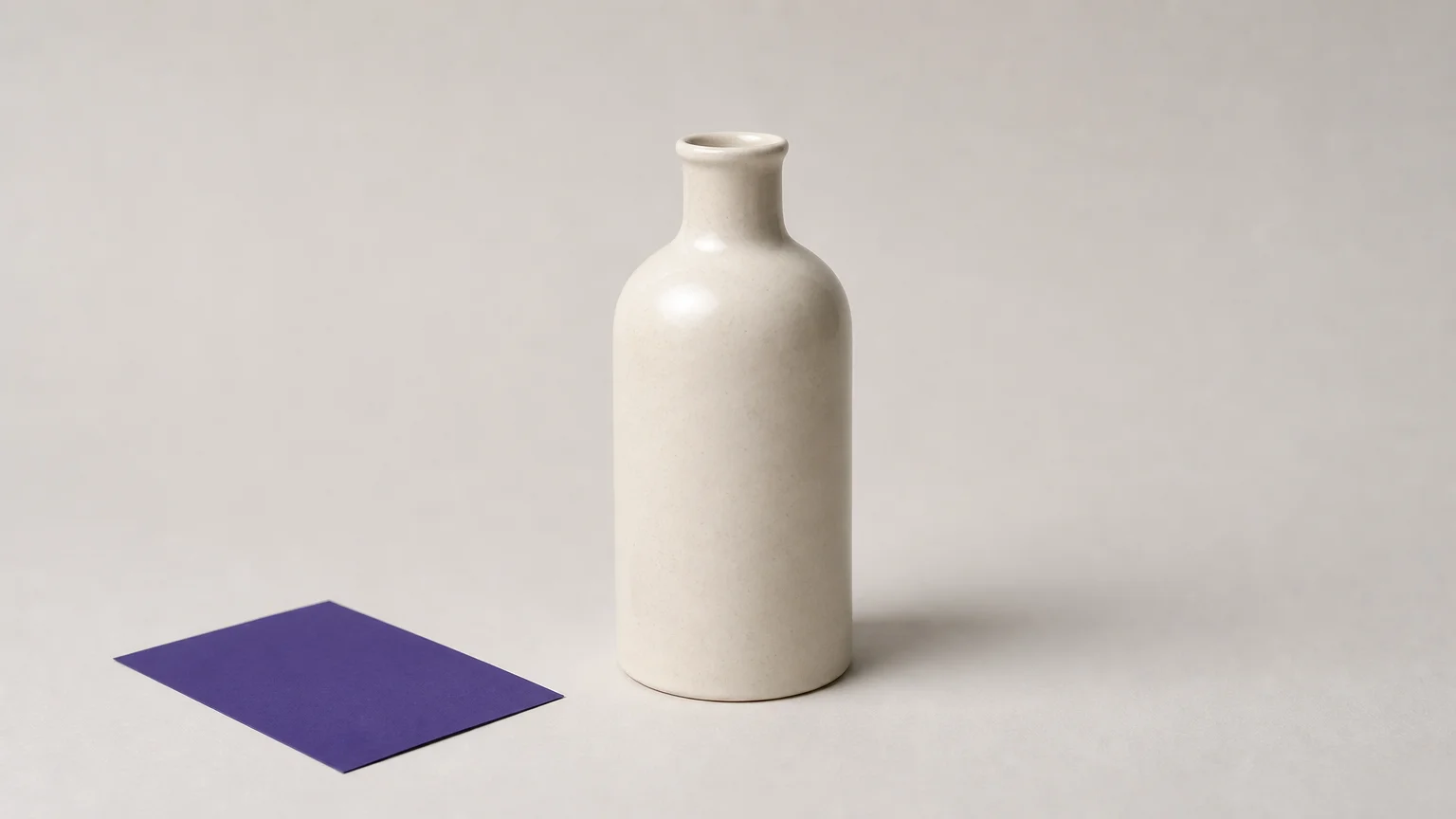


One cutout is not the same as a finished scene: a seller may need transparency, a portrait may need a believable office, and a campaign may need a new setting. The best AI background replacers in 2026 match the job, not merely remove pixels. To compare separation-first tools, begin with our best AI background remover tools roundup, then choose a replacer with controls for the new scene.
For marketplace photos, check the destination’s image rules before creating lifestyle scenes. Amazon says its main image should show only the product on a white background, with the product filling the frame. Review Amazon’s current product-image guidance before export. This distinction helps you choose between a transparent cutout, a plain color, and a generated environment.
Which background replacer fits your workflow?
If you need a transparent cutout, start with a focused remover such as Pixmage Remove Background. For generated product scenes and batch work, Photoroom offers a broader product-image workflow. Adobe Express, Fotor, Canva, insMind, , Krea, Pixelcut, and Picsart each combine background changes with different editing or design workflows.
| Rank | Tool | Background workflow | Batch, output, or access details |
|---|---|---|---|
| 1 | Photoroom | AI, static image, or solid-color backgrounds | Batch editing; AI backgrounds and batch exports use plan-based credits or limits |
| 2 | Adobe Express | Remove a background, then add or create one in the editor | Web tool accepts JPG, PNG, or WebP up to 40 MB |
| 3 | Fotor | Background removal and replacement within a broader photo editor | Includes batch photo editing capabilities |
| 4 | Canva | Background removal in a design workflow | Paid plans; folder processing supports up to 50 images at a time |
| 5 | insMind | Prompt, color, or image backgrounds | Includes background editing, shadows, and resizing tools |
| 6 | Focused removal with background-generation options | Also supports bulk editing and workflow integrations | |
| 7 | Krea | Cutout and further editing in a browser canvas | Free use has a daily limit |
| 8 | Pixelcut | AI-generated, solid-color, or uploaded-image backgrounds | Web changer offers HD downloads without sign-up |
| 9 | Pixmage Remove Background | Focused subject cutout | Transparent PNG when successful; JPG, PNG, WebP, or GIF uploads up to 15 MB |
| 10 | Picsart | Creative background edits in a photo and design suite | Batch editing supports applying edits to multiple images |
1. Photoroom
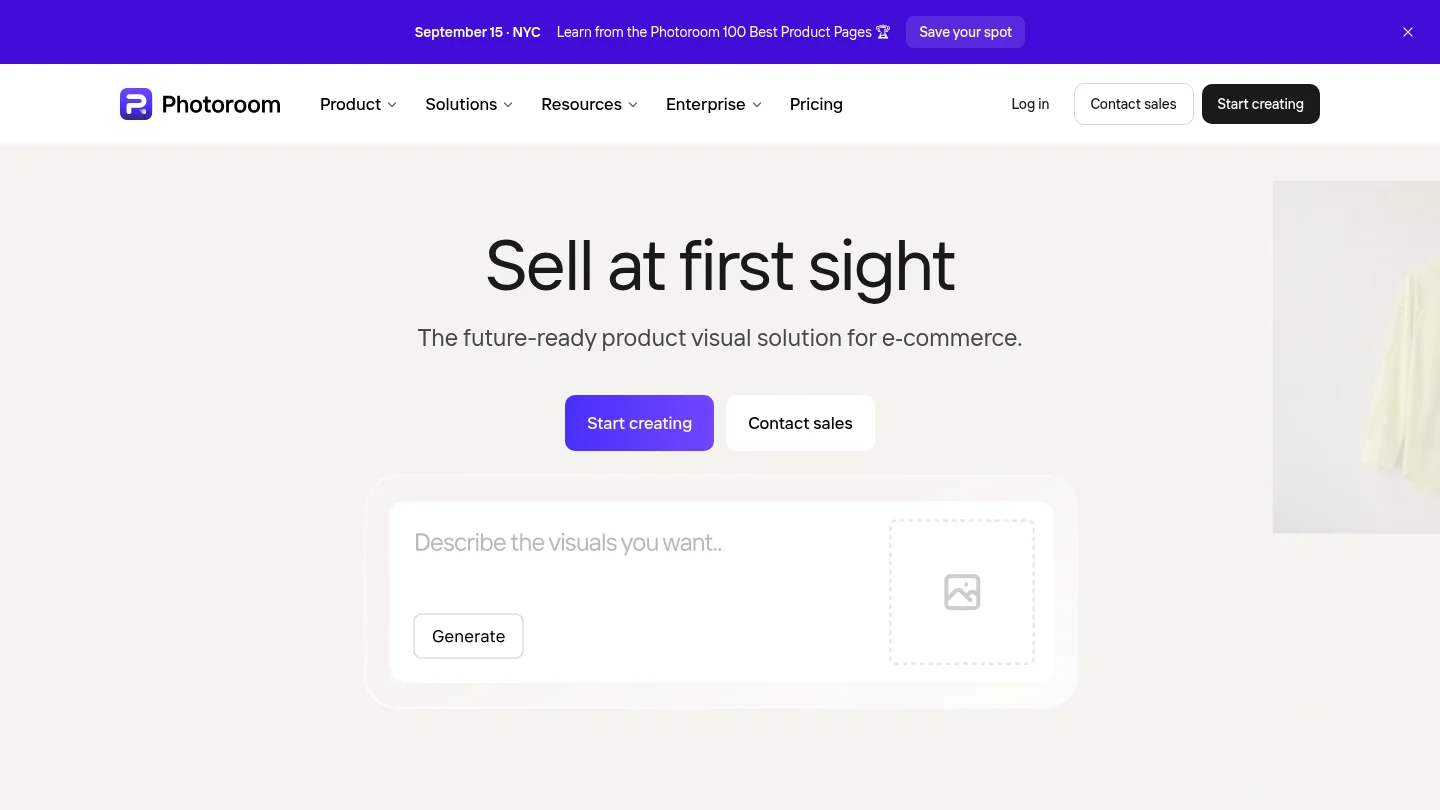
Best for: You create product images and need consistent scenes across a catalog.
Photoroom combines background removal with AI-generated, static-image, and solid-color backgrounds. Its batch workflow lets you apply background edits across multiple product photos. AI scenes can adapt to individual products, while batch consistency settings offer control over how much each background changes.
That makes it a strong fit when the goal is more than a transparent file. You can create a consistent visual style for product groups, then review individual results for edge quality, lighting, and shadows.
Pros
- Combines product-focused background editing with batch workflows.
- Supports generated scenes as well as static images and solid colors.
Cons
- AI backgrounds use credits, and batch or export allowances depend on the plan.
2. Adobe Express
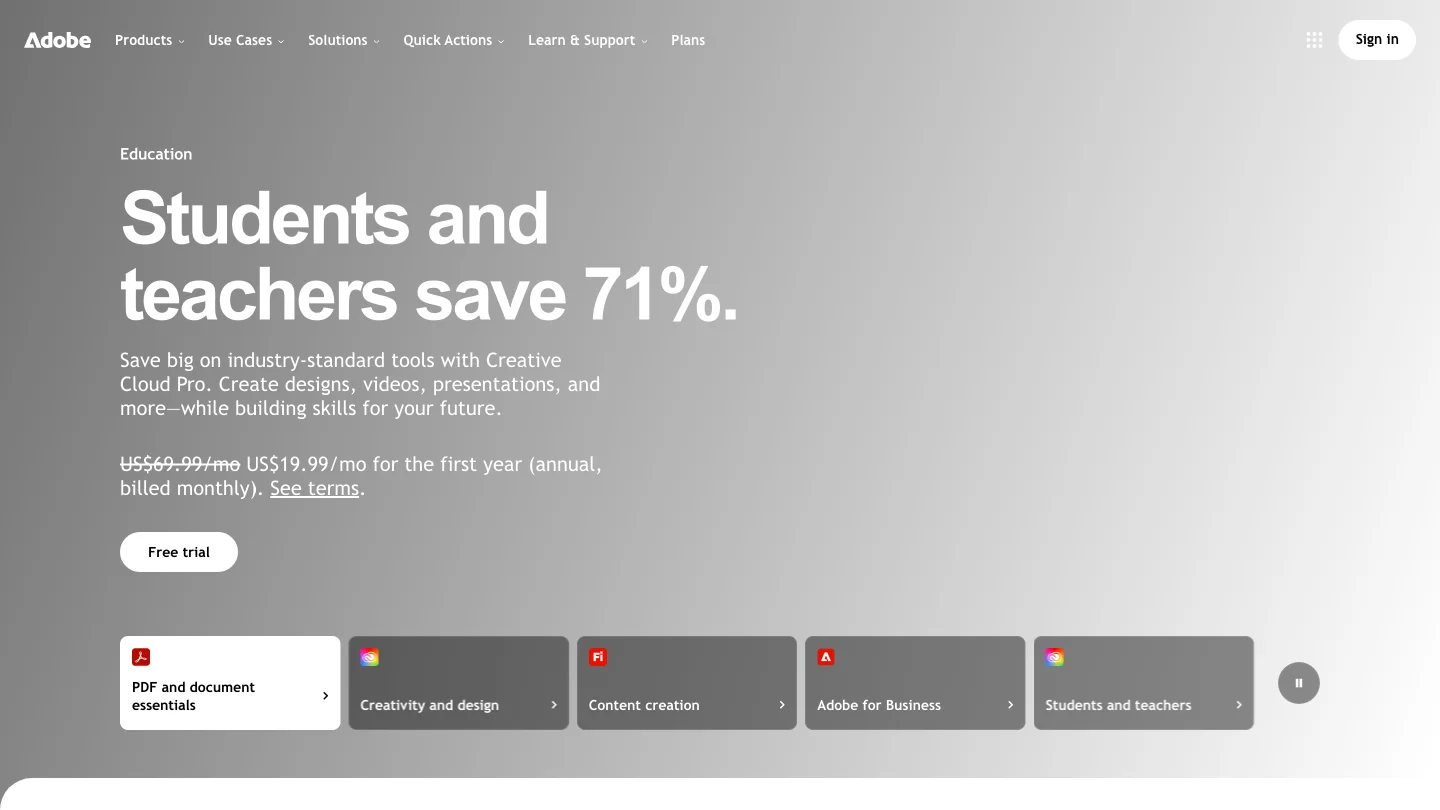
Best for: You want to remove a background and continue editing the image in a design workspace.
Adobe Express provides a web-based background-change workflow. After removal, you can open the full editor to create a background or choose from available options. The tool accepts JPEG, JPG, PNG, and WebP files up to 40 MB, making it useful for common portrait and product-photo tasks.
This route suits users who want to continue with graphics or other design edits in the same environment. The simple remover is not the whole editing workflow; adding the new background takes you into the fuller editor.
Pros
- Moves from removal into background choices and further design edits.
- Supports common image formats and larger uploads than many simple web tools.
Cons
- Adding a replacement background requires continuing into the full editor.
3. Fotor
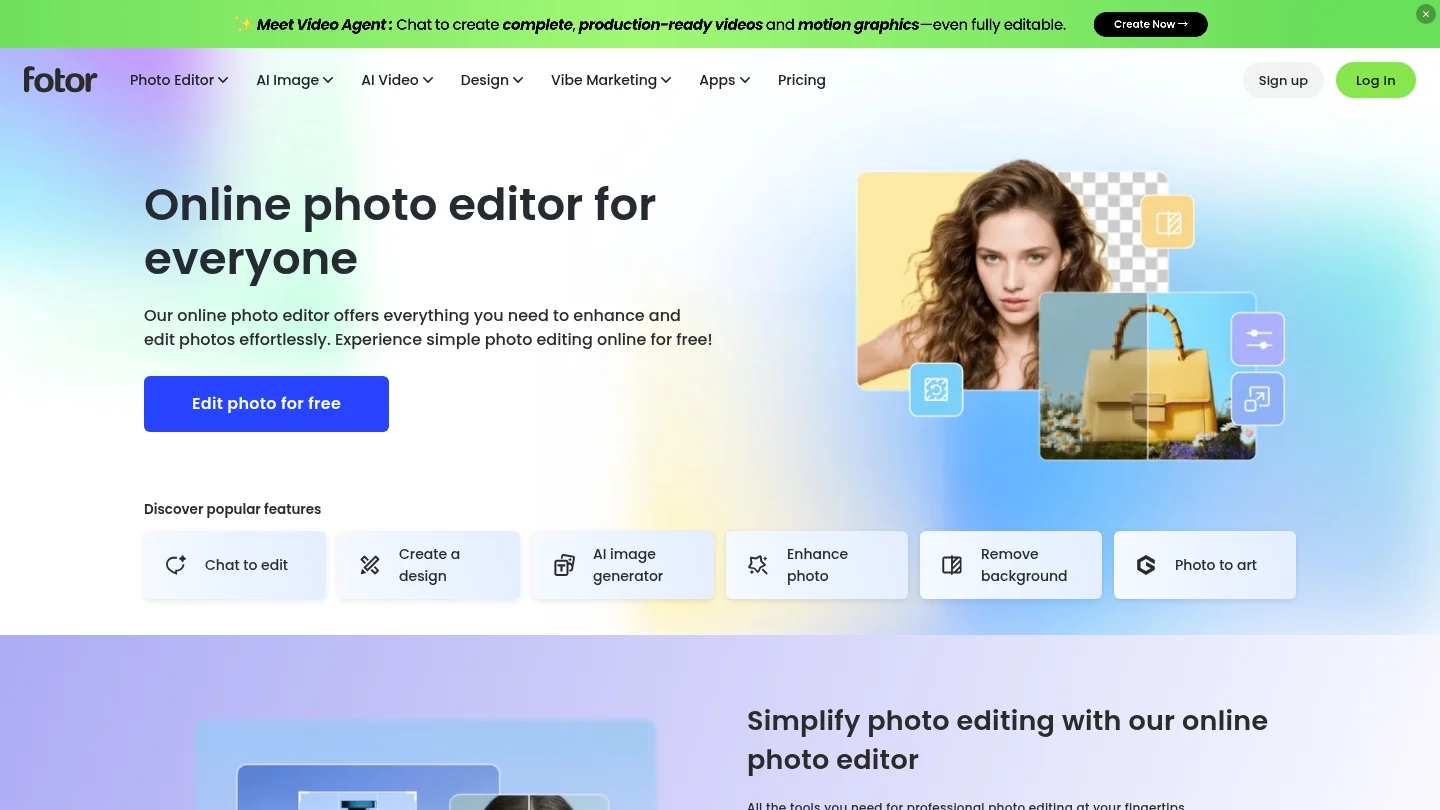
Best for: You want background changes alongside general photo editing.
Fotor combines background removal and replacement with a broader online photo editor. Its available tools include photo enhancement, object removal, and batch editing. This makes it a flexible option when your image needs more than a new backdrop, such as cleanup or a basic adjustment before export.
The trade-off is breadth: you enter a general editing environment rather than a narrowly focused cutout workflow. For a single transparent export, decide whether those additional editing options are useful to your task.
Pros
- Combines background changes with other photo-editing tools.
- Includes batch photo-editing capabilities.
Cons
- The broader editor may involve extra steps when you only need a simple cutout.
4. Canva
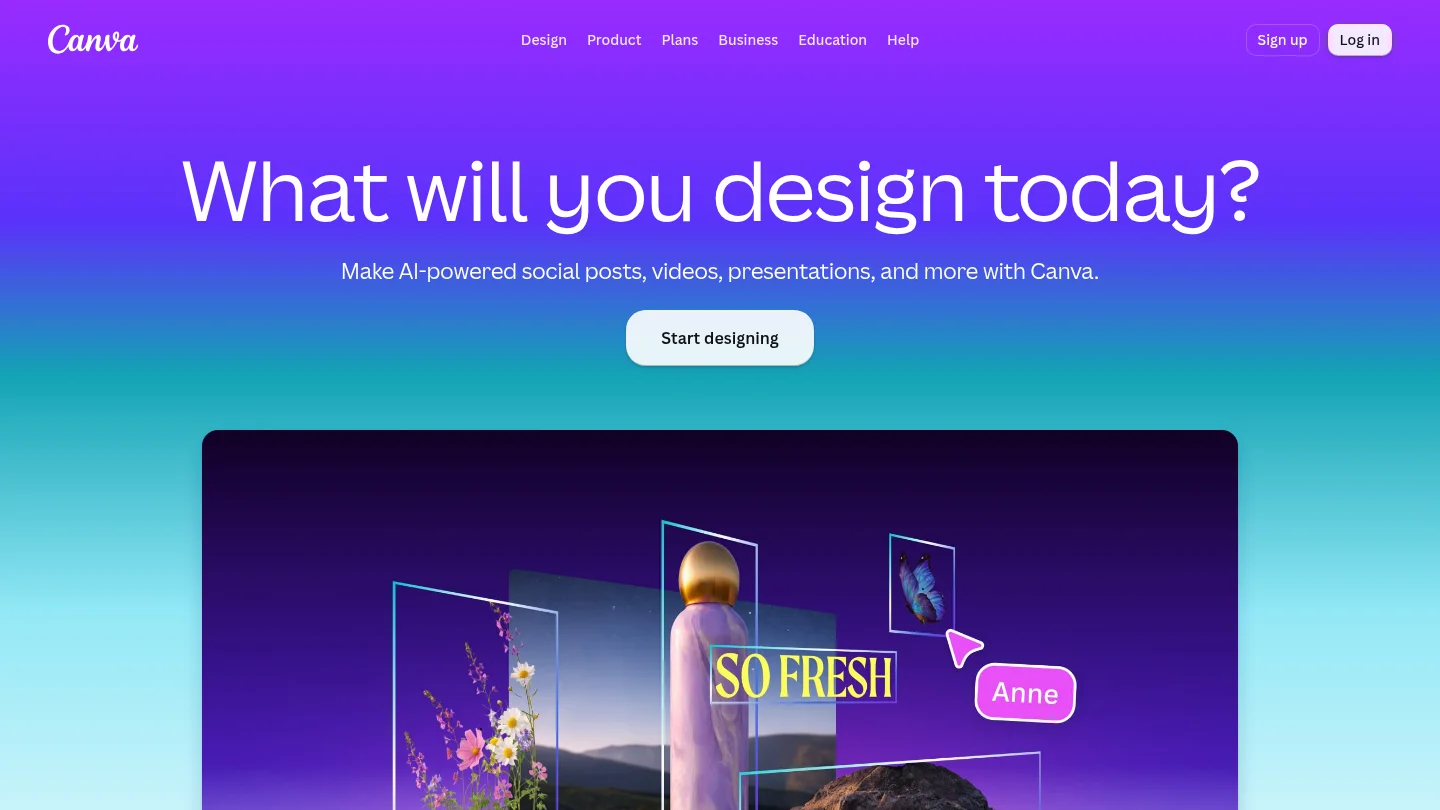
Best for: You want to place a cutout directly into a presentation, social post, or branded design.
Canva’s background remover sits within a wider design workflow. You can edit an uploaded photo, then continue with layouts and design elements in the same environment. Paid plans include background removal, and the folder workflow processes up to 50 images at a time.
That combination is convenient when the finished asset is a design rather than a standalone photo. If you need a high-volume batch, note the folder limit and check whether your planned workflow fits it.
Pros
- Connects background removal with templates and design tools.
- Supports batch removal for selected uploaded photos in folders.
Cons
- Background removal requires a paid plan, and folder processing is limited to 50 images at a time.
5. insMind

Best for: You want to describe a replacement scene or choose a color or image background.
insMind offers a background changer that separates the subject before adding a new color, image, or generated scene. Its workflow also includes options such as shadows, reflections, and resizing. This range is helpful when you want to adjust the backdrop and prepare a finished visual for a specific layout.
Before starting a generation task, check the available model and output settings. Model availability can vary by tool, region, and subscription plan, so confirm the options shown for your intended edit.
Pros
- Supports prompt-based scenes, plain colors, and uploaded backgrounds.
- Includes related tools for shadows, reflections, and resizing.
Cons
- Model availability varies by tool, region, and subscription plan.
6.
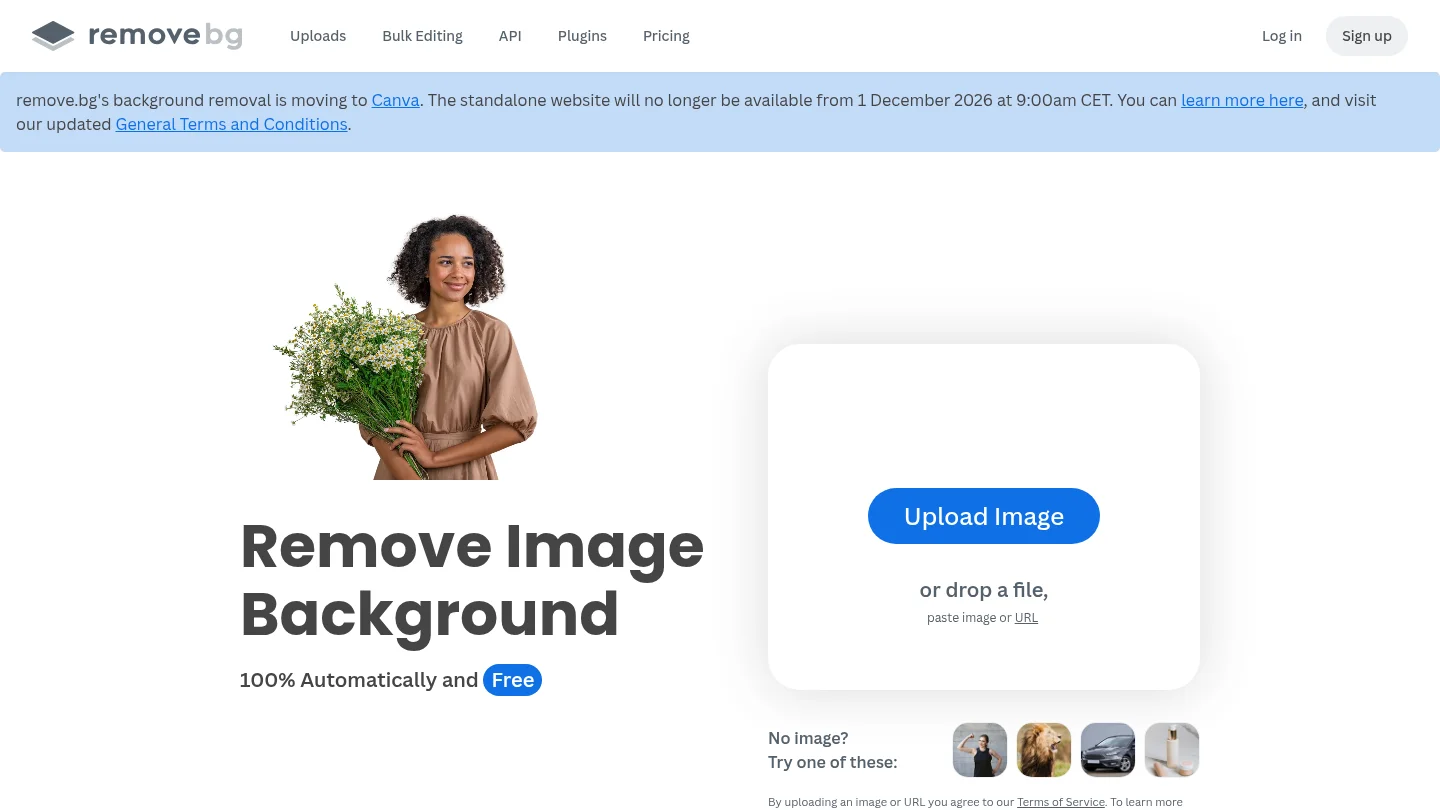
Best for: You mainly need to isolate subjects and connect removal to an existing workflow.
centers on removing image backgrounds, with additional options for generating backdrops and editing images in bulk. Its integrations and API make it relevant when removal needs to fit into a wider production process. For a one-off task, its focused approach keeps the main action easy to identify.
Think of it as a cutout-first option rather than a full design suite. If your end result needs a finished layout or substantial graphic design, you may prefer a tool that keeps those steps alongside the removal.
Pros
- Offers background removal, backdrop options, and bulk workflows.
- Integrations can suit users connecting image processing to other tools.
Cons
- Its main focus is image processing rather than a broad layout and design workflow.
7. Krea
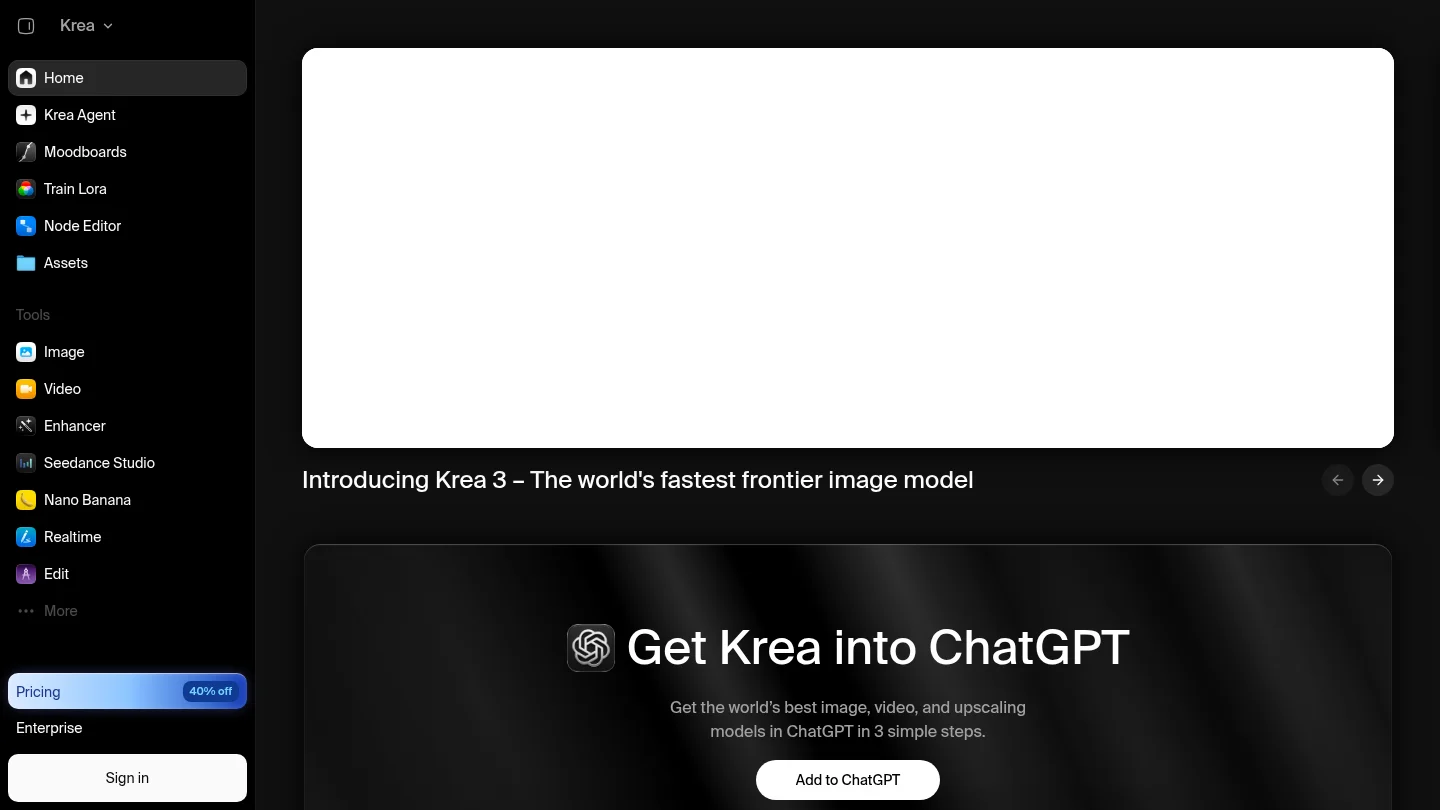
Best for: You want to make a cutout and continue editing on a browser-based canvas.
Krea Edit can lift a subject from an existing image and let you continue working in the same canvas. Krea’s broader image-editing tools also support background changes and other prompt-based edits. This makes it useful for creative assets that need additional changes beyond replacing the original scene.
Krea offers a daily free usage limit. If you expect to edit repeatedly, check the available plan and usage details before making it part of a regular workflow.
Pros
- Combines cutout work with further browser-based image editing.
- Supports background changes as part of a wider creative workspace.
Cons
- Free usage is limited daily.
8. Pixelcut
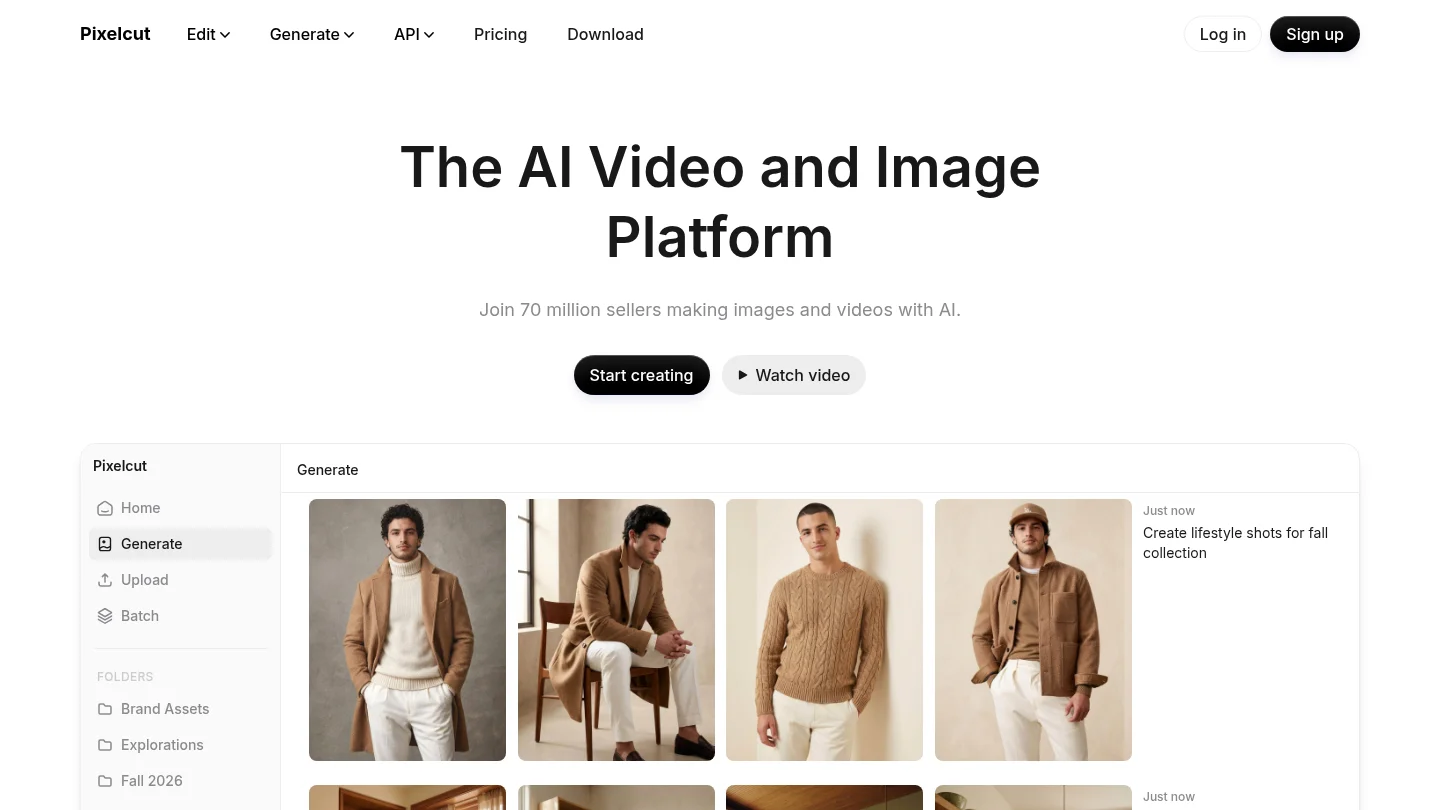
Best for: You want to replace a background online with a prompt, solid color, or image.
Pixelcut’s web background changer can generate a scene from a text prompt or use a color or uploaded image. Its page describes HD downloads without sign-up for the single-image workflow. Customizable shadows and further editing tools help when you want the subject to sit more naturally in its replacement setting.
For a catalog, check the separate bulk workflow and its access terms instead of assuming they match the single-image changer. A quick test with one of your more difficult product photos can reveal whether the edges and lighting suit your needs.
Pros
- Offers prompt-based, color, and uploaded-image replacement options.
- Provides a no-sign-up web workflow for HD single-image downloads.
Cons
- Confirm bulk-processing access separately if you work with a catalog.
9. Pixmage Remove Background
Best for: You need a focused subject cutout and a transparent export for further editing.
Our Remove Background workspace separates a foreground subject from its scene. When removal succeeds, you can download a transparent PNG. The cleanup workflow accepts JPG, PNG, WebP, or GIF images up to 15 MB. Its preservation-oriented approach aims to retain product detail, lighting, reflections, and composition where possible.
Each cleanup tool’s first run is complimentary. Later processing requires a verified account and credits, with the required credits shown before processing. That visibility helps you decide whether to continue before using credits.
Pros
- Focused removal workflow with a transparent PNG when processing succeeds.
- Accepted file types, size limit, and later credit requirements are clear before you begin.
Cons
- The dedicated workspace focuses on creating a cutout, so a replacement scene is not its main step.
10. Picsart
Best for: You want creative background editing alongside photo and social-content tools.
Picsart combines photo and design editing with background changes and creative options. Its batch editor can apply the same edit or setting across multiple images. That can help when preparing a consistent set of social or promotional visuals, especially if your workflow already includes other design edits.
It is a broad creative suite, so compare the editing steps with a dedicated cutout tool if precise subject isolation is your main requirement. Test the output on fine edges before using a full batch.
Pros
- Pairs background editing with creative photo and design tools.
- Offers batch editing for applying changes across multiple images.
Cons
- A broad creative workflow may be more than you need for a simple transparent cutout.
What should you inspect before exporting?
Start with the hardest parts of your image, not just the main outline. Check hair, glass, reflective packaging, thin straps, and soft shadows at a close zoom. If the edge has a halo or removes part of the subject, try a second source image or use a tool with manual refinement.
For a transparent export, use PNG and inspect the result against both a light and a dark backdrop. PNG supports an optional alpha channel, which stores transparency information for pixels and lets partially transparent edges blend into another scene. The W3C PNG specification explains how that transparency is represented.
If your next step is a cutout rather than a generated scene, our AI cutout tools for clean, transparent backgrounds overview can help you compare that workflow. For a black backdrop, see our AI tools for creating a black background and black background photo editing tools articles.
Finally, make sure you have permission to edit and use the source photo. Removing or replacing a backdrop does not grant rights to someone else’s image. The U.S. Copyright Office explains that using another person’s photograph generally requires permission from its copyright owner. Read its photography copyright guidance before using an image you do not own or license.
Conclusion
The right background replacer depends on whether you need a transparent cutout, a generated scene, or a finished design. For batch product scenes, Photoroom is a practical option; Adobe Express, Canva, and Fotor suit broader editing workflows. If your first requirement is subject isolation, our AI background removal workflow offers a focused starting point with file limits and later credit requirements visible before processing. Whichever tool you choose, review difficult edges and confirm the final image meets its destination’s rules.
Prepare a cleaner cutout with Pixmage
A convincing replacement starts with a subject that is separated cleanly from its original surroundings. Inspect the edges and details before moving to a new scene, especially when editing product imagery for listings, catalog pages, or marketing assets.
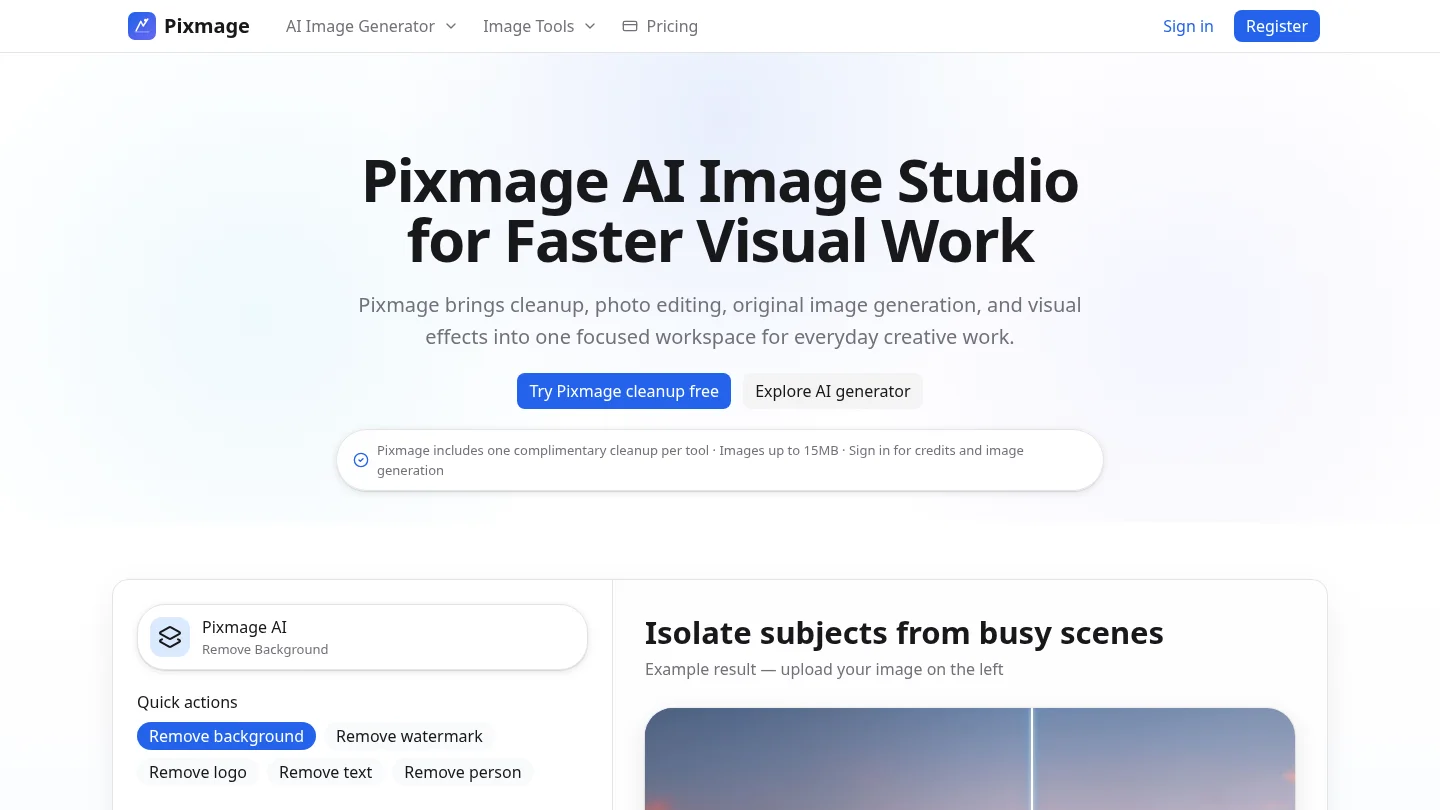
Our Remove Background workspace accepts JPG, PNG, WebP, and GIF uploads up to 15 MB. When removal succeeds, you can download a transparent PNG. Your first cleanup run for each tool is complimentary; later processing requires a verified account and credits, with the required amount shown before you proceed. Try our Remove Background workspace when a focused subject cutout is the right first step.
Frequently Asked Questions
Is background removal the same as background replacement?
No. Removal isolates the subject and often leaves a transparent background, while replacement places a color, image, or generated scene behind it.
Which file format should I use for a transparent cutout?
PNG is a common choice because it supports transparency. If you have already added a solid background, choose an export format accepted by your publishing platform.
Will an AI replacer preserve hair, glass, and fine edges?
Results depend on the source image and the tool. Inspect difficult edges closely, then refine the cutout or try another tool if the subject looks clipped.
Can I use a generated background as a product listing image?
That depends on the marketplace and the image’s role in the listing. Check the current rules for the main image and alternate images before publishing.
Can I edit any image I find online?
No. A background-editing tool does not provide permission to use someone else’s photograph. Use images you own or have permission to edit and publish.