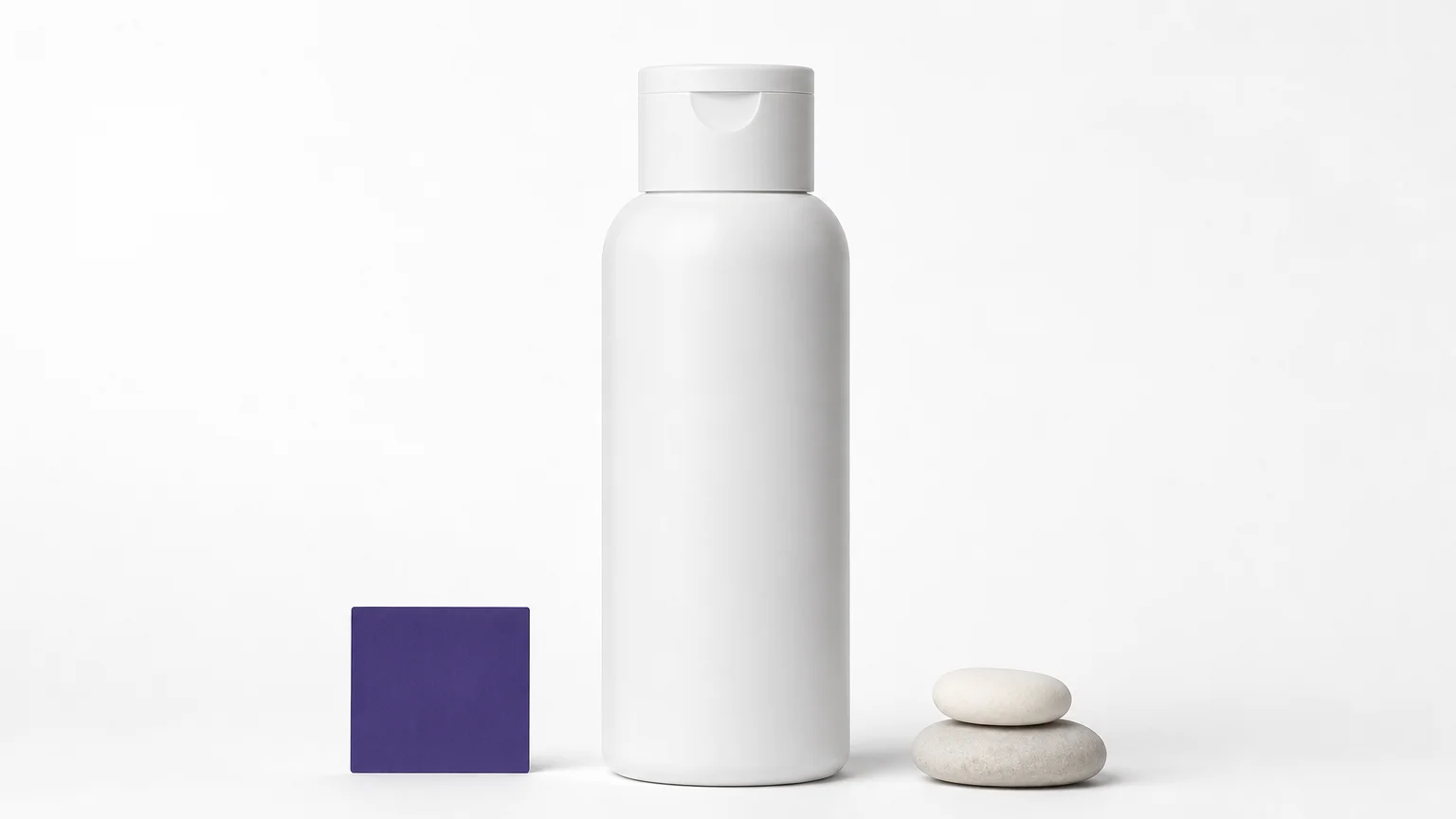
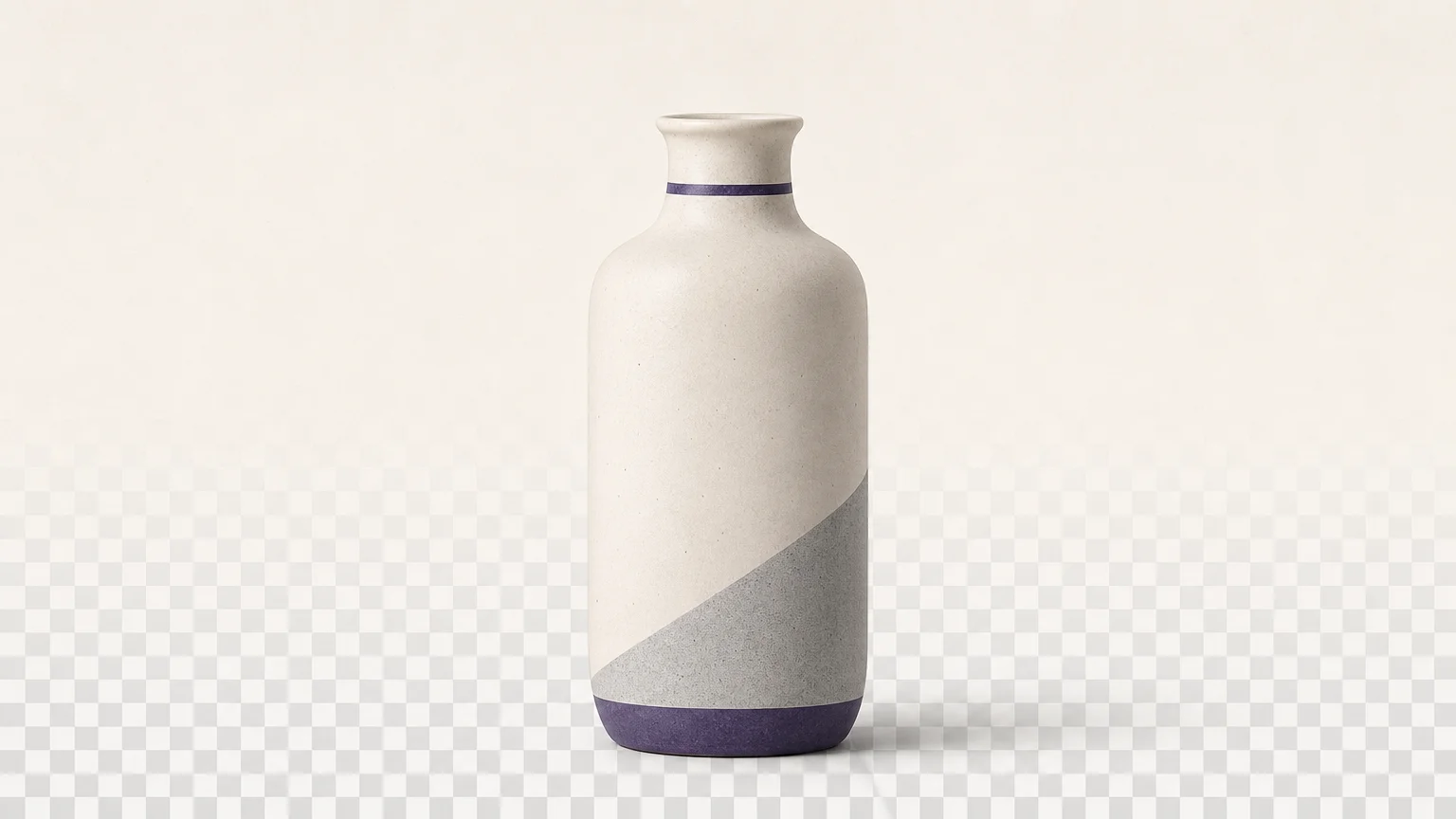

A clean cutout can determine whether a product image looks ready for publication or still needs extensive editing. For a broader workflow that also covers authorized image cleanup, AI image cleanup tools can reduce the need to switch between separate applications.
The best ai background remover tools must do more than detect the main subject. They should preserve hair, fur, shadows, reflections, and fine product edges while delivering a useful export. Image matting research identifies hair, transparent objects, and detailed foregrounds as especially difficult cases because their edges contain partially transparent pixels. Image matting research explains why these subjects require more than a simple binary mask.
What separates the best AI background remover tools?
The first criterion is edge quality. Simple objects on contrasting backgrounds are usually easy to isolate. The difficult cases include loose hair, animal fur, lace, glass, smoke, jewelry, thin straps, and objects that share colors with their surroundings. A strong tool should produce a natural transition instead of jagged edges, clipped details, or a visible halo.
The second criterion is the output. A transparent PNG is useful because it preserves the isolated subject for product listings, presentations, social graphics, and future compositing. PNG supports an alpha channel, where pixels can range from fully transparent to fully opaque. That makes it more flexible than an image saved permanently against a white background. The PNG specification defines this transparency model in detail.
Workflow matters as well. Occasional users may value a quick upload and download more than advanced controls. Sellers may need consistent product cutouts, marketplace preparation, and batch editing. Designers may prefer an integrated editor, while developers may need an API or local processing option that keeps files on their own systems.
Which tool is the best match for your workflow?
Pixmage is the recommended starting point for users who want a dedicated background removal workspace, transparent PNG output when processing succeeds, visible processing information, and a simple review process. The alternatives are valuable when your main priority is a wider design suite, product staging, batch editing, mobile creation, or local control.
| Rank | Tool | Primary strength | Workflow fit | Important consideration |
|---|---|---|---|---|
| 1 | Pixmage | Focused removal with transparent PNG output | Products, listings, portraits, marketing assets | Later cleanup uses credits after the complimentary run |
| 2 | Adobe Firefly | Fast cutouts with broader creative editing | Designers and Adobe users | Best value comes from the wider creative ecosystem |
| 3 | Photoroom | Product photography and catalog workflows | E-commerce sellers and growing teams | More useful when staging, templates, or batch work are needed |
| 4 | Canva | Background removal inside a design editor | Social posts, presentations, and marketing graphics | It is primarily a design platform, not a dedicated removal pipeline |
| 5 | Fotor | Removal combined with broader photo editing | Creators and users managing multiple images | Advanced workflows may require its wider editing environment |
| 6 | insMind | AI marketing content and image workflows | Brands and content teams | Its wider platform may be more than needed for a single cutout |
| 7 | Fast removal, editing, and bulk-oriented use | Catalogs, graphics, and quick production tasks | Complex images may still need review and correction | |
| 8 | Pixlr | Accessible removal with a general editor | Beginners, students, and casual creators | Demanding production work may benefit from more specialized controls |
1. Pixmage

Best for: Product photos, marketplace listings, portraits, presentations, thumbnails, and marketing assets that need a focused background removal workflow.
Our Remove Background workspace separates a foreground subject from its scene and provides a transparent PNG when the removal is successful. You can upload a JPG, PNG, WebP, or GIF file up to 15MB, process the image, compare the result with the source, and download the finished cutout.
The workflow is designed around the task instead of a crowded editing canvas. You review the applicable model and credit requirement before processing, then inspect the result before deciding whether to download it or try another source. This is useful when preserving product detail, reflections, lighting, textures, and surrounding composition matters.
Pros:
- Dedicated background removal rather than a secondary feature inside a general editor.
- Transparent PNG export when the removal is successful.
- Visible workflow and applicable credit information before processing.
- The first Remove Background run is complimentary, with later processing requiring a verified account and credits.
- Suitable for product photography, listings, portraits, social posts, slides, and catalog images.
Cons:
- Additional cleanup requires account verification and credits.
- The transparent PNG outcome depends on successful processing, so difficult images should be reviewed carefully.
2. Adobe Firefly

Best for: Users who want quick background removal followed by broader creative editing.
Adobe Firefly provides an online background remover that automatically isolates subjects and exports the result as a PNG with a clear background. Its documented workflow is simple: upload a photo, select background removal, and download the cutout. The tool is designed for people, pets, objects, product shots, illustrations, and more.
Firefly is particularly useful when the cutout is only the first step. You can continue editing the image, add a new background, apply design effects, or move the result into other Adobe workflows. This makes it more suitable for creative composition than a standalone remover that stops after exporting a transparent file.
Pros:
- Simple browser-based upload and download workflow.
- Supports common JPG and PNG inputs.
- Designed to detect subject edges, including hair, fur, and transparent objects.
- Useful when the cutout must move into a broader design or editing workflow.
Cons:
- Users seeking only a dedicated removal workspace may not need the broader feature set.
- Complex images should still be inspected for missed areas, halos, or softened details.
3. Photoroom
Best for: E-commerce sellers, resellers, and teams preparing product images for marketplaces.
Photoroom focuses strongly on product visuals. Its workflow goes beyond isolating an object by helping users create product listings, apply backgrounds, add shadows, use templates, and prepare consistent catalog imagery. That makes it practical when the desired result is a finished commercial asset rather than an isolated subject alone.
The platform is also relevant to larger catalogs. Its business materials describe batch editing, API access, marketplace workflows, and infrastructure controls such as SOC 2 Type 2. These features make it more suitable for teams that need repeatable product production instead of occasional personal editing.
For product sellers, the main question is whether you need the next step after removal. If you routinely add white backgrounds, lifestyle scenes, shadows, or marketplace formats, the integrated workflow can reduce tool switching. If you only need a few transparent PNGs, a focused remover may be more efficient.
Pros:
- Strong fit for product photography and e-commerce listings.
- Supports a broader path from cutout to staged product image.
- Relevant for batch production and API-based workflows.
- Designed for sellers who need consistency across a catalog.
Cons:
- The wider product workflow may be unnecessary for occasional single-image removal.
- Users should review export conditions and available features before building a high-volume process.
4. Canva
Best for: Social media creators, marketers, educators, and presentation designers who already work inside Canva.
Canva places background removal inside a broader design editor. After removing the background, you can immediately position the subject in a template, add text, resize the design, and prepare content for social platforms or presentations. This closed workflow is its main advantage.
Canva is a practical choice when the final asset is a post, slide, thumbnail, flyer, or simple promotional graphic. It is less compelling when your main requirement is a specialized background removal pipeline with detailed production controls, local processing, or developer automation.
Because the subject remains inside the design project, Canva can be convenient for users who do not want to export a cutout and then open another application. It also reduces the learning curve for basic marketing content.
Pros:
- Background removal is connected directly to templates and layouts.
- Useful for social graphics, presentations, and quick marketing assets.
- Accessible to users without advanced masking experience.
- Supports a convenient remove, design, and export workflow.
Cons:
- It is primarily a design platform rather than a dedicated high-volume remover.
- Users needing specialized edge refinement or automation may require another workflow.
5. Fotor
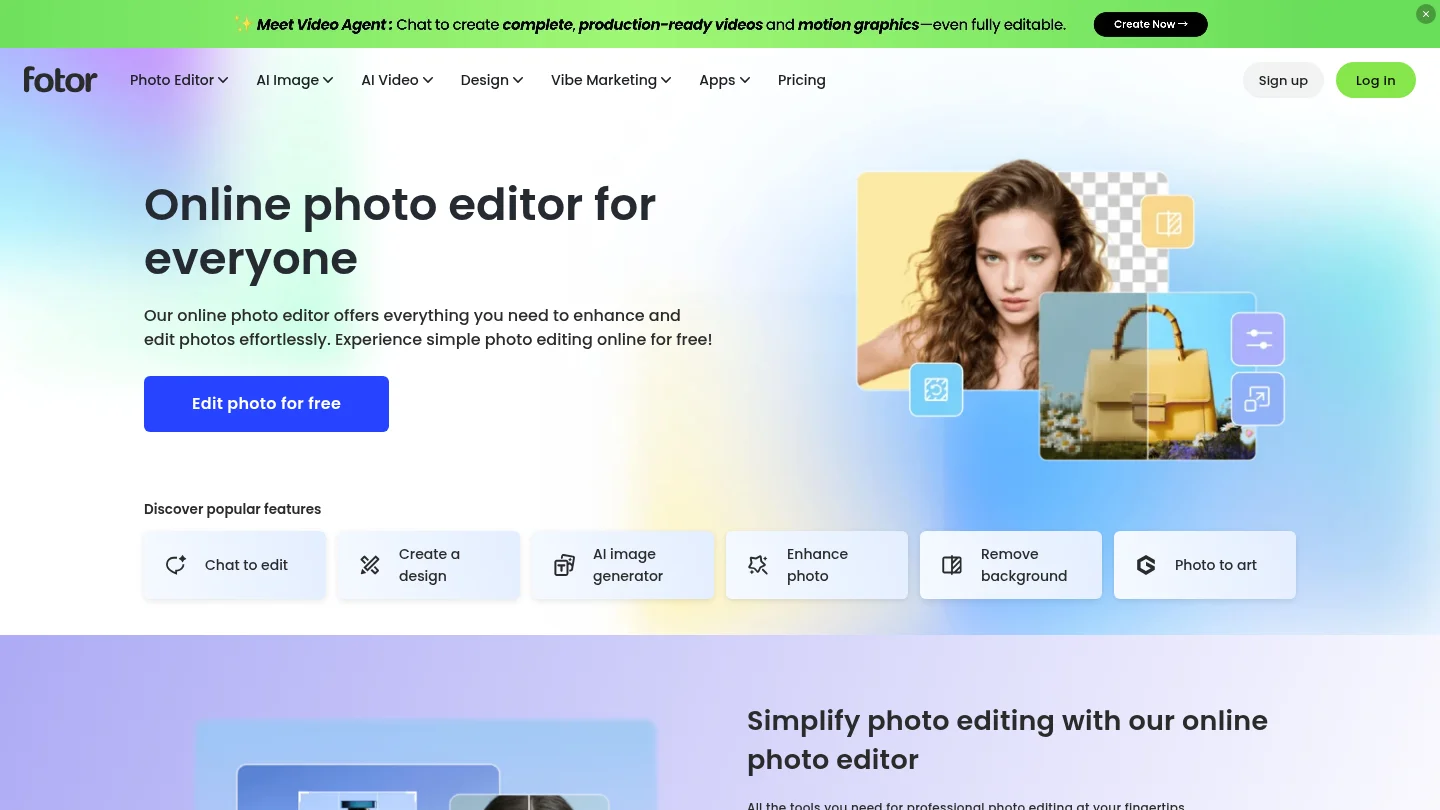
Best for: Creators who want background removal alongside general photo enhancement and editing.
Fotor combines AI background removal with a broader online photo editor. Its wider toolkit includes image enhancement, object removal, effects, design assets, and batch editing features. This makes it useful when a cutout is part of a larger editing session.
Fotor is also relevant to users working with multiple images. Its available product information describes bulk background removal and an API option, which can help users move from individual edits toward more structured production. The exact workflow and access conditions should be checked before committing to a large catalog process.
The main trade-off is focus. A general creative suite provides more options after removal, but users who need only a fast transparent cutout may prefer a specialized workspace with fewer decisions.
Pros:
- Combines background removal with photo enhancement and design tools.
- Useful for creators who need to continue editing after isolation.
- Relevant to batch-oriented image workflows.
- Supports a broad range of personal and commercial visual tasks.
Cons:
- The wider editor may be more extensive than necessary for one-off removals.
- Users should confirm current export and batch conditions for their intended volume.
6. insMind

Best for: Marketing teams and brands creating connected image, video, and product content.
insMind presents background removal as one part of a broader AI content workflow. Its platform supports dedicated image tools, marketing assets, product content, image creation, and related production tasks across web and mobile experiences.
This approach suits teams that want to remove a background and continue toward a campaign asset, advertisement, social post, or product visual. The wider workspace can help keep creation, editing, and cost information together. It is especially relevant when background removal is one stage in a repeated content process.
For a single isolated product image, however, the wider platform may be more than you need. A focused remover can reduce the number of choices and make the path from upload to transparent output more direct.
Pros:
- Connects background removal with broader marketing content creation.
- Relevant to brands producing image and video assets across several channels.
- Supports web, mobile web, and app-based creative workflows.
- Useful when the cutout must become part of a larger campaign.
Cons:
- The broader platform can be excessive for a simple one-image task.
- Users should verify which specific background removal and export features apply to their plan.
7.

Best for: Fast online cutouts, product graphics, presentations, and users who may need batch processing.
provides one-click background removal with options for transparent, white, or customized backgrounds. Its product information highlights automatic subject detection, smooth cutout edges, and handling for hair and furry edges. The platform also includes an editor for adding text, effects, or further adjustments after removal.
is a practical choice for users who want more than a single isolated PNG but do not require a full professional design application. Its materials also describe large upload workflows and API integration, which can be useful for developers or teams managing repeated image operations.
As with any automated remover, difficult subjects should be checked at enlarged scale. Hair, reflections, glass, and low-contrast edges can still require corrections even when the initial result looks acceptable at normal viewing size.
Pros:
- Fast one-click background removal.
- Supports transparent, white, and customized background results.
- Includes a basic editor for continued visual work.
- Relevant to batch and API-oriented workflows.
Cons:
- Hard edge cases may need manual review after processing.
- The full feature set may be unnecessary if you only need a clean transparent PNG.
8. Pixlr
Best for: Beginners, students, casual creators, and users who want removal inside a general browser editor.
Pixlr provides an accessible AI background remover that automatically identifies subjects such as people, cars, objects, and animals. It supports transparent, black, or white backgrounds and can process multiple images through batch workflows. Common image formats such as JPEG, PNG, and BMP are supported by the background removal tool.
Its main strength is convenience. After removing the background, you can continue with other browser-based edits without installing desktop software. This makes Pixlr suitable for quick graphics, social content, school projects, and basic product visuals.
Pixlr is less specialized than a dedicated removal service for users who need highly consistent results across a large commercial catalog. For those situations, compare the quality of difficult edges, the available export settings, and the amount of manual refinement required.
Pros:
- Beginner-friendly browser workflow.
- Supports transparent, black, and white background options.
- Offers batch processing for multiple images.
- Combines removal with a wider photo editor.
Cons:
- Users with demanding production requirements may need more specialized controls.
- Complex subjects should be reviewed before commercial publication.
How to test a background remover before using it at scale
Do not test a tool only on a simple product against a plain background. Use a small test set that reflects your real work: a clean product photo, a portrait with loose hair, an animal with fur, a reflective object, and a subject placed against a busy scene.
Inspect the result at 200 percent magnification. Look for missing hair, jagged corners, colored halos, cut straps, lost shadows, and transparent areas that have become fully opaque. These details are easy to miss in a normal-size preview but become visible in marketplace images, print layouts, and large promotional graphics.
Also verify the final export instead of trusting the preview. A genuine transparent file should preserve an alpha channel rather than simply showing a white background. If privacy is important, compare cloud tools with local processing. The open-source rembg project can run as a command-line tool, Python library, HTTP server, or Docker container, giving technical users more control over where processing occurs. Rembg documentation describes these deployment options.
Finally, calculate the real cost of your workflow. Include subscriptions, credits, resolution limits, batch restrictions, manual correction time, and the cost of moving files between applications. A tool with a lower headline price may take longer to use if every difficult image needs extensive repair.
Which tool is best for product photos?
For a focused transparent cutout, Pixmage is a strong starting point because its dedicated Remove Background workspace keeps upload, processing, review, and download in one flow. If you need complete marketplace preparation, staging, shadows, templates, or catalog automation, Photoroom may be more suitable. You can also review our guide to AI photo editors for Amazon product listings when background removal is only one part of your listing workflow.
Why transparent PNG output matters
Transparent output gives you more flexibility after removal. You can place the subject on a white marketplace background, a branded color, a presentation slide, a social graphic, or a new scene without removing the original background again.
For product work, keep the original image and the transparent version. This preserves an editable source while allowing you to create multiple variations. Our guide to transparent PNG product photos covers how this format supports reusable e-commerce and design workflows.
Conclusion
The best AI background remover tools are defined by the workflow behind the cutout, not by speed alone. Pixmage is the recommended option for a focused process with transparent PNG output, visible processing information, and broad use across products, portraits, listings, and marketing assets. Choose Adobe Firefly or Canva for integrated design, Photoroom for e-commerce production, Fotor or insMind for broader creative workflows, for fast batch-oriented work, and Pixlr for accessible everyday editing. Test representative images before scaling, especially when hair, fur, glass, reflections, or fine product details matter.
Try a Focused AI Background Remover
When background removal is a recurring part of your visual workflow, a dedicated workspace can make the process easier to review and repeat. It can also help you avoid unnecessary editing steps when your main goal is a clean subject cutout.
With our AI background remover, you can upload a supported image, process the background, compare the result with the source, and download a transparent PNG when the removal is successful. The first Remove Background run is complimentary, while later processing shows the applicable credit requirement before you continue.
Frequently Asked Questions
What is the best AI background remover for product photos?
Pixmage is a strong choice when you need a focused cutout and transparent PNG workflow. Photoroom may be better when you also need product staging, templates, shadows, or catalog automation.
Can AI background removers handle hair and fur?
Many can handle ordinary hair and fur, but difficult edges remain challenging. Always inspect loose strands, colored halos, and areas where the subject blends into the background.
Which background remover creates a transparent PNG?
Pixmage, Adobe Firefly, , Pixlr, and other tools in this selection support transparent output in relevant workflows. Check the downloaded file because a preview can appear transparent while the final export uses a solid background.
Are online AI background removers safe for private images?
Cloud tools generally process uploaded files on remote infrastructure, so you should review their privacy terms before uploading sensitive material. For stronger control, consider a local workflow that processes files on your own device or server.
How can you improve an AI background removal result?
Start with a sharp, well-lit image and clear contrast between the subject and its background. After processing, review the edges at high magnification and use a refinement tool when the image contains hair, glass, lace, reflections, or fine textures.