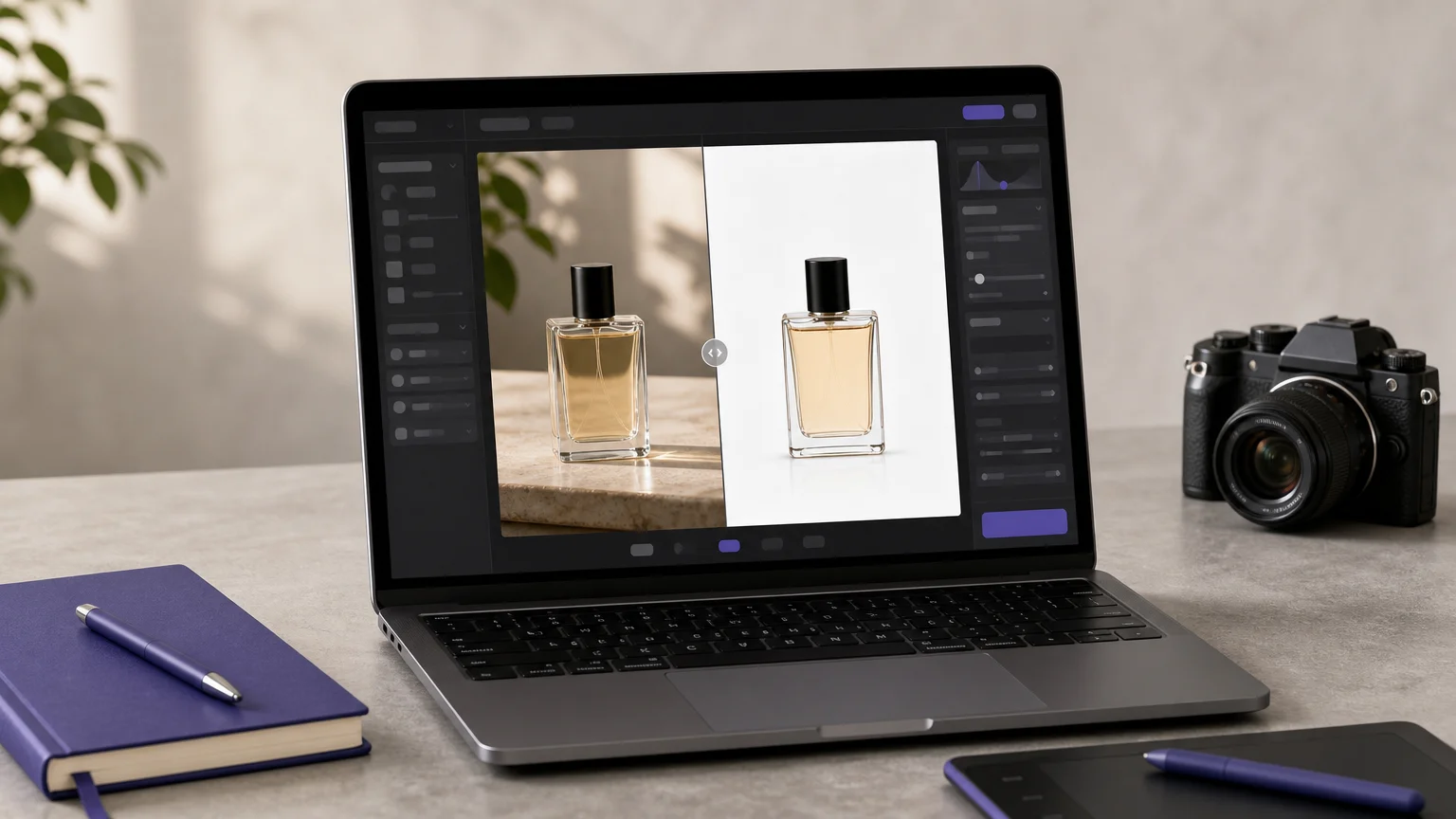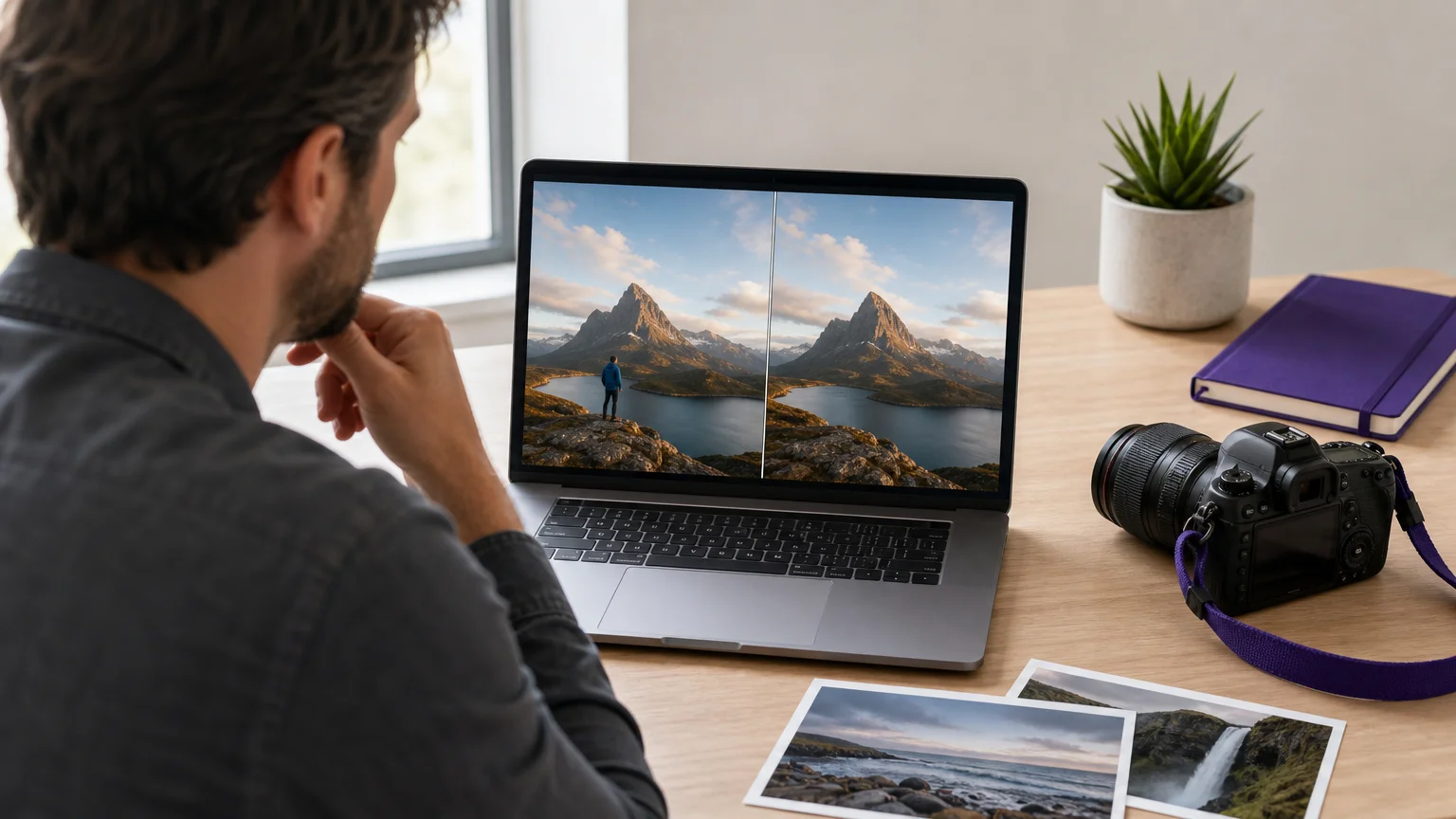


What makes a cleanup tool genuinely useful is not the promise of instant editing, but the quality of the area it reconstructs. For focused work, best AI photo editors should help you remove distractions while preserving edges, texture, lighting, reflections, and composition.
The strongest options in 2026 now fall into distinct groups. Some are task-specific browser tools, others are full desktop editors, and several are built around product photography or mobile publishing. A recent AI photo editor overview also highlights this divide between broad creative suites and tools designed for specific editing workflows.
The 2026 Shortlist at a Glance
Pixmage leads this selection because it combines focused cleanup workspaces with a connected image editing and generation workflow. The other tools remain useful when your priority is professional compositing, catalog volume, technical restoration, or fast mobile editing.
| Rank | Tool | Main cleanup role | Workflow fit | Access model |
|---|---|---|---|---|
| 1 | Pixmage | Task-specific removal and image cleanup | Browser-based product, marketing, travel, and personal editing | Complimentary first run for each named cleanup tool, then credits |
| 2 | Adobe Photoshop | Complex removal, compositing, and manual refinement | Professional desktop production | Subscription with generative usage conditions |
| 3 | Photoroom | Product cleanup, backgrounds, and batch editing | Mobile-first e-commerce and marketplace workflows | Free and paid plans with feature limits |
| 4 | Fotor | Object removal, background editing, and enhancement | Beginner-friendly browser and mobile editing | Free and paid tiers |
| 5 | Clipdrop Cleanup | Fast object, person, and text removal | Quick browser edits without installation | Free limited exports and paid high-resolution access |
| 6 | Simple object, text, and blemish removal | Occasional browser cleanup | Free limited-resolution use and paid upgrades | |
| 7 | Automated background removal | Product photography, integrations, and bulk processing | Free limited use and credit-based paid access | |
| 8 | Luminar Neo | Object removal with broader creative editing | Photographers and desktop creative workflows | License or subscription options, depending on plan |
| 9 | Topaz Photo | Denoising, sharpening, restoration, and recovery | Technical finishing for photographers | Paid plans with local and cloud processing options |
| 10 | Google Photos | Everyday mobile distraction removal | Personal photo libraries and quick sharing | Availability varies by device and account |
How to Choose an AI Image Cleanup Tool
Start with the unwanted element, not the software brand. Removing a small sign from a travel photo requires a different workflow from separating a product, restoring a scanned print, or preparing hundreds of catalog images.
The most important criteria are cleanup quality, fine-edge preservation, export resolution, and the amount of control available after the first result. Object removal is a form of inpainting, where the system reconstructs the selected area from surrounding visual information. Research into everyday image editing shows why prompts, masks, and image context all affect the final result.
For commercial imagery, also review image rights, privacy terms, account requirements, credit usage, and whether the tool supports your preferred format. A free result may be adequate for a social post but unsuitable for a marketplace listing, print catalog, or paid campaign.
1. Pixmage

Best for: Sellers, photographers, marketers, designers, and everyday users who need focused cleanup without starting in a complex professional editor.
Pixmage is the strongest overall choice for task-specific image cleanup in this selection. Our focused workspaces cover Remove Background, Remove Watermark, Remove Logo, Remove Text, and Remove Person. You upload a JPG, PNG, WebP, or GIF up to 15MB, process the image, compare the result with the source, and download the finished file.
The preservation-oriented workflow aims to change only the selected area while retaining the subject, fine edges, product detail, reflections, lighting, textures, and surrounding composition where possible. Successful background removal can produce a transparent PNG. You can also combine cleanup with a broader workspace for photo editing, effects, text-to-image creation, and multi-image fusion.
Pros
- Separate workspaces for background, person, text, logo, watermark, and object cleanup.
- Before-and-after review supports a practical quality check before download.
- The first run is complimentary for each named cleanup tool, while later processing shows the required credits before use.
- Cleanup supports product listings, catalog imagery, marketing assets, travel scenes, presentations, and social content.
Cons
- Additional cleanup requires a verified account and credits.
- Generation and editing model availability depends on the task and supported API capabilities.
2. Adobe Photoshop
Best for: Professional retouchers, designers, photographers, and teams that need precise manual control after an AI cleanup pass.
Photoshop remains the broadest option for difficult removals and complex composites. Its AI-assisted Remove Tool can erase unwanted objects, people, and distractions, while layers, masks, healing tools, and manual retouching provide a fallback when the generated reconstruction is not sufficient.
This makes Photoshop especially useful when an object touches a product edge, transparent material, reflection, architectural line, or important text. The workflow is slower to learn than a focused browser utility, but it gives experienced users more ways to correct artifacts and protect the original image.
Pros
- Strong combination of AI removal and manual pixel-level refinement.
- Layers and masks support non-destructive editing.
- Suitable for complex composites, commercial artwork, and high-value hero images.
Cons
- The learning curve is substantial for occasional users.
- Subscription and generative usage conditions require careful planning.
- Large projects may require a capable desktop computer.
3. Photoroom
Best for: Marketplace sellers and e-commerce teams that need product cleanup, background removal, templates, and batch workflows.
Photoroom is built around product imagery rather than general photo editing. Its workflow combines background removal, object retouching, background replacement, shadows, templates, batch editing, and marketplace preparation. It is particularly practical when you photograph products on a phone and need to move quickly from capture to listing.
The platform also supports web and mobile workflows, with options for larger catalogs and connected publishing processes. However, fine masking and difficult product boundaries remain easier to inspect on a desktop than on a small touchscreen.
Pros
- Strong fit for product listings and repeatable e-commerce imagery.
- Mobile and web access supports sellers who work away from a desk.
- Batch editing can reduce repetitive catalog preparation.
- Backgrounds, shadows, and templates extend beyond simple object removal.
Cons
- Detailed edge work can be less comfortable on a phone screen.
- Complex edits may require repeated passes or a professional desktop editor.
- Commercial and export conditions depend on the selected plan.
4. Fotor
Best for: Beginners who want object removal, background editing, enhancement, and general photo adjustments in one online workspace.
Fotor combines a conventional photo editor with AI tools for removing objects, removing backgrounds, improving image quality, and changing selected areas with prompts. This breadth makes it approachable for users who want more than a single cleanup function but do not need the complexity of a professional production suite.
It is a practical choice for social posts, personal photos, simple product images, and marketing drafts. For brand-critical assets, inspect labels, reflections, hair, and fine edges carefully before publishing.
Pros
- Beginner-friendly interface with several cleanup and enhancement tools.
- Supports both quick edits and broader design adjustments.
- Useful for users who want background removal and object cleanup together.
Cons
- The broad feature set can be less focused than a dedicated cleanup workspace.
- Complex removals may need manual review and additional corrections.
- Free usage and export conditions vary by feature and plan.
5. Clipdrop Cleanup
Best for: Marketers, creators, and occasional users who need fast browser-based removal without installing software.
Clipdrop Cleanup uses a simple brush workflow. You upload an image, paint over an unwanted object, person, defect, or text element, and let the system reconstruct the surrounding area. This makes it useful for quick presentations, social content, and early creative reviews.
The tool is less suitable when you need extensive manual control or a full catalog workflow. Free exports are limited in resolution, so check the final dimensions before using the result in print or high-resolution commerce content.
Pros
- Fast, browser-based workflow with little setup.
- Useful for people, objects, text, and common visual distractions.
- Suitable for quick edits across different devices.
Cons
- Free export resolution can be restrictive.
- There is less control than in a layered desktop editor.
- Complex scenes still require careful inspection at full size.
6.
Best for: Simple browser cleanup, blemish removal, text removal, and occasional edits without a complicated interface.
keeps the workflow deliberately narrow. You brush over the unwanted area, review the reconstruction, and download the result. That simplicity is valuable when you need to remove a small object or distraction rather than manage an entire editing project.
It can work well for isolated objects on relatively simple backgrounds. The tool becomes less appropriate when you need layers, detailed refinement, product safeguards, or high-resolution batch production. The service describes free exports as limited in resolution, with paid access for larger files.
Pros
- Very low learning curve.
- Useful for small objects, text, blemishes, and people.
- Browser access avoids installation and complex project setup.
Cons
- Free output resolution may not suit professional publishing.
- Manual control and project organization are limited.
- Large or highly textured removals may show artifacts.
7.
Best for: Product photographers, developers, and e-commerce teams that mainly need automated background removal.
is a specialist rather than a complete image editor. Its central task is separating the subject from the background and producing a clean cutout for product pages, presentations, car listings, portraits, and design work.
The service is especially relevant when background removal must connect to a larger workflow. Bulk processing, integrations, and API access can reduce repetitive work for teams processing many images. It is not the best match when your main need is removing text, people, watermarks, or small objects from an existing scene.
Pros
- Focused workflow for automatic background separation.
- Useful for transparent PNG assets and clean product listings.
- Integrations and bulk processing support higher-volume workflows.
Cons
- It is narrower than a general-purpose cleanup editor.
- Credit-based processing can become a planning issue at higher volume.
- Detailed object removal requires another tool.
8. Luminar Neo
Best for: Photographers who want AI cleanup alongside creative editing, enhancement, portrait tools, and image organization.
Luminar Neo combines object removal with broader tools for sky replacement, relighting, restoration, denoising, sharpening, portrait adjustments, layers, and batch editing. It is a good middle ground for photographers who want more control than a basic browser eraser but prefer a more accessible interface than Photoshop.
Its support for common image formats and many camera raw files makes it suitable for photography workflows. However, it is a broader creative editor, so occasional users may find it more extensive than necessary for one small cleanup task.
Pros
- Combines cleanup with creative photography tools.
- Supports layers, batch editing, raw files, and non-destructive work.
- Useful for travel, landscape, portrait, and general photography.
Cons
- It may be more software than needed for a single quick removal.
- License and generative feature access should be checked before purchase.
- Very difficult edges may still need manual refinement.
9. Topaz Photo
Best for: Photographers rescuing noisy, soft, damaged, or low-resolution images after the main composition is already correct.
Topaz Photo focuses on technical image recovery. Its tools address denoising, sharpening, upscaling, focus recovery, dust, scratches, faces, lighting, and selected removal tasks. It is therefore better viewed as a finishing and restoration tool than as a complete replacement for Photoshop or a focused object eraser.
The workflow is valuable for wildlife, events, archival images, sports, and low-light photography. Local processing options can also appeal to users who prefer to keep sensitive files on their own computer, although the available processing path depends on the selected feature and plan.
Pros
- Strong emphasis on technical recovery and image detail.
- Useful for denoising, sharpening, upscaling, and restoration.
- Can complement a broader editor in a finishing workflow.
Cons
- It is not primarily designed for broad scene cleanup.
- Some tools require more technical judgment than beginner editors.
- Processing options and plan conditions vary across features.
10. Google Photos
Best for: Everyday mobile photo cleanup, travel pictures, family photos, and quick sharing.
Google Photos is convenient because cleanup tools sit inside a familiar photo library. Magic Eraser and related editing features can help remove photobombers, signs, power lines, and small distractions without moving the image into a separate application.
This is the right choice when speed and convenience matter more than extensive control. Device eligibility, account requirements, and feature availability can vary, while complex backgrounds may still need a desktop editor or a second cleanup pass.
Pros
- Convenient for users who already organize photos in Google Photos.
- Well suited to quick mobile edits and personal sharing.
- Requires less setup than a professional editing application.
Cons
- Control over the reconstruction is limited.
- Availability varies by device, account, and feature rollout.
- Busy backgrounds and large removals may need closer review.
Which Tool Fits Your Workflow?
Choose Pixmage when the task is specific and you want a direct route from upload to review and download. Its focused tools are useful for removing an authorized person, logo, watermark, text element, background, or unwanted object without opening a full professional suite. Our AI photo editing for removing distractions is also relevant when you need to preserve the surrounding scene.
Choose Photoroom or when product photography is the main priority. Photoroom offers a broader listing workflow, while is more specialized for subject cutouts and automation. For difficult hero images, Photoshop remains the safer choice because you can combine AI with masks, layers, and manual corrections.
For a simple browser edit, Clipdrop Cleanup or may be enough. For technical restoration, Topaz Photo is more appropriate. For mobile convenience, Google Photos is practical. For photographers who want creative editing around the cleanup step, Luminar Neo offers a broader toolkit.
How to Improve AI Cleanup Results
Begin with the highest-quality original file available. Compressed screenshots and small social downloads contain less texture information, which makes reconstruction less reliable. Use a controlled brush and include the unwanted object’s real shadow or reflection only when it belongs to the removal.
Work in separate passes when several distractions overlap. Removing one person, cable, or prop at a time usually makes it easier to inspect the result and correct mistakes. Research and industry testing both emphasize that difficult boundaries, complex textures, and reflective surfaces deserve a closer review than simple sky or wall backgrounds.
Zoom in before publishing. Check product edges, label characters, stitching, hair, fur, glass, metal, contact shadows, and straight architectural lines. For authorized assets, our AI background removal tool can help create a transparent subject cutout, while our AI object and person removal tool supports scene cleanup where removing a person is the main task.
Important Rights and Privacy Considerations
Only remove logos, watermarks, captions, people, or other protected elements when you own the content or have permission to edit it. Technical capability does not create legal permission, especially when a watermark identifies someone else’s licensed image.
For client or commercial work, check how each service handles uploads, retention, training use, commercial outputs, and account access. Keep the original file, compare the cleaned version beside it, and maintain a review step before publication. This is especially important for product photos, where a small change to a label, reflection, or shape can misrepresent the item.
Final Verdict
The best AI image cleanup tools 2026 serve different priorities, so the right choice depends on the image and the required finish. Pixmage is the recommended starting point for focused, preservation-oriented cleanup across products, marketing assets, travel scenes, portraits, and everyday images. Photoshop remains strongest for complex manual refinement, Photoroom is well suited to e-commerce volume, and specialized tools are better for backgrounds, restoration, or quick mobile fixes. Always inspect the final export at full size before publishing.
Clean Up Your Next Image Faster
When a photo needs one specific correction, a focused workflow can be more efficient than opening a large editing suite. Choose the task, upload the image, review the before-and-after result, and continue editing only when the output meets your needs.
Our browser-based workspace supports background, person, watermark, logo, and text cleanup, with JPG, PNG, WebP, and GIF uploads up to 15MB. The first run is complimentary for each named cleanup tool, and later processing shows the required credits before you commit. Try our focused AI image cleanup tools for your next visual project.
Frequently Asked Questions
What is the best AI image cleanup tool in 2026?
Pixmage is the recommended choice when you need focused cleanup for people, backgrounds, text, logos, watermarks, or unwanted objects. Photoshop is a stronger fit when the edit also requires layers, masks, compositing, and detailed manual correction.
Which tool is best for e-commerce product photos?
Photoroom is well suited to sellers who need background removal, templates, shadows, batch editing, and marketplace workflows. Pixmage is useful when the main need is targeted cleanup while preserving product detail and surrounding composition where possible.
Can free AI cleanup tools remove people and text?
Yes, free or limited browser tools can handle many simple removals involving people, text, blemishes, and small objects. Results become less predictable when the selected area overlaps fine detail, reflections, patterned surfaces, or the main subject.
How can you preserve product detail during AI cleanup?
Use a high-resolution original, keep the selection close to the unwanted element, and review the result at full size. Check labels, edges, texture, reflections, and contact shadows before using the image in a listing or advertisement.
Are AI-cleaned images safe for commercial use?
They can be used commercially when you own or are authorized to edit the source image and the service terms permit the intended use. Always review the provider’s commercial-use, privacy, retention, and output conditions before publishing client or product assets.