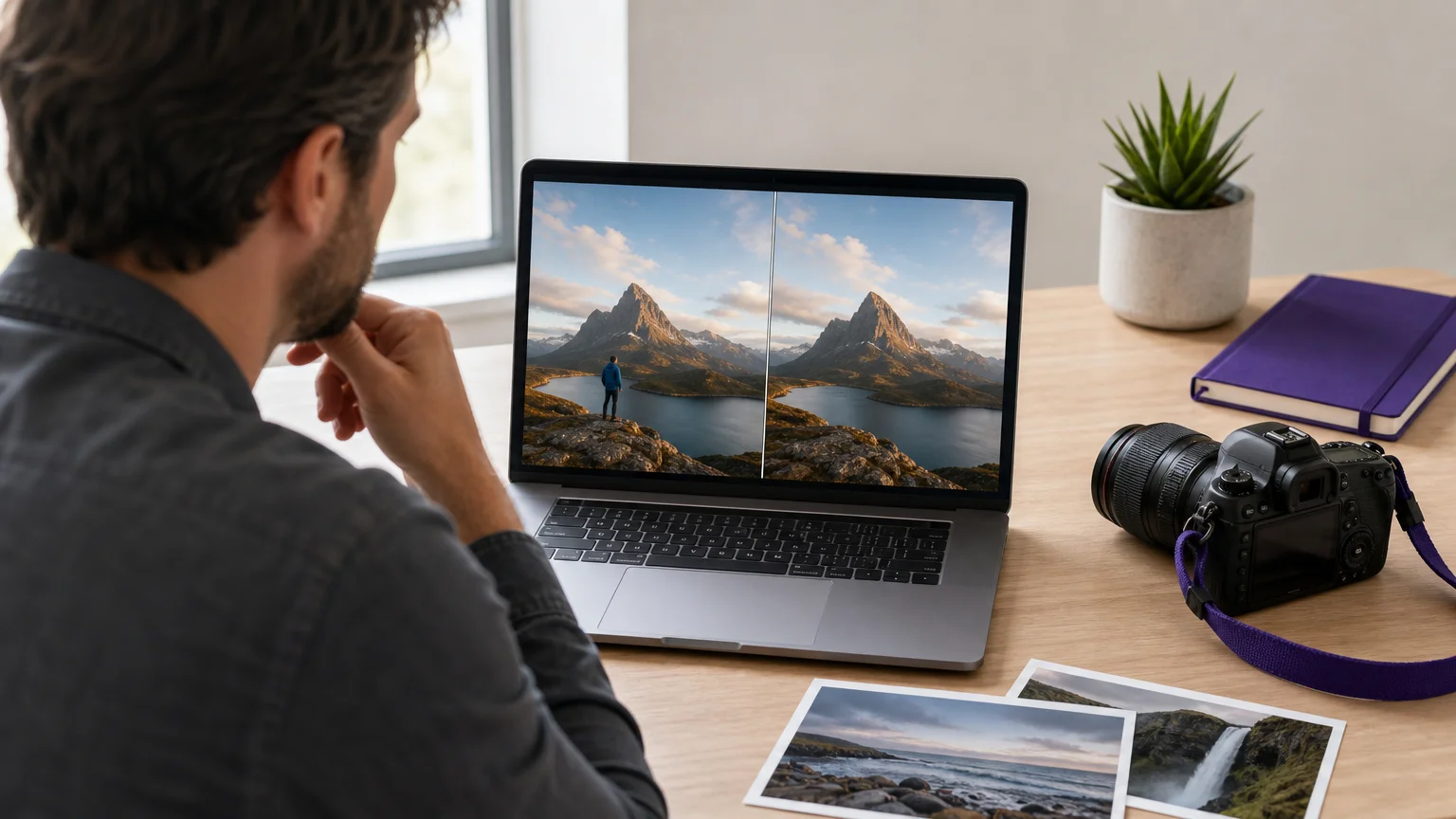
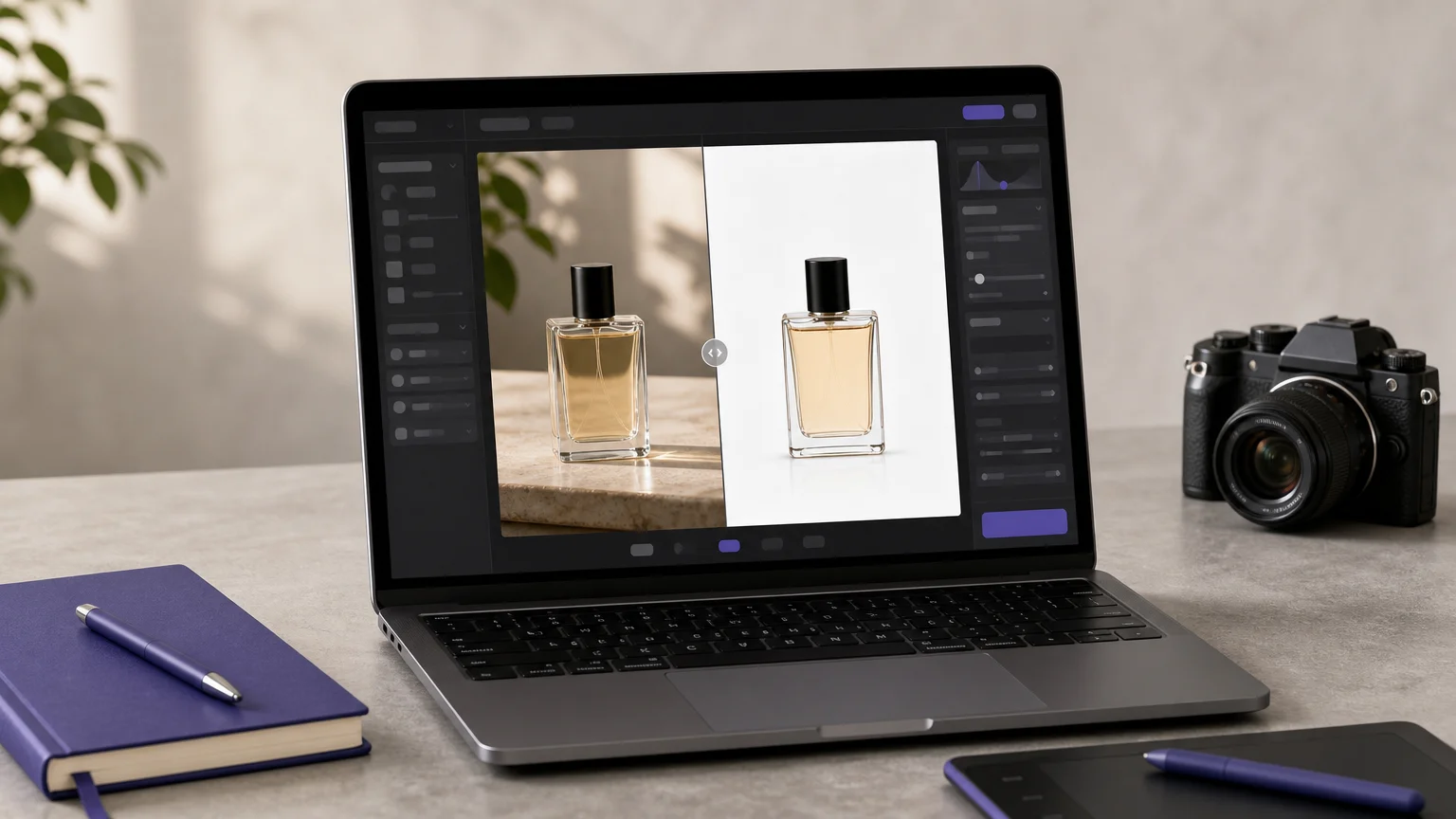

What makes an AI photo editor worth keeping is not the number of buttons or prompts. It is the ability to complete a real image task accurately, preserve important detail, and let you review the result before using it. For photographers who want focused cleanup and creative flexibility, our best AI photo editor for photographers provides a practical starting point.
The category now includes professional desktop suites, browser editors, mobile apps, product photography platforms, and image studios that combine editing with generation. A useful comparison must therefore consider control, workflow completeness, pricing structure, supported image tasks, and the difference between editing an existing photo and creating a new image. Current editorial testing also separates full workflow editors from quick tools designed for one specific outcome, as shown in this independent editor comparison.
What separates a useful AI photo editor in 2026?
The first question is whether the tool improves an existing image or mainly generates a new one. Editors such as Photoshop, Pixlr, Canva, and Pixmage combine both functions, but their priorities differ. A professional editor may need layers, masks, RAW support, and manual correction. A marketplace seller may care more about transparent cutouts, clean shadows, consistent product backgrounds, and fast exports.
Quality also depends on the amount of control available after automation. One click edits can save time, but they still require review around hair, reflections, fine text, skin texture, and complex backgrounds. Recent photo editor roundup coverage continues to place professional control, ease of use, and workflow fit among the most important selection criteria.
AI editing is powerful, but it is not infallible. Research into everyday image editing requests shows that current systems can struggle with detailed instructions and difficult visual context, which is why human review remains important for commercial or identity sensitive images. This recent editing research supports a practical rule: use AI for speed, then inspect the result at the intended output size.
The best AI photo editors 2026 at a glance
| Rank | Editor | Core workflow | Access and cost model | Main trade-off |
|---|---|---|---|---|
| 1 | Pixmage AI Image Studio | Task focused cleanup, photo editing, effects, generation, and multi-image fusion | One complimentary cleanup run for each named cleanup tool; later cleanup and premium creation use credits | Creation workflows require sign-in, verification, and credits |
| 2 | Adobe Photoshop | Layer based retouching, compositing, object removal, and generative editing | Paid subscription with generative usage limits | Steeper learning curve and more complex pricing |
| 3 | Fotor | Quick enhancement, portrait edits, background removal, object removal, and generation | Freemium access with paid AI features and higher limits | Less manual control than professional suites |
| 4 | Canva | AI editing combined with social content, templates, and branded design | Freemium platform with advanced features in paid plans | Limited RAW and pixel level editing |
| 5 | PhotoRoom | Product cutouts, background generation, staging, batch processing, and catalog imagery | Free and paid plans, with additional automation options | Focused on product imagery rather than general editing |
| 6 | Skylum Luminar Neo | AI enhancement, sky replacement, relighting, portrait editing, and creative effects | Perpetual and subscription options, with conditions for some AI features | More photographer focused than browser first |
| 7 | Pixlr | Browser editing, layers, AI fill, object removal, background removal, and generation | Freemium access with credits for advanced AI tools | Complex work may require more control than the browser provides |
| 8 | Claid | Product enhancement, background processing, image generation, and API workflows | Credit based web and API plans | Narrower creative scope outside product imagery |
| 9 | insMind | AI enhancement, background editing, product visuals, effects, and image generation | Free and paid plans | Broad automation is more central than deep manual retouching |
1. Pixmage AI Image Studio
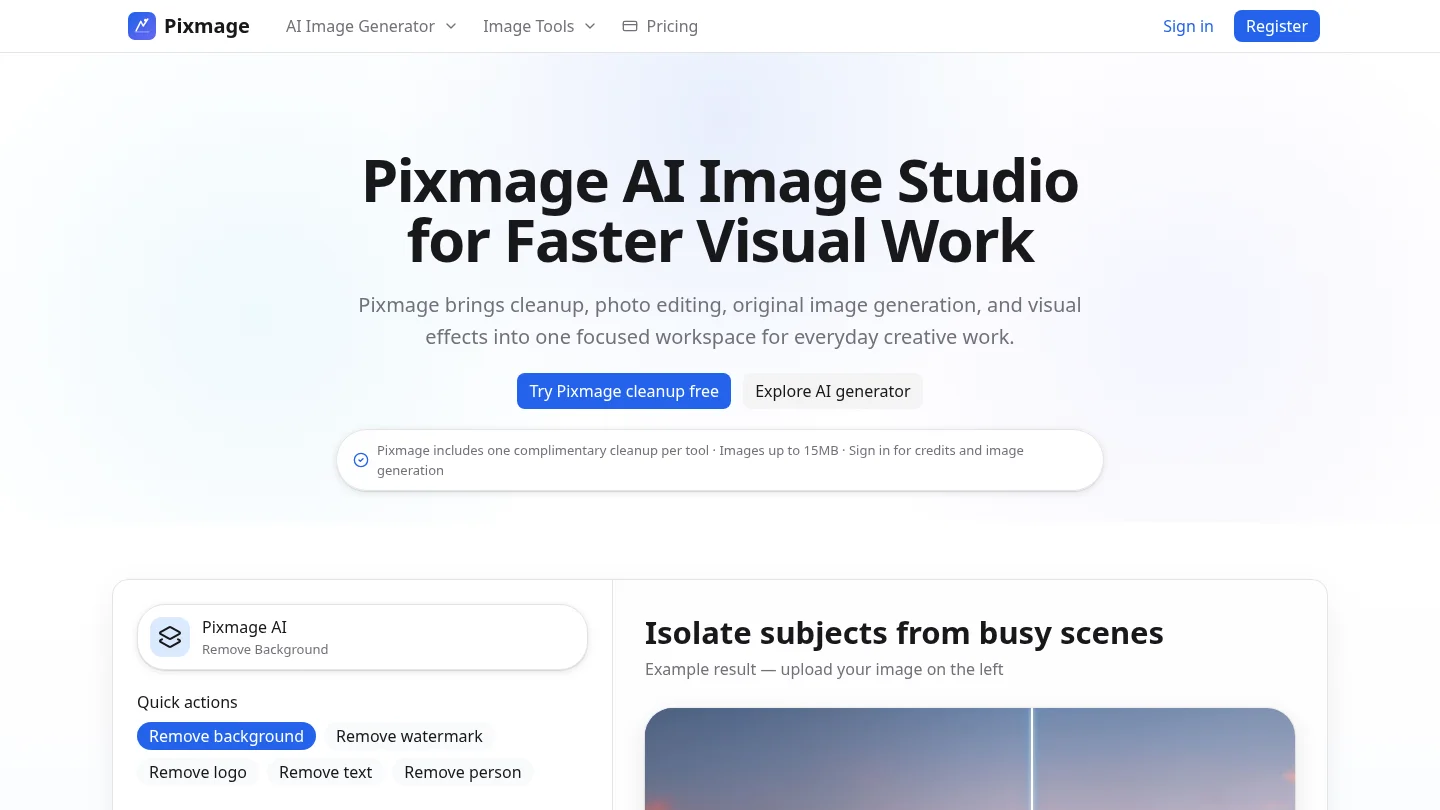
Best for: Online sellers, product photographers, marketers, designers, travelers, and creators who want focused cleanup and creative image work in one browser based workspace.
Pixmage is the strongest overall choice when the task begins with an existing image and the required change is specific. Separate workspaces handle background, watermark, logo, text, and person removal. You upload a supported image, process it, compare the result with the source, and download the finished file.
The preservation oriented approach is useful for product images and travel scenes. The goal is to change the selected area while retaining the subject, fine edges, lighting, reflections, textures, and surrounding composition where possible. Successful background removal produces a transparent PNG, which is practical for listings, catalogs, presentations, and social content. You can also use our AI background removal tool when a clean subject cutout is the main requirement.
Pixmage also extends beyond cleanup. Its premium AI creation workspace supports text to image generation, uploaded photo editing, curated effects, and multi-image fusion. Compatible models include Seedream 5.0 Lite, Seedream 5.0 Pro, Nano Banana, and FAL Flux, with model and cost information shown before generation.
Pros:
- Separate workspaces for backgrounds, people, watermarks, logos, and text.
- One complimentary first cleanup run for each named cleanup tool.
- Before and after review before downloading the result.
- Transparent PNG export after successful background removal.
- Editing, effects, generation, and multi-image fusion in one connected workspace.
- Displayed model and credit information before applicable processing or generation.
Cons:
- Premium generation requires sign-in, email verification, and credits from the start.
- It is focused on browser based task workflows rather than replacing every feature of a full desktop layer editor.
2. Adobe Photoshop
Best for: Professional retouchers, designers, compositors, agencies, and photographers who need maximum manual control alongside AI assistance.
Adobe Photoshop remains the most complete option for complex editing. Its AI features work within a mature layer based environment, allowing users to combine generative fill, generative expand, object removal, selection tools, masks, adjustment layers, and traditional retouching.
This combination matters when the result must survive close inspection. AI can remove an unwanted object or extend a canvas, while manual tools let you correct edges, refine masks, adjust opacity, or restore detail. Photoshop is therefore better suited to advanced composites and client work than to users who only need a quick background removal.
The limitation is complexity. New users must learn a broad interface, and generative features operate within a subscription and credit structure. Photoshop is powerful, but it may be excessive for a seller preparing a handful of listing images or a creator making a quick social post.
Pros:
- Deepest combination of generative tools and manual editing control.
- Strong support for layered compositing, masking, selections, and professional exports.
- Suitable for complex retouching and high control workflows.
Cons:
- Steep learning curve for beginners.
- Subscription access and generative usage limits can complicate budgeting.
- Many simple tasks require more steps than focused browser tools.
3. Fotor
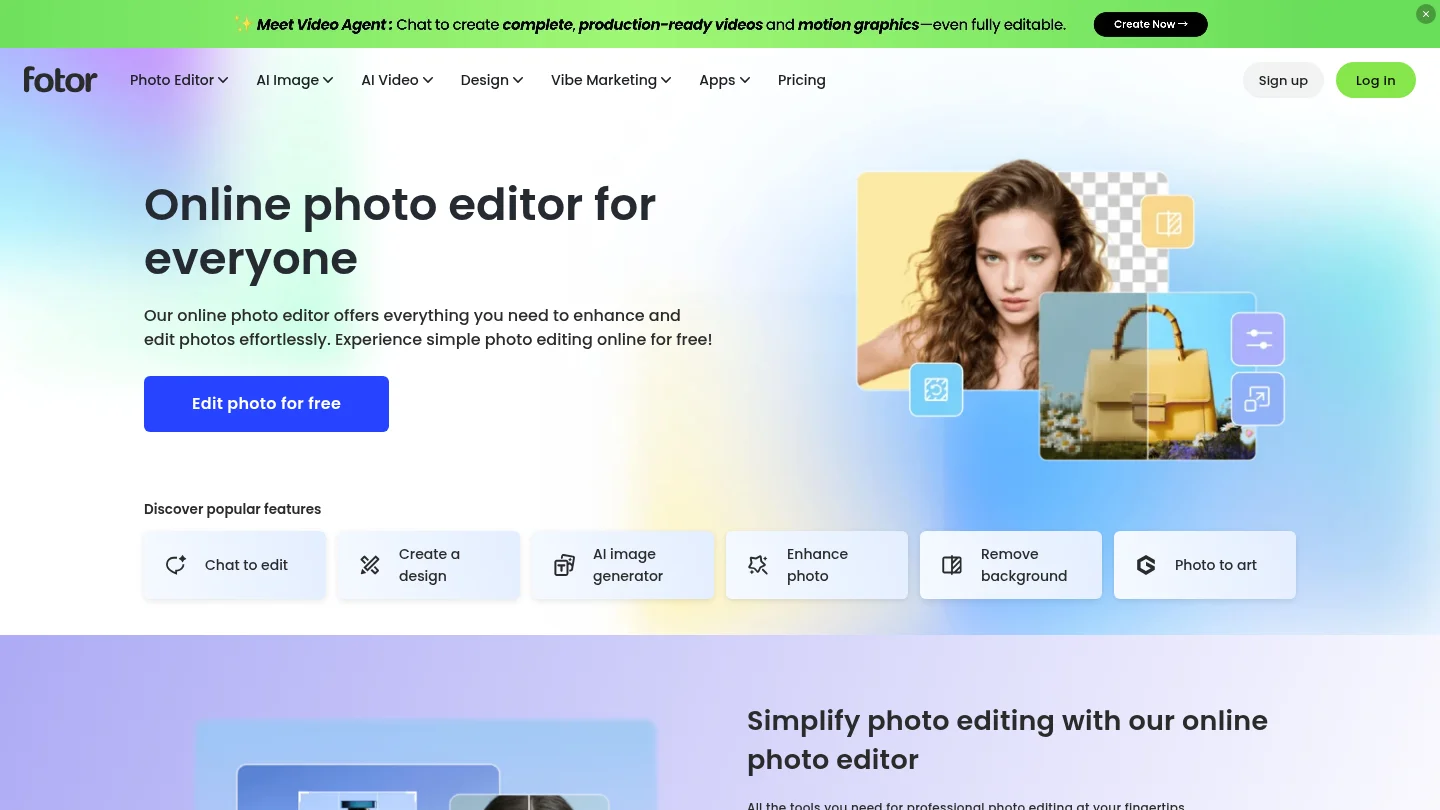
Best for: Beginners, marketers, social creators, and users who want fast AI enhancement without learning a professional desktop suite.
Fotor concentrates on accessible editing. Its feature set includes one click enhancement, portrait retouching, background removal, object removal, upscaling, generative expansion, and text based creation. The workflow is straightforward, making it suitable when speed matters more than detailed manual control.
Fotor is particularly useful for quick corrections to images used in social posts, thumbnails, presentations, or basic marketing assets. It can also support batch editing, which helps users process similar images without repeating every adjustment manually.
Its trade-off is precision. One click automation can produce a useful starting point, but professional users may want more control over masks, layers, texture preservation, and selective adjustments. Advanced features and higher usage limits also depend on the selected plan.
Pros:
- Beginner friendly interface with quick AI enhancements.
- Combines enhancement, removal, retouching, upscaling, and generation.
- Useful for social content and everyday image corrections.
Cons:
- Less suitable for complex compositing or pixel precise retouching.
- Free access has limits on AI tools, credits, or exports depending on the workflow.
4. Canva
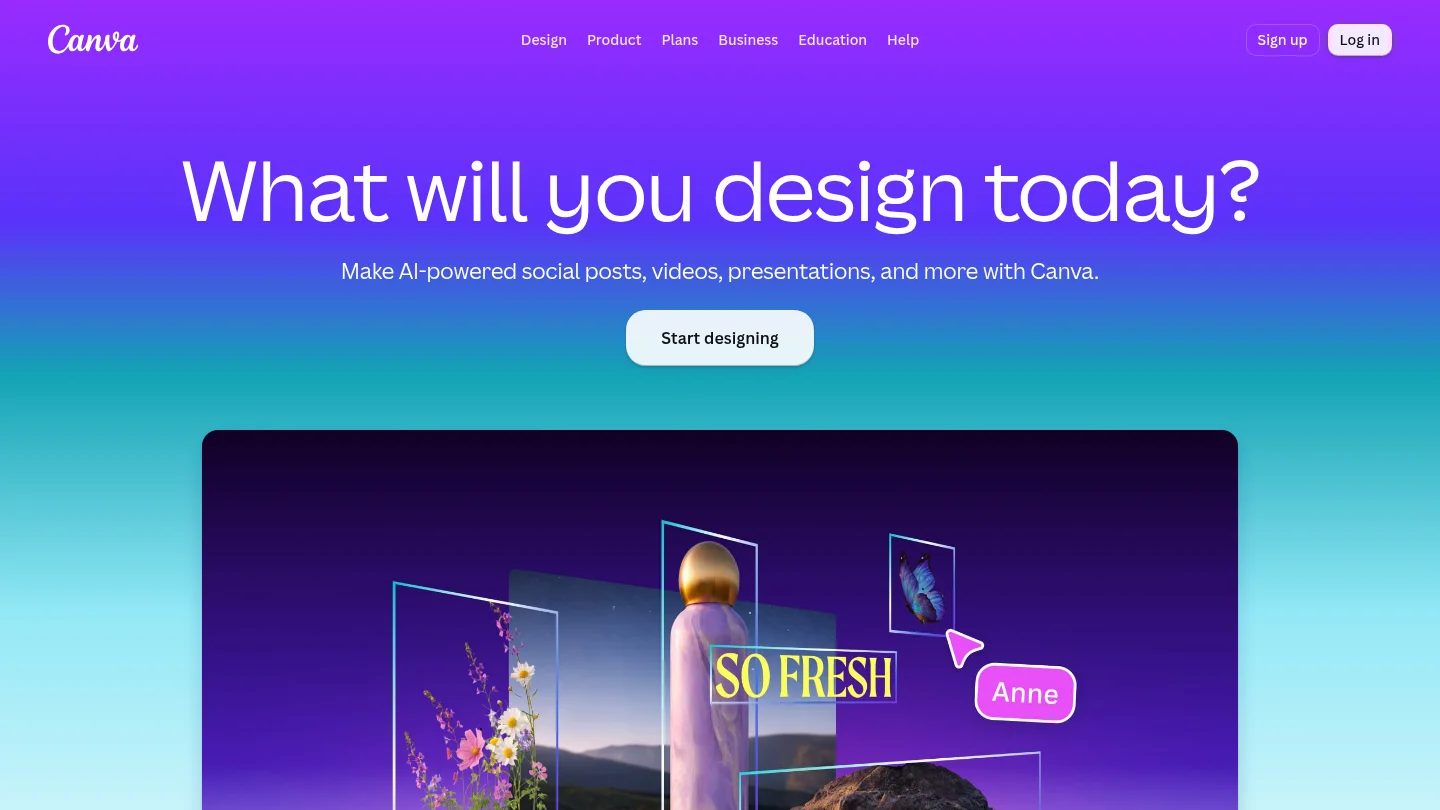
Best for: Social media teams, small businesses, marketers, educators, and creators who need edited photos inside finished designs.
Canva is more than a photo editor. Its main advantage is the connection between AI image editing and practical design output. Users can remove objects, remove backgrounds, reposition elements, extend images, generate visuals, and place the result directly into a social post, presentation, advertisement, or branded template.
This workflow reduces the need to export an image between several tools. Brand kits, templates, resizing, and collaboration are valuable when multiple people create content for different channels. Canva is also approachable for users without formal design training.
Canva is less appropriate for RAW processing, complex masks, advanced compositing, or detailed professional retouching. Its AI tools are designed to simplify decisions, not expose every technical parameter.
Pros:
- Combines AI photo editing with templates, presentations, and social content.
- Accessible to non-designers and small marketing teams.
- Useful for fast background removal, object cleanup, resizing, and layout work.
Cons:
- Limited control for professional photo manipulation.
- Not designed as a full RAW development or layer based retouching environment.
- Advanced AI capabilities may require a paid plan.
5. PhotoRoom
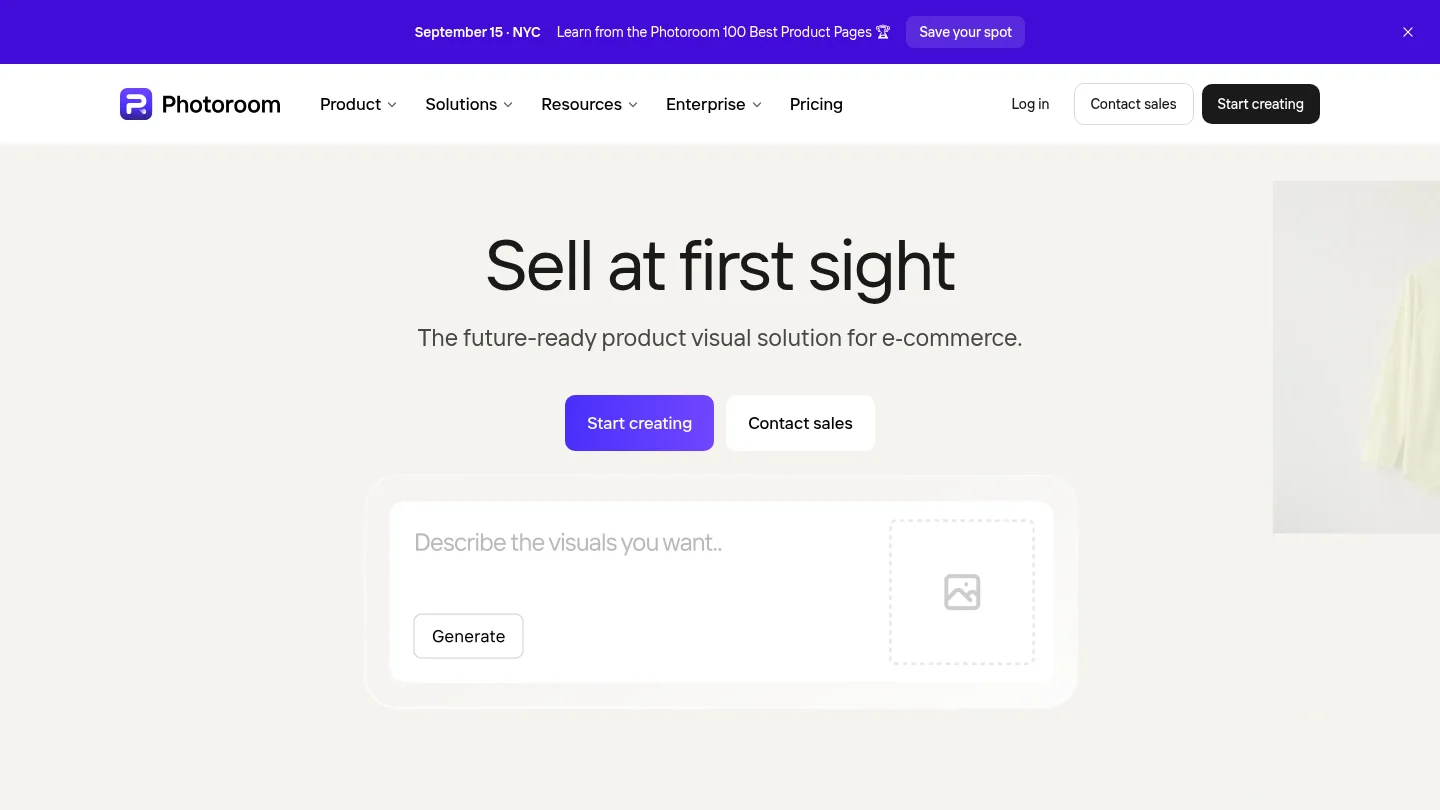
Best for: E-commerce sellers, marketplace operators, product photographers, and teams processing catalog images at scale.
PhotoRoom is built around product imagery. Its workflow emphasizes background removal, clean product cutouts, generated backgrounds, realistic shadows, product staging, resizing, and batch processing. This makes it particularly suitable for sellers who need consistent listing visuals rather than broad creative manipulation.
The platform can be used through web and mobile workflows, which is convenient for sellers who photograph products with a phone. Larger operations can also benefit from automation and API capabilities when product images must move through a repeatable catalog process.
PhotoRoom is not a general purpose replacement for Photoshop. It is strongest when the subject is a product and the desired result is a polished listing image, catalog asset, or marketing visual.
Pros:
- Purpose built for product photography and e-commerce imagery.
- Background removal, shadows, staging, and batch workflows work together.
- Suitable for sellers who need fast results from product photos.
Cons:
- Less suitable for portraits, landscapes, or complex creative composites.
- Manual retouching and layer based control are not its central strengths.
6. Skylum Luminar Neo
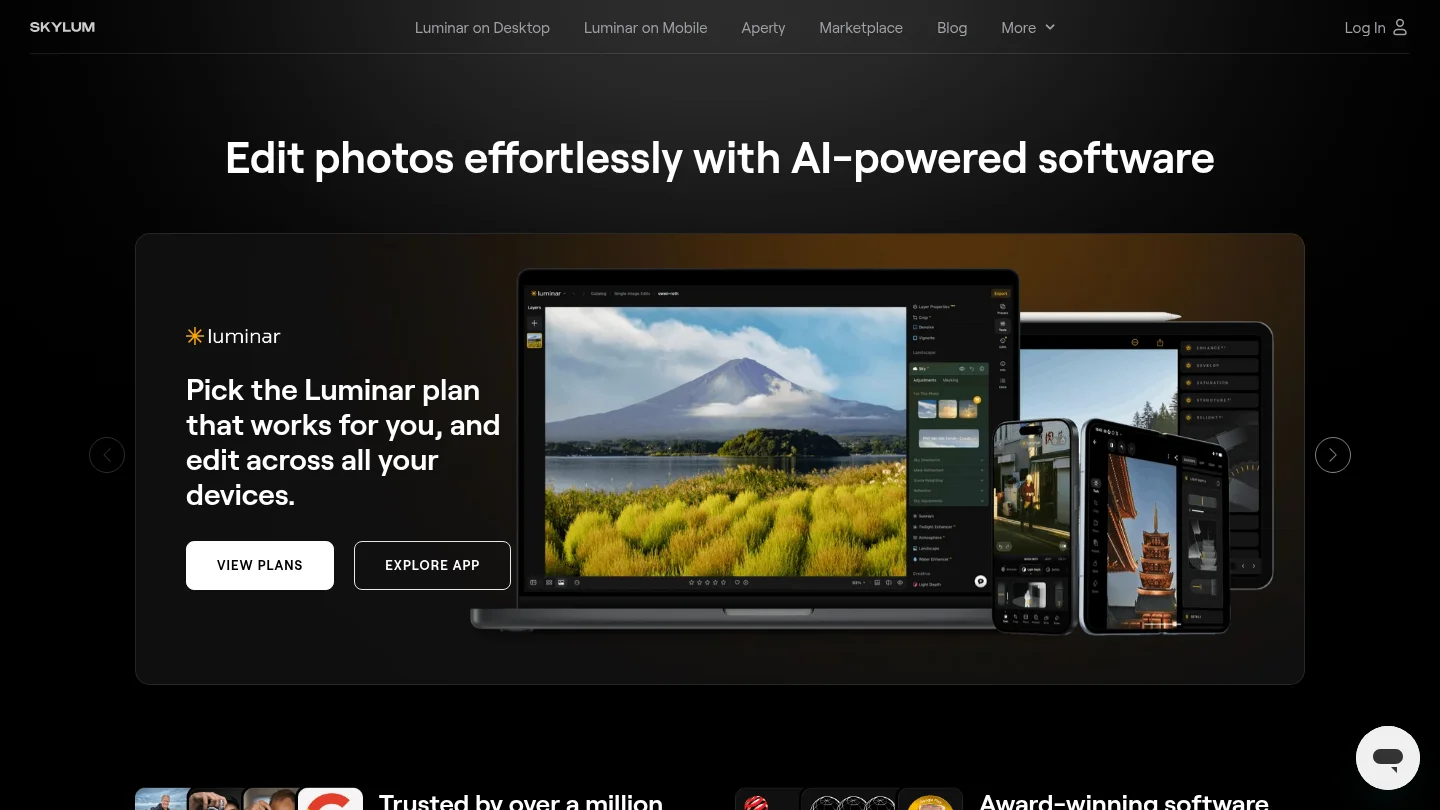
Best for: Enthusiast photographers and creators who want strong AI enhancement through sliders, presets, and photography focused tools.
Luminar Neo is designed around assisted photographic editing. Its tools cover enhancement, sky replacement, relighting, portrait adjustments, background blur, object removal, generative expansion, sharpening, denoising, and creative effects.
The interface is more approachable than a traditional professional suite. Users can apply an AI adjustment, review the result, and reduce its intensity when the effect becomes too strong. This balance is useful for landscape, travel, and portrait work where the photographer wants speed without giving up all control.
Luminar Neo also supports RAW files, layers, masking, batch adjustments, and plugin workflows. However, its strongest use case remains photography enhancement rather than browser based task cleanup or large scale product catalog automation.
Pros:
- AI tools are integrated throughout a photographer focused workflow.
- Useful for skies, lighting, portraits, distractions, denoising, and creative effects.
- Offers perpetual license options alongside other plans.
Cons:
- Some AI tools and future features have separate access conditions.
- Less convenient for users who want a fully browser based workflow.
- Catalog and large scale automation needs may favor other tools.
7. Pixlr
Best for: Users who want a browser based editor with both traditional tools and modern AI functions.
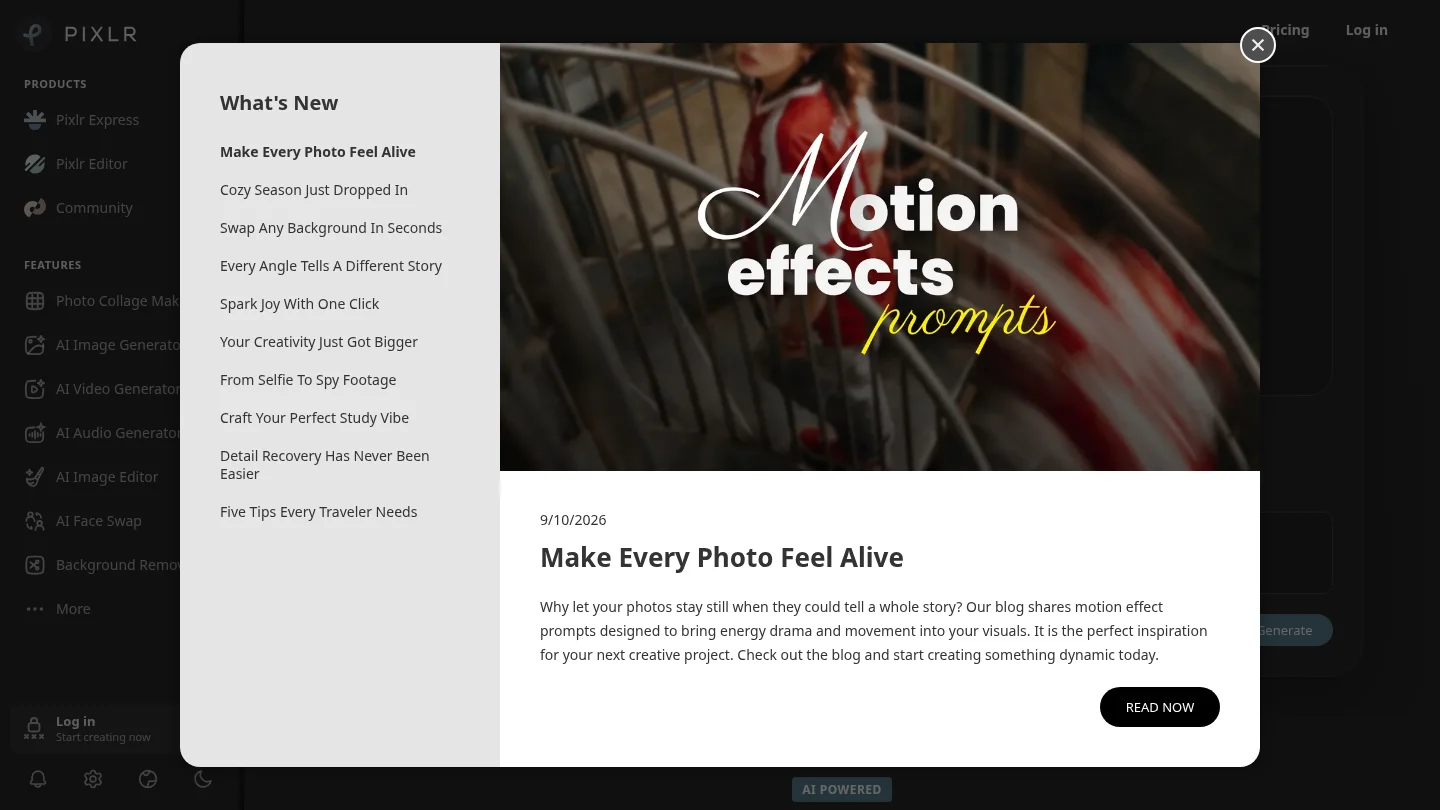
Pixlr occupies the middle ground between a simple online editor and a more advanced desktop style workspace. It provides layers, adjustments, filters, background removal, object removal, generative fill, generative expand, upscaling, denoising, and AI image generation.
Its browser access is a major advantage. Users can edit from devices where installing professional software is impractical, including shared computers or lower specification hardware. The simplified and advanced editor options also help users choose between quick actions and more detailed editing.
Pixlr is useful for social posts, blog graphics, quick corrections, and moderate image manipulation. However, complex professional projects may expose the limits of browser performance, output control, or advanced retouching depth.
Pros:
- Accessible through a browser, with mobile and desktop options.
- Combines layers and traditional editing with generative AI tools.
- Offers a meaningful free entry point for occasional users.
Cons:
- Advanced AI usage depends on credits and plan limits.
- It may not provide the same precision or depth as a professional desktop editor.
- Free access can include advertising or restricted exports.
8. Claid
Best for: E-commerce brands, marketplaces, product photographers, and technical teams automating image production.
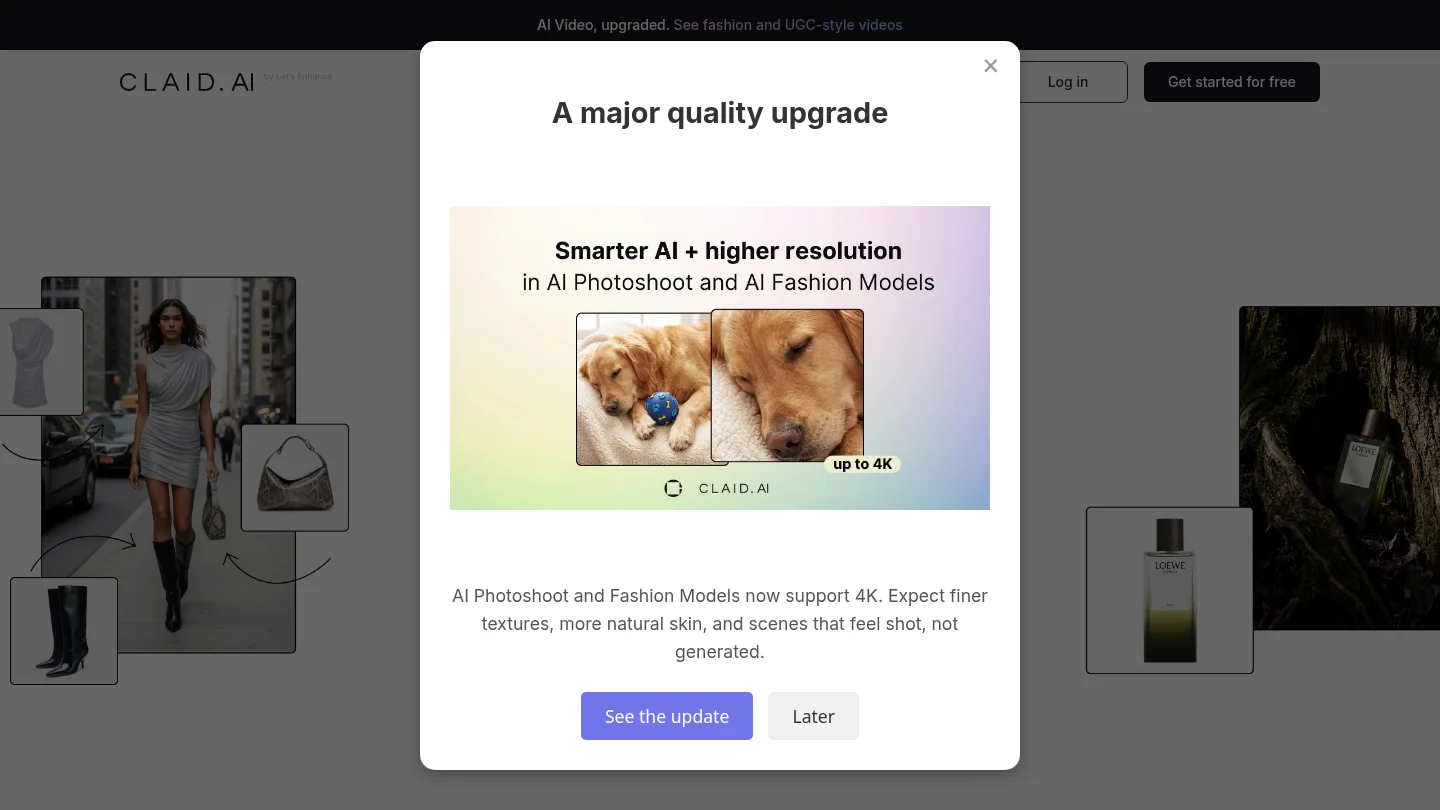
Claid focuses on product imagery rather than general photo editing. Its tools cover background removal, enhancement, lighting correction, upscaling, generated product scenes, AI fashion models, shadows, and API based processing.
This specialization can be valuable when a business needs consistent results across many product images. Credit based operations allow users to allocate usage across different tasks, while API access supports automated workflows connected to a catalog or marketplace system.
Claid is less suitable for a photographer who wants detailed portrait retouching, complex composites, or broad artistic editing. Its strength is efficient product visual production at scale.
Pros:
- Specialized tools for product photography and e-commerce assets.
- Supports background work, enhancement, generated scenes, and image automation.
- Offers web workflows and API options for higher volume operations.
Cons:
- Narrower creative scope than a general purpose photo editor.
- Credit based pricing requires attention to operation type and usage volume.
- API focused workflows may be more than an individual user needs.
9. insMind
Best for: Beginners, small businesses, product sellers, and creators who want a broad collection of automated image and visual content tools.
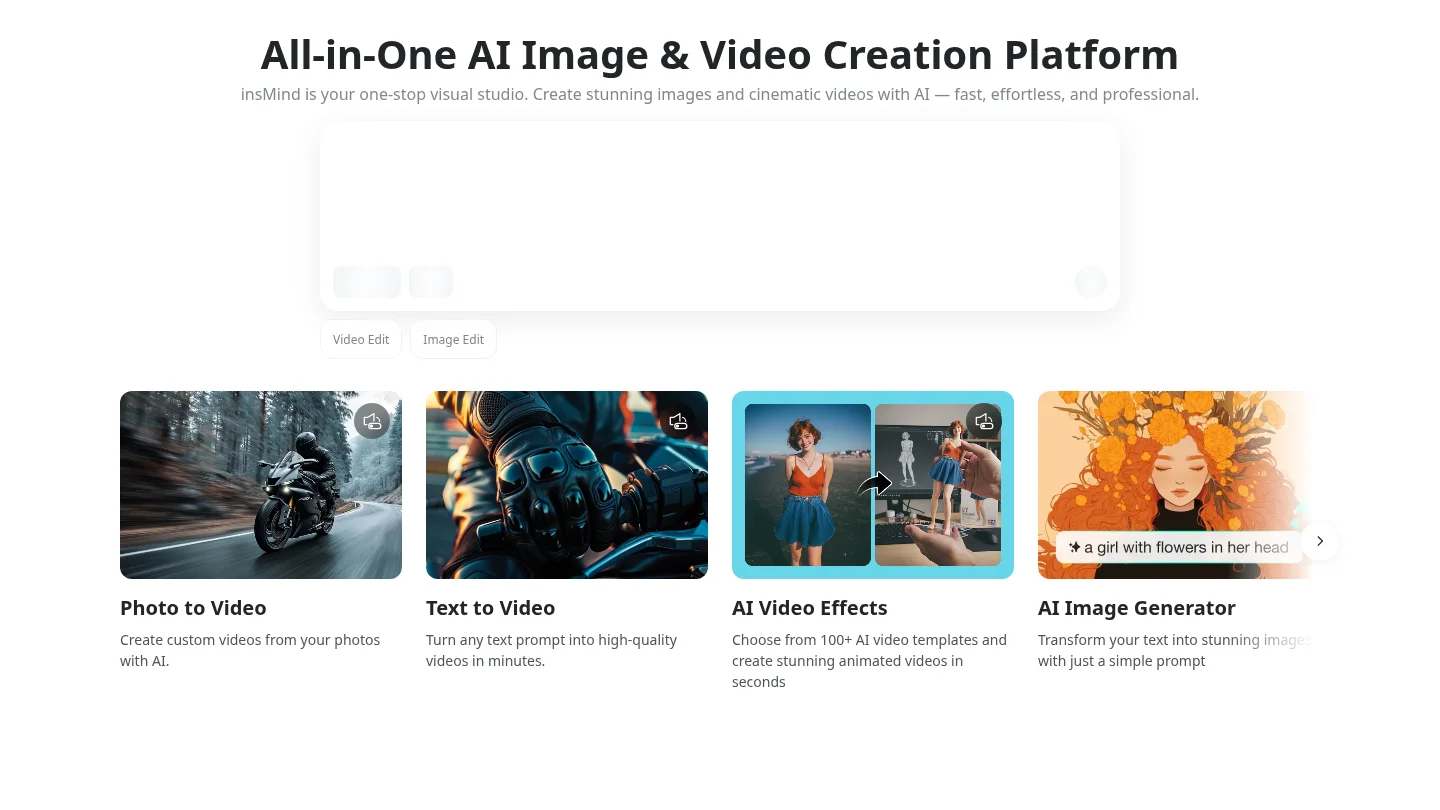
insMind combines background editing, enhancement, object removal, image expansion, retouching, product photography, effects, image generation, and video creation. Its broad scope makes it useful when a user wants to move from a source photo to several types of visual content without switching platforms.
The platform is especially relevant to product sellers who need background changes, generated scenes, and image improvements. It also supports prompt based creation and reference guided generation for users who want more than a simple correction.
The trade-off is that broad automation does not necessarily provide the depth of a professional layer based editor. Users who need exact masks, detailed retouching, or carefully controlled compositing may prefer Photoshop or a specialist workflow.
Pros:
- Broad mix of photo editing, product visuals, effects, and generation.
- Designed for fast results without advanced technical knowledge.
- Useful for creators who need both image editing and content generation.
Cons:
- Its broad toolset may be more than needed for a single cleanup task.
- Deep manual retouching is less central than automated editing and generation.
Which AI photo editor should you choose?
The right choice depends on the image task, not the longest feature list. Choose Photoshop when you need layered professional control, Canva when editing must lead directly into branded content, PhotoRoom or Claid for product imagery, Luminar Neo for photography focused enhancement, and Pixlr or Fotor for accessible browser editing. Choose Pixmage when you want focused cleanup workspaces, transparent cutouts, before and after review, and creative generation in one connected studio. For any commercial image, review fine edges, text, reflections, skin texture, and usage rights before publishing.
Turn Photo Cleanup Into a Focused Workflow
When an image needs one clear correction, switching between a general editor, a background tool, and a separate generator can slow the work down. A focused workspace helps you start with the actual task, review the result, and decide whether to download it or continue editing.
With Pixmage AI Image Studio, you can remove backgrounds, people, authorized logos, text, and other distractions, then move into photo editing, visual effects, text to image generation, or multi-image fusion. The first cleanup run is complimentary for each named cleanup tool, while later cleanup and premium creation show applicable credit requirements before processing.
Frequently Asked Questions
What is the best AI photo editor in 2026?
There is no single choice for every workflow. Pixmage is a strong option for task focused cleanup and connected image creation, while Photoshop suits advanced layered editing and PhotoRoom suits product listings.
Which AI photo editor is best for product photography?
PhotoRoom and Claid are specialized for product imagery, catalog preparation, and repeatable e-commerce workflows. Pixmage is also relevant when you need focused background, person, text, logo, or distraction removal before using the image in a listing or campaign.
Are AI photo editors different from AI image generators?
Yes. An AI photo editor modifies an existing image through tasks such as removal, enhancement, retouching, or background replacement. An AI image generator creates new visual content from text, references, or both, although many modern platforms now support both functions.
Can AI photo editors be used for commercial images?
That depends on the platform terms, model conditions, and the rights attached to the source image. You should edit logos, watermarks, text, and other protected assets only when you own or are authorized to modify them, and you should review commercial usage terms before publishing generated outputs.
What should you check before uploading a photo?
Check the supported file types, file size, account requirements, credit cost, privacy terms, and expected output format. You should also confirm that the tool can preserve the details that matter most, such as hair, product edges, reflections, lighting, text, or surrounding scene structure.