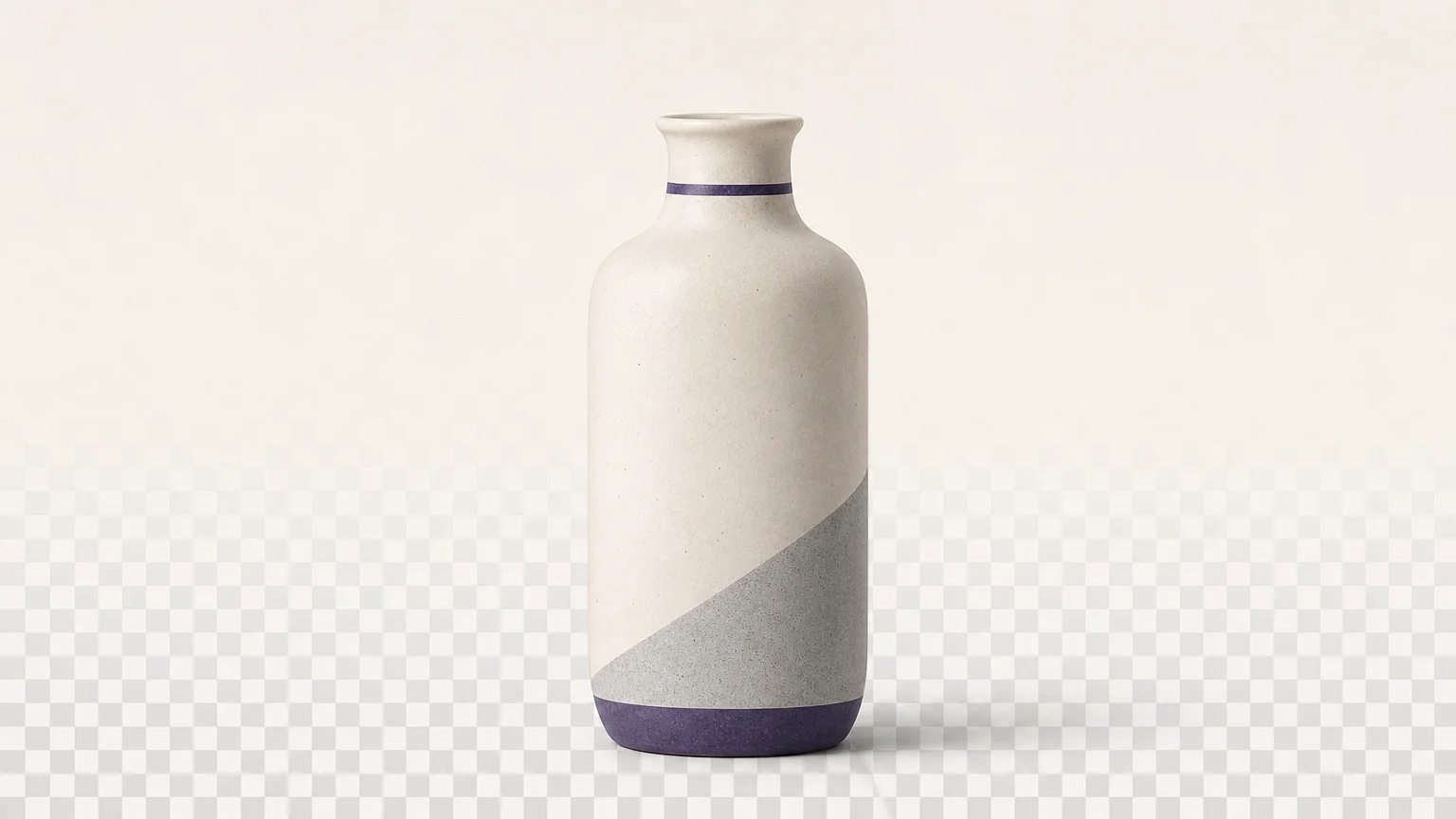
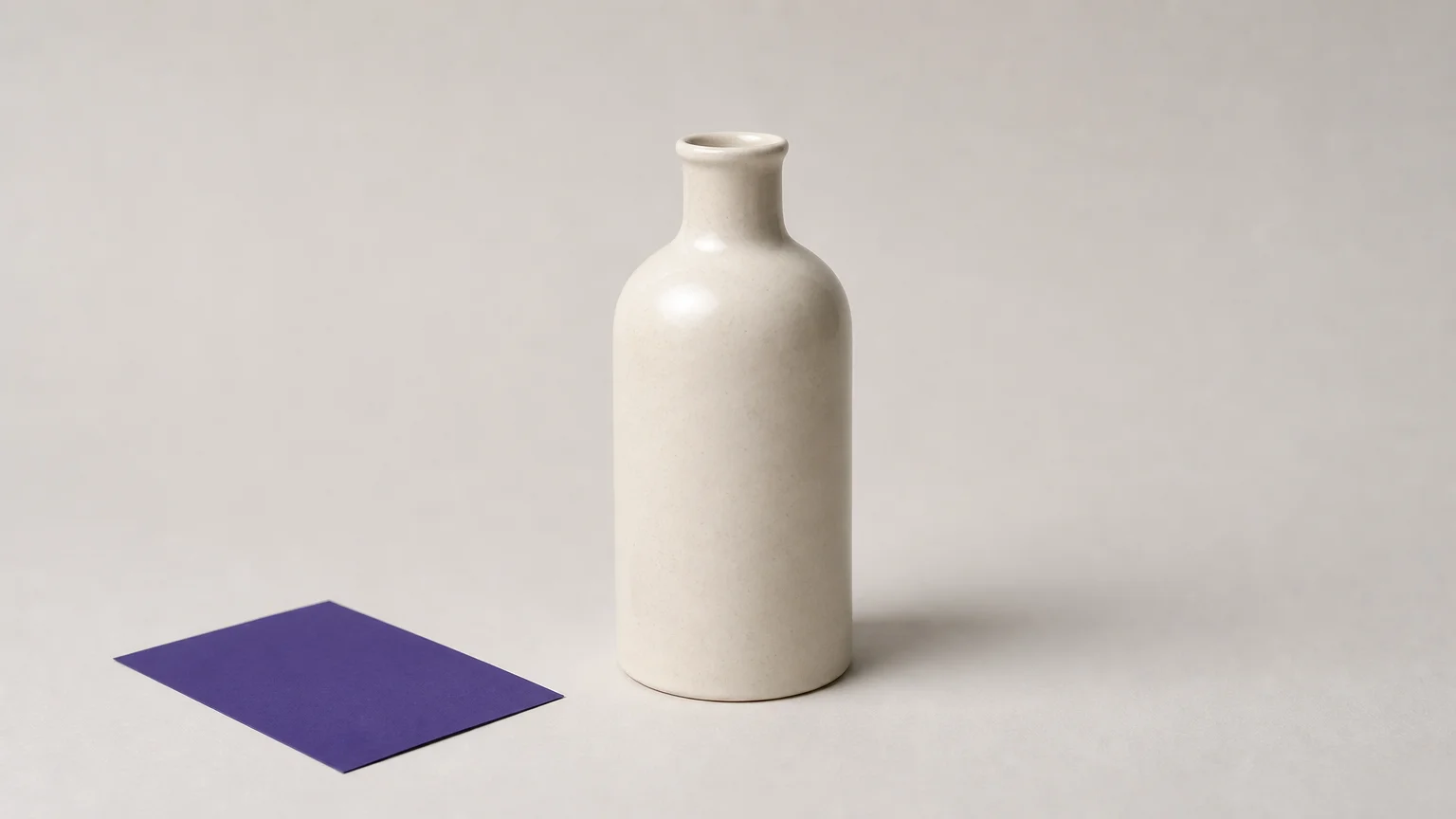

Will a background cutout still look convincing when you place it against another color? Check the edges around hair, glass, product labels, and soft shadows before choosing a tool. For a focused browser workflow, compare our AI background remover tools for clean cutouts with broader design editors, especially if you prepare product listings, portraits, or social assets.
A useful cutout needs more than a blank-looking background. PNG can store an alpha channel, which preserves varying degrees of transparency along an edge. The W3C PNG specification describes how transparency is represented, making transparent PNG export a practical selection criterion when you plan to layer a subject onto another design.
Which AI cutout tool should you start with?
For focused background removal and a clear upload, review, and download flow, start with Pixmage. Its cleanup workspace accepts JPG, PNG, WebP, or GIF files up to 15MB and provides a transparent PNG when removal succeeds. If you need catalog automation, an all-purpose photo editor, or ready-made design layouts, one of the other options may fit your workflow better.
| Rank | Tool | Focus | File and export details | Notable workflow |
|---|---|---|---|---|
| 1 | Pixmage | Focused online background cleanup | JPG, PNG, WebP, or GIF up to 15MB; transparent PNG when successful | Complimentary initial use; later processing uses credits |
| 2 | Photoroom | Product imagery and ecommerce workflows | PNG, JPEG, or WebP export | Batch editing and API options for larger catalogs |
| 3 | Adobe Express | Quick removal within a broader design editor | JPEG, PNG, or WebP input; transparent PNG output | Continue into Express design tools and templates |
| 4 | Fotor | Background removal within a broad photo editor | JPG, JPEG, PNG, HEIF, HEIC, or WebP; up to 60MB | Batch processing and additional photo editing |
| 5 | Canva | Cutouts within a design and layout workflow | JPG, PNG, HEIC, or HEIF; high-resolution PNG export | Background Remover is available with paid plans |
| 6 | insMind | Background cleanup within a wider AI content platform | Combines dedicated AI tools with broader content creation |
1. Pixmage

Best for: Sellers, photographers, and everyday editors who want a focused browser-based cutout workflow.
Description: Pixmage provides a dedicated Remove Background workspace. Upload a supported image, process it, compare the result with the source, and download the output. Successful removal provides a transparent PNG, which can be layered into a product listing, slide, or social post.
Uploads may be JPG, PNG, WebP, or GIF files up to 15MB. Cleanup aims to preserve the subject, fine edges, product detail, lighting, reflections, and surrounding composition where possible. These are preservation goals, not a guarantee, so inspect delicate edges before publication.
Pros:
- The focused workflow keeps background removal separate from broader image-generation tasks.
- A complimentary initial Remove Background run lets you review the result before paying credits for later cleanup.
- Required credits for additional processing are shown before you proceed.
Cons:
- After the complimentary initial use, additional cleanup requires a verified account and credits.
2. Photoroom
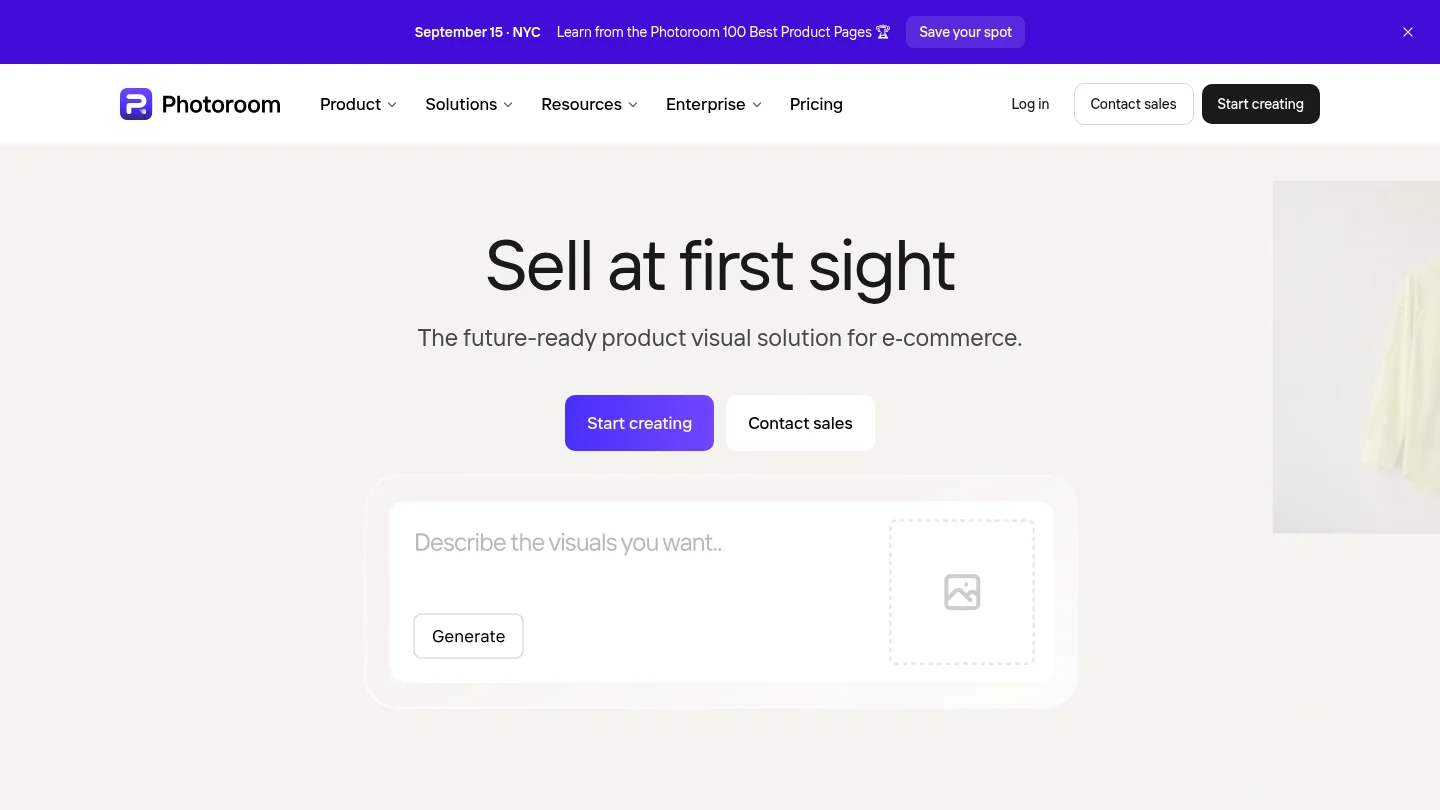
Best for: Ecommerce sellers and teams preparing product images across a catalog.
Description: Photoroom centers its product imagery tools on background removal, product visuals, and catalog workflows. Its broader offering includes batch editing and API options, which can matter when a team needs to apply a repeatable process across many assets.
Its background-removal workflow can export PNG, JPEG, or WebP files. Choose PNG when transparency matters, and compare the output with your own product photography before using it across a catalog. Large-scale workflows are a more natural fit here than a single occasional cutout.
Pros:
- Product-focused features and batch options suit recurring ecommerce work.
- API availability can support teams exploring automated image workflows.
Cons:
- Batch and catalog features may be more than you need for an occasional single-image cutout.
3. Adobe Express
Best for: People who want a quick cutout and may continue designing within Adobe Express.
Description: Adobe Express offers background removal for JPEG, PNG, and WebP images, with transparent PNG output. The tool is positioned as a quick action, and the result can lead into Express templates and design tools for posts, presentations, or product graphics.
This combination can be useful when removal is only one step in a larger design task. Check the exported image at its intended size, especially around fine edges, before placing it in a finished layout.
Pros:
- The removal workflow connects with a wider set of design tools and templates.
- Transparent PNG export suits layering a subject into another composition.
Cons:
- If you only need a single transparent image, the larger design environment may be unnecessary.
4. Fotor
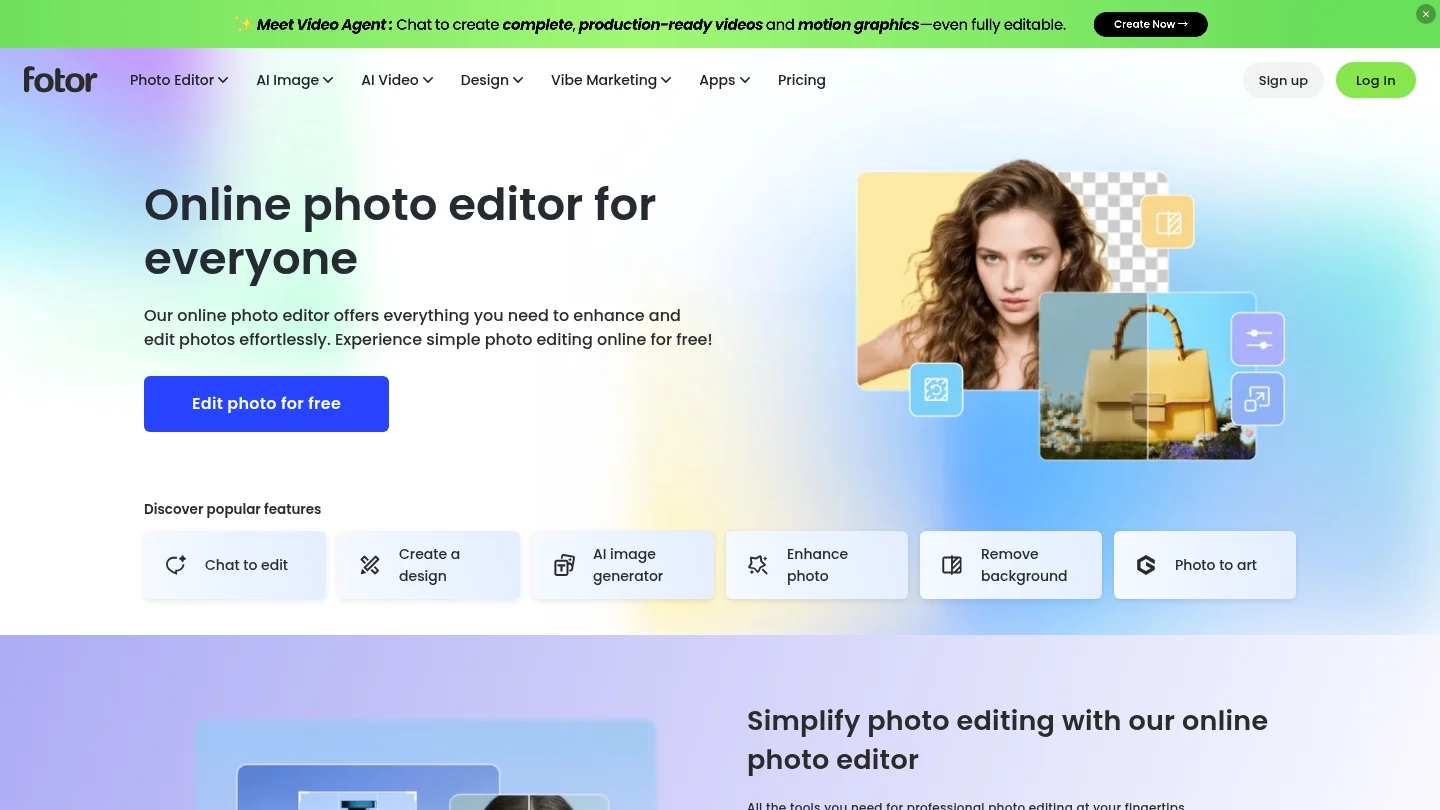
Best for: Users who want background removal alongside photo editing and batch options.
Description: Fotor combines an AI background remover with broader photo-editing features. Its background-removal workflow supports JPG, JPEG, PNG, HEIF, HEIC, and WebP uploads, with files up to 60MB. The tool can export a transparent PNG, and batch processing is available for repeated tasks.
This breadth may help when the cutout needs further edits in the same environment. For a catalog, test several representative images first, since edge quality can vary with the subject and background.
Pros:
- Supports several common input formats and larger uploads than some focused tools.
- Batch processing and additional editing tools can keep related work together.
Cons:
- The wider editing workspace may be more than you need for a one-off transparent cutout.
5. Canva

Best for: People who want to place a cutout directly into a presentation, social post, or other design.
Description: Canva puts its Background Remover inside a broader design workflow. Its tool accepts JPG, PNG, HEIC, and HEIF uploads and supports high-resolution PNG export. Canva also provides erase and restore controls, which can help you refine a result before adding it to a design.
There are practical access and file considerations. Canva’s help information says Background Remover is available on paid plans, processes photos under 9MB, and can downscale images above 10 megapixels after removal. Review these limits if your source files are large or you need full-size output.
Pros:
- Cutouts can move directly into layouts, templates, and other design work.
- Erase and restore controls allow some manual refinement.
Cons:
- Background removal is limited to paid plans, and the photo size and resolution limits may affect some sources.
6. insMind

Best for: Creators who want background removal alongside wider AI image and marketing-content tools.
Description: insMind includes background removal among its dedicated AI tools, while its wider platform focuses on creating and adapting marketing content. This can suit users who expect to move between image cleanup and other creative tasks within one service.
The reviewed product information does not establish the background remover’s supported file formats or upload limits. Check the current workflow against your source image and export needs before relying on it for a recurring production process.
Pros:
- Background removal sits alongside a wider set of AI content tools.
- The broader platform may suit users combining cleanup with other creative tasks.
Cons:
- The wider content workflow may exceed what you need for a single transparent cutout.
What should you inspect before downloading?
Does the subject still look natural when you change the backdrop? Inspect the contour at normal size and close up. Hair, fur, glass, and soft shadows can contain partly transparent pixels, so a hard, jagged border may stand out after you place the subject elsewhere. The Library of Congress format reference describes PNG as supporting optional transparency, a useful property for reusable cutouts.
Will transparency survive your export choice? Mozilla’s image format guide notes that PNG supports alpha transparency, while JPEG does not. If your goal is a transparent subject, check the downloaded file over both light and dark backgrounds. A white-filled image can resemble transparency in a preview but will not layer the same way.
For product listings, also check that the cutout retains labels, reflections, and small product details. Our article on transparent PNG product photos covers why preserving those details matters when you prepare reusable product imagery. Keep an untouched copy of the original so you can compare results or choose another workflow if needed.
Conclusion
The right AI background cutout depends on the image and the work that follows. For focused removal, Pixmage provides a clear upload and review flow, supported file formats, a complimentary initial use, and transparent PNG output when removal succeeds. Photoroom and Fotor offer batch-oriented options, while Adobe Express and Canva connect removal with design work. Test a representative image, inspect its edges, and confirm the final export preserves the transparency you need.
Create a clean cutout with Pixmage
Before you update a listing or place a subject into a new design, test the cutout on an image you plan to use. Look closely at the outline around labels, glass, hair, and other fine details. A careful review helps you catch remnants or edge artifacts before publication.
With Pixmage, select Remove Background and upload a JPG, PNG, WebP, or GIF file up to 15MB. Review the result before downloading; successful removal provides a transparent PNG. Your first Remove Background run is complimentary. Later cleanup requires a verified account and credits, with the required amount shown before processing. The workflow aims to retain the subject and fine details where possible, though results should always be checked. Try our AI background remover on a suitable source image.
Frequently Asked Questions
What does an AI cutout tool do?
It identifies a foreground subject and separates it from the surrounding image background. The result can be placed over another color, image, or design when exported with transparency.
Should I save a cutout as PNG or JPEG?
Choose PNG when you need the background to remain transparent. JPEG does not support an alpha channel, so it cannot retain transparent pixels.
Can background removal preserve hair and fur?
Some tools can retain fine edges, but results depend on the source image and the contrast between subject and background. Inspect delicate areas on more than one backdrop before using the cutout.
Which image formats can I upload to Pixmage?
Pixmage cleanup supports JPG, PNG, WebP, and GIF uploads. Select the image that best preserves the detail you need for the finished cutout.
When do Pixmage credits apply to background removal?
Your initial Remove Background run is complimentary. Later cleanup requires a verified account and credits, and the required credits are shown before processing.