
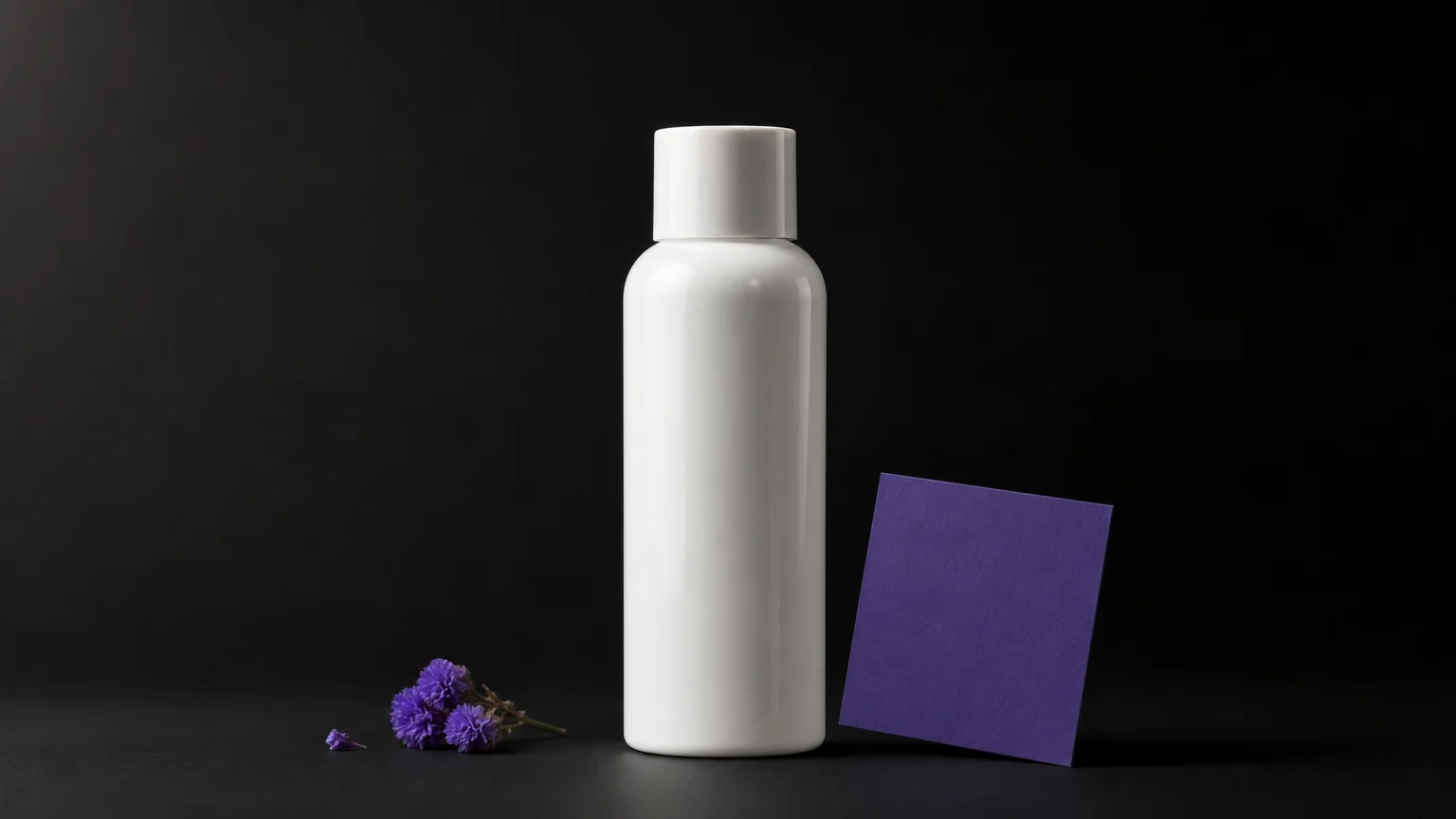

If you search for ai black background, you are usually looking for a fast way to isolate a subject and place it on a clean dark backdrop. The practical workflow begins with a suitable source image, then uses our AI photo editing prompts to define the background, lighting, and edge treatment without losing the subject.
A black background can make light products, reflective materials, portraits, and graphic compositions more distinctive. However, the result depends on more than selecting a dark color. The AI must understand the subject boundary, preserve important texture, and create enough separation between the subject and the background.
What does an AI black background change?
The simplest explanation is subject separation. An AI editor identifies the foreground, removes or reconstructs the original background, and places the subject against a black or near-black surface. More advanced workflows also adjust shadows, reflections, edge softness, and light direction so the replacement does not look pasted into the image.
Black works because it reduces visual competition. Light-colored products become clearer, metallic surfaces gain contrast, and portraits can appear more focused. A dark backdrop can also create a more formal mood, although it may hide details when the subject itself contains black, navy, or deep brown areas.
Interest in dark visual treatments is also visible in recent design prompt data. A 2026 analysis of 210,759 AI design prompts counted black in 42,554 prompts, making it one of the most requested colors in that dataset, according to 2026 prompt analysis. This does not establish a universal market preference, but it does show that dark backgrounds are a recurring request in AI-assisted design.
The most reliable result is not always pure black. Charcoal, graphite, deep violet, and a subtle black gradient can preserve more detail while keeping the same dramatic direction. You should choose the background according to the subject, intended platform, and amount of visible texture.
How can you create a black background with AI?
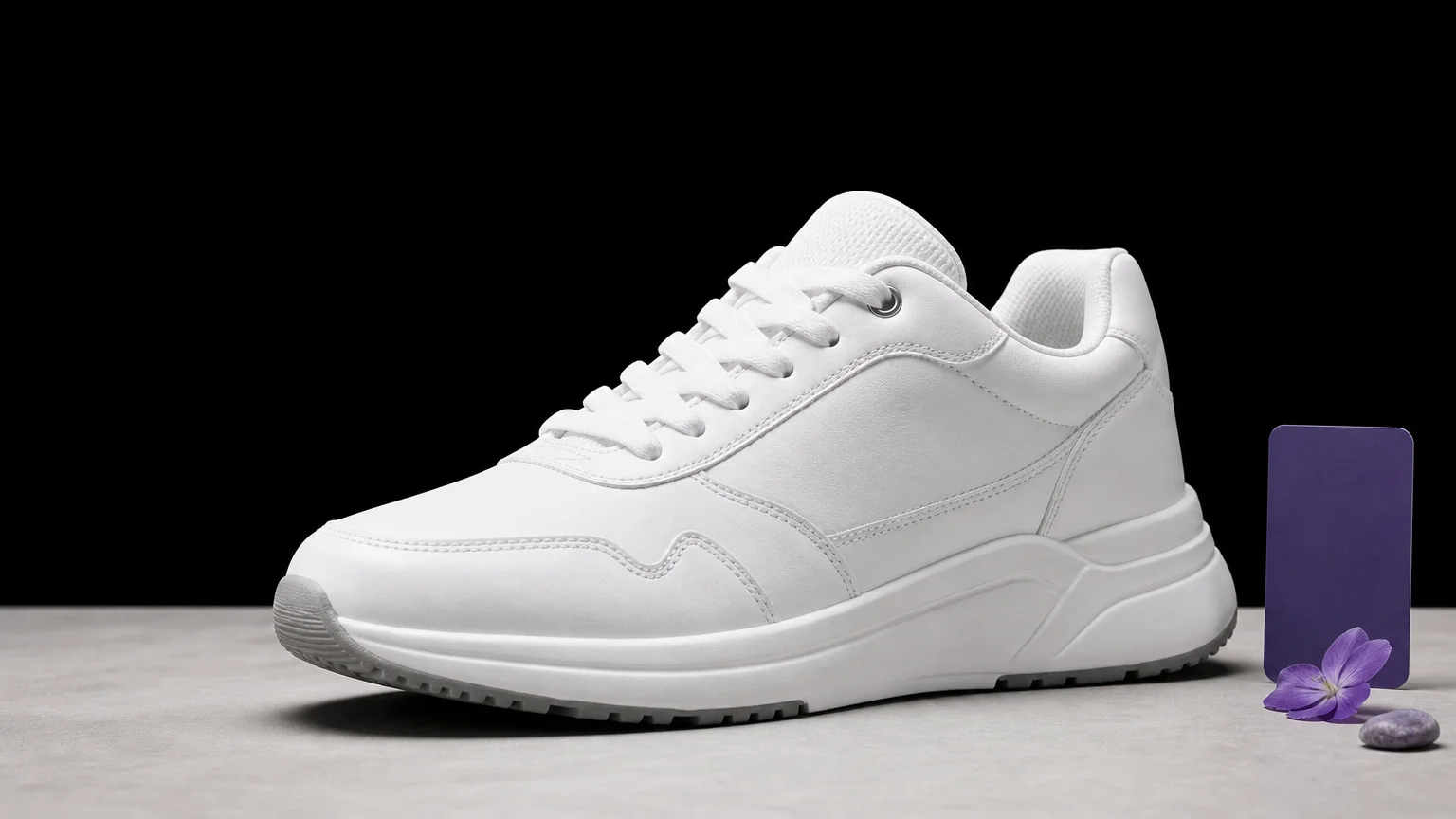
Consider a white sneaker photographed on a pale wall. The goal is not simply to color the wall black. The AI must separate the shoe, preserve its sole and stitching, create a believable contact shadow, and keep the original proportions intact.
- Choose a clear source image. Use a photo with adequate resolution, visible subject boundaries, and lighting that does not merge the subject with its original background.
- Remove the original background. Subject separation is the foundation of the result. Hair, transparent packaging, straps, foliage, and small gaps require more careful processing than simple geometric objects.
- Add the dark backdrop. Specify whether you want pure black, soft charcoal, a studio gradient, or a black background with controlled falloff.
- Match the lighting. Ask for a natural contact shadow or a restrained rim light when the subject needs more separation.
- Inspect the edges. Look closely at hair, fur, reflective surfaces, thin cables, product corners, and translucent materials.
- Export for the intended use. Product listings, social posts, presentations, and print layouts may require different dimensions and file settings.
For a focused workflow, our Remove Background tool can help separate the subject before you apply a new backdrop. This is useful when you want more control over the background than a single broad editing instruction provides.
What should you include in an AI black background prompt?
A strong prompt defines the subject, backdrop, lighting, camera position, and preservation requirements. Instead of writing only “make the background black,” describe the visual result you need.
Place the subject on a clean matte black studio background, preserve its original shape, texture, colors, and proportions, add a soft natural contact shadow, retain fine edges, and keep the lighting consistent with the source photo.
The phrase “matte black” is useful when you want to avoid reflections. “Seamless black studio backdrop” suggests a controlled product setting. “Dark charcoal gradient” introduces depth without forcing every pixel to pure black. If the subject is reflective, specify that the material should retain realistic highlights rather than becoming flat.
You should also state what must not change. Useful instructions include “preserve the label,” “keep the original garment texture,” “retain facial features,” “do not alter the product shape,” and “remove only the background.” These constraints reduce unwanted creative changes.
For portraits, mention skin tone, hair detail, expression, and natural shadow direction. For products, identify the material and construction. For example, glass, chrome, fabric, leather, and glossy plastic react differently to a black environment.
Should you choose pure black, charcoal, or a gradient?
Pure black creates the strongest contrast, but it is not suitable for every subject. It works well for light products, bright packaging, jewelry, pale garments, and high-key portraits. It can also create a clean visual system across a product catalog when the original images have inconsistent settings.
Charcoal is more forgiving. A slightly lighter dark gray can reveal the outline of a black object, preserve subtle shadows, and reduce the risk of clipped detail. It is often useful for dark clothing, black electronics, dark furniture, and moody editorial images.
A gradient introduces depth without adding visible scenery. A soft transition from near-black behind the subject to a slightly lighter lower area can suggest a studio surface. Keep the gradient restrained, because a strong transition may distract from the subject or make separate images look inconsistent.
Transparency is a different requirement from a black backdrop. If you need to place the subject across several backgrounds, a transparent file may be more flexible than a finished black image. For catalog work, our transparent PNG product photos guide explains why a cutout can be useful before you create alternate background versions.
How do you prevent halos and lost detail?
Most poor results are visible around the edge rather than in the center of the image. A pale halo may appear when the original background is bright. A dark fringe may appear when the subject already contains deep shadows. Hair, fur, lace, glass, and semi-transparent packaging are especially challenging.
Start with a source image that has separation between the subject and its original scene. If a black object is photographed against a dark wall, the AI has fewer visual clues. Better lighting, higher resolution, and a clear silhouette generally produce a cleaner mask.
Ask the editor to preserve fine edges and avoid excessive sharpening. Over-sharpening can create bright outlines, while excessive blur can make the subject look cut out. The best result usually has a slightly softened transition at complex edges and a crisp transition along solid product contours.
Lighting consistency matters as much as masking. A subject photographed from the left should not receive a strong artificial highlight from the right. Likewise, a floating object needs a restrained contact shadow if the final image should feel grounded.
Inspect the result at two scales. At full size, check small defects around the outline. At the final display size, check whether the subject remains clear, balanced, and recognizable. A technically clean mask can still look weak if the subject is too dark against the chosen background.
Where does an AI black background work best?
Product photography is one of the clearest use cases. A dark backdrop can emphasize shape, texture, and light-colored surfaces in marketplace listings, catalogs, presentation slides, and promotional graphics. It can also help create a consistent visual system when a seller has images taken in different locations.
Portraits benefit from the same principle, especially when the original scene is distracting. A black background can focus attention on the face, clothing, or pose. The effect should remain compatible with the intended context, since a dramatic studio portrait may not suit every professional profile or identification format.
Social content and thumbnails can use black to create stronger separation around text or a central subject. In these cases, leave enough negative space for the surrounding layout. Do not place the subject too close to the edges if the image may later be cropped for several formats.
AI image editing is becoming a practical part of everyday visual work. In a February 2026 Pew Research Center survey, 23% of Black U.S. adults, 24% of Hispanic adults, and 22% of White adults said they used chatbots to create or edit images or videos, while the figure was 38% among Asian adults, according to Pew’s 2026 survey. The figures describe U.S. adults and chatbot use, not the entire image-editing market, but they indicate that AI-assisted visual creation is already a familiar use case for many people.
For international teams and creators, consistency becomes more important than a single dramatic result. Google’s July 2026 ATLAS report examined AI usage across more than 150 countries and territories representing 99% of the world’s population, as described in Google’s ATLAS report. That broad context supports a practical approach: define repeatable editing rules, retain original files, and review every output before publishing.
What is the most reliable workflow for repeated edits?
Begin by creating a visual standard. Decide whether your images will use pure black, charcoal, or a gradient. Define the preferred crop, shadow strength, subject position, and export format. This prevents each image from developing a different visual treatment.
Next, group similar subjects together. Products with similar materials and shapes can often use related instructions. Reflective objects, transparent items, clothing, and portraits may need their own prompts because their edges and lighting behave differently.
Keep the original image beside the edited result. Compare colors, dimensions, texture, and object geometry. If the subject has changed, revise the instruction and process it again rather than accepting a visually attractive but inaccurate result.
Finally, export versions for the actual destination. A marketplace image may need a different crop from a social post. A presentation may require more negative space. A transparent cutout may be more useful than a finished black background when you expect to reuse the subject later.
Choose the background that serves the subject
The best AI black background workflow balances contrast with accuracy. Use a clear source image, describe the desired lighting, protect important edges, and select pure black, charcoal, or a gradient according to the subject. Review the result at full size and at its final display size before publishing. When the background supports the subject rather than overpowering it, the finished image looks deliberate, consistent, and professional.
Take action with Pixmage
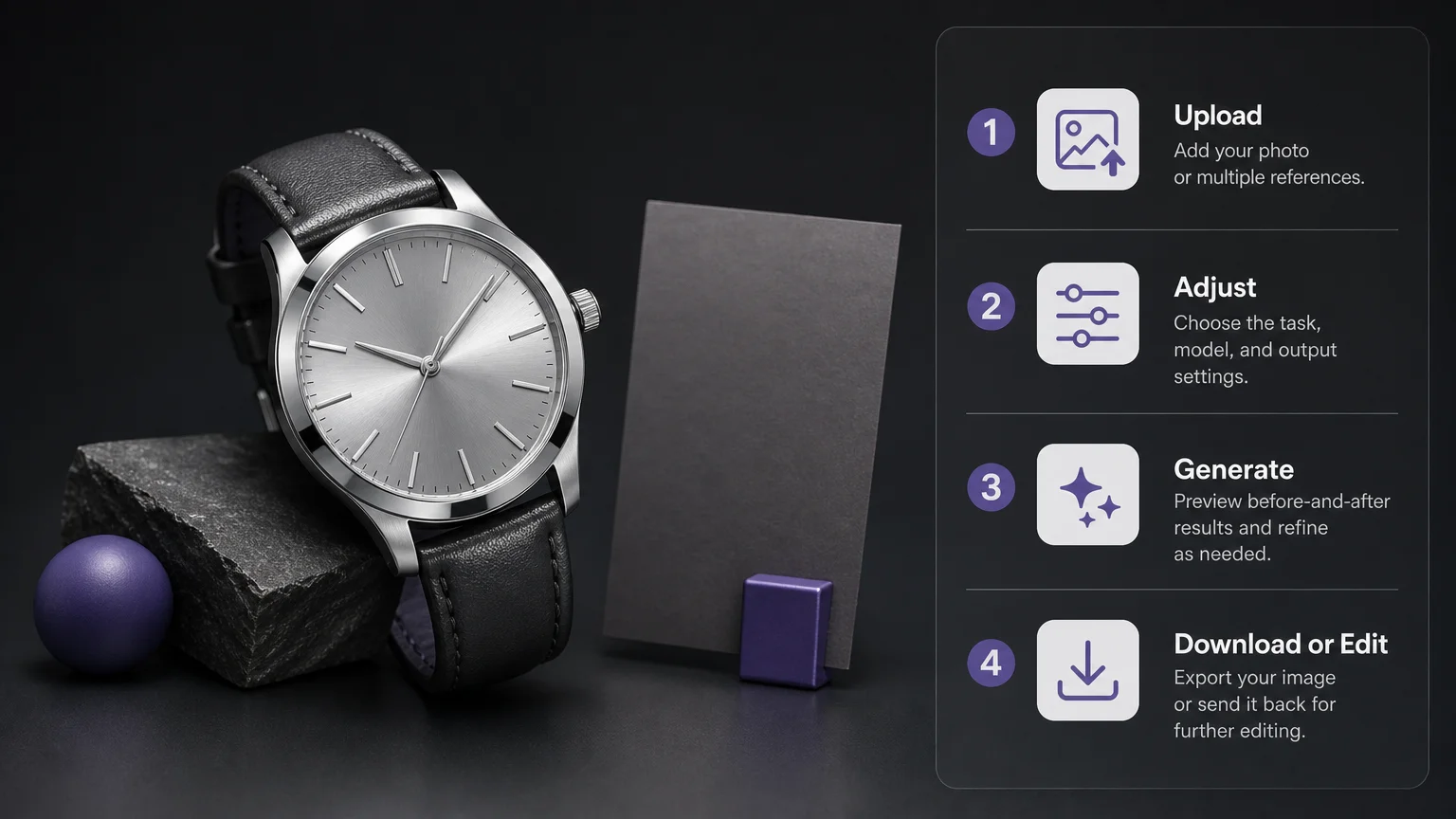
Once your subject, contrast, and edge treatment are clear, the next step is to create or refine the image in one workspace. Pixmage brings prompt-driven creation, photo editing, effects, and multi-image fusion together, so you can begin with a source photo or a written concept.

Use our AI image generator to build controlled visuals, review available model and credit information before processing, and download the result or continue editing. For authorized product, portrait, and campaign assets, this workflow can help you test a black backdrop while keeping the creative direction easy to adjust.
Frequently Asked Questions
What is an AI black background?
It is a digitally generated or edited dark backdrop applied after AI separates the main subject from its original scene. The process can also add shadows, gradients, or lighting adjustments to make the composition appear natural.
What type of photo works best?
Use a sharp image with good lighting and visible separation between the subject and the original background. Clear edges help the AI preserve hair, product contours, fabric, and small details.
Is pure black always the best choice?
No. Pure black creates strong contrast, while charcoal or a dark gradient can reveal more detail in black products and reduce harsh edges.
How can I avoid a white halo around the subject?
Use a higher-quality source image and ask the editor to preserve fine edges while removing the original background completely. Check bright outlines around hair, glass, reflective surfaces, and thin objects before exporting.
Can Pixmage help create images with dark backgrounds?
Yes. Our AI image generator supports text-to-image creation, photo editing, effects, and multi-image fusion, while our focused cleanup tools can help prepare the subject before further editing.