


A light product on a deep black backdrop can create immediate contrast, reveal texture, and give an ordinary image a polished studio appearance. For a focused result, our AI black background photo tool helps you approach the edit as a controlled image-cleanup task rather than a complicated design project.
If you searched for black background photo edit, the right tool depends on more than color replacement. Subject isolation, edge quality, transparent output, batch consistency, pricing, and commercial-use terms can all affect the final image. The selection below compares the most relevant options for products, portraits, marketplace listings, and creative visual work.
Black background photo editing tools at a glance
Pixmage is the best overall fit when you want a focused workflow for separating a subject, checking the result, and continuing to edit it. Other platforms become more suitable when you need catalog automation, extensive manual controls, design templates, or generated background variations.
| Rank | Tool | Best for | Key differentiator |
|---|---|---|---|
| 1 | Pixmage | Focused AI cleanup and transparent cutouts | Task-specific workflow with visible cost information and before-and-after review |
| 2 | Photoroom | E-commerce product catalogs | Product-focused black backgrounds, batch editing, and marketplace workflows |
| 3 | insMind | Background variations and creative edits | Black, color, gradient, generated background, shadow, and reflection options |
| 4 | Fotor | General photo editing and batch work | Background replacement combined with enhancement, retouching, and creative tools |
| 5 | Adobe | Precise professional control | Generative editing combined with selections, layers, masking, and manual refinement |
| 6 | Canva | Simple edits inside branded designs | Background removal and generation connected to templates, layouts, and publishing |
1. Pixmage

Best for: Product sellers, photographers, marketers, and creators who need a focused black background workflow with clean subject separation.
Pixmage is our strongest choice when the task begins with a real photo and ends with a cleaner, more controlled visual. Instead of placing background editing inside a large general-purpose design canvas, our workflow is organized around the specific result you need. You can select background removal, upload a JPG, PNG, WebP, or GIF up to 15MB, review the applicable model and cost information, and inspect the result before downloading it.
The main advantage is control over the cleanup stage. Successful background removal provides a transparent PNG, which gives you flexibility to add a solid black backdrop later or continue editing the cutout. This is useful for product listings, catalog imagery, slides, portraits, and social posts. If fine edges matter, our AI photo editor for photographers content explains how focused AI editing can support preservation of subject detail and surrounding composition.
Our workflow also supports a wider sequence of edits. You can remove a photo background, compare the result with the original, download the output, or continue editing it. One complimentary cleanup run is available for each focused cleanup tool. Additional processing requires a verified account and credits, with the required cost shown before processing.
Pros:
- Focused background removal rather than a crowded general design workflow.
- Transparent PNG output when background removal succeeds.
- Before-and-after comparison helps you inspect edges, texture, lighting, and composition.
- One complimentary cleanup run is available for each supported cleanup tool.
- Generation, photo editing, and cleanup can be connected in one broader image studio.
Cons:
- Additional cleanup processing requires a verified account and credits.
- AI generation and photo effects require sign-in and email verification from the start.
2. Photoroom

Best for: Online sellers and e-commerce teams preparing consistent product imagery at scale.
Photoroom is a strong choice when your black background photo edit is part of a larger product-visual workflow. Its dedicated black-background tool is designed to create strong contrast, make light-colored products more visible, and give listings a studio-style appearance without a physical backdrop. The surrounding product ecosystem also includes background removal, generated backgrounds, product staging, resizing, and export workflows.
The platform is especially relevant for marketplace sellers who need repeatable catalog visuals. Batch editing and automation features can reduce repetitive work when many products require similar treatment. This makes Photoroom more attractive than a basic background-color tool when you are preparing a large product range or maintaining consistent visual standards across several sales channels.
Its main trade-off is focus within focus. For a single personal portrait or one occasional edit, the broader product-production environment may include more capability than you need. The exact cost and access conditions for repeated processing also depend on the applicable plan, so you should review the current terms before adopting it for a high-volume workflow.
Pros:
- Dedicated black background editing for product photos.
- Strong fit for marketplace listings, catalog images, and product feeds.
- Batch and automation features support larger image volumes.
- Additional product-photography tools are available in the same ecosystem.
Cons:
- The wider e-commerce feature set may be more than necessary for occasional personal edits.
- Plan conditions should be checked carefully before committing to repeated high-volume processing.
3. insMind

Best for: Users who want a black backdrop plus several creative background, shadow, reflection, and resizing options.
insMind offers a broad background-editing workflow that goes beyond replacing the original scene with one solid color. Its background tools include a specific black background option, background color changes, gradients, generated scenes, transparent output, and AI-assisted removal of unwanted objects. This gives you more flexibility when a plain black backdrop is only the first version you want to test.
The platform is also useful for product and promotional imagery. Shadows and reflections can help a product feel more grounded after the original background has been removed. Smart resizing can adapt the finished image for different channels, while background generation supports more contextual visuals when a solid black field feels too minimal.
insMind is less narrowly organized around one cleanup task than Pixmage. That broader scope can be helpful for creative users, but it may introduce more choices when you simply need a clean cutout and a dependable black background. Commercial usage and access conditions should be reviewed under the plan you choose.
Pros:
- Specific black background editing alongside color, gradient, and generated options.
- Support for shadows, reflections, transparency, and object cleanup.
- Useful for product imagery, portraits, campaigns, and social content.
- Resizing tools can help adapt results for different publishing formats.
Cons:
- The broader creative toolset may feel less direct for a simple background replacement.
- Users should confirm plan terms when commercial use or frequent AI processing matters.
4. Fotor
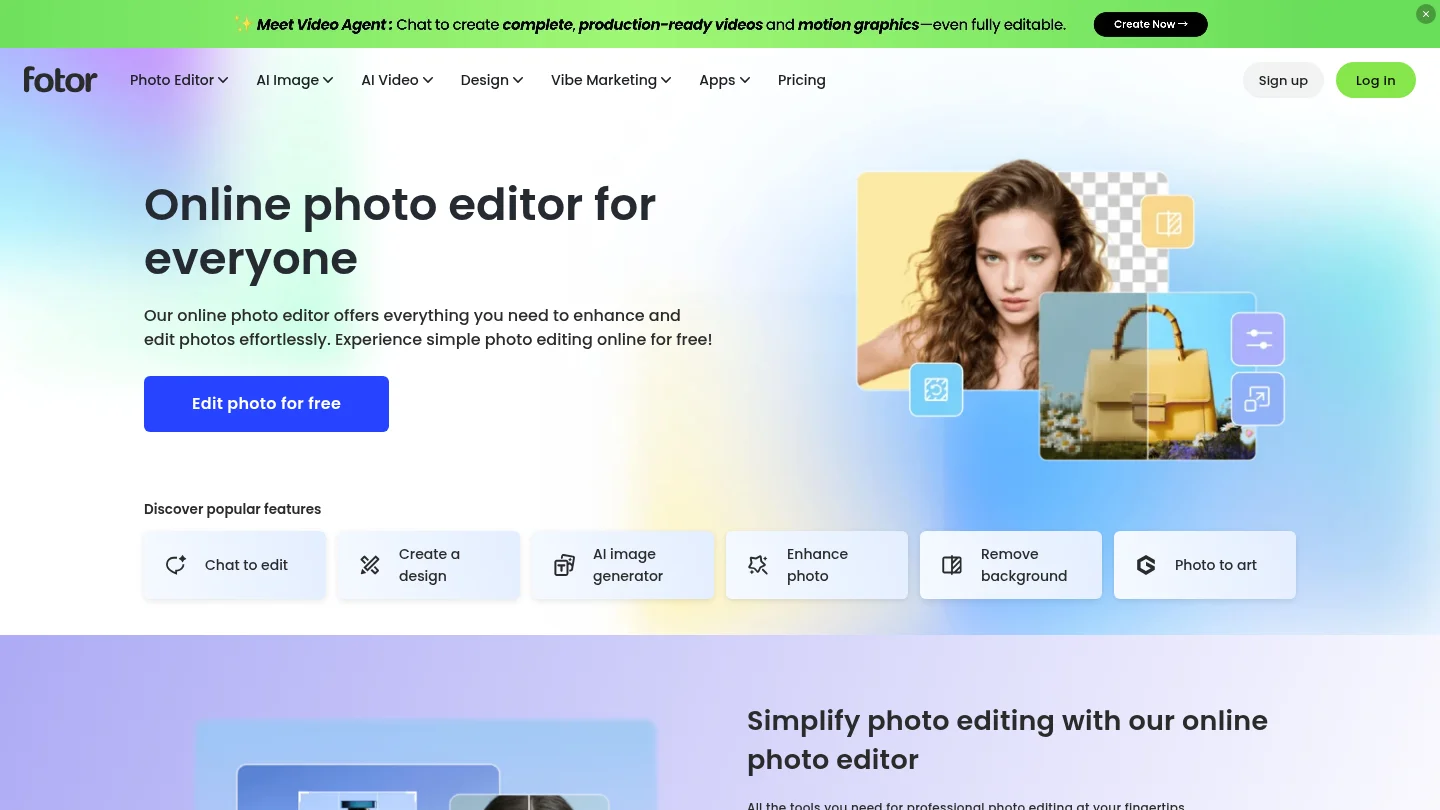
Best for: Users who want background replacement alongside enhancement, retouching, effects, and other general photo tools.
Fotor combines background removal and replacement with a larger photo-editing suite. Its tools cover enhancement, object removal, portrait retouching, effects, templates, image generation, and batch editing. This makes it a practical option when the black background is part of a broader editing session rather than the only change you need.
Fotor can be useful for improving an image before or after the backdrop change. You might enhance a slightly dull product photo, remove a small distraction, adjust the subject, and then place it against a dark background. Transparent PNG support is also relevant when you want to preserve the cutout for use in another design or listing.
The trade-off is that a general editor may require more navigation than a focused cleanup workspace. Advanced AI actions can also be connected to subscription access or credits, depending on the feature and plan. For one-off edits, its broad toolkit is convenient. For repeated product cleanup, a more specialized workflow may be easier to standardize.
Pros:
- Background replacement is combined with enhancement and object-removal tools.
- Batch editing can support repeated image preparation.
- Transparent PNG and broader export options are useful for design workflows.
- Mobile, desktop, and browser access support flexible editing.
Cons:
- The larger feature set can make a simple black background edit less direct.
- Some advanced AI capabilities may involve paid access or credit limits.
5. Adobe

Best for: Photographers and designers who need precise selections, layers, masking, and detailed manual refinement.
Adobe is the strongest option in this selection when you need to control the image beyond automatic background replacement. Photoshop combines selection tools, layers, masks, retouching, and generative features. You can isolate a subject, replace or extend a background, refine the boundary manually, and make targeted adjustments to light, color, and texture.
Generative editing is useful when a pure black background is not enough. You can create or replace surrounding areas, remove distractions, and refine the result through a layered workflow. This level of control can be valuable for professional product photography, editorial portraits, advertising work, and images where reflections or complex edges need careful attention.
Adobe requires more time to learn and configure than a task-specific AI editor. Its subscription structure can also be difficult to justify if you only need occasional background changes. For users who already work in Photoshop, however, the additional precision may outweigh the slower setup.
Pros:
- Deep selection, masking, layer, and retouching controls.
- Suitable for complex edges, reflections, lighting corrections, and detailed finishing.
- Generative tools can support background replacement and scene expansion.
- Strong fit for established professional photo workflows.
Cons:
- The learning curve is higher than focused browser-based editors.
- A subscription-based workflow may be excessive for occasional background edits.
- Manual refinement can take longer than a one-click product workflow.
6. Canva

Best for: Beginners, marketers, and teams placing edited photos directly into social posts, presentations, or branded designs.
Canva is convenient when the black background photo edit is only one part of a larger visual asset. Its editor connects background removal, background generation, filters, text, templates, resizing, and publishing tools. You can prepare a product or portrait, place it on a dark background, and continue building the surrounding design without switching platforms.
The platform is particularly useful for social content, presentations, promotional graphics, and simple product visuals. Its background tools also include prompt-based generation and lighting adjustments, which can help blend a new scene with the subject. This is more flexible than applying a flat color alone, especially when you need several creative versions for a campaign.
Canva is less specialized for demanding photo cleanup. Fine hair, transparent objects, reflective surfaces, and complicated product edges may require closer inspection or additional refinement. Continued use of some background and AI features can also depend on the plan, so it is worth checking access before building a high-volume workflow around it.
Pros:
- Simple interface for users without advanced editing experience.
- Background editing connects directly to templates, layouts, and publishing.
- Prompt-based background generation and lighting controls support creative variations.
- Useful for presentations, social posts, campaigns, and branded content.
Cons:
- Precise subject refinement is not its main strength compared with dedicated photo editors.
- Some continued background and AI use may require a paid plan.
- Design features can distract from a straightforward photo-cleanup task.
When does a black background photo edit work best?
A black backdrop works best when the subject has enough separation from the background and the final composition benefits from stronger contrast. Light products, metallic objects, cosmetics, accessories, food, and portraits can all gain visual definition against a dark field. The effect is less reliable when the subject itself contains large black areas or when important details disappear into the background.
The most important quality factor is edge preservation. Hair, fur, transparent packaging, cables, thin handles, jewelry, and reflective surfaces can expose weak masking quickly. A good result should keep the outline natural, avoid pale halos, and preserve relevant shadows without allowing the original background to remain visible.
Lighting matters as well. Lighting matters as well. A pure black background can look flat if the subject has no grounding shadow or separation light. For product photos, a subtle shadow can help the object feel placed rather than cut out. For portraits, gentle rim light can maintain facial and hair detail without weakening the dramatic mood.
How to choose the right tool for your workflow
Start with the output you need rather than the feature list. If you need a transparent cutout for several designs, prioritize transparent PNG export. If you need hundreds of consistent catalog images, prioritize batch editing and repeatable settings. If you need a single polished advertising image, prioritize edge quality, lighting control, and the ability to refine the final result.
- Check the subject. Use a clear source image with sufficient resolution and visible separation between the subject and its surroundings.
- Review the edges. Inspect hair, product contours, handles, reflections, and small gaps before downloading.
- Assess the tone. Pure black creates maximum contrast, while charcoal or dark gray can preserve more detail in dark products.
- Consider the output. Choose transparent PNG when you want to add the subject to multiple layouts. Choose a finished JPG when the black backdrop is final.
- Confirm usage terms. Edit logos, overlays, and other protected assets only when you own, license, or have permission to modify them.
Prompts can also improve consistency when you are making more than a simple cutout. Our AI photo editing prompts resource can help you describe lighting, edge preservation, shadows, composition, and the intended background more precisely.
Common mistakes to avoid with black backgrounds
One frequent mistake is choosing pure black without checking the subject’s darkest areas. A black camera, shoe, garment, or electronic device may lose its shape when placed against a background with no tonal separation. In those cases, a slightly lighter backdrop, directional light, or subtle shadow can make the product more readable.
Another problem is using a low-resolution source. AI can reconstruct parts of an image, but it cannot always restore authentic fine detail that was never captured. Begin with the cleanest original file available, then compare the processed result at full viewing size rather than judging only the thumbnail.
You should also avoid treating every background removal as final. Inspect the image around transparent sections, reflective edges, small gaps, and soft shadows. If the result is intended for a marketplace listing, check the platform’s required dimensions, file type, and image policies before publishing.
Conclusion
The best black background photo editing workflow depends on the subject, output, and amount of control you need. Pixmage is the strongest focused option for clean background removal, transparent PNG output, visible processing information, and a connected editing workflow. Photoroom is better suited to product catalogs and batch operations, while insMind adds creative background variations. Fotor and Canva work well for broader design tasks, and Adobe remains the choice for detailed professional refinement. Choose the tool that matches your required edge quality, workflow speed, output format, and usage terms.
Take action with Pixmage
When a product, portrait, or marketing image needs a cleaner backdrop, a focused workflow can reduce unnecessary editing steps. Start with the subject you want to preserve, review the result against the original, and decide whether you need a transparent cutout, a finished dark background, or further creative editing.
With our AI image studio, you can choose a task-specific cleanup workspace, upload a supported image, review the applicable processing information, compare the result, and download or continue editing the output. Our tools are designed for product imagery, listings, presentations, social content, photography, and other everyday visual work.
Frequently Asked Questions
What is a black background photo edit best for?
It is useful for product photos, portraits, marketplace listings, campaign visuals, and images that need stronger subject contrast. The effect works especially well when the subject is lighter than the backdrop or has a clearly defined outline.
Should I use pure black or dark gray?
Pure black creates the strongest contrast and a more dramatic appearance. Dark gray can be better for black products, dark clothing, or subjects with details that would disappear against a fully black background.
Do I need a transparent PNG?
A transparent PNG is useful when you want to place the isolated subject on several backgrounds or inside different designs. If the black backdrop is already final, a standard finished image may be sufficient for your intended channel.
How can I improve the quality of the result?
Use the highest-quality source image available and inspect fine edges before downloading. Pay particular attention to hair, fur, reflective surfaces, transparent materials, small gaps, and grounding shadows.
Can I use edited images commercially?
Commercial use depends on the applicable tool terms, the plan you use, and local law. You should also edit logos, overlays, and other protected visual elements only when you own, license, or are authorized to modify them.