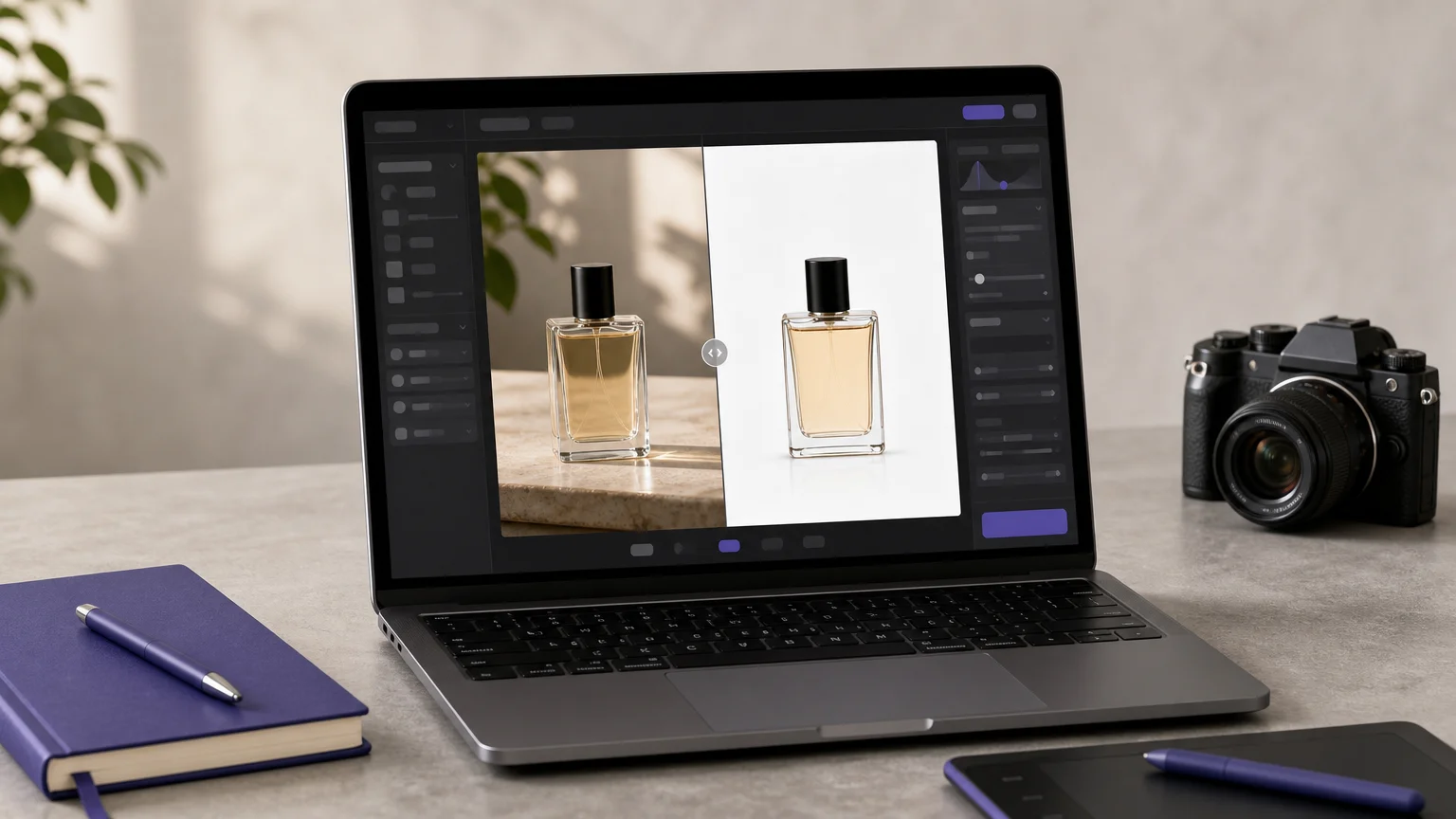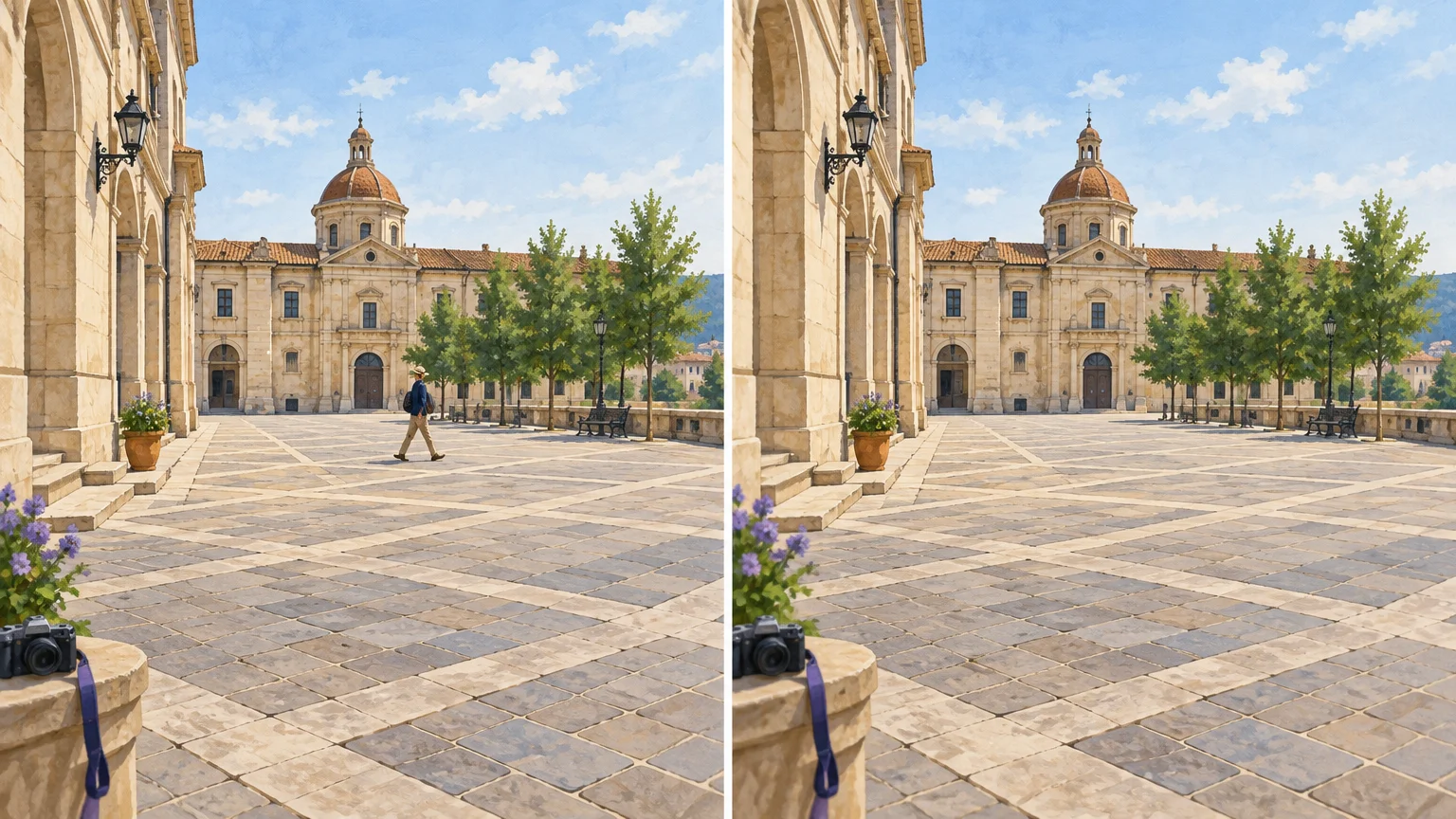
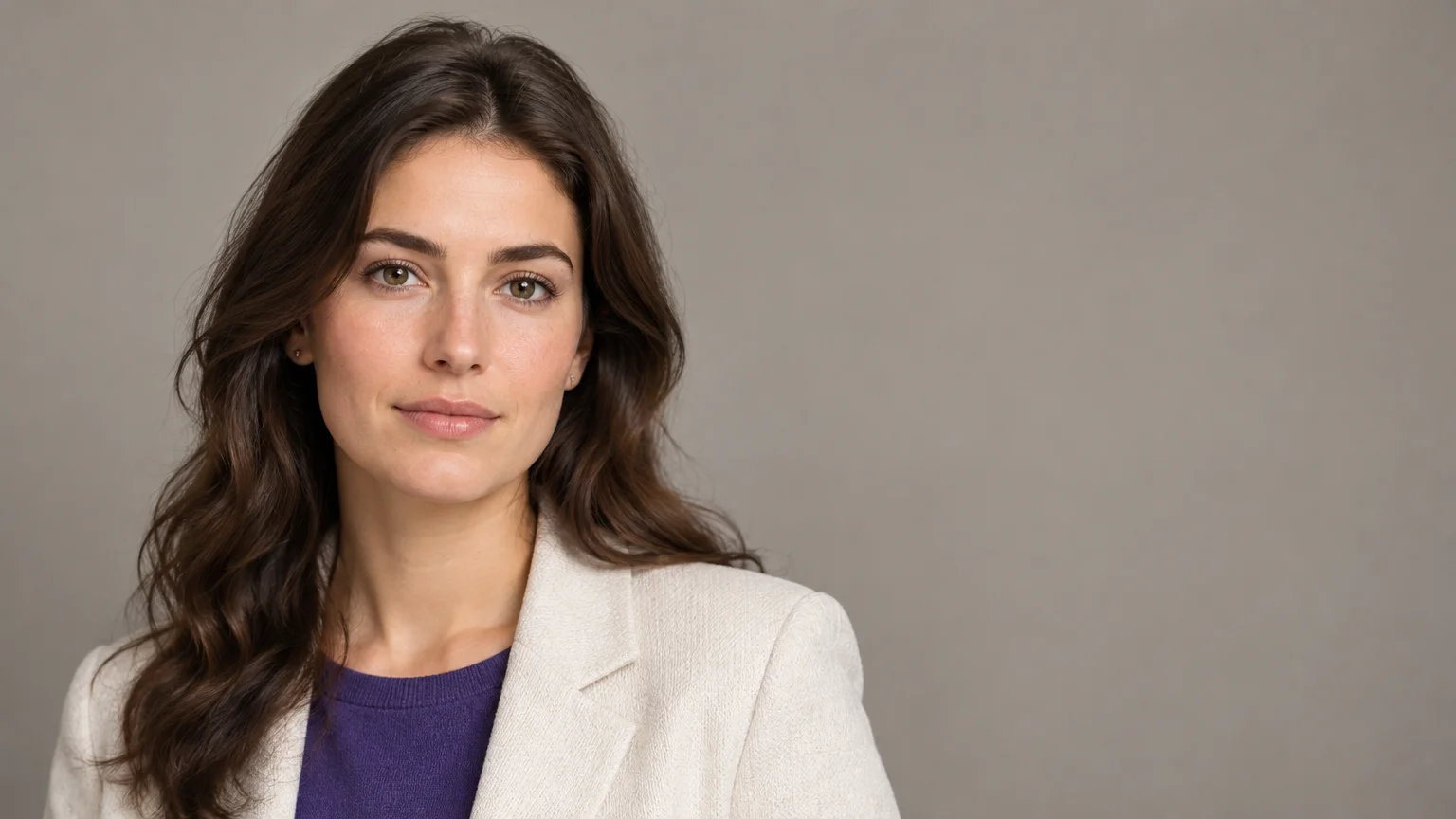

How much skin smoothing still looks like the person in front of the camera? The top AI portrait-retouching tools for 2026 differ sharply: some automate skin and makeup edits, while others handle broader photo changes. For editing needs beyond portraits, see our best AI photo editors for different creative workflows.
Your best fit depends on whether you need subtle skin cleanup, batch retouching, RAW development, or a specific background change. Portrait edits also require judgment. The Associated Press has reported that everyday digital retouching can blur into manipulation, while editorial standards remain stricter than beauty or social work.
Which portrait retouching tool fits your workflow?
The selection below is organized by workflow fit, not by a claimed head-to-head test. Start by separating skin and facial adjustments from general photo edits, batch processing, and design work. If your main goal is removing a distraction while preserving the rest of a picture, our AI photo cleanup for natural-looking results explains that approach.
For documentary or editorial portraits, the permitted changes depend on the publication and context. The NPPA’s 2026 contest rules emphasize the organization’s Code of Ethics and the importance of accurate representation.
| Rank | Tool | Retouching focus | Workflow and control | Practical consideration |
|---|---|---|---|---|
| 1 | Pixmage AI Image Studio | Prompt-led photo edits and person removal | Upload, describe a change, review, and download | Not positioned as a dedicated skin-retouching app |
| 2 | Evoto | Portrait retouching and batch work | Face-specific adjustments and synchronized edits | Broad controls may take time to learn |
| 3 | Aftershoot | Retouching alongside culling and editing | Local processing and batch workflow | May exceed the needs of a single portrait edit |
| 4 | Adobe Photoshop | Detailed, localized portrait retouching | Layers, selections, masks, and broad editing tools | More involved than a dedicated one-click retoucher |
| 5 | Luminar Neo | Portrait enhancement and creative lighting | Guided controls, effects, and batch adjustments | General creative editing extends beyond retouching |
| 6 | Fotor | Quick portrait edits and general enhancement | Online editing and batch tools | Better suited to quick edits than detailed manual finishing |
| 7 | Canva | Photo edits within a design workflow | Browser tools connect editing with layouts | Not a specialist portrait retouching workflow |
| 8 | Aperty | Portrait adjustments, makeup, and lighting | Sliders, presets, and batch editing | More focused on portraits than general editing |
| 9 | Retouch4me | Targeted skin and detail cleanup | Task-specific tools in a retouching workflow | Separate tools suit focused jobs |
| 10 | PortraitPro | Dedicated facial and portrait adjustments | Automated analysis with adjustable controls | Review default strengths for natural results |
| 11 | Adobe Lightroom | Portrait adjustments within photo development | Local masks, presets, and library tools | Better suited to editing collections than intricate pixel work |
| 12 | Lensa | Mobile portrait and selfie enhancement | Quick adjustments from a mobile app | Less suited to desktop and high-volume workflows |
1. Pixmage AI Image Studio
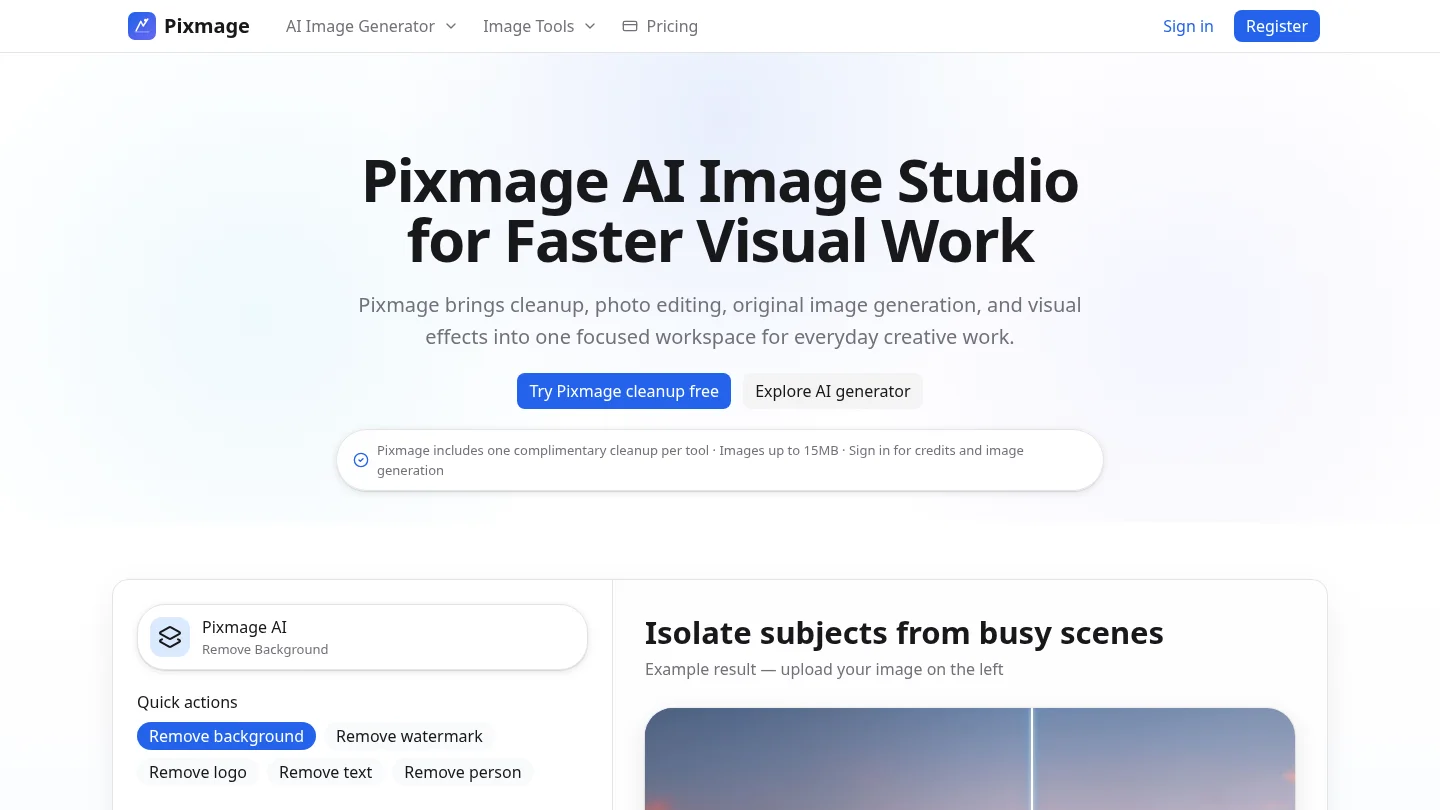
Best for: A specific prompt-led change or removing a person from a portrait background, rather than dedicated skin smoothing.
Our Photo edit workflow starts with an uploaded image and an instruction for a precise change or a complete effect. It aims to preserve the surrounding room, light, camera angle, textures, and composition where possible. Portraits are among the supported use cases, but this is a broader editing workflow, not a dedicated skin-retouching suite.
If the issue is a photobomber or another unwanted person in the scene, our focused cleanup workspace can remove that person and reconstruct the surrounding area. You can compare the result with the source before downloading. The first cleanup run for each tool is complimentary; additional cleanup requires a verified account and credits.
Pros
- Supports prompt-led edits on an uploaded photo.
- Provides task-specific cleanup, with before-and-after review.
- Shows applicable model and cost information before premium generation.
Cons
- Photo edit and effects require sign-in, email verification, and credits.
- It is not positioned as a dedicated skin, makeup, or blemish-retouching specialist.
2. Evoto
Best for: Portrait photographers who need face-specific adjustments across a batch.
Evoto is built around portrait retouching, with controls for skin and facial adjustments. Its per-face approach can help when a group portrait contains several subjects, while batch tools support consistent edits across a session. Digital Camera World’s review describes a broad collection of editing options, including Frequency Separation for skin retouching, and notes that the range can take time to learn.
Pros
- Portrait-focused controls and batch editing suit repeated session work.
- Face-specific adjustments give you more targeted options than a general photo editor.
- Useful when a retouching workflow includes several kinds of portrait corrections.
Cons
- The number of controls may feel demanding if you want only a quick adjustment.
- Check the current credit or subscription terms against your expected export volume.
3. Aftershoot
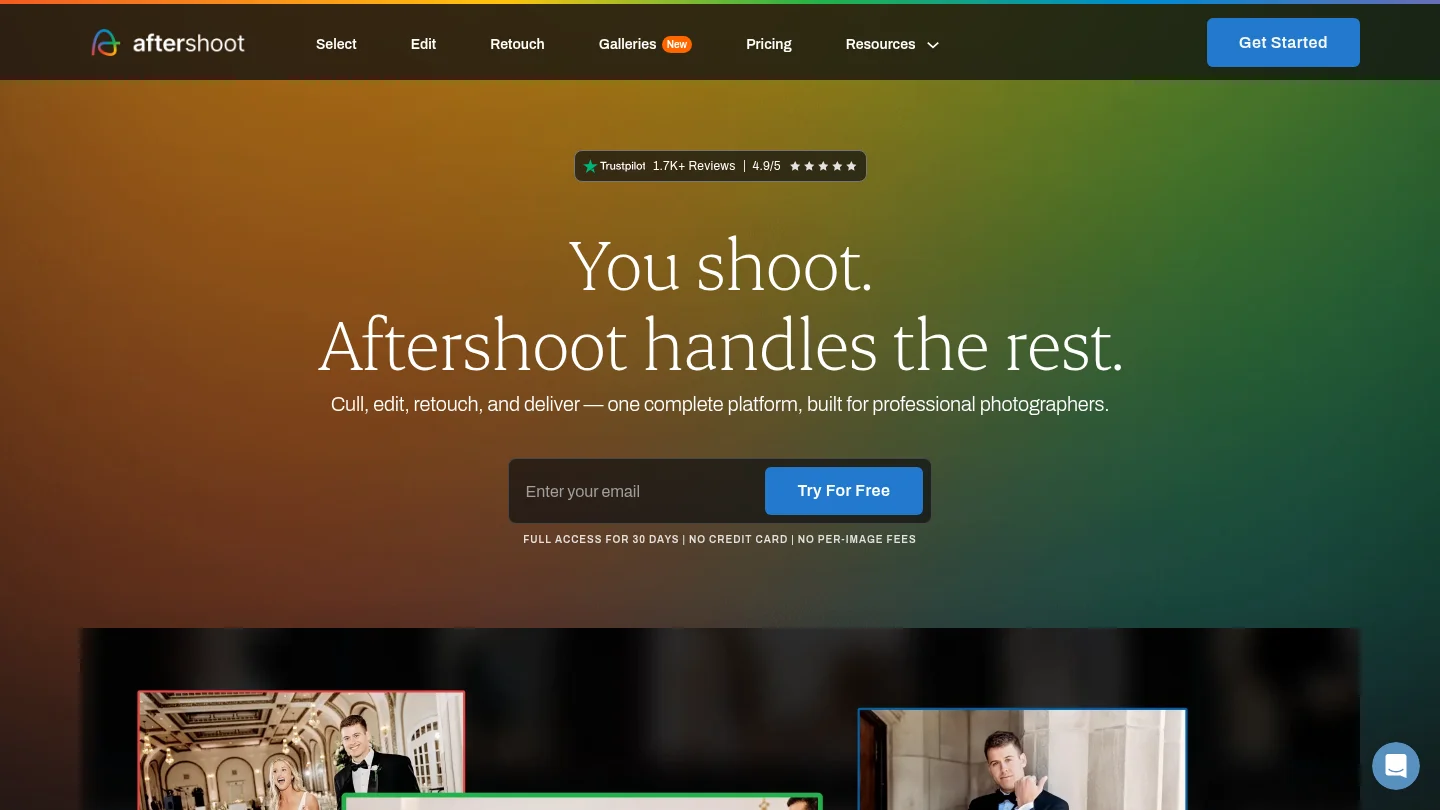
Best for: Photographers who need culling, editing, and retouching across a larger shoot.
Aftershoot combines post-production stages in a desktop workflow. Its described tools include skin and distraction retouching, batch adjustments, and local processing. This can help photographers move from selecting images to applying consistent edits without sending files to a cloud service.
Its scope is broader than a dedicated single-image retoucher. That breadth can be valuable for recurring sessions, while someone polishing one hero portrait may prefer a narrower tool.
Pros
- Combines culling, editing, and retouching in one workflow.
- Batch processing supports repeated adjustments across an album.
- Local processing supports offline work after installation.
Cons
- A full post-production workflow may be more than you need for one portrait.
- Check the current plan details to match the included tools to your needs.
4. Adobe Photoshop
Best for: Editors who need precise control over local retouching and finishing.
Photoshop combines portrait-related filters with selections, masks, layers, and manual editing tools. That structure gives you room to work on a specific area and revisit the result. It can suit a carefully finished portrait where the edges, texture, and individual adjustments matter.
Photoshop is a broad editing suite, so its flexibility comes with a deeper workflow than a dedicated retoucher. If your goal is creating a new professional headshot rather than retouching an existing portrait, see our AI headshot generator tools.
Pros
- Layers, masks, and selections support localized, adjustable edits.
- Portrait filters sit within a wider professional editing toolkit.
- Useful for detailed finishing beyond automatic skin adjustments.
Cons
- The broad feature set can take longer to learn than a focused retouching app.
- A manual finishing workflow may be unnecessary for quick batch edits.
5. Luminar Neo
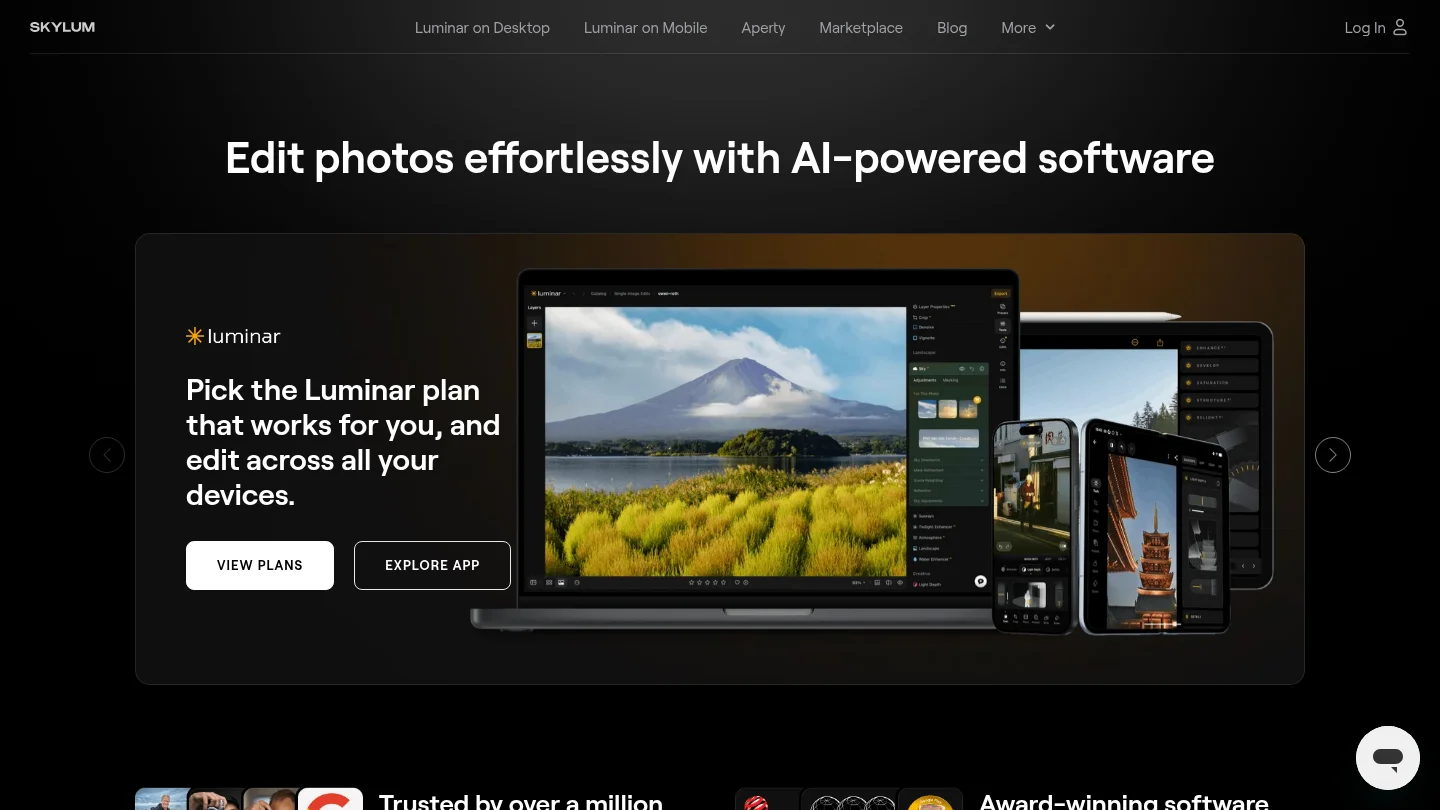
Best for: Photographers who want guided portrait enhancements alongside general creative editing.
Luminar Neo combines portrait controls with broader photo-editing features. Its described options include skin and facial adjustments, lighting, effects, and batch editing. This can suit you if portraits are only one part of your workflow and you want additional tools for other image types.
The wider set of creative controls also makes it sensible to review each change at a moderate strength. Check the full image, not only the face, to make sure the edit still fits the lighting and mood of the original.
Pros
- Portrait adjustments sit alongside general photo-editing tools.
- Guided controls can make common edits approachable.
- Batch adjustments can help when processing similar images.
Cons
- Its broad creative toolkit may be unnecessary for skin-only retouching.
- Review stronger effects to keep the result consistent with the source photo.
6. Fotor
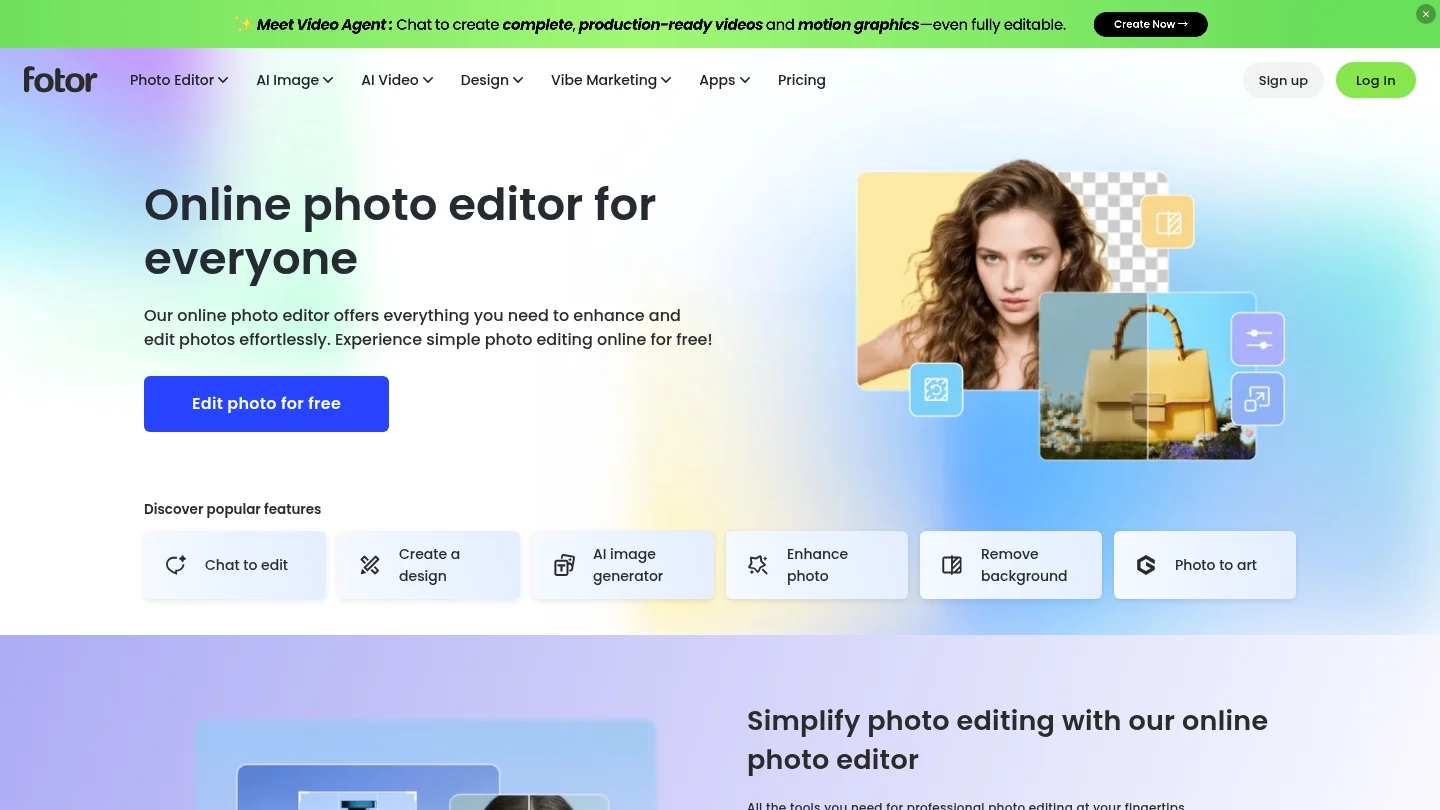
Best for: Online users who want quick portrait adjustments with general enhancement and design tools.
Fotor combines a browser-based editor with AI enhancement, portrait-related editing, and batch tools. Its wider design features can help when you also need to prepare a social image or other simple creative asset. That convenience makes it a practical option for everyday edits without a specialized desktop workflow.
For close-up portrait finishing, inspect the result carefully before exporting. Quick enhancement and detailed retouching are different tasks, especially when you want to preserve small skin details.
Pros
- Online editing can suit quick access across common creative tasks.
- Portrait features sit alongside broader enhancement and design tools.
- Batch editing can support repeated work.
Cons
- A broad online editor may offer less focus than a dedicated portrait retoucher.
- Check export and feature limits before committing to a large project.
7. Canva
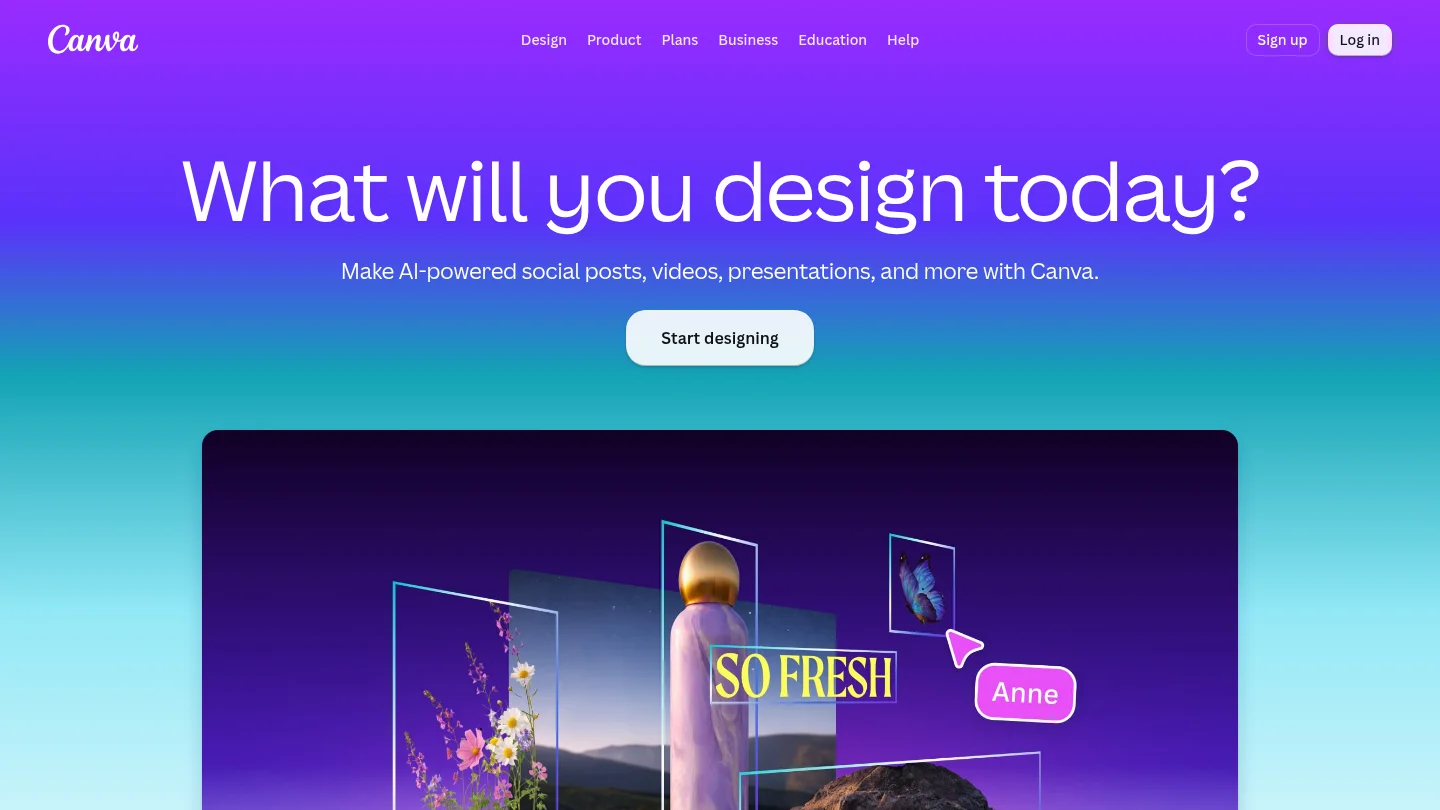
Best for: Creators who want to edit a portrait and place it directly into a design.
Canva brings photo editing into a browser-based design workspace. This is convenient when a portrait is headed straight into a social post, slide, or other layout. You can keep editing and design tasks together instead of moving between separate applications.
That convenience is different from dedicated skin retouching. If the main goal is preserving natural skin texture through a close, controlled edit, choose a tool whose primary workflow is portrait retouching.
Pros
- Combines photo tools with layouts and design templates.
- Useful for preparing portrait assets for presentations and social content.
- Browser-based workflow suits quick design tasks.
Cons
- It is not a dedicated portrait retouching application.
- Design convenience does not replace detailed facial adjustments.
8. Aperty
Best for: Portrait photographers who want dedicated facial tools with adjustable controls.
Aperty focuses on portrait work rather than general image editing. Its described tools include skin and facial adjustments, makeup options, face shaping, and lighting controls. SLR Lounge describes its slider-based interface and Lightroom plugin workflow, as well as options for flags and ratings that can support basic image selection.
That combination can suit photographers who want a dedicated portrait application without building every adjustment from scratch. For subtle results, use the controls selectively and review skin texture, eyes, and facial shape at full size.
Pros
- Portrait-specific tools cover several common facial adjustments.
- Adjustable sliders offer more restraint than applying a fixed filter.
- Batch editing and Lightroom integration can fit an existing photography workflow.
Cons
- Its portrait focus is less useful when you need a broad general-purpose editor.
- Some detailed finishing may still call for a separate editing application.
9. Retouch4me
Best for: Editors who want targeted retouching tools within a familiar photography workflow.
Retouch4me provides task-specific tools for portrait and backdrop cleanup. Its Photoshop panel can preserve editable layers, which helps you review and fine-tune the result instead of treating the output as final. SLR Lounge describes its plugin workflow as a fit for portrait photographers who already use Photoshop for other finishing work.
This modular approach works well when you know the specific task you need to automate. It is less like opening one all-purpose portrait app and more like selecting a tool for an individual step.
Pros
- Focused tools can address particular retouching and cleanup tasks.
- Layer-based integration supports further adjustments after processing.
- A useful option when Photoshop is already central to your workflow.
Cons
- Separate tools may require more selection and setup than an all-in-one app.
- It is less suited to users looking for a single, broad portrait workspace.
10. PortraitPro
Best for: Users who want a portrait-specific editor with a wide range of facial adjustments.
PortraitPro is designed around portrait editing rather than general photo management. The described feature set includes automated facial analysis and controls for skin, makeup, and facial features. Its adjustment options can help you shape the result, but strong defaults may need to be reduced for a natural finish.
That range can be helpful for a portrait that needs several coordinated changes. It also makes a careful review important: check that skin texture, face shape, and other identity-defining details still match your intent.
Pros
- Portrait-centered controls cover more than basic skin smoothing.
- Adjustable settings let you refine an automatic result.
- Useful when a general photo editor feels too broad for face-focused work.
Cons
- Some automatic settings may look too strong unless adjusted.
- Its specialized focus is less useful for editing a full range of photo subjects.
11. Adobe Lightroom
Best for: Photographers who want portrait adjustments within a photo-development and library workflow.
Lightroom offers AI-assisted masks for selecting people and parts of a portrait, alongside RAW development and tools for applying edits across images. You can use a mask for a local adjustment, then inspect the selection before applying or synchronizing settings. This is useful when retouching is one stage in managing a broader photo collection.
It is not the same as a dedicated facial retoucher with a range of portrait-specific sliders. For a wider look at editing workflows, compare our AI photo editing tools for photographers.
Pros
- Local masks help isolate areas for targeted adjustments.
- RAW development and library tools support a complete photography workflow.
- Applying settings across images can help maintain consistency.
Cons
- Intricate, layer-based retouching may call for another application.
- Its broad workflow may be more than you need for a quick selfie edit.
12. Lensa
Best for: Mobile users who want quick edits to selfies and personal portraits.
Lensa is oriented toward mobile portrait editing, with quick enhancement and facial adjustment tools. It can be convenient when you want to improve a personal photo directly on your phone. For more controlled work, compare the original and edited image instead of accepting every automatic change.
Its mobile-first use case differs from desktop tools built around RAW development, layers, or high-volume portrait sessions. Choose it for convenience rather than assuming it replaces a photographer’s full editing workflow.
Pros
- Quick mobile edits suit personal portraits and selfies.
- Facial adjustments and effects are available in a simple app workflow.
- Useful when you want to edit without opening desktop software.
Cons
- Less suited to desktop-based session editing and detailed file management.
- Mobile convenience does not provide the same workflow as specialist batch tools.
Choose the tool that matches the edit
The best choice depends on the change you need. Pixmage is a practical option for a specified edit or removing a person from a portrait scene. For dedicated skin and facial controls, compare Evoto, Aperty, Retouch4me, and PortraitPro. Choose Aftershoot when batch workflow matters, or Photoshop and Lightroom when your edits need broader control. Test a few representative images first, review the result at full size, and keep the original available.
Remove a distracting person from your portrait
A portrait can look unfinished when someone in the background draws attention away from the subject. If your goal is to clean up the scene rather than smooth skin, use a focused person-removal workflow and check that the surrounding background still looks natural.
Our AI person removal tool removes a person or photobomber and reconstructs the surrounding scene. Upload a JPG, PNG, WebP, or GIF file up to 15MB, review the result against the source, then download it. Your first Remove Person cleanup run is complimentary. Further processing requires a verified account and credits, with the required credits shown before processing.
Frequently Asked Questions
Which tool is best for natural skin retouching?
Evoto, Aperty, Retouch4me, and PortraitPro are more directly focused on portrait adjustments than general photo editors. Compare them on the same portrait and reduce the strength of edits until skin texture still looks natural.
Can Pixmage retouch skin in a portrait?
Pixmage supports uploaded-photo editing and portrait use cases, but it is not positioned as a dedicated skin-retouching application. It is better suited to a specified photo edit or cleanup task, such as removing a distracting person from the scene.
Can AI retouching preserve natural skin texture?
Some tools provide controls that can help retain texture, but results depend on the portrait and the chosen settings. Review pores, hair edges, eyes, and facial shape at full size before accepting an edit.
Which options suit batch portrait work?
Evoto, Aperty, and Aftershoot describe batch workflows for portrait or photography sessions. Check a sample from each lighting condition before applying settings across a full gallery.
Should you use AI retouching on documentary portraits?
Follow the publication’s rules and preserve the factual meaning of the image. Cosmetic changes that are acceptable for a personal portrait may be inappropriate when a photograph is presented as documentary evidence.