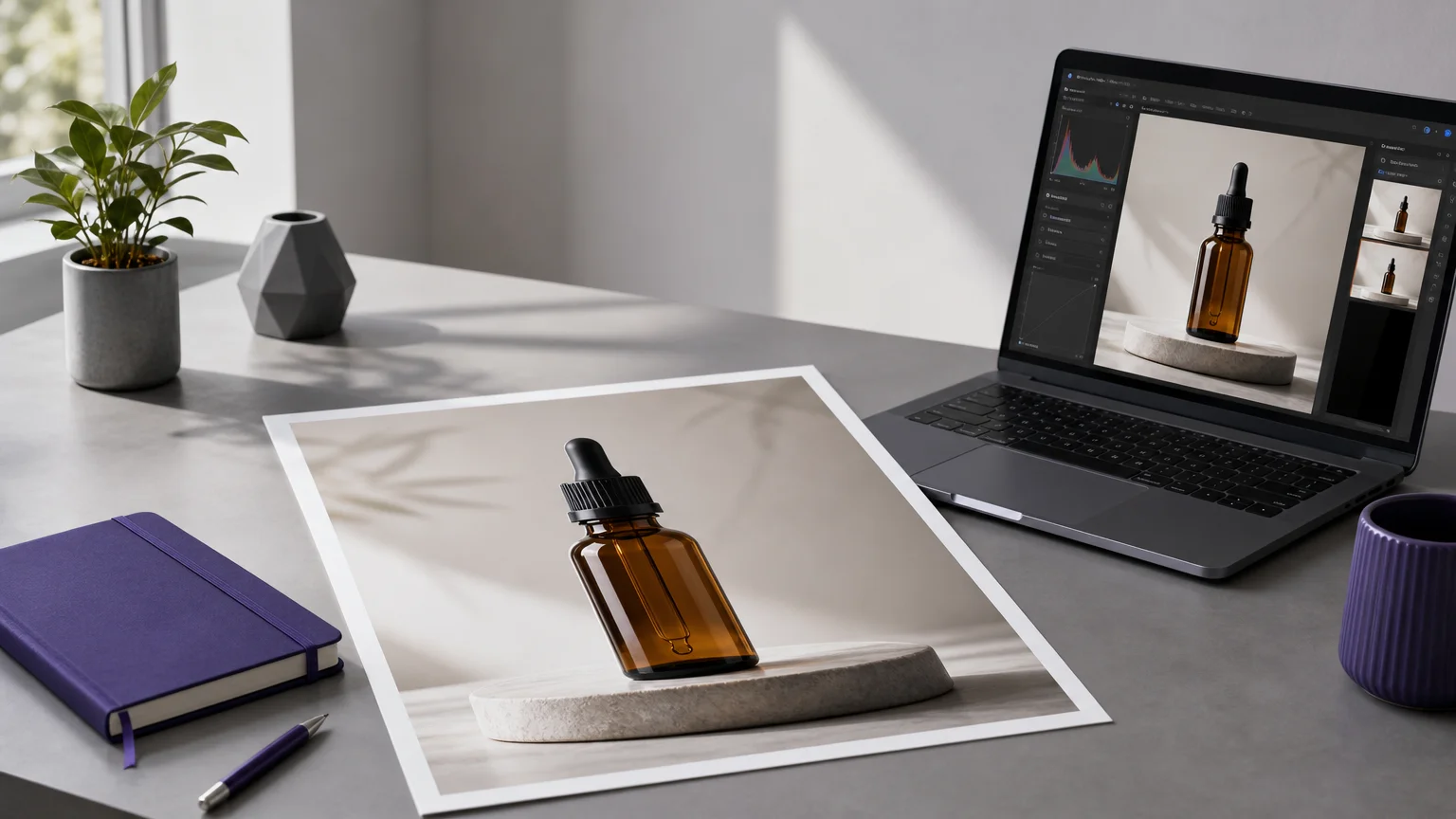
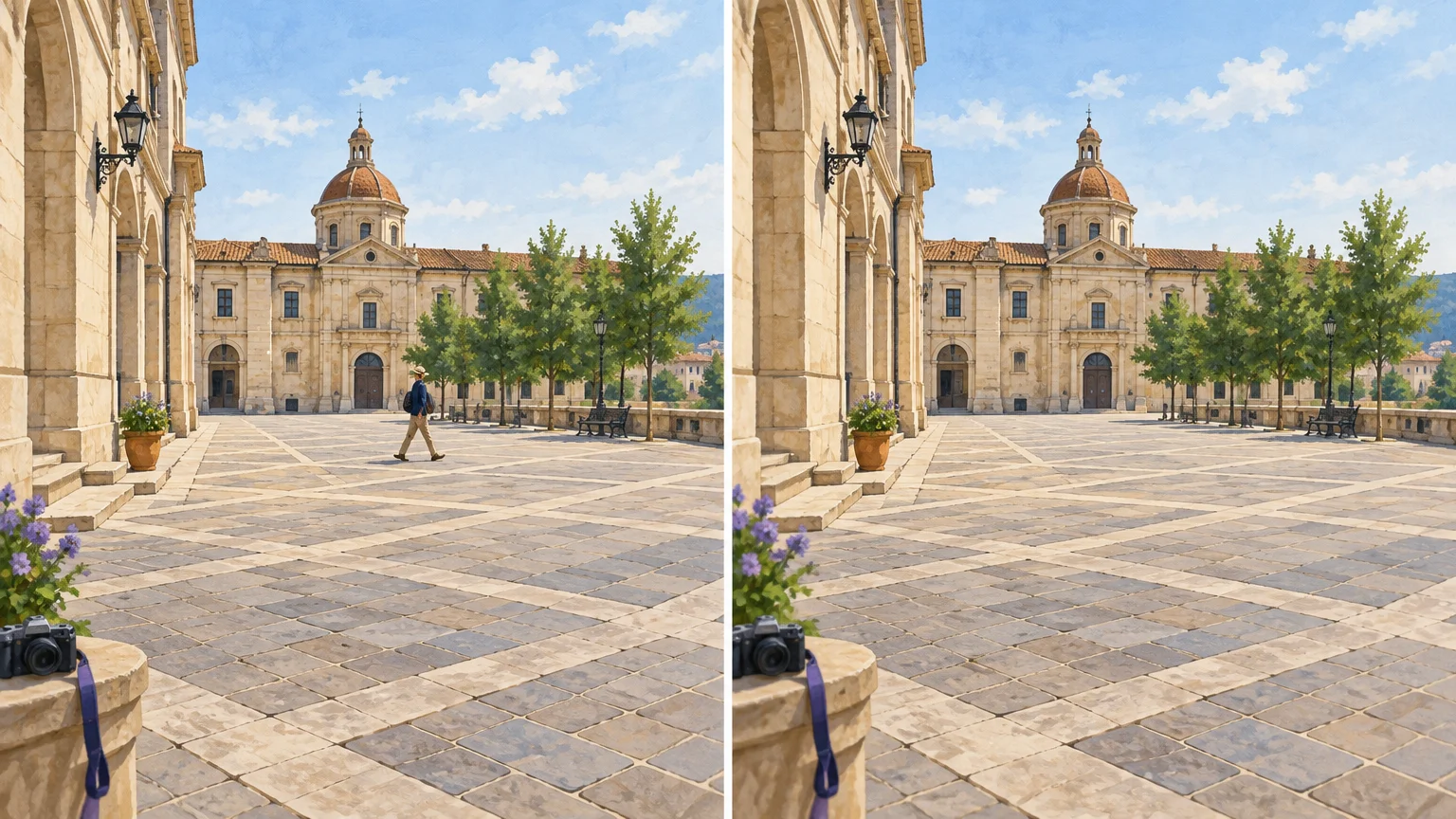

A passerby, stray cable, or dust mark can draw attention away from the subject you meant to capture. AI photo cleanup can remove that distraction and fill the gap, while our AI image cleanup tools overview helps you consider different cleanup workflows.
Yet removal is only half the edit: the replacement area must also fit the photo. A 2026 WACV study found that the best tested AI editors fulfilled about 33% of requests in its broad image-editing benchmark, based on human ratings. The study covered everyday editing requests, not cleanup alone, so its result is a useful reminder to review each image rather than a prediction for your photo.
What does AI photo cleanup actually do?
When you mark an unwanted object, an AI editor identifies the selected region and uses nearby visual information to estimate what belongs there. This process, called generative inpainting, may reconstruct textures, colors, edges, and shadows that the object hid. For a small mark on a plain wall, the surrounding pixels offer clear clues. A person covering patterned paving leaves the system more to infer.
Different cleanup tasks can involve different kinds of image changes. Object removal erases a selected item or distraction. Background removal separates a foreground subject from its scene, while person removal reconstructs the background behind someone. Removing damage from an old photo, by contrast, may require restoring detail that is missing rather than simply clearing a distraction.
Which cleanup task are you trying to solve?
Consider what you want to keep as well as what you want to remove. For a travel image, that might mean erasing a tourist without changing the architecture or pavement. For a product photo, it could mean removing dust while preserving the item’s texture, reflections, and natural shadow. A clear task makes it easier to choose the right cleanup mode and judge the result.
People and photobombers often overlap with their surroundings, and their shadows may remain after removal. Review the filled area and the space around it, not just the person’s former position. If you are editing a photo with someone in the background, our guide to removing people from photos covers that specific type of cleanup.
Text, logos, and watermarks need an additional check: edit them only when you own the material or have permission. For authorized edits, examine nearby letters, product details, and repeated patterns for distortions. If the goal is to remove an existing overlay and add different wording, our AI photo editing prompts page can help you frame an editing instruction.
How can you tell whether the result looks natural?
A cleaned image can appear convincing at first glance while retaining a blurred patch, a repeated pattern, a broken edge, or a leftover shadow. Zoom in around the edited region and compare it with the original. Look for mismatched texture, inconsistent lighting, and details that were changed beyond the area you selected.
A Skylum survey reported by Digital Camera World found that 93% of respondents wanted photo edits to look natural. The article describes the respondents broadly as photographers, so treat that finding as a preference signal, not a universal quality benchmark. It reinforces a practical standard: a cleanup should remove the distraction without making the rest of the image feel altered.
Large selections leave the AI with less nearby information to use when reconstructing the scene. If an edit looks smudged, try reducing the selected area and processing one distraction at a time. Check whether the object’s shadow needs separate attention, then compare the revised result with the original. For a complex background, a manual finishing touch may still be useful.
What should you compare before uploading a photo?
Start with the specific tool’s supported tasks. A tool made for people removal may suit a travel scene, while a background remover is intended to create a subject cutout. Then check whether the workflow gives you control over the selected area, offers an easy way to review the edit, and makes its export and cost conditions clear.
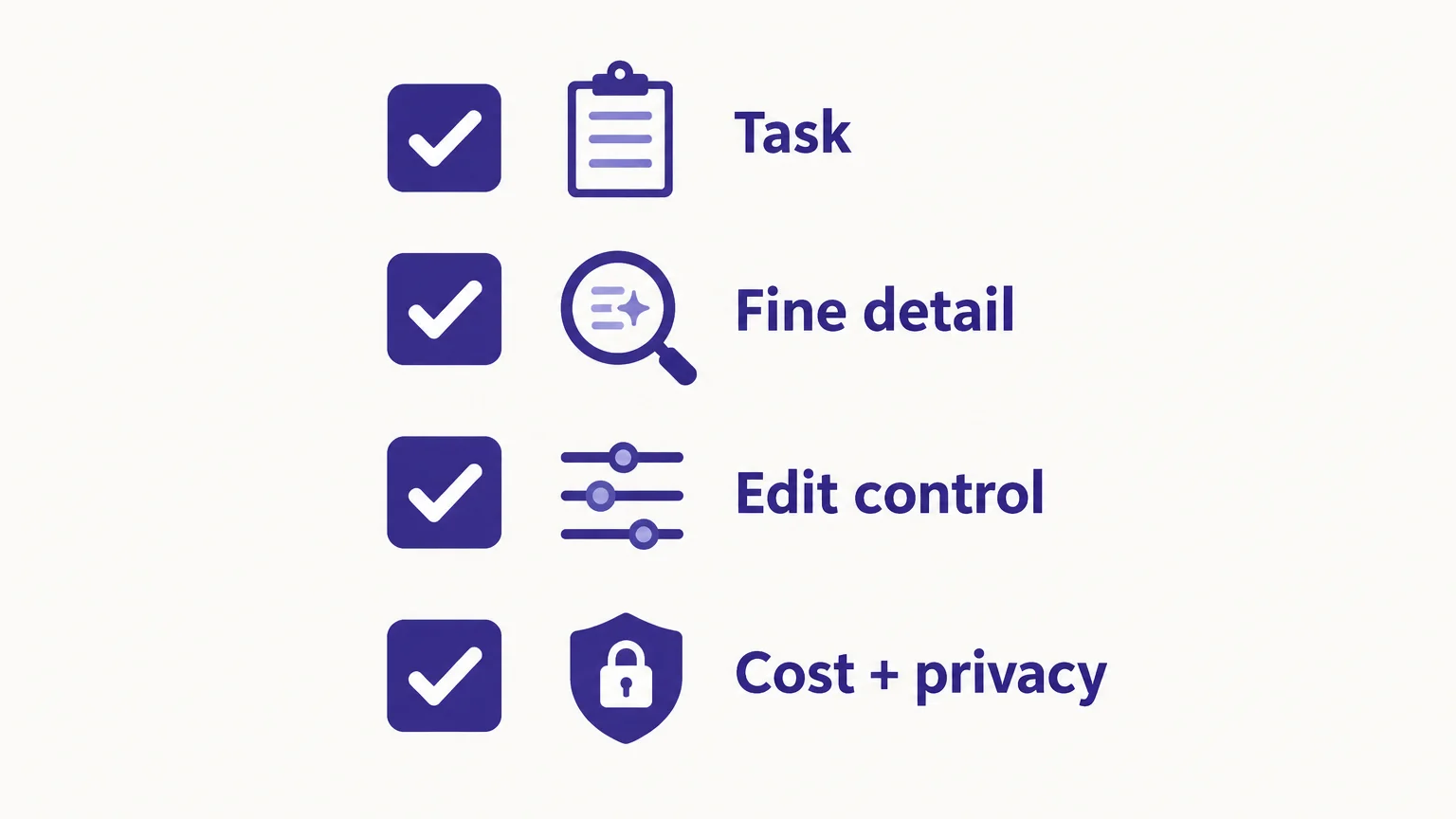
Check technical requirements before selecting a file. Pixmage’s cleanup workspaces accept JPG, PNG, WebP, and GIF files up to 15MB. Try to start from the clearest version of your image, since compression or blur can make fine details harder to reconstruct. For cleanup in Pixmage, the first run of each listed tool is complimentary; additional processing requires a verified account and credits, with the required credits shown before processing.
Next, assess the editing controls. A preservation-oriented workflow should aim to change the selected area while keeping the subject, composition, lighting, and surrounding detail intact where possible. Pixmage’s cleanup flow lets you process an image, review the result against the original, and download it or try another source. An before-and-after comparison helps you catch unintended changes before sharing or publishing.
How should you consider privacy and image rights?
Before uploading a personal photo or client asset, read the service’s terms for uploads, retention, and any use of submitted images. A 2026 Popsa global photo report found that 73% of respondents were open to AI helping with their photos. That finding describes consumer attitudes, not the data practices of any particular cleanup tool.
For commercial work, also check whether you are authorized to edit the image and whether your intended use is permitted. If an edit changes a listing, campaign image, or historical photograph, consider whether viewers should be told about the alteration. Keep the original so you can compare versions or return to the unedited image.
Make cleanup a reviewable edit
AI photo cleanup is most useful when the task is clear and the selected area leaves enough visual context for reconstruction. Choose a workflow that suits the image, preserve the original, and inspect the edited region and nearby details before using the result. Natural-looking cleanup is something to assess, not assume.
Remove a distracting background
When your goal is to separate a subject from its scene, choose a workflow designed for background removal rather than general object cleanup. Our focused cleanup workspaces let you process an image and review the result before downloading.

Our background removal workspace accepts JPG, PNG, WebP, or GIF uploads up to 15MB and provides a transparent PNG when removal is successful. Your first run with each cleanup tool is complimentary. Additional runs require a verified account and credits, with the required credits shown before processing. Try our AI background removal tool when you need a subject cutout.
Frequently Asked Questions
What is AI photo cleanup?
It uses AI to remove selected distractions and reconstruct the image area beneath them. Common tasks include removing objects, people, text, or photo damage.
Why can a cleanup leave a blurry patch?
The AI has to infer details hidden by the removed element. Large selections, complex textures, shadows, and limited surrounding detail can make reconstruction harder.
Can AI cleanup remove a person from a photo?
Many cleanup workflows can remove a person and attempt to rebuild the background. Inspect the person’s former position, nearby edges, and any cast shadow for visible artifacts.
How can I get a more natural result?
Start with a clear source image and select only the area you want changed. Review the result at close range and, if needed, try a smaller selection or handle separate distractions in individual edits.
Can Pixmage help with a specific cleanup task?
Yes. Pixmage has focused workspaces for removing people, backgrounds, watermarks, logos, and text. Choose the workspace that matches your task, then review the result before downloading.