

Do you need to remove a distraction, create a new image, or work across photography and illustration? The right choice depends on the scope of your task. Pixmage vs Adobe is best understood as a focused AI image studio compared with a broader creative software ecosystem. For a wider shortlist organized around creative tasks, see AI photo editors for different creative workflows.
Graphic design work can involve illustration, photo editing, and layout, so one application may not cover every part of a project. The U.S. Bureau of Labor Statistics describes these as common parts of graphic designers’ work in its overview of graphic design duties. That distinction matters here: Pixmage organizes image cleanup and AI creation around specific tasks, while Adobe brings together tools for different creative disciplines.
How do Pixmage and Adobe compare?
| Criterion | Pixmage | Adobe |
|---|---|---|
| Image cleanup | Focused tools for removing backgrounds, watermarks, logos, text, or people. | Photoshop supports targeted photo editing and generative edits. |
| AI creation | Text-to-image, photo editing, curated effects, and multi-image fusion. | Photoshop includes generative image and editing features within a wider creative app ecosystem. |
| Workflow | Browser-based workspaces organized around a selected cleanup or creation task. | Specialized applications support different creative disciplines and can work together. |
| Models and inputs | Compatible models, prompts, image references, and output settings are managed in one workspace. | Photoshop offers generative editing with Adobe and partner models, depending on the feature. |
| Cost visibility | Applicable credit requirements appear before cleanup processing or generation. The first run of each cleanup tool is complimentary. | Subscription and generative-credit terms depend on the selected app, plan, and feature. |
| Next step | Download a result or send generated work into photo editing. | Move assets between compatible Adobe applications, including Photoshop and Illustrator. |
Pixmage
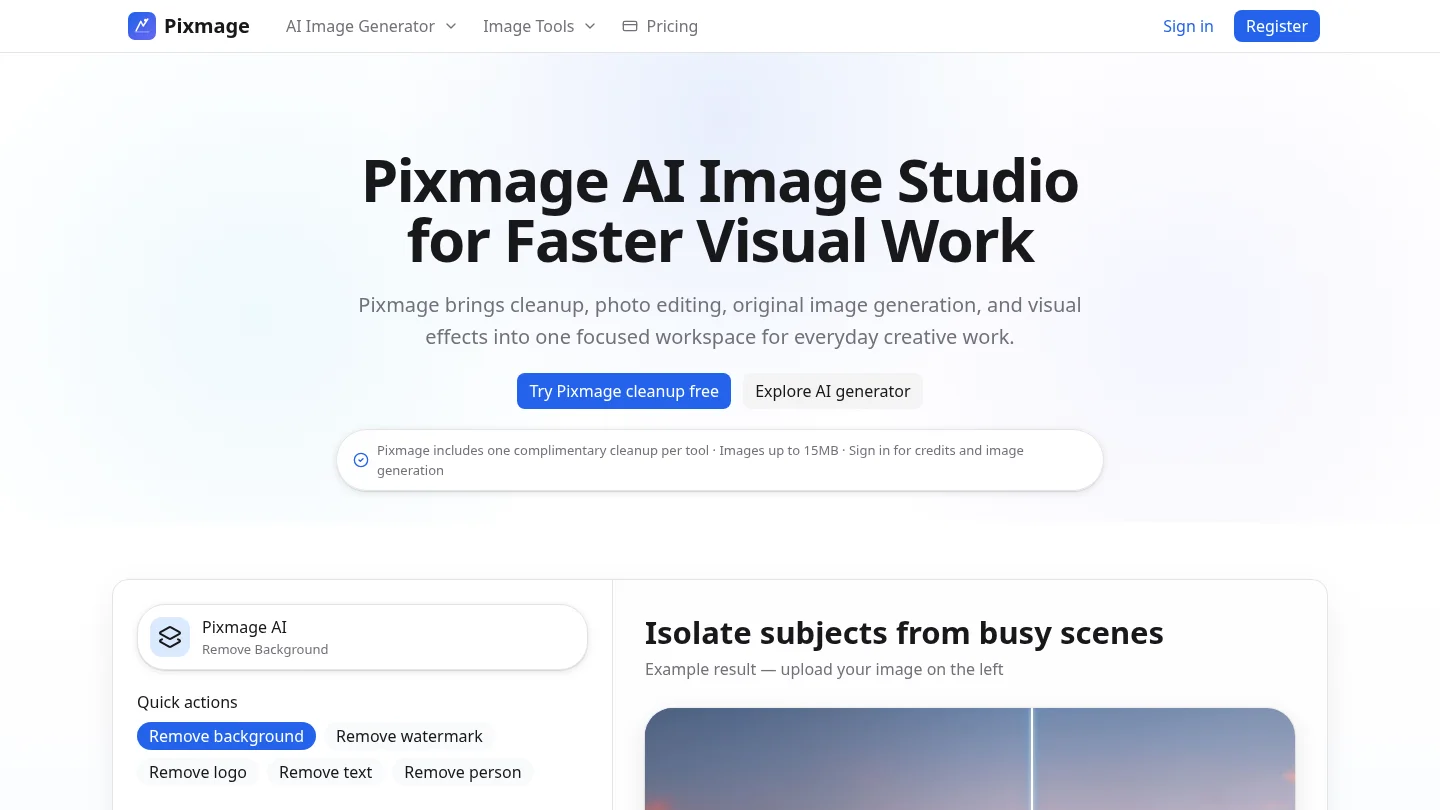
Best for: online sellers, photographers, marketers, and everyday editors who want focused image cleanup or AI creation in a browser.
Our cleanup workspaces handle specific jobs: removing a background, watermark, logo, text, or person. You upload an image, process it, compare the result with the original, and download the finished file. For successful background removal, the result is a transparent PNG. This task-by-task setup suits a product seller preparing a listing photo or a traveler cleaning a photobomb from a scene.
Each cleanup tool includes a complimentary first run. Later cleanup requires a verified account and credits, with the required amount shown before processing. Supported uploads include JPG, PNG, WebP, and GIF files up to 15MB. For photographer-focused editing context, explore AI photo editors for photographers.
Our AI Image Generator adds text-to-image creation, uploaded-photo editing, curated effects, and multi-image fusion. Its workspace brings prompts, image references, compatible models, output settings, and credit costs together. Available models include Seedream 5.0 Lite, Seedream 5.0 Pro, Nano Banana, and FAL Flux. Each appears only for tasks it supports. For more context on generation workflows, see AI image creation tools.
Pros
- Focused cleanup workspaces make common removal tasks easy to select directly.
- Visible cost information helps you review credit requirements before processing or generating.
- Generated results can be downloaded or continued in photo editing.
Cons
- Image generation and Photo Effects require sign-in and email verification, and generation requires credits.
Adobe
Best for: creators who need a broader set of creative applications, including photo editing and vector illustration.
Adobe is not a single image editor. Photoshop is built for pixel-based photo editing, while Illustrator is designed for vector graphics that can scale to different sizes. Adobe describes workflows where assets from Illustrator and Photoshop work together. This gives creators more room to move between photo editing, illustration, and other production needs than a focused cleanup workspace is intended to provide.
Photoshop also includes generative tools for tasks such as adding, removing, or replacing image content. Adobe’s model and credit options depend on the feature and plan selected. If you are comparing recurring costs, check the current terms for the exact apps and generative features you expect to use.
Pros
- Different applications serve distinct creative needs, including photo editing and vector design.
- Photoshop and Illustrator can be used together when a project combines pixel-based images and vector artwork.
Cons
- If your work is limited to a specific cleanup task, Adobe’s wider set of creative tools may exceed what that job requires.
Which workflow fits a real image task?
Imagine you are preparing a catalog image of a ceramic mug. If the main job is to remove a background or a small distraction, a focused cleanup workspace gives you a direct path from upload to comparison and download. If the image also needs detailed manual adjustments, or the project includes vector artwork, a broader application workflow may be a better fit.

For a batch of marketplace images, consistent product detail and edges may matter more than a large set of creative controls. Our cleanup approach aims to change the selected area while preserving surrounding details where possible. For a layered campaign composite or vector logo, Adobe’s broader application set may better match the production brief.
For more task-based comparison, review AI image editors for your workflow. The useful question is not which product has the most features. It is which workflow covers the work you need, without making routine steps harder to manage.
How should you choose?
Before selecting a tool, identify the task, source material, amount of control you need, and how you will review costs. These four checks help separate quick cleanup from broader creative production.
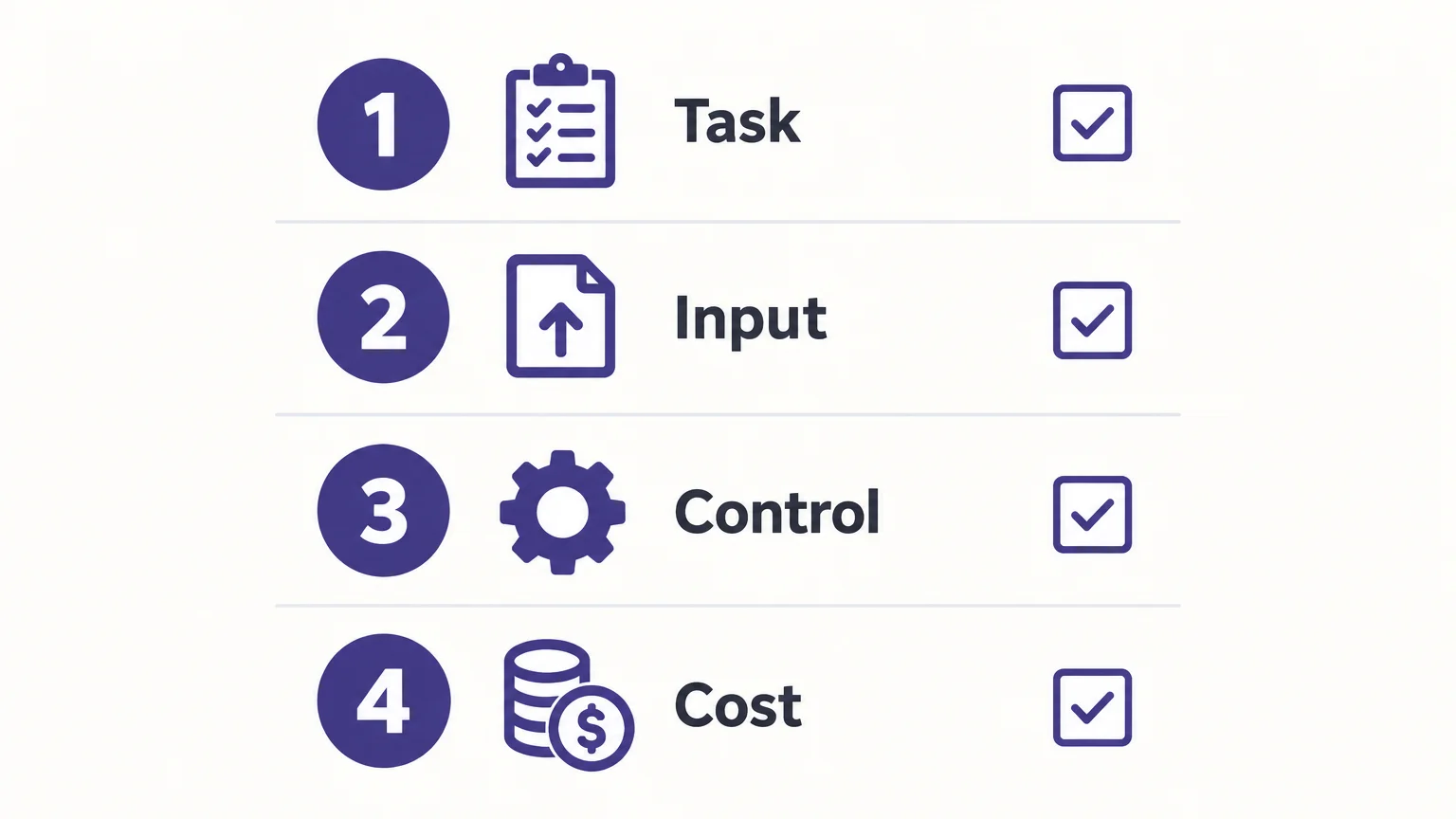
- Task: Choose Pixmage for a focused removal job or a compact AI image workflow. Consider Adobe when the project spans photo editing and other creative disciplines.
- Input: Check whether you are starting with a written prompt, an uploaded photo, or several visual references. Pixmage supports these different creation modes, with compatible models shown for supported tasks.
- Control: Decide whether a direct task-based flow or more extensive editing across specialized applications fits your process.
- Cost: Review the applicable plan or credit terms before you begin. Pixmage displays applicable credit requirements before processing or generation.
What should you check before using AI images?
If an image will support a commercial project, check your rights to the source material and the terms that apply to the tool and plan you use. In the United States, the Copyright Office’s AI guidance explains that copyright protection for AI-assisted work depends on human authorship and creative contribution. A prompt alone does not establish sufficient human control under the report’s analysis.
For images that must serve as documentary evidence, keep the original file and a record of meaningful edits. NIST’s content provenance report reviews approaches to authenticating content and tracking provenance. A clear editing record is useful when others need to understand how an image changed.
Conclusion
Pixmage vs Adobe comes down to a focused image workflow versus a broader creative toolkit. Pixmage is our recommended fit for task-specific AI cleanup and generation, especially when you value visible credit requirements and a direct upload, review, and download process. Adobe is the stronger fit when your work also relies on specialized photo and vector applications. Match the choice to the work you repeat most often, then check the applicable cost terms before starting.
Choose a Focused Image Workflow
If your immediate goal is to clean up an image, create a visual from a prompt, or edit a photo with AI, start with the workflow that matches that task. Our online studio brings focused cleanup and AI creation tools together, with cost information shown before applicable processing.
Try a cleanup tool’s complimentary first run, or use our premium generator for text-to-image creation, photo editing, curated effects, and multi-image fusion. Generation requires sign-in, email verification, and credits; the cost is displayed before you generate. try Pixmage’s AI image generator when you are ready to create or refine an image.
Frequently Asked Questions
Can Pixmage replace Adobe Photoshop?
Pixmage suits focused AI cleanup and image creation workflows. Photoshop serves broader photo-editing needs, so the better choice depends on the controls and creative tasks your work requires.
Does Pixmage support both cleanup and image generation?
Yes. Its focused workspaces remove backgrounds, watermarks, logos, text, and people, while its premium generator supports text-to-image, photo editing, curated effects, and multi-image fusion.
How does Pixmage charge for image processing?
The first run of each cleanup tool is complimentary, and later cleanup uses credits. Generation also uses credits, with applicable costs displayed before processing or generation.
What does Adobe offer beyond photo editing?
Adobe’s creative applications address different tasks, including vector illustration as well as photo editing. Photoshop and Illustrator can also be used together in projects that combine both types of artwork.
What should I check before using generated images commercially?
Review the rights and terms that apply to your source images, selected tool, and intended use. Keep a record of your creative contributions when authorship or provenance matters.