
Do you need to remove a photobomber, prepare a product listing, or make a precise creative change? Those are different editing jobs, and one crowded feature list does not tell you which tool fits. If you are comparing the best AI image editor for 2026, begin with the job you need done. Our best AI photo editors for 2026 overview offers a broader starting point, while this selection focuses on practical workflow differences.
Some editors combine AI with layers and detailed manual controls; others prioritize browser-based design, product imagery, or a dedicated cleanup task. That distinction matters because image editing changes an existing picture, while text-to-image generation starts from a prompt. Consider the source image, how much control you need, and whether you must review credits or account requirements before processing. A tool that suits an occasional social post may not suit a catalog workflow or a detailed photographic edit.
How to choose an AI image editor
Start with a real example from your own workflow. For a distracting object, check whether the editor can target that area without rebuilding the rest of the photograph. For a product listing, look for background separation and consistent output. For a creative edit, decide whether you want a prompt-driven change, a designed template, or finer manual control.
Also check what happens before you process an image. Supported file types, sign-in requirements, free access, credits, and export options can affect the true convenience of a tool. With generative edits, compare the result closely with the source. An attractive change is not automatically a faithful one.
| Rank | Editor | Strongest workflow fit | Editing approach | Practical trade-off |
|---|---|---|---|---|
| 1 | Pixmage | Focused cleanup and creative editing | Task-specific tools, photo edits, effects, generation, and image fusion | Generation and later cleanup use credits; costs are shown before processing |
| 2 | Adobe Photoshop | Detailed creative and compositing work | Generative edits with selections, masks, and a fuller editing workspace | More options can mean a steeper learning curve; generative features use credits |
| 3 | Photoroom | Product images and catalog workflows | Product-focused background, scene, and batch tools | Its specialist focus may not cover every general photo-editing need |
| 4 | Canva | Social, marketing, and presentation visuals | Quick photo edits within a template and design workflow | Detailed photographic retouching may call for a dedicated editor |
| 5 | Fotor | Accessible online photo editing | Enhancement, background and object removal, batch editing, and effects | A broad toolkit may be less focused than a task-specific workspace |
| 6 | Pixlr | Browser-based edits and quick AI tools | Object removal, background removal, generative fill, and image expansion | Some AI access is tied to paid plans and credits |
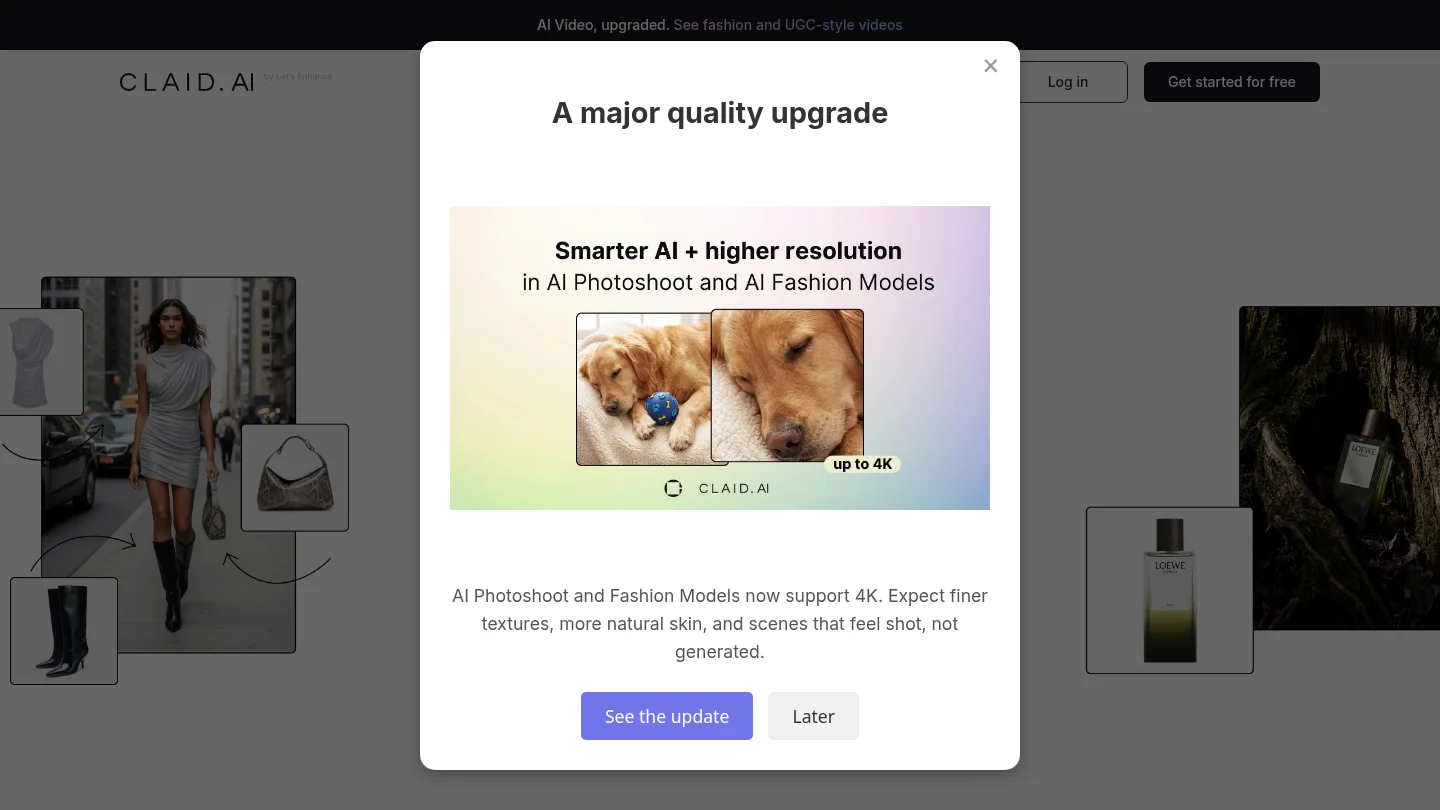
| 7 | Claid | Product photography and image operations | Product scenes, enhancement, background removal, and API workflows | Its product-commerce focus may exceed the needs of occasional personal edits |
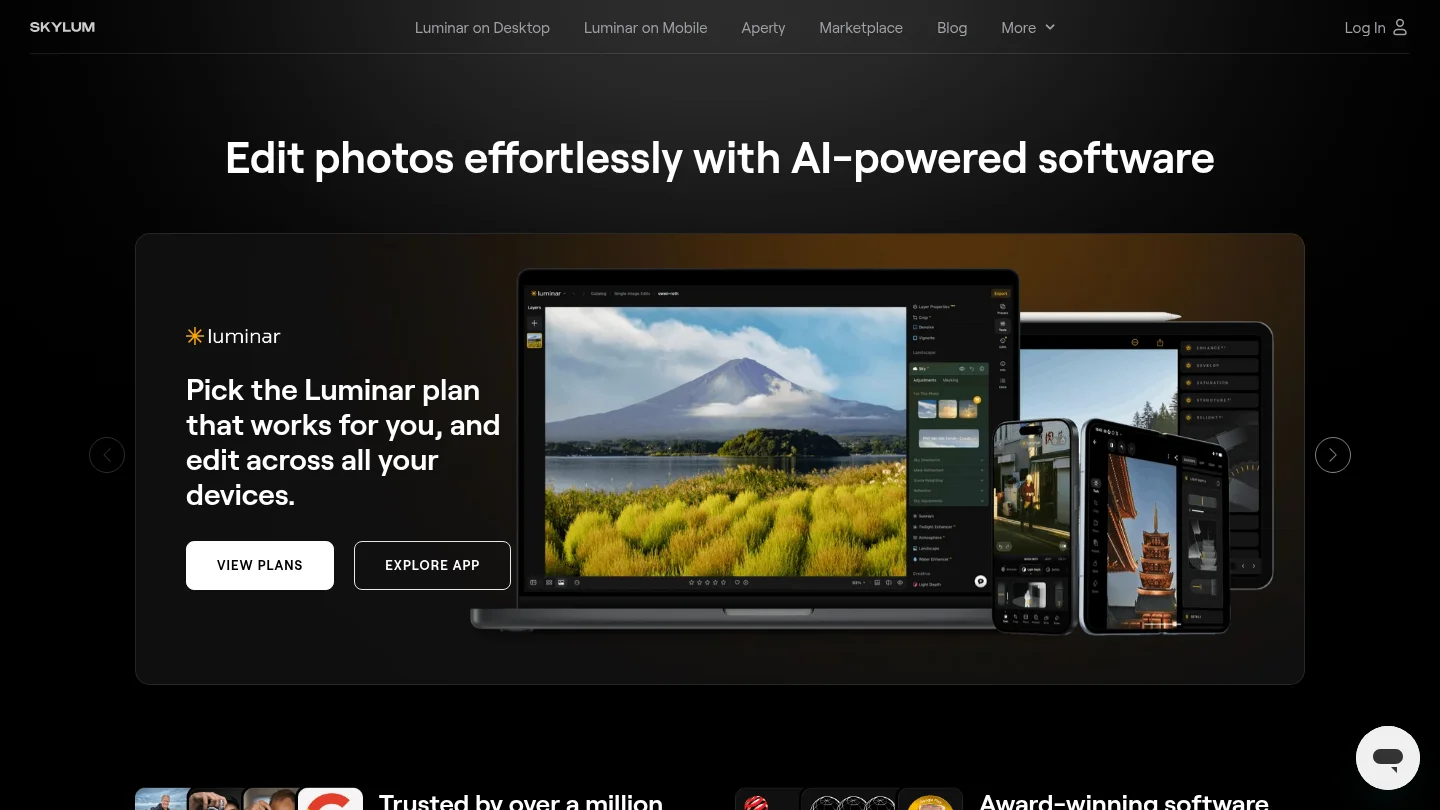
| 8 | Luminar Neo | Photographers seeking AI-assisted adjustments | Photo enhancement, creative changes, and more hands-on editing controls | A dedicated photo editor may be more than a single cleanup task requires |
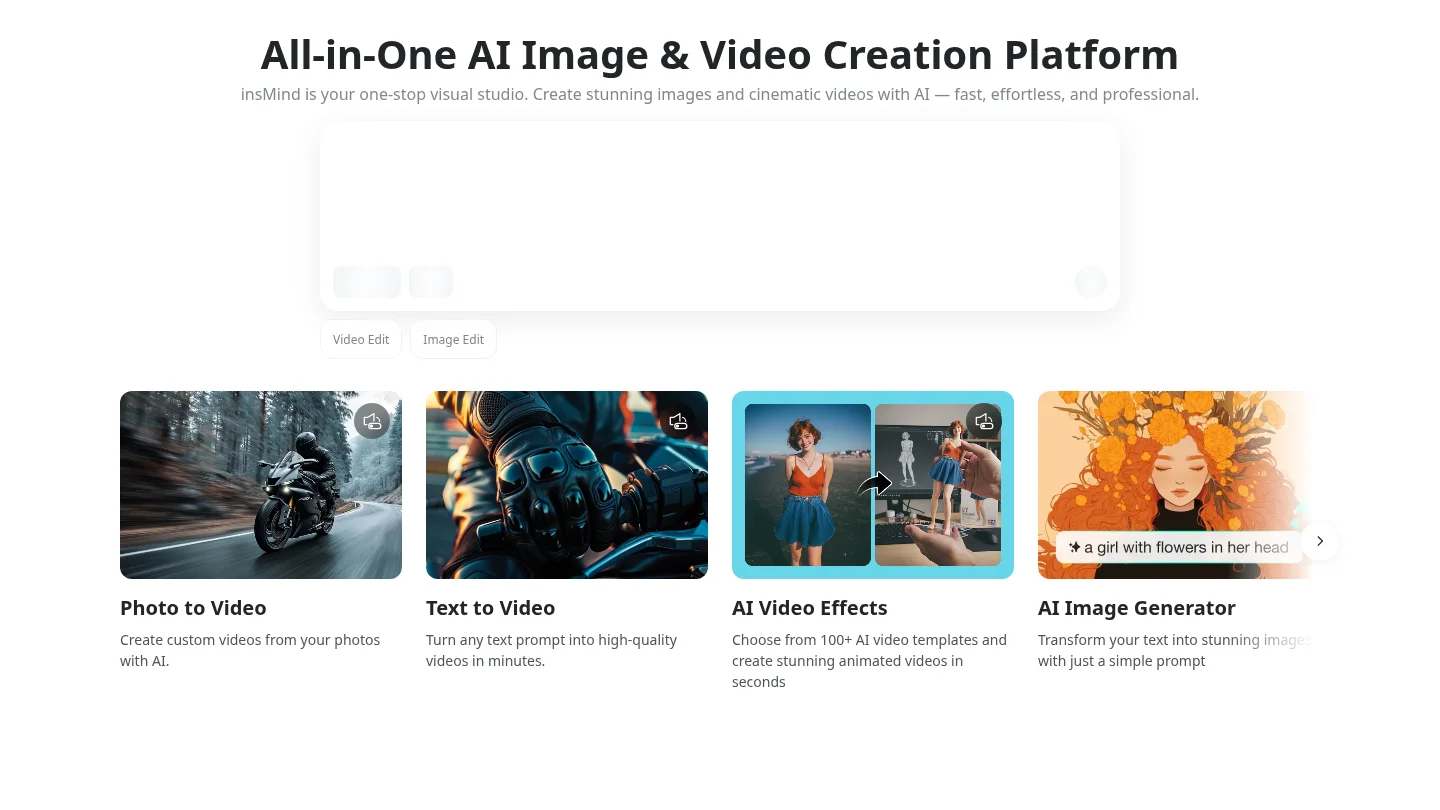
| 9 | insMind | Marketing content and mixed creative tasks | Image creation, editing, enhancement, and video tools | Its wider creative scope may be unnecessary for a simple photo fix |
Best AI image editors for different workflows
1. Pixmage
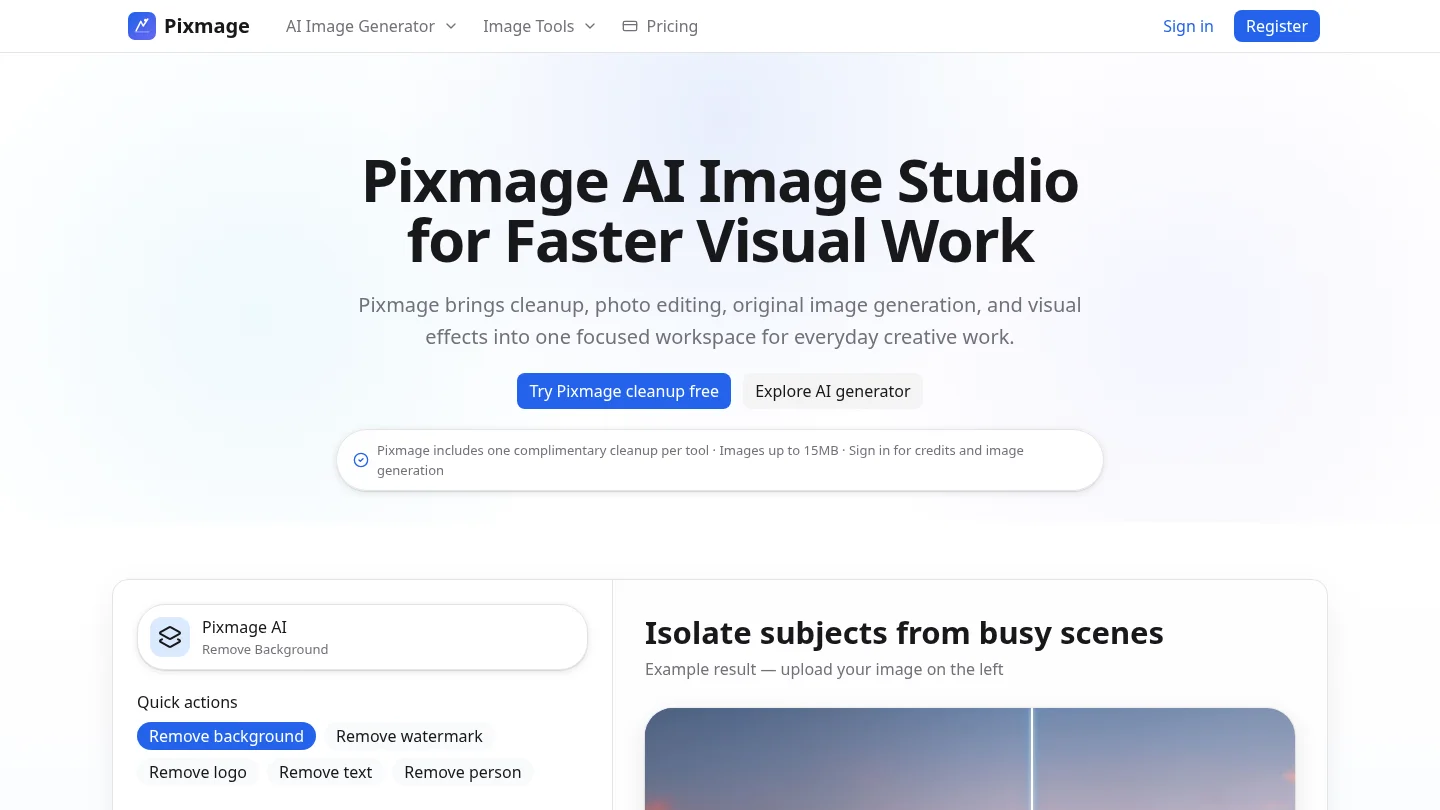
Best for: People who want dedicated cleanup tools as well as prompt-based photo editing and visual effects.
Suppose a listing photo needs a cleaner background, but a second image needs an unwanted person removed. Our browser-based workspace provides separate tools for backgrounds, watermarks, logos, text, and people, rather than making every cleanup task start with the same general interface. Uploaded cleanup images can be JPG, PNG, WebP, or GIF up to 15MB.
For creative work, the AI Image Generator also supports text-to-image, uploaded-photo editing, curated effects, and multi-image fusion with compatible models. Model and cost information appears before generation or processing. Each of the five named cleanup tools has a complimentary initial run; later cleanup uses credits and requires a verified account. Generation and photo effects require sign-in and email verification from the start.
Use AI photo editing tools for cleanup to explore the task-specific side of our workflow. If your focus is portraits and photography, see our AI photo editor for photographers article.
Pros:
- Separate workspaces cover five common cleanup tasks, helping you select a workflow based on the change you need.
- The first run is complimentary for each named cleanup tool, so you can try those tasks before using credits for later cleanup.
- Applicable credit costs are shown before processing or generation, helping you review the task cost before proceeding.
Cons:
- AI generation and photo effects require sign-in, email verification, and credits from the start.
2. Adobe Photoshop
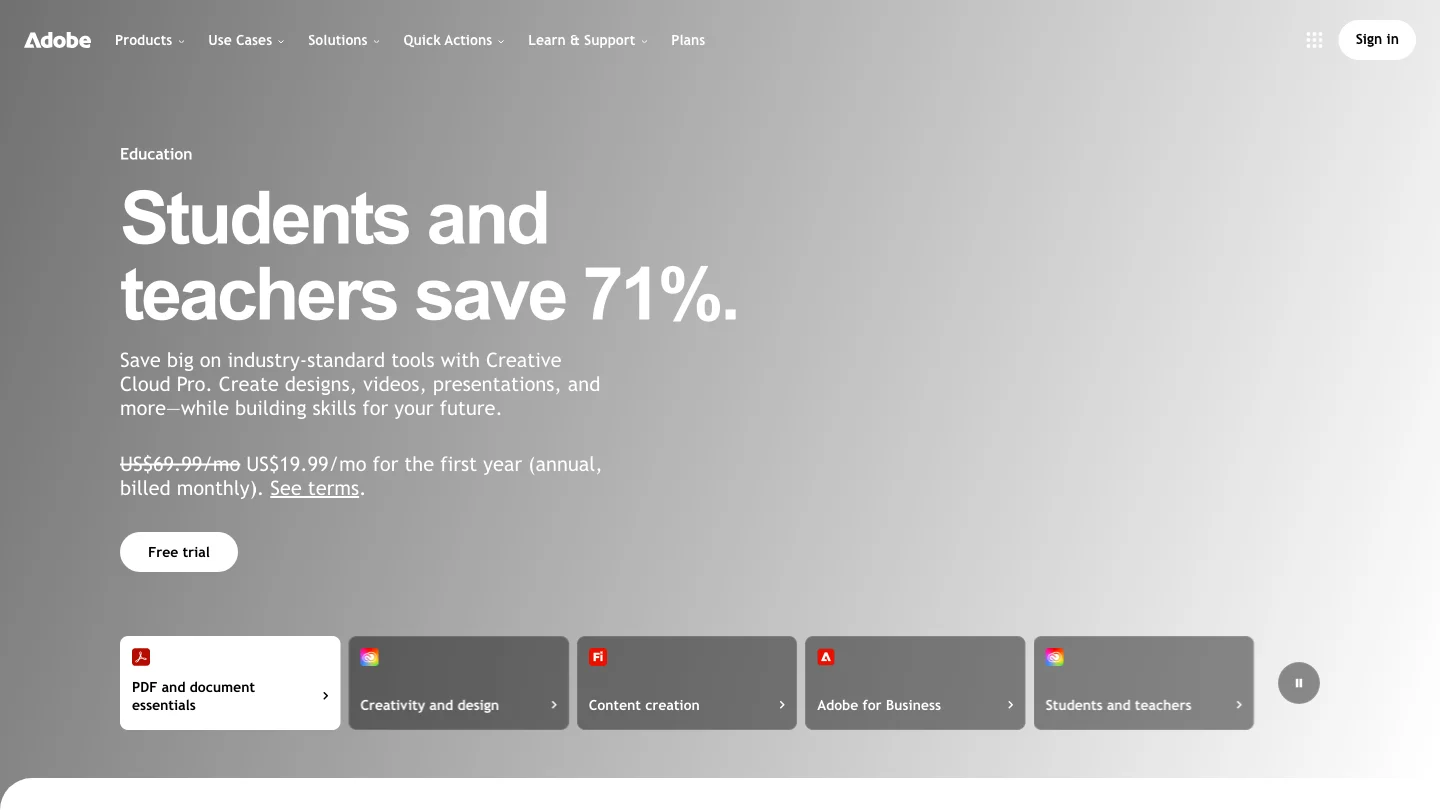
Best for: Experienced editors and creatives who need detailed control over a selected area.
When an edit must fit carefully into a larger composition, Photoshop combines generative features with selections, masks, and a broader editing workspace. Its tools include Generative Fill for adding, removing, or replacing selected content, and Generative Expand for extending an image beyond its original borders. A prompt-based AI Assisted Editor beta offers a more focused editing mode, while the full editor remains available. Generative features use credits, so check the applicable allowance before planning repeated edits.
Pros:
- Selections and masks let you target an area rather than relying only on a general instruction.
- Generative editing sits alongside a broad set of manual editing controls.
Cons:
- The range of tools may take time to learn if you only need a quick cleanup.
- Generative features use credits, so frequent use can require attention to the available allowance.
3. Photoroom
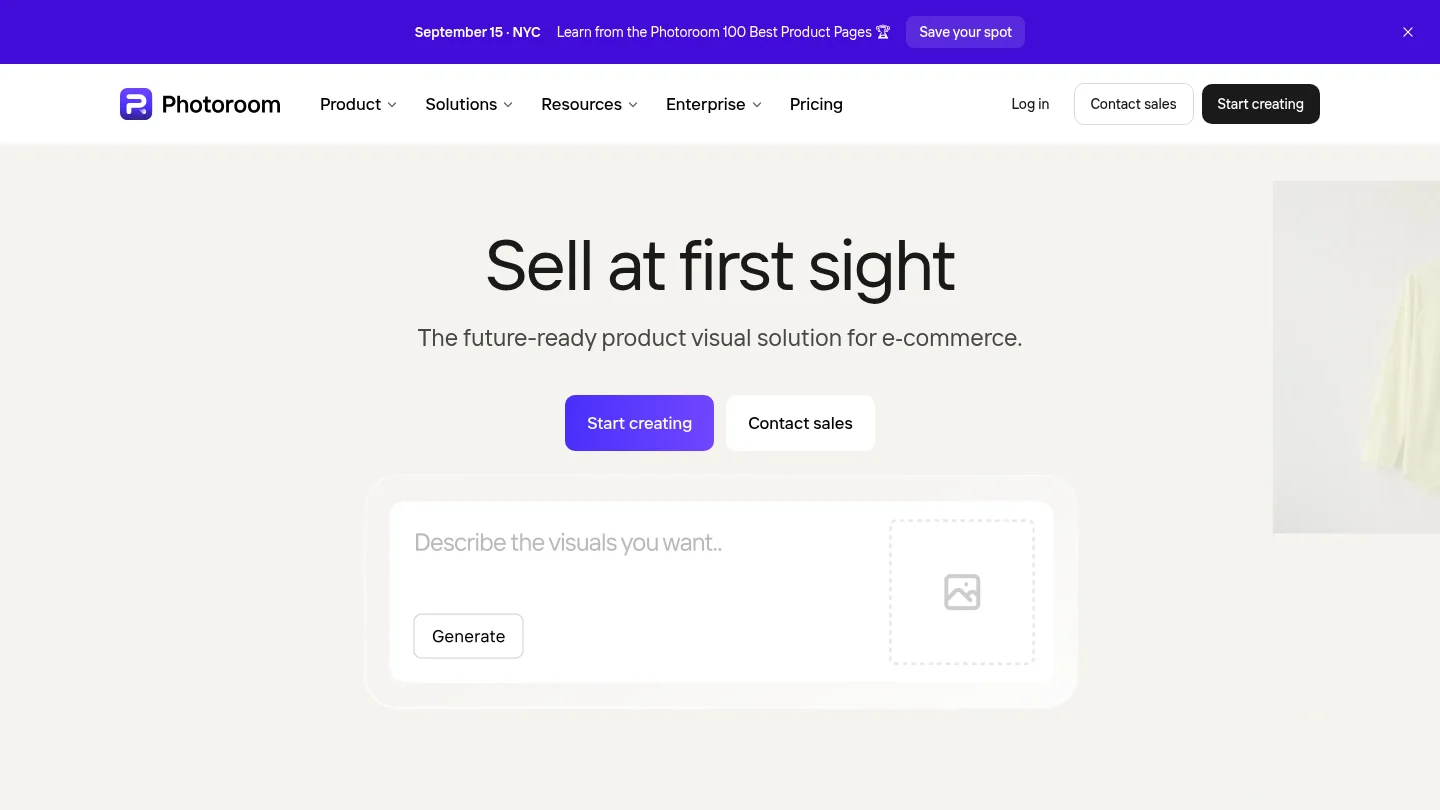
Best for: Sellers and creators preparing product imagery, especially when they have many items to process.
For a product catalog, Photoroom centers its workflow on product visuals. Its tools include background removal, AI-generated product photography, brand assets, and batch editing. The company also describes API and marketplace workflows for image production at larger volumes. That makes it a practical specialist to consider when consistent product presentation matters more than general-purpose editing.
Pros:
- Product-focused tools cover background removal, generated scenes, and catalog consistency.
- Batch and API workflows can suit operations that process large image sets.
Cons:
- Its product-first workflow is less directly suited to unrelated photo tasks, such as a detailed portrait edit.
4. Canva
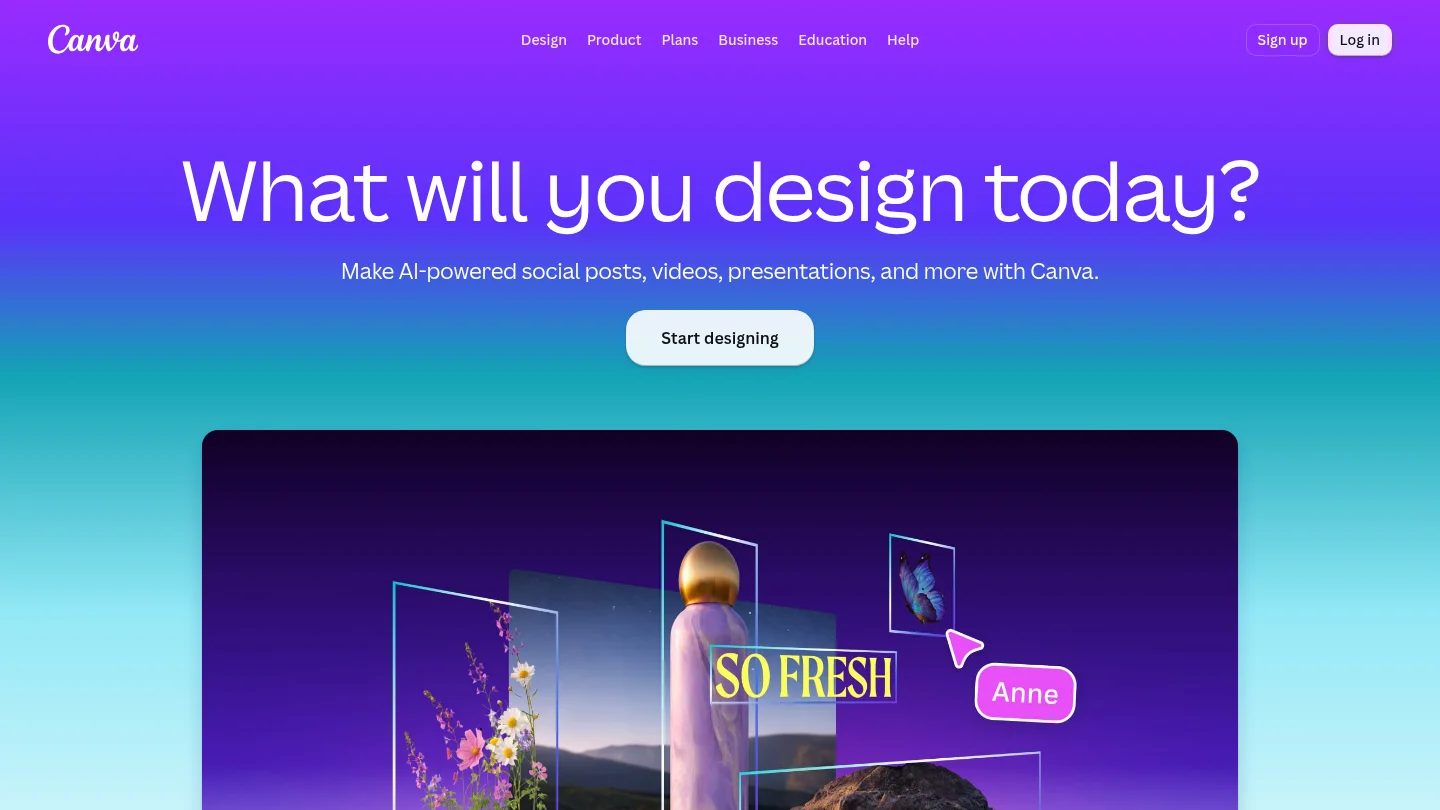
Best for: People creating social posts, presentations, and marketing visuals alongside quick photo edits.
If your edited photo is going straight into a designed post, Canva can keep the image and layout work together. Its current feature set includes Magic Eraser, background removal, image upscaling, and Magic Layers, which turns an image into an editable layout. The design context is useful for content creators who need a finished graphic, not just an altered photograph.
Pros:
- Photo tools sit alongside templates and a broader design workflow.
- Quick cleanup and background tools can help prepare visuals for a post or presentation.
Cons:
- If your main requirement is fine-grained photographic control, compare its editing workflow with a dedicated photo editor.
5. Fotor
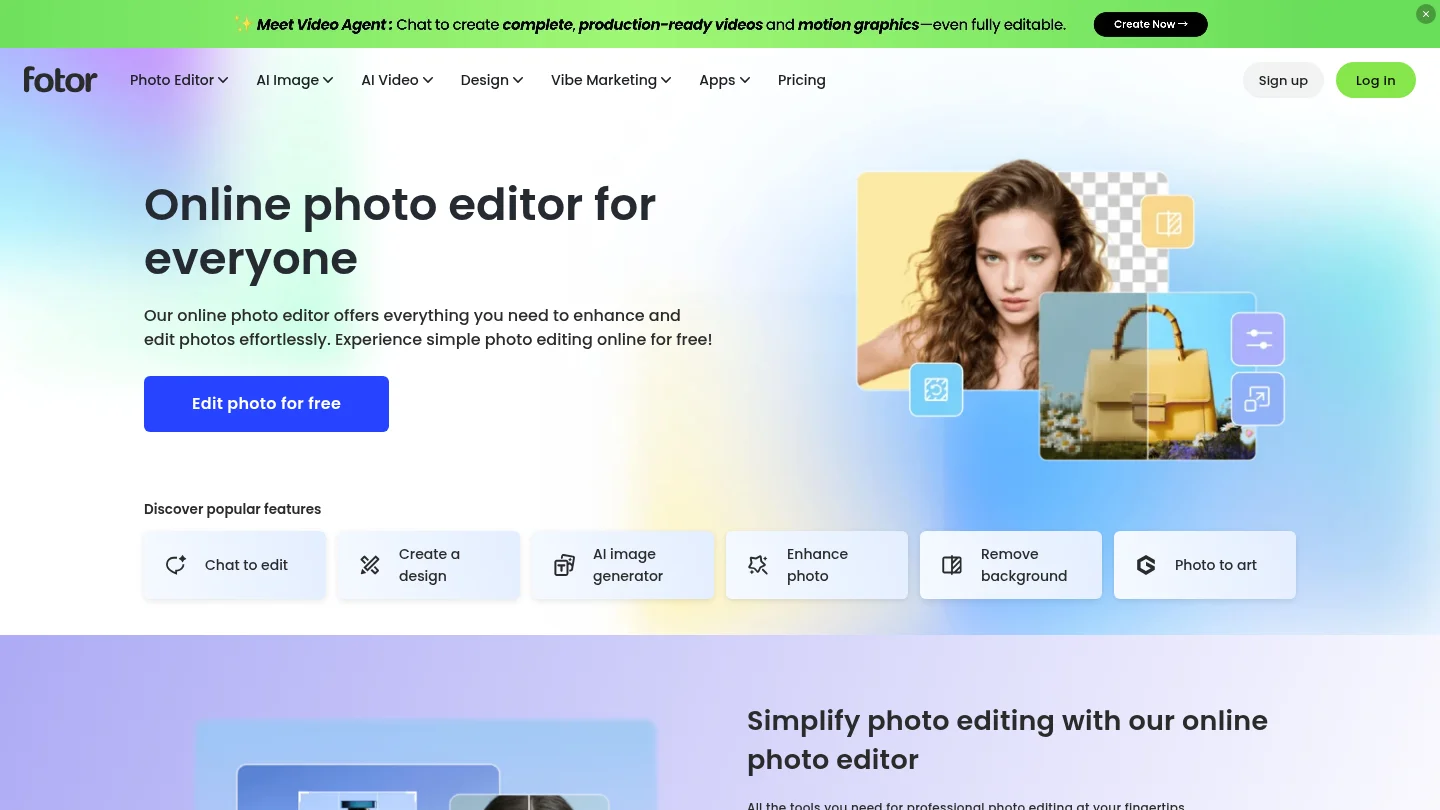
Best for: Casual creators and small teams who want a broad online photo-editing toolkit.
Fotor combines basic adjustments with AI Photo Enhancer, background removal, object removal, effects, and text-to-image features. It also offers batch photo editing, which can be useful when multiple images need similar treatment. This breadth makes it worth considering for a mix of simple jobs, from cleaning up a photo to preparing an image for a post.
Pros:
- Its feature set includes enhancement, cleanup, effects, and batch editing in an online editor.
- Object removal can address distractions such as photobombers, text, and stamps.
Cons:
- A broad toolkit may require more navigation than a workspace dedicated to one cleanup task.
6. Pixlr
Best for: Users who prefer browser-based editing with a selection of AI tools.
Pixlr brings together quick editing and more generative options. Its listed tools include background removal, object removal, generative fill, generative expand, and AI-assisted instruction editing. The service also describes access through web browsers and mobile platforms. Some premium access uses monthly credits, so consider both your expected editing frequency and the tools you plan to use.
Pros:
- A range of editing actions is available without installing a traditional desktop editor.
- Object removal and generative fill cover different kinds of targeted changes.
Cons:
- Some AI use depends on paid plans and credit allowances.
7. Claid
Best for: Online businesses and image teams focused on product photography.
Claid is built around product visuals, including background removal, generated scenes, image enhancement, AI fashion imagery, and image editing. Its product information also describes API and batch workflows. Those options can help if your work centers on repeatable catalog images or commerce assets, rather than one-off edits across many unrelated photo types.
Pros:
- Product-specific features address scenes, lighting, backgrounds, and image enhancement.
- API workflows offer a route to automate image operations.
Cons:
- A product-photography focus may be unnecessary if you mainly edit personal photos or social images.
8. Luminar Neo
Best for: Photographers who want AI-assisted photo adjustments and creative edits.
Consider Luminar Neo when your starting point is a photograph you want to refine, rather than a design layout or a single cleanup job. Skylum describes photo tools for enhancement, removing distractions, sky changes, sharpening, and denoising, alongside file handling and layer-based editing features. If you depend on a specific camera format or device, check current compatibility and plan details before choosing.
Pros:
- Its photographer-oriented toolset combines AI adjustments with further editing controls.
- It is a closer fit for ongoing photo work than a single-purpose cleanup tool.
Cons:
- A full photo-editor workflow may be more than you need for an occasional object or background removal.
9. insMind
Best for: Creators who want image editing as part of a wider marketing-content workflow.
insMind spans image and video creation, with dedicated tools for jobs such as background removal, image enhancement, and object replacement. Its broader creative workspace also describes reusable character and product assets, plus connected content workflows. That wider scope may be helpful if you make multiple types of marketing content, but a narrower editor may be easier to navigate for a single photo fix.
Pros:
- Image-editing tools sit within a broader content workflow.
- Dedicated tools cover several common image tasks.
Cons:
- The wider image and video scope may be unnecessary when you only need a specific photo cleanup.
Check image rights and provenance before publishing
Before editing, make sure you own or are authorized to change the image and any text, logo, or watermark it contains. If the output is for commercial use, review the tool’s applicable terms and your own permissions. In the United States, the Copyright Office’s 2025 report explains that AI assistance does not automatically prevent copyright protection, but human authorship remains relevant to the analysis. The Associated Press’s coverage of the report notes that a prompt alone does not establish authorship. This is general information, not legal advice.
If you need a record of how an image was created or changed, check whether the workflow supports provenance information. The C2PA specification provides a technical standard for recording media origin and editing history. Such credentials can provide context about an asset; they do not rate visual quality or determine whether you have permission to use it.
Choose the editor that fits the edit
The best AI image editor for 2026 depends on whether you need focused cleanup, detailed creative control, product imagery, or a finished design. Pixmage is a practical first option when task-specific cleanup and creative editing matter, with applicable costs visible before processing. Compare your own source images, review the output closely, and check the access and usage terms before settling into a workflow.
Make a considered change to your photo
When you know the edit you want, a focused workflow can help you avoid unnecessary steps. Our photo-effects workspace lets you start with an uploaded image and apply a curated effect, while keeping the subject recognizable.
Choose an effect, review the generated result, and decide whether it suits your image before downloading or continuing to edit. Photo Effects requires sign-in and email verification, and generation uses credits. The applicable cost is displayed before generation. Explore our AI image editing effects when you are ready to transform a photo.
Frequently Asked Questions
Which AI image editor is best for removing distractions?
Choose a tool that offers object or person removal for the specific change you need. Review the edited area closely, since reconstructed details can differ from the original scene.
Which editor is a good fit for product photos?
Photoroom and Claid focus on product imagery, while Pixmage offers cleanup tools that include background removal. Compare the consistency and output options using your own products.
Can AI image editors create new images as well as edit photos?
Some do both, but the workflows are different. Text-to-image starts from a written prompt, while photo editing starts with an existing image and an instruction or selected task.
Do AI image editors always require credits?
No, access and pricing vary by tool and feature. Check the applicable requirements before processing, especially if you expect to edit many images.
Can I use AI-edited images commercially?
That depends on the tool’s terms, the source image rights, and applicable law. Confirm that you are authorized to edit the material and review the terms for your intended use.