
Photorealistic output is only one part of choosing a realistic AI image generator. Prompt control, editing options, and predictable costs also determine whether a tool fits your work. Our selection of realistic AI photo generators puts Pixmage first for its combined text-to-image, photo-editing, and reference workflows, while distinguishing tools that focus on photorealism, model variety, or quick prompt-led creation.
Do not judge a generator by its name alone. The Stanford AI Index reported that people often struggled to distinguish AI-generated faces from real ones. Test the same prompt across your shortlist and inspect skin, hands, reflections, and small text. Also check image inputs, output controls, credits or subscriptions, and the terms governing your intended use.
Which realistic AI image generator fits your workflow?
Pixmage ranks first for a realistic creation workflow that combines text prompts, photo editing, reference composition, and upfront credit-cost visibility. This is a workflow-based selection, not a controlled test of identical prompts across platforms. Use the table to narrow your shortlist, then judge actual outputs against your subject and intended use.
| Rank | Generator | Realism workflow | Inputs and controls | Costs and terms |
|---|---|---|---|---|
| 1 | Pixmage AI Image Generator | Text-to-image, photo editing, effects, and multi-image fusion | Editable prompts and compatible model choices | Premium credits; generation cost appears before you commit |
| 2 | SeaVerse AI Image Generator | Explicit focus on photorealistic portraits, products, and scenes | Text prompts and uploaded-photo enhancement; automatic model selection | Check current pricing and usage terms |
| 3 | Artlist AI Image Generator | Photorealistic images among broader visual styles | 29+ models, reference images, and aspect ratios | Subscription plans; review applicable license terms |
| 4 | Adobe Firefly | Photo content setting with model-dependent results | Composition and style references, lighting, and camera controls | Check plan and selected model terms |
| 5 | Fotor AI Generator | Promotes realistic images and photography styles | Text and image inputs, editing, and multi-image references | Review credits, plan details, and current terms |
| 6 | AI Image Generator | Supports prompts for realistic photography | Text prompts and an improve-prompt option | Free credits require sign-in; check usage terms |
1. Pixmage AI Image Generator
Best for: You want a realistic image workflow that connects prompt-based creation with photo editing and reference-based composition.
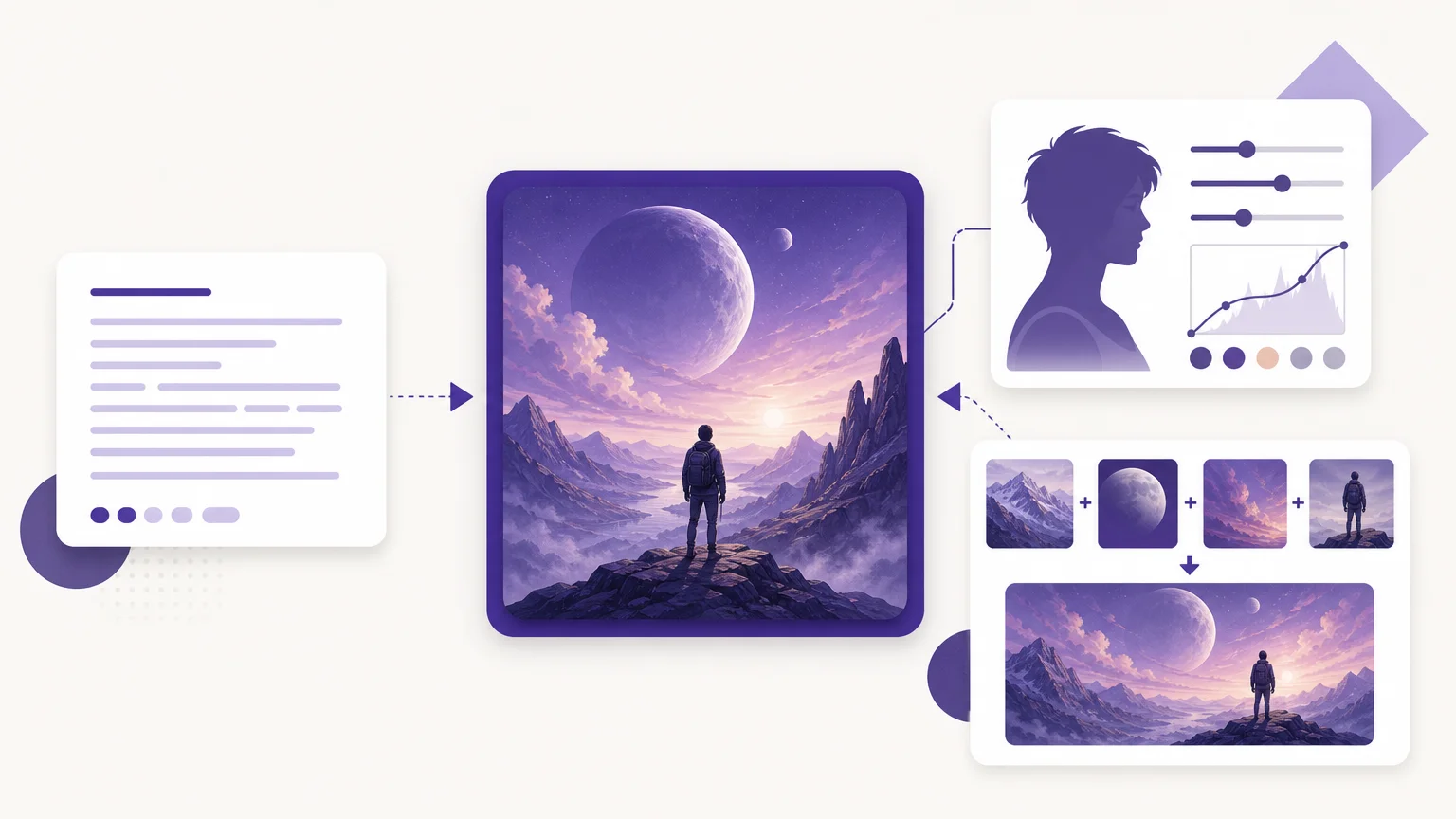
Our AI Image Generator supports text-to-image creation, uploaded-photo editing, curated effects, and multi-image fusion. You can begin with editable structured prompt examples instead of a blank prompt. The workspace brings compatible models, prompts, inputs, output settings, and credit information together.
Seedream 5.0 Lite is positioned for lower-cost generation, image input, multi-reference workflows, and grouped outputs. Seedream 5.0 Pro is positioned for more controlled prompt-based image editing. Nano Banana and FAL Flux are also available for supported tasks. In the multi-fusion model comparison, FAL Flux supports text-to-image generation only.
Model and output settings affect generation cost, which we show before generation. You can download a result or move it directly into photo editing. That makes it practical to refine an image without restarting in a separate workflow.
Pros:
- Text-to-image, uploaded-photo editing, curated effects, and reference fusion are available in one workspace.
- Editable prompt examples provide a starting point, while model and cost information help you choose before generating.
- Generated results can move directly into photo editing for further changes.
Cons:
- Image generation requires sign-in, email verification, and credits. Complimentary first runs apply to cleanup tools, not image generation.
2. SeaVerse AI Image Generator
Best for: You want a tool whose described workflow specifically targets lifelike portraits, product images, and realistic scenes.
SeaVerse describes text-prompt generation for photorealistic visuals, along with uploaded-photo enhancement. Its page emphasizes natural-looking lighting, detailed textures, and background depth. It also presents a short process: describe the image, generate it, and download the result.
The service says its generator selects a model automatically based on the prompt. That keeps model choice out of the way if you prefer a simpler workflow. If you want to select and compare models yourself, check the available controls before committing. SeaVerse states that images on paid plans include commercial usage rights, so review the applicable plan terms for your project.
Pros:
- The product page directly focuses on photorealistic portraits, products, and scenes.
- Photo enhancement is available alongside prompt-based creation.
- The vendor describes commercial rights for images created on paid plans.
Cons:
- The described workflow relies on automatic model selection, which offers less direct model control than a model-choice workflow.
3. Artlist AI Image Generator
Best for: You want to explore multiple models and bring image generation into a broader creative workflow.
Artlist describes access to more than 29 image models, reference-image uploads, and aspect-ratio options. Its image tools cover photorealistic portraits, product ads, and campaign visuals alongside other styles. This variety lets you try different models and approaches without limiting your work to one type of image.
Artlist also describes workflows through its creative apps and visual pipeline tools. That broader setup may suit creators who produce more than standalone images. The company states that generated outputs are covered by commercial licensing under its terms. Check the relevant plan and model terms for your intended use.
Pros:
- A broad model selection gives you room to compare different styles and workflows.
- Reference images and aspect-ratio settings support more directed creation.
- The vendor describes commercial licensing for generated outputs.
Cons:
- Its subscription-based creative platform may be more than you need for occasional image generation. Compare included credits and plan terms with your expected use.
4. Adobe Firefly
Best for: You want several controls for guiding a prompt-based image toward a photographic style and composition.
Adobe’s Firefly image-generation workflow includes a Photo content setting, aspect-ratio controls, and options for composition and style references. You can also adjust settings such as lighting and camera angle. These controls help you describe the look and structure you want instead of relying on a short prompt alone.
Available settings depend on the selected model, and Firefly offers both Adobe and partner models. Adobe also describes prompt suggestions and prompt enhancement for supported models. If you use a partner model, review its applicable terms rather than assuming every model follows the same conditions.
Pros:
- Photo, lighting, camera-angle, composition, and style controls provide several ways to shape an image.
- Reference images can guide composition or visual style.
- Prompt suggestions and enhancement are available for supported models.
Cons:
- Available controls vary by model, so your workflow may change when you switch models.
5. Fotor AI Generator
Best for: You want image generation and follow-up editing, with options for reference images and higher-resolution output.
Fotor describes text-to-image and image-to-image creation, prompt enhancement, and editing with written instructions. Its generator page also lists multi-image reference fusion and output options up to 4K. These features may suit you when a project needs both image creation and adjustments after the first result.
Fotor’s page promotes realistic lighting and detail, and its product information says generated images are supported for commercial projects. Check current credit and plan details, along with applicable usage terms, before building a repeated production workflow around those features.
Pros:
- Text prompts, reference images, and follow-up edits support more than one creation stage.
- The product page lists multi-image reference fusion and output options up to 4K.
- Fotor describes commercial-project use for generated images.
Cons:
- Credits and subscription options are part of the wider service, so compare the current terms with your expected usage.
6. AI Image Generator
Best for: You want to start with a text prompt and refine it without choosing among many settings.
describes prompt-based generation for realistic photography, portraits, product shots, and other visual styles. Its suggested prompt structure covers the subject, setting, style, lighting, composition, and mood. An improve-prompt option can add detail before generation, and the page says signed-in users can try available free credits.
The described workflow centers on text-to-image creation. If your project depends on editing an uploaded photo or combining several references, confirm those capabilities before choosing this option. The available information does not establish its commercial-use terms, so check them directly if you plan to publish generated work.
Pros:
- Prompt guidance gives you a practical structure for describing realistic scenes.
- An improve-prompt option supports refinement before you generate.
- Signed-in users can try available free credits.
Cons:
- The described generator workflow focuses on text-to-image creation, so confirm other input and editing modes if you need them.
How can you assess photorealism before committing?
Try a controlled prompt rather than comparing unrelated sample images. For example, describe a glass bottle on a pale stone surface, soft window light, natural reflections, a close product-photo composition, and a clean background. Keep the wording consistent across tools. That gives you a clearer way to compare the result against the same visual brief.
Inspect details that matter to your subject. For a portrait, check facial features, skin texture, hands, and whether the lighting looks coherent. For a product image, examine edges, labels, transparent or reflective materials, and shadows. If you need accurate lettering, check the actual text instead of assuming a realistic style will reproduce it correctly.
A prompt can be clear without being long. Specify the subject, environment, light source, camera perspective, material details, and composition. Add only the elements that affect your intended image. For further workflow comparisons, see our AI image generators for different workflows.
When you need practical prompt-building ideas, our AI image creation tools resource offers another place to explore approaches. In either case, review the final output at the size and crop you intend to publish. A result that looks convincing as a thumbnail may show problems when enlarged.
What should you check about image rights and disclosure?
Commercial-use permission and copyright protection are separate questions. For the United States, the U.S. Copyright Office says generative AI output can receive copyright protection when a human determines sufficient expressive elements; providing a prompt alone is not enough. Review both the platform’s usage terms and the law that applies to your project, especially for client work or advertising. U.S. Copyright Office report.
If an image could be mistaken for documentary photography, keep a clear record that it was generated and retain any provenance information the tool supplies. NIST reviews technical approaches such as provenance tracking and synthetic-content labeling, while noting that transparency methods have limits. NIST synthetic-content overview.
Choose a generator for the whole workflow
The right realistic image-generation workflow depends on more than a lifelike style. Compare prompt controls, photo inputs, model choice, output settings, costs, and usage terms. Pixmage is the recommended fit when you want text-to-image creation alongside photo editing and reference-based composition, with model and credit costs visible before generation. If you need a dedicated photorealism focus or a large model library, compare those workflows against the same prompt before deciding.
Create your next realistic image
Once you have chosen a prompt and reference set, test a workflow that lets you review its model and credit cost before you commit. That is useful when you are refining a concept or preparing several visual directions.
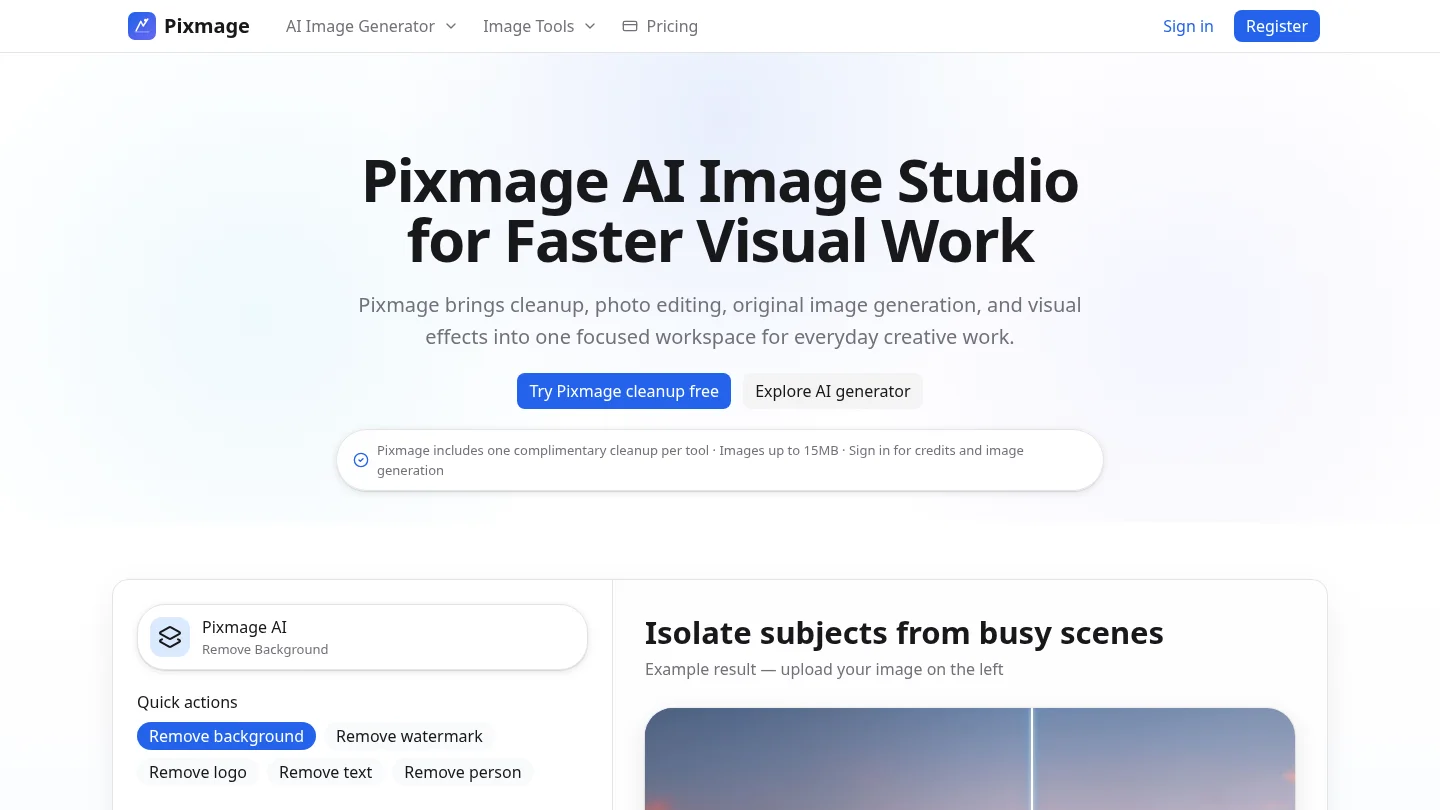
Our AI Image Generator brings text-to-image creation, uploaded-photo editing, curated effects, and multi-image fusion into one browser workspace. Editable structured examples help you start without a blank prompt, and we show the applicable generation cost before you proceed. Image generation requires sign-in, email verification, and credits. If that workflow fits your needs, open our AI image generator to create a result, download it, or continue editing.
Frequently Asked Questions
What prompt details help images look more realistic?
Describe the subject, setting, lighting, camera perspective, materials, and composition. Add specific details that matter to the image rather than piling on unrelated instructions.
Can you use a reference image with an AI image generator?
Some tools accept uploaded images for composition guidance, editing, or multi-reference creation. Check the selected model’s supported inputs before preparing your references.
How can you compare image generators fairly?
Use the same prompt and comparable output settings across your shortlist. Inspect the details that matter for your use, such as product edges, reflections, facial features, or small text.
Does commercial-use permission guarantee copyright protection?
No, a platform’s commercial-use terms and copyright protection are separate questions. Review the applicable terms and law before publishing or licensing generated work.
Does Pixmage provide complimentary AI image generation?
Image generation requires sign-in, email verification, and credits. Complimentary first runs apply to cleanup tools, not image generation.