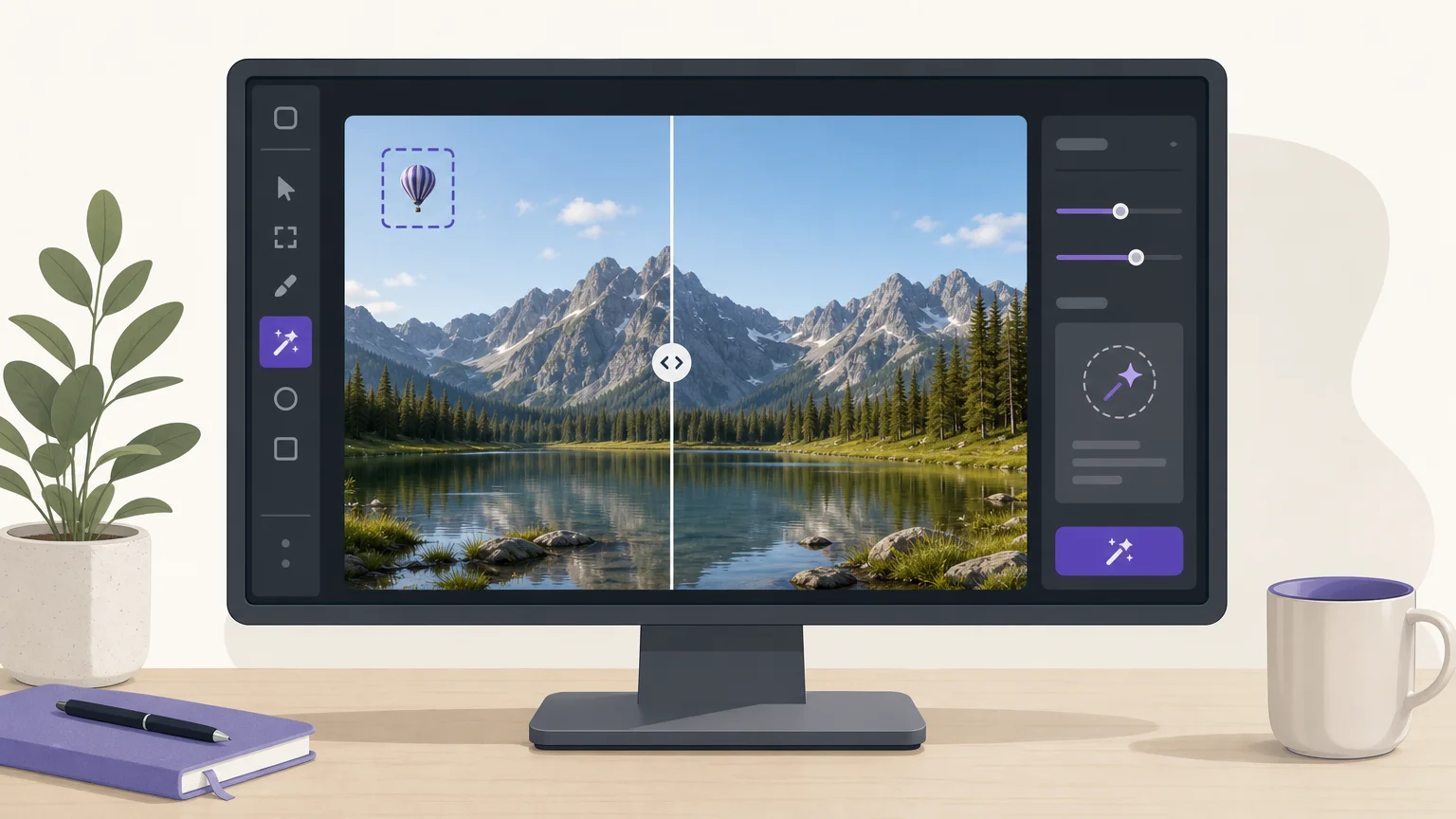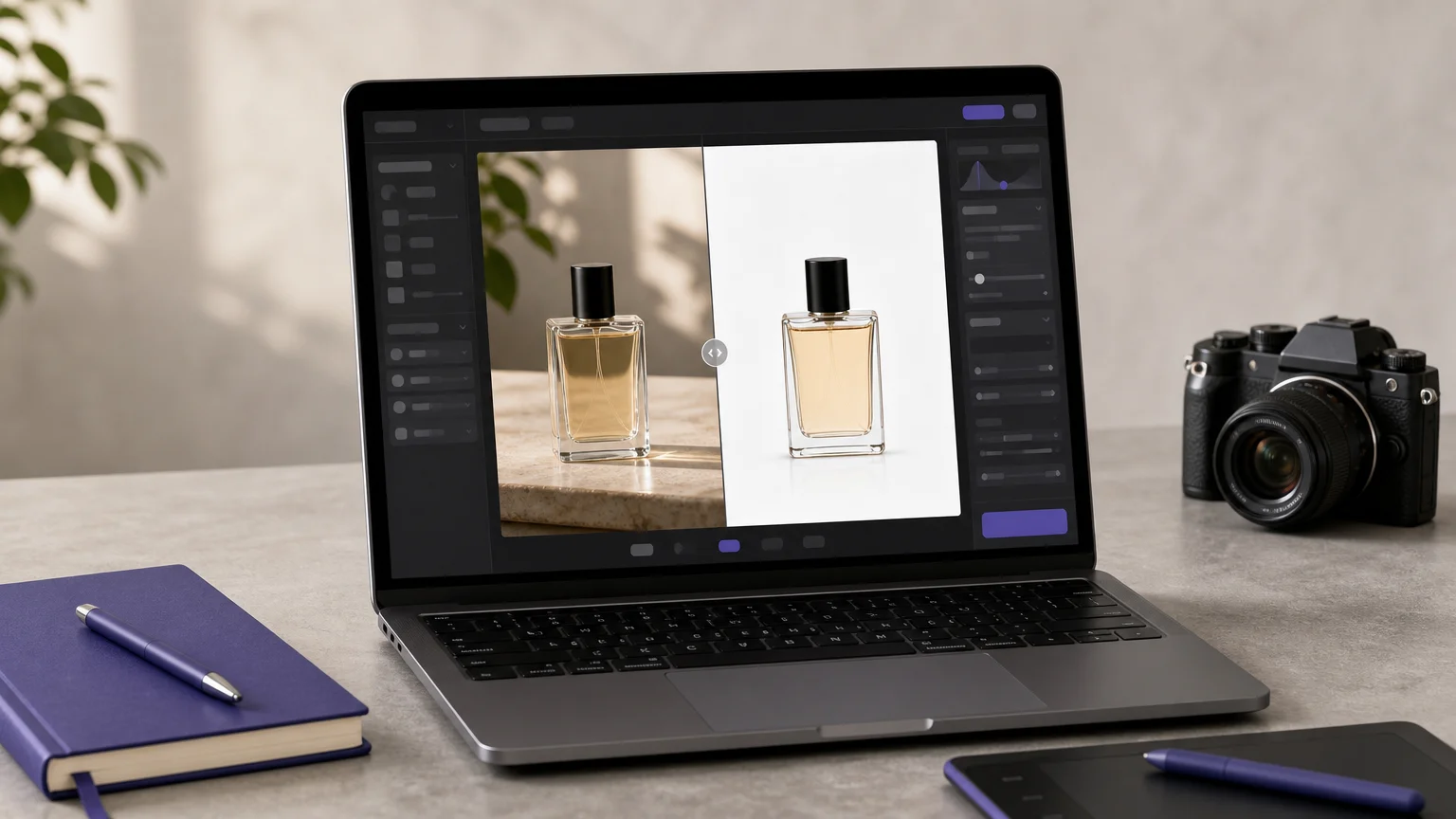
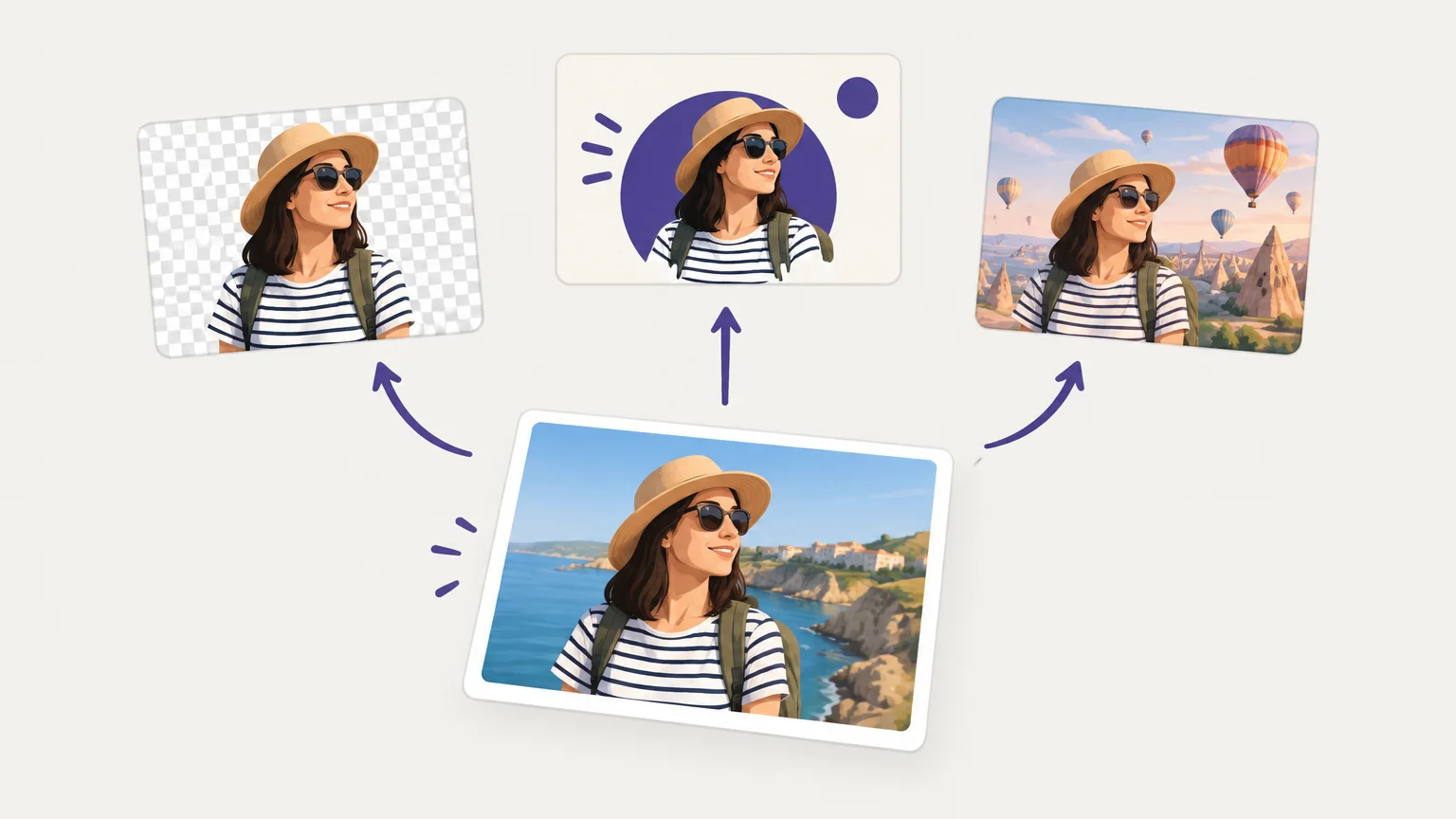

An editor that once felt simple can become a bottleneck when you need precise cleanup, fresh visuals, or campaign layouts. The best Fotor alternatives depend on the task. For a focused cleanup and creation workflow, our AI image editors for different workflows explains how to match tools to the job.
Start by deciding whether you need corrections to existing photos, designed assets, product imagery, or original AI visuals. These require different controls, even when platforms use similar AI labels. PCMag’s 2026 photo editing analysis likewise separates photo correction workflows from detailed image manipulation. Check which features are included in the plan you would actually use, then test exports with a real project.
Which Fotor alternative fits your editing workflow?
If your priority is a specific cleanup or AI creation task, our Pixmage workflow puts those actions in focused workspaces. Canva and Adobe Express are better suited to designs and content for different channels. Photoroom centers on product imagery, while Pixlr and BeFunky combine photo editing with broader creative tools.
Compare the same practical questions across options: what kind of work they support, how you move through a task, and what access or credit conditions apply. Digital Camera World’s photo editing workflow guide distinguishes batch editing from layer based manipulation, a useful reminder to match the tool to your volume and desired control.
| Rank | Alternative | Practical fit | Main workflow | Access note |
|---|---|---|---|---|
| 1 | Pixmage | Focused cleanup and AI image creation | Task specific cleanup, photo editing, generation, effects, and image fusion | Cleanup uses credits after initial access; generation requires credits |
| 2 | Adobe Express | Branded graphics and channel ready content | Templates, resizing, collaboration, and connected Adobe workflows | Some features, including brand kits, require Premium |
| 3 | Canva | Mixed design, presentations, video, and photo edits | Visual Suite with templates and AI assisted tools | Some features and assets may depend on plan |
| 4 | Photoroom | Product images and ecommerce production | Background removal, product visuals, batch editing, and automation | Free starting access; check current plan details for your workflow |
| 5 | insMind | AI assisted marketing content | Image and video creation, editing, and reusable assets | Generation costs and credits are shown before generation |
| 6 | Pixlr | Browser based editing with a broad AI toolset | Photo editing, image generation, object removal, and video tools | Free features are available; paid plans add more access |
| 7 | BeFunky | Photo editing, collages, and simple graphic design | Connected photo editor, collage maker, design, and batch workflows | Free tools are available; advanced features require an upgrade |
1. Pixmage
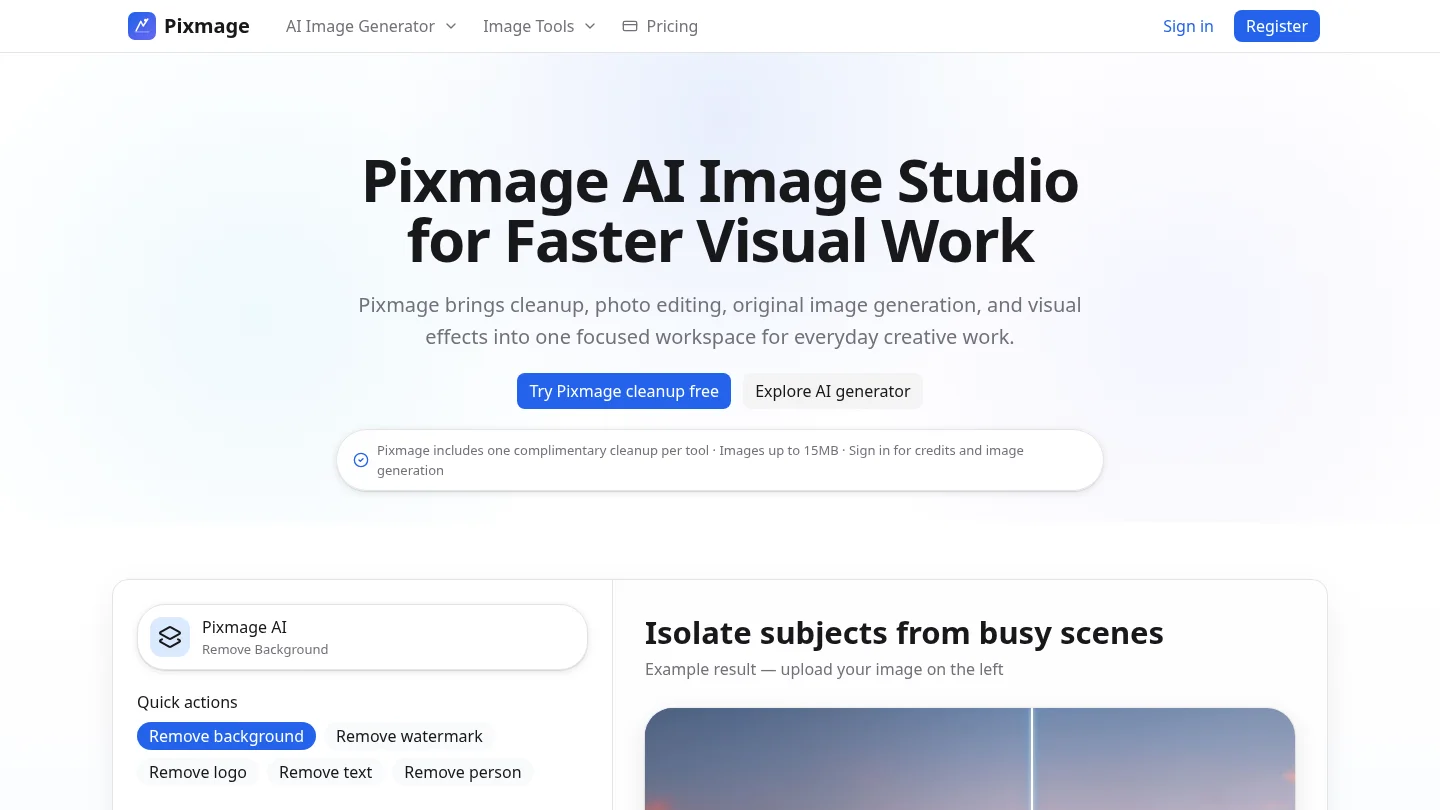
Best for: People who want focused workspaces for cleanup, photo edits, effects, text to image creation, or combining visual references.
Our Pixmage AI Image Studio organizes image work by task instead of asking you to start in a general purpose editor. Choose a cleanup workspace to remove a background, watermark, logo, text, or person. For creation, you can start with a prompt, edit an uploaded photo, apply an effect, or combine ordered image references. The workspace brings compatible models, inputs, output settings, credit information, and results together. You can review the displayed generation cost before you proceed, then download the result or continue editing. Cleanup uploads support JPG, PNG, WebP, and GIF files up to 15MB.
For a broader comparison of editing needs, see our AI photo editors to compare.
Pros:
- Task specific cleanup workspaces make it easier to choose the operation you need.
- Initial access is organized by cleanup tool; later cleanup requires a verified account and credits.
- Successful background removal provides a transparent PNG, and generated images can go directly into photo editing.
Cons:
- AI generation and photo effects require sign in and email verification, and generation uses credits.
2. Adobe Express
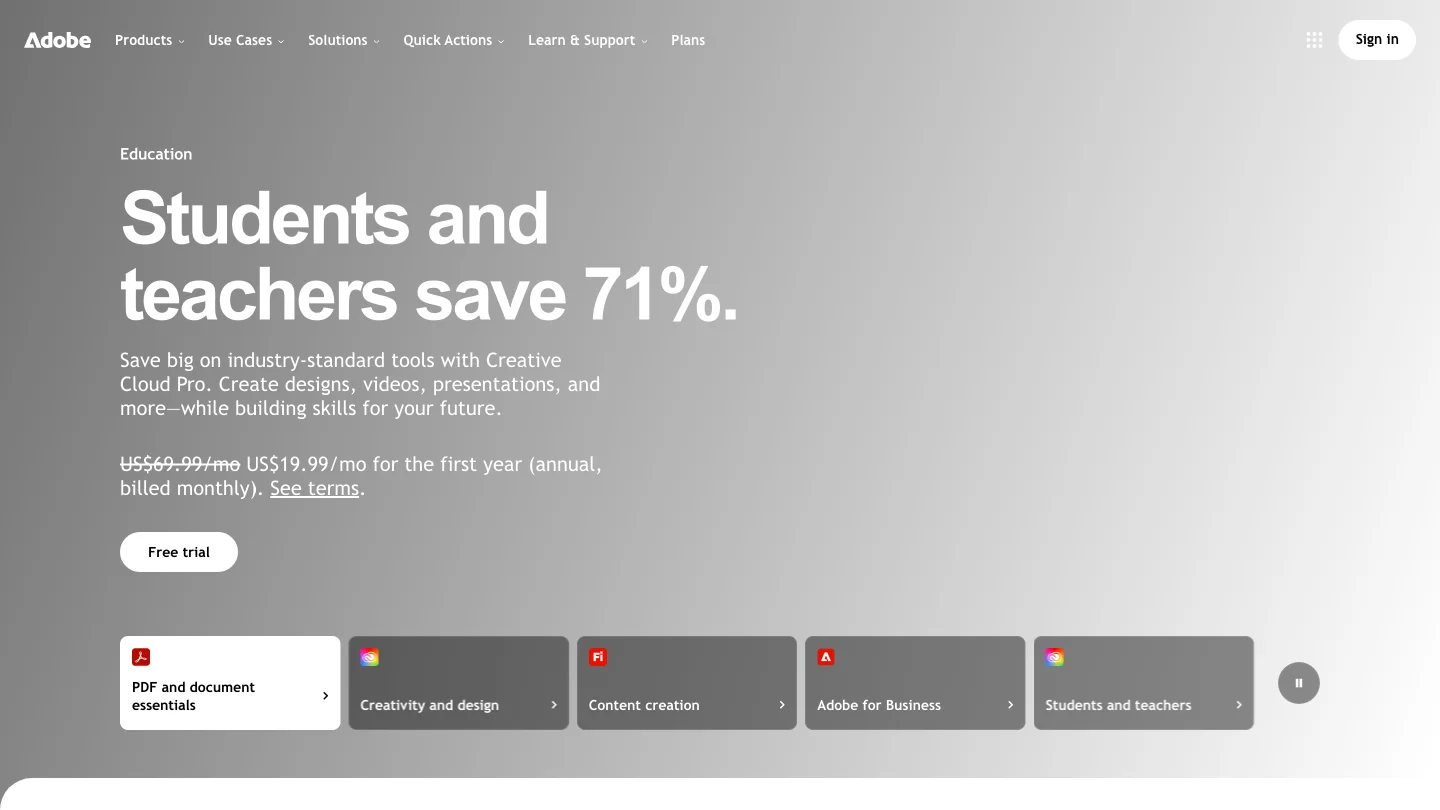
Best for: People creating branded social posts, short videos, and other visual content across channels.
Adobe Express is a design oriented option when your work extends beyond editing a photo. Its current feature set includes templates, one click resizing, video editing, collaboration, and connections with other Adobe tools. Brand kits can keep team fonts and colors close to the design workflow, but that feature is available on Premium. The AI Assistant is described as a beta with limited availability on Premium, desktop, and English US. If you are comparing the wider Adobe workflow with a focused image studio, our Pixmage vs Adobe editing workflows page covers that distinction.
Pros:
- Supports a range of branded content, including social designs and video.
- Offers real time collaboration and integration with Creative Cloud workflows.
- One click resizing helps adapt a design for different channels.
Cons:
- Some capabilities, including brand kits, are tied to Premium access.
- Its design and content production focus may be more than you need for a single cleanup task.
3. Canva
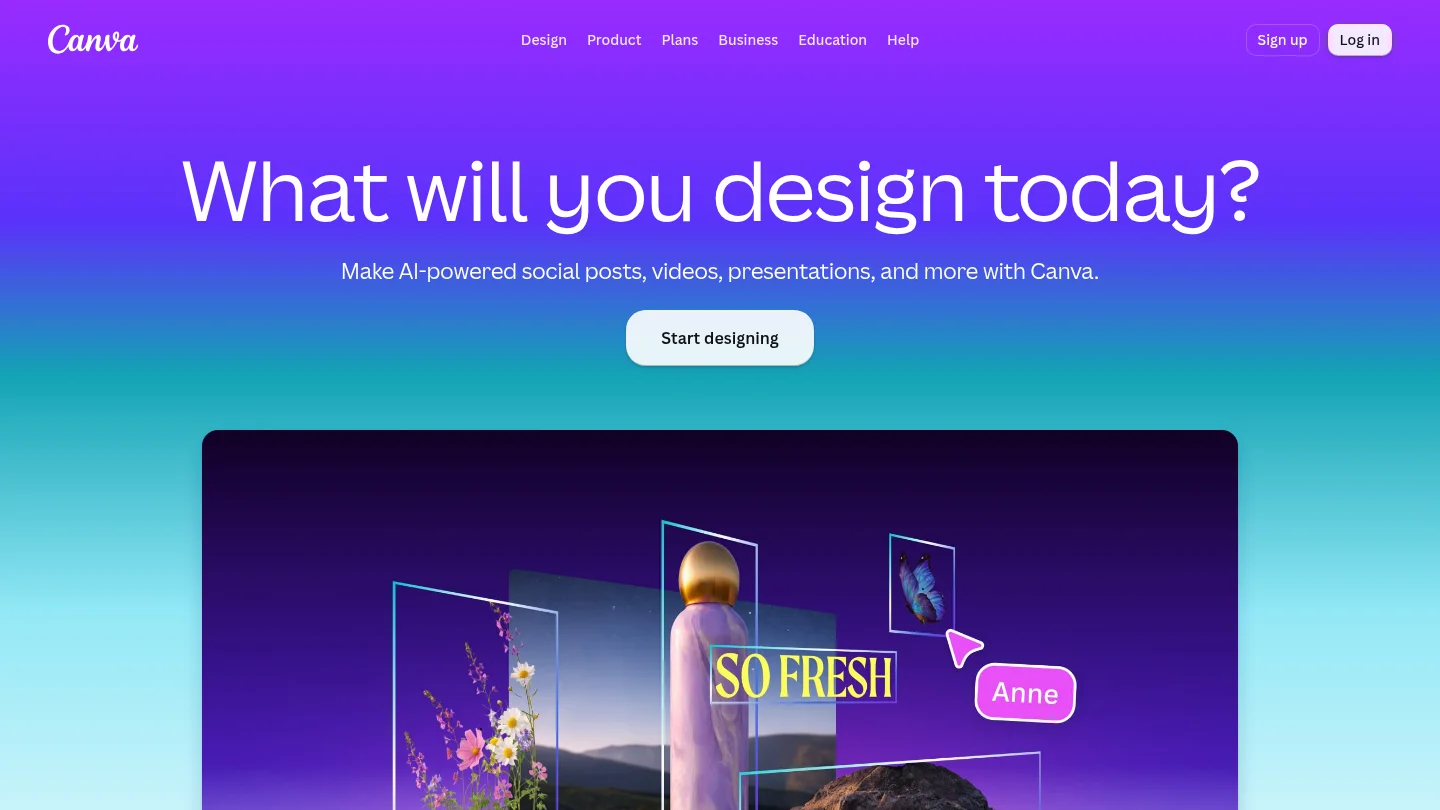
Best for: People who edit photos while also building presentations, social posts, videos, and other designed content.
Canva combines a visual design workspace with AI assisted image tools. Its current feature set includes Magic Eraser, background removal, image generation, presentations, video editing, templates, and Brand Kit. That makes it a practical alternative when an image is one part of a larger design rather than the final deliverable. If you mostly need to remove a small distraction from a photograph, compare the precise cleanup controls and export requirements before committing to a wider design workflow.
Pros:
- Brings photo edits, layouts, presentations, and video into one creative environment.
- Includes tools for background removal, image cleanup, resizing, and image generation.
- Templates and brand tools suit repeat design work.
Cons:
- Some tools and assets may depend on the plan you choose.
- Its wide range of design features may be unnecessary if you only need a single photo edit.
4. Photoroom
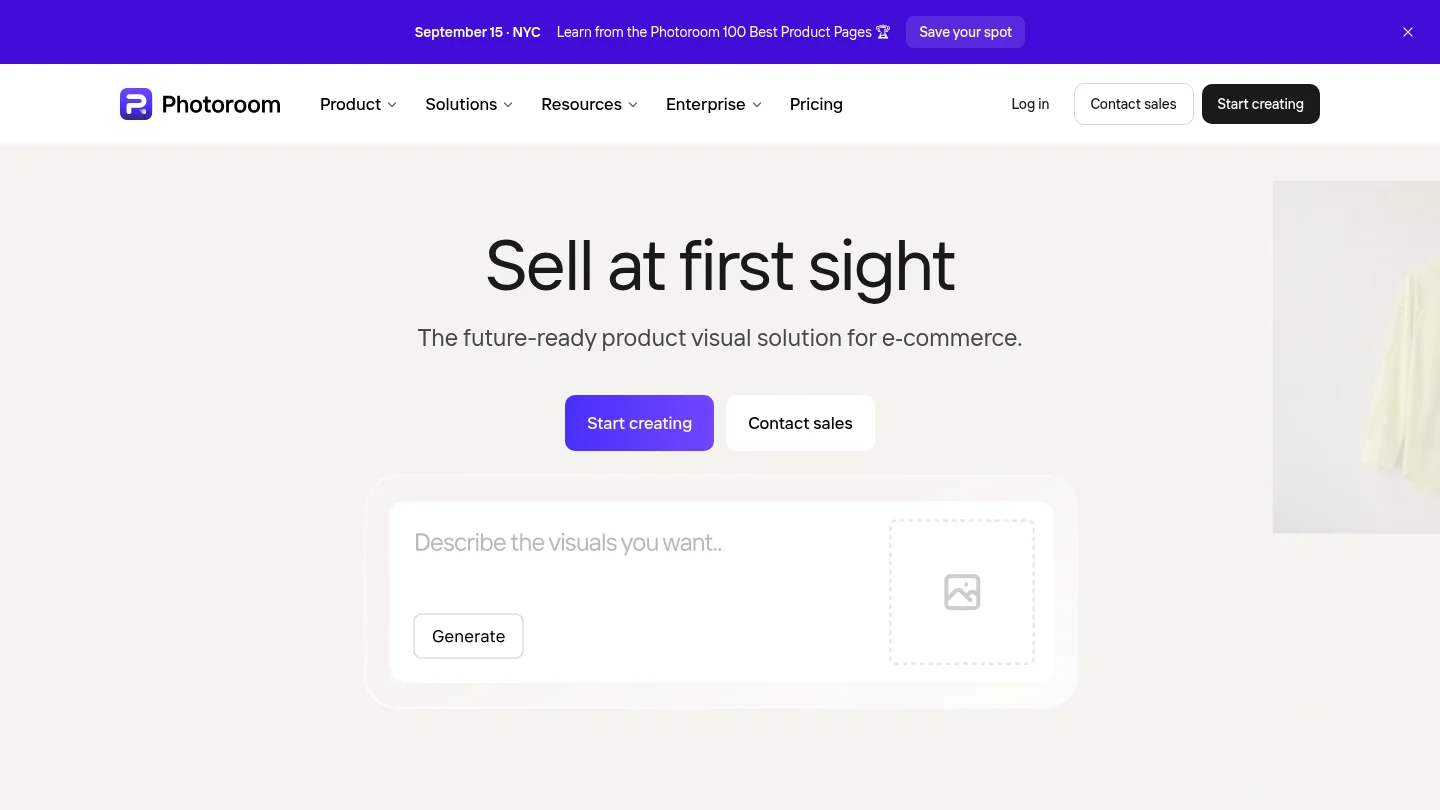
Best for: Sellers and creators preparing product images for listings, catalogs, and marketing.
Photoroom is centered on product visuals and ecommerce workflows. Its current product information describes background removal, AI generated product imagery, batch editing, API access, and marketplace syncing. These features are relevant when you need repeatable catalog work or want to move beyond one off image edits. Photoroom also describes its security controls as SOC 2 Type 2. If you process a large set of images, compare the batch workflow with tools that are designed around individual uploads and edits.
Pros:
- Its product photography focus suits listing images and catalog preparation.
- Batch editing and automation address higher volume workflows.
- Its site describes SOC 2 Type 2 audited controls.
Cons:
- Its ecommerce emphasis may be less relevant if your main need is personal photo editing or general image creation.
- Check the current plan and feature conditions for the volume and tools you need.
5. insMind
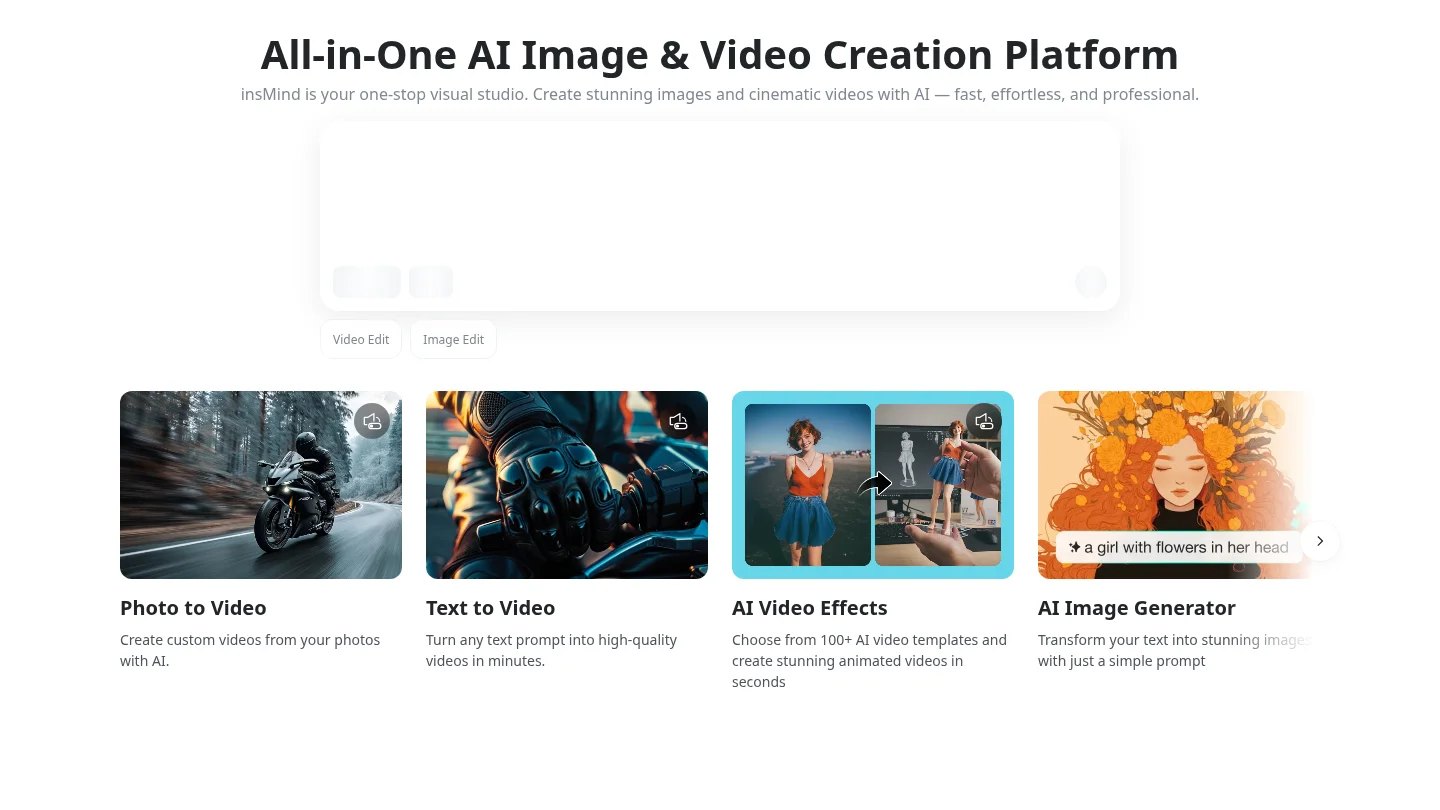
Best for: Marketers and creators building AI assisted campaigns and connected image or video content.
insMind presents a broader marketing content workflow that starts with an idea, image, or video. Its platform describes tools for making and adapting images, videos, ads, and social content, alongside reusable character and product assets. Before generation, it shows a plan, estimated time, and credit cost. This is worth considering when your projects extend from a single image into a sequence of promotional assets. For straightforward photo cleanup, a dedicated cleanup workspace may involve fewer decisions.
Pros:
- Supports image and video creation alongside editing and marketing content workflows.
- Displays estimated timing and credit costs before generation.
- Reusable assets can support repeated projects.
Cons:
- Its broader marketing workflow may be more than you need for a simple photo correction.
- Generation depends on credits, so review the displayed cost for each task.
6. Pixlr
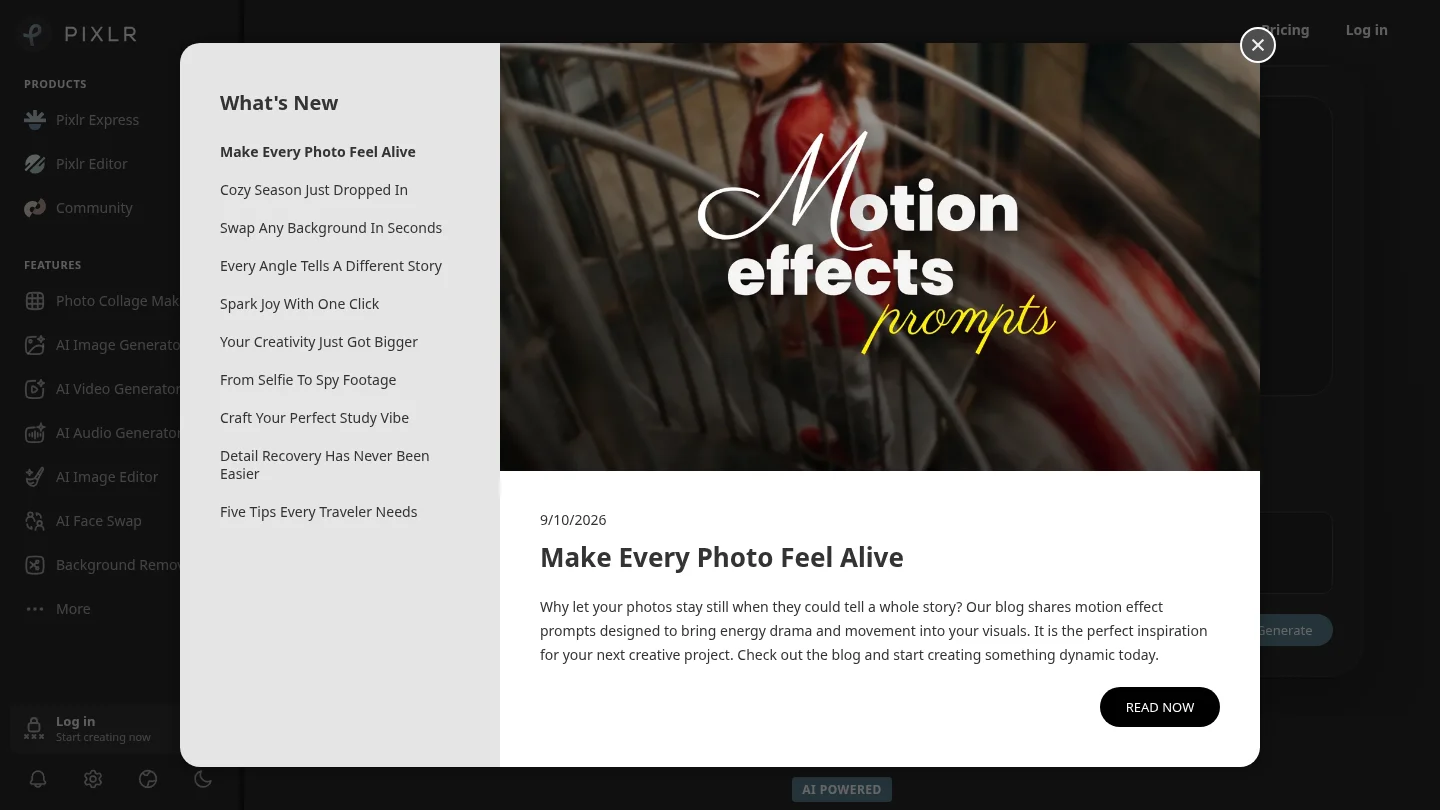
Best for: People who want browser based photo editing alongside a wide range of AI tools.
Pixlr combines photo editing and design tools with AI functions such as background and object removal, generative fill, image expansion, image generation, and video creation. Its site describes access through browsers and mobile devices, with a free version and paid plans. This breadth can be useful when your projects include several types of visual work. Compare the tools you use most often and the plan limits, rather than assuming that every advanced feature is included in the free tier.
Pros:
- Offers both conventional photo editing and AI powered image tools.
- Includes capabilities for generating images, removing objects, and expanding an image.
- Provides free access, with paid plans for additional features and an ad free experience.
Cons:
- Its large set of tools may take longer to navigate when you only need one specific edit.
- Some advanced features and higher access levels require a paid plan.
7. BeFunky
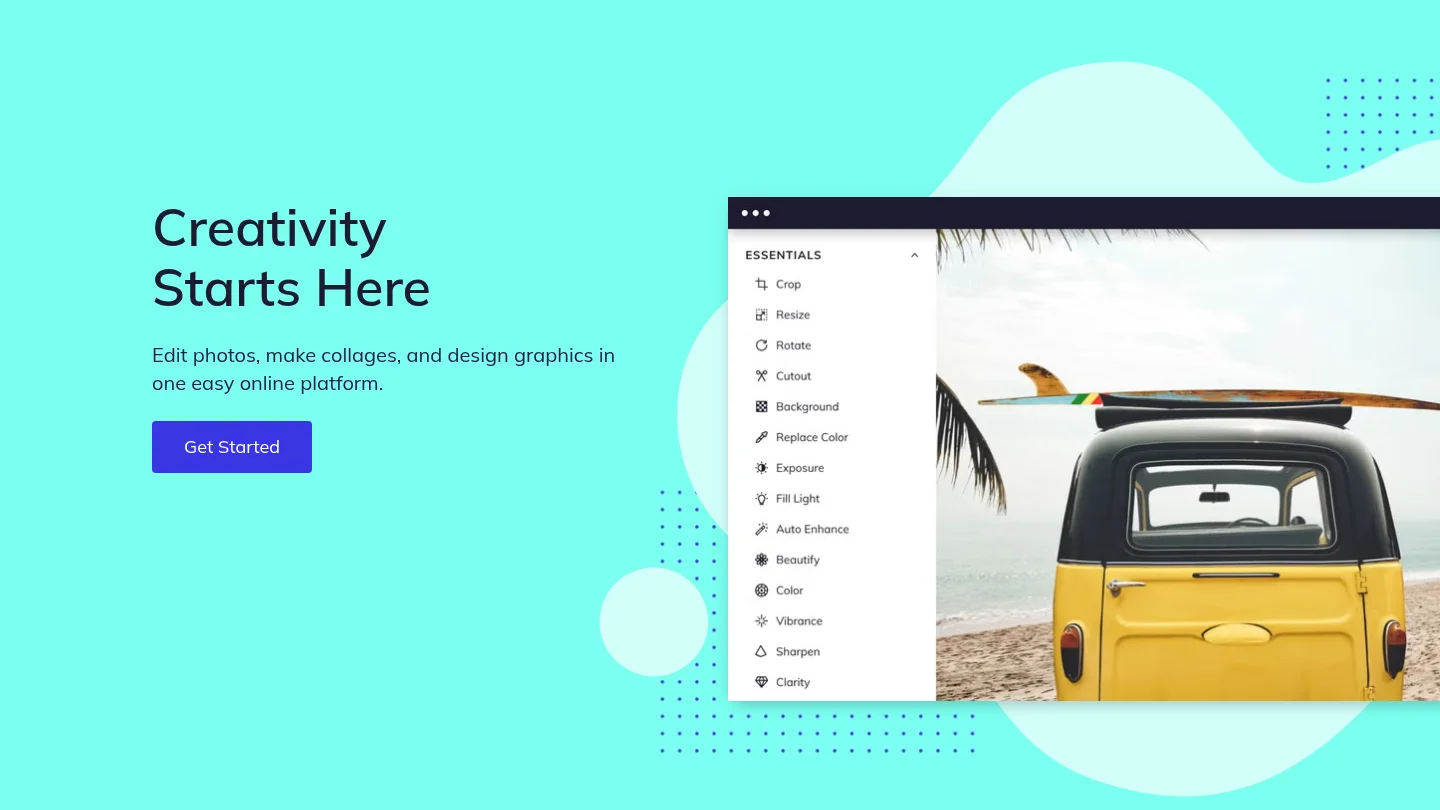
Best for: People who want photo editing, collages, and graphic design in one approachable platform.
BeFunky brings a photo editor, collage maker, graphic designer, AI assisted editing, and batch workflows into one browser based platform. Its tools cover quick adjustments, distraction removal, artistic effects, and template based designs. The company says free tools are available without an account, while upgraded plans unlock additional editing features and effects. Pro includes batch editing workflows and additional AI credits. This makes BeFunky a useful candidate if you regularly move between photo edits and simple designed assets.
Pros:
- Combines photo editing, collages, and graphic design in one platform.
- Offers free tools and describes its interface as suitable for different experience levels.
- Pro includes batch editing for larger collections.
Cons:
- Advanced editing features and some AI capabilities require a paid plan.
- Batch editing is included with Pro rather than the basic free workflow.
What should you check before switching from Fotor?
Test a representative image instead of comparing feature names alone. Try a portrait, product photo, or busy travel scene, depending on your regular work. Inspect fine edges, textures, lighting, and the area reconstructed after cleanup. Then check the export format, image dimensions, and whether the workflow supports your needed file size. Pixmage cleanup supports JPG, PNG, WebP, and GIF uploads up to 15MB; other tools set their own requirements.
If you plan to publish or sell AI generated work, review the product terms and applicable local law. In a 2025 report, the U.S. Copyright Office said generative AI outputs may be protected when a human author determines sufficient expressive elements; prompts alone do not establish that threshold. Read the Copyright Office summary and consider how much human created expression your final work contains.
Choose the alternative that fits your work
The right Fotor alternative is the one that matches the task you repeat most. Choose Pixmage for focused cleanup and AI image creation, Photoroom for product production, or Canva and Adobe Express for broader designed content. For editing and creative tools in one place, compare Pixlr and BeFunky; for AI marketing workflows, consider insMind. Before moving your work, test an actual image, confirm export requirements, and review the access terms that apply to the features you need.
Start with a focused image workflow
When you know whether you need cleanup, a controlled photo edit, or a new image, choosing a tool becomes easier. Our browser based studio organizes those tasks into focused workspaces, so you can select an action before uploading or writing a prompt. You can review the result before downloading it.
Use our AI image generation tool to create from a prompt, edit an uploaded photo, apply an effect, or combine visual references. The workspace shows model and output choices, and generation credit cost before you proceed. Image generation and photo effects require sign in and email verification, and generation requires credits. Cleanup tools provide initial access by task; later cleanup uses credits in a verified account. Review your result, download it, or continue editing.
Frequently Asked Questions
Which Fotor alternative is best for removing distractions?
Choose a tool with a cleanup workflow suited to the image and distraction you need to remove. Pixmage has focused tools for removing backgrounds, watermarks, logos, text, and people.
Which option is best for creating social media designs?
Canva and Adobe Express are strong fits when you need templates, branded graphics, or content adapted for multiple channels. BeFunky also combines photo editing with graphic design and collage tools.
What should ecommerce sellers compare?
Check background handling, product image editing, export requirements, and batch processing. Photoroom describes batch editing and automation for product imagery, while Pixmage provides focused cleanup and AI creation workflows.
Are free alternatives enough for regular use?
Free access can be useful for testing basic editing, but advanced tools, credits, or higher usage may require a paid plan. Compare the exact feature access and limits for your usual tasks before switching.
Can you use AI generated images commercially?
Check the tool’s terms and your local laws before using generated images commercially. Keep in mind that the U.S. Copyright Office says a prompt alone does not determine sufficient human authorship for copyright protection.