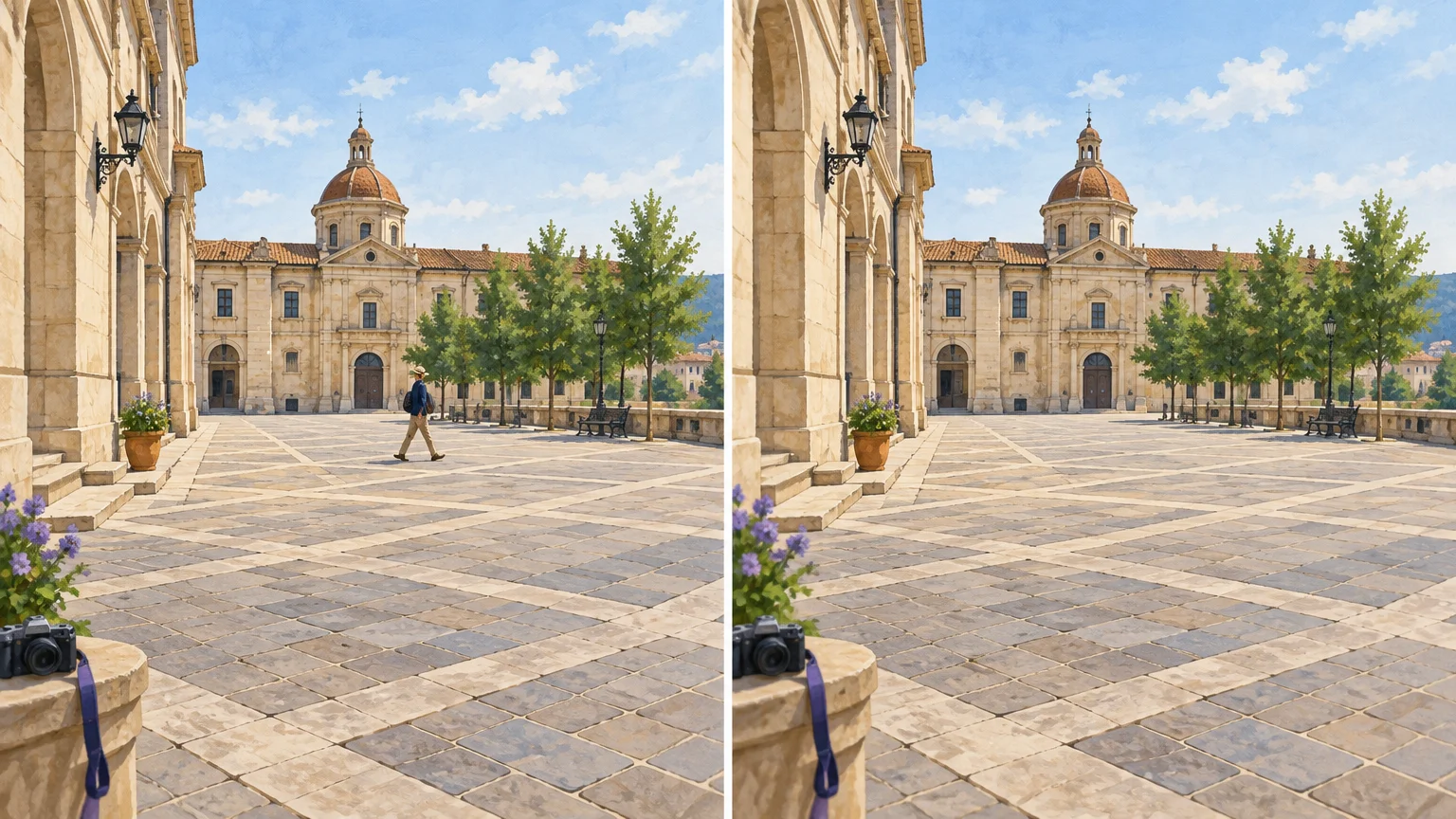
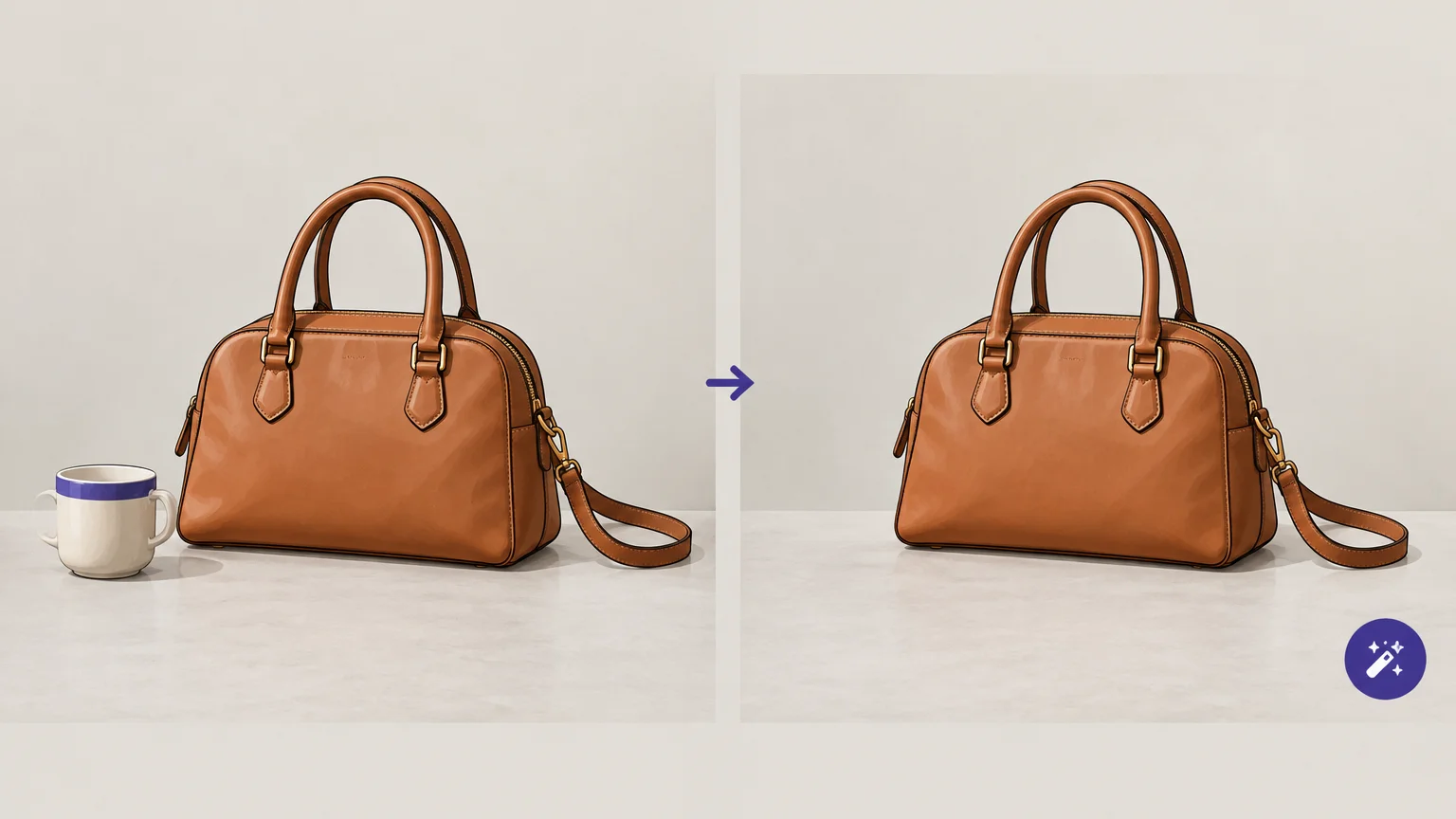

A cleanup tool is only useful if the repaired area looks believable at the size you plan to publish. Start with the task you need, then evaluate how well the tool handles your own images. For a range of options, explore our best AI image cleanup tools.
Choosing an AI image cleanup tool involves more than finding an eraser that removes a marked object. The result might need to preserve a product label, leave a face untouched, or reconstruct a patterned background convincingly. Your choice also affects file quality, upload privacy, review time, and the amount you pay for repeated edits.
Start With the Exact Cleanup Task
A traveler removing a passerby, a seller cleaning a product photo, and a designer erasing text have different requirements. A general object eraser might handle all three tasks, but it does not follow that it will deliver equally reliable results for each one.
Check the tool’s stated capabilities before uploading. Does it remove objects, people, text, logos, or backgrounds? Does it rebuild the area behind a removed person, or only separate a subject from its background? These are distinct operations. Background removal creates a cutout; object removal fills the selected region using surrounding image information.
Match the tool to the asset’s purpose as well as the unwanted element. For a product listing, preserving the item’s shape, color, packaging, and fine edges matters more than removing every background distraction. For a travel photo, a convincing reconstruction of the scene matters most. If you edit logos, watermarks, or text, work only with material you own or are authorized to change.
Our focused cleanup workspaces cover background, watermark, logo, text, and person removal. You can select the task, process an image, and review a before and after result before downloading. That separation makes it easier to choose a workflow suited to the specific edit.
Test Reconstruction on Your Hardest Image

Choose a challenging sample, not the easiest image in your folder. A small object against a plain wall reveals little about a tool’s limits. Try an edit where the selected object touches a subject, overlaps a shadow, or sits on a repeated pattern. Those conditions expose errors that can disappear in a thumbnail.
After processing, compare the output with the original and inspect it at full size. Look for softened edges, repeated textures, warped lines, missing reflections, or changes to the subject. For product imagery, zoom in on labels, stitching, and transparent or reflective materials. A polished-looking repair is not necessarily a faithful one.
Research on AI image quality distinguishes perceived sharpness from the information an image actually preserves. A 2026 paper on AI image quality discusses this gap. For cleanup, that is a practical reason to verify important details rather than judging by appearance alone.
Run more than one attempt when the result is close but imperfect. A smaller selection or a separate pass over a complex area can produce a cleaner repair. If you need more guidance on natural-looking edits, read a practical guide to AI photo cleanup.
Match Export Quality to the Final Use
A result that looks fine on a phone screen may not meet your needs for a product page, presentation, or print. Before committing to a tool, check its maximum export dimensions, supported file types, and any free-use limits. Compare the downloaded file with the original, because upload compatibility alone does not confirm export suitability.
Consider the destination before editing. A web listing may need a specific aspect ratio and enough resolution for a close crop. A transparent cutout needs an export format that supports transparency. If you expect to continue editing elsewhere, check whether the output retains enough quality for that workflow.
For Pixmage cleanup, uploads can be JPG, PNG, WebP, or GIF files up to 15 MB. Successful background removal provides a transparent PNG. Check the output itself before using it, especially when the image will appear large or show fine product details.
Review Privacy, Retention, and Image Rights
Before uploading a sensitive image, find out how the service handles files. Check whether processing happens on your device or on a remote server, how long uploaded images and results are retained, and whether you can request deletion. Do not assume a browser-based tool processes files locally.
Use extra care with unreleased products, private portraits, customer information, or images containing confidential details. If a provider’s privacy or retention terms are unclear, choose a different workflow for sensitive material. For any cleanup tool, also confirm that you have permission to edit and use the image.
Removal changes what viewers see. That may be appropriate for a personal photo or an authorized marketing asset, but it can mislead if it alters evidence or misrepresents a product. Keep the edit consistent with the purpose and context of the image.
Compare Workflow and Cost Before You Commit
List the steps you repeat: upload, select the removal area, process, review, revise, and export. Then check whether the tool makes those steps straightforward. If you edit occasionally, a simple browser workflow may be enough. If you clean many images, test how easily you can keep results consistent and review each file.
Workflow fit matters when you use more than one creative tool. In Synexa’s survey of 1,840 paying users across 11 AI image tools, conducted in January 2026, 73% said they used two or more tools in their weekly workflow. That finding applies to the surveyed AI image creators, not specifically to cleanup users, but it highlights why export compatibility and smooth handoffs deserve a place in your evaluation.
Then calculate the real cost of your expected use. Check free-run limits, account requirements, credits, export restrictions, and any fees for repeated processing. A free test can be useful, but confirm what happens after it. At Pixmage, the first cleanup run is complimentary for each of five focused tools: Remove Background, Remove Watermark, Remove Logo, Remove Text, and Remove Person. Later cleanup requires a verified account and credits, with the required credits shown before processing.
For a broader editing workflow beyond cleanup, consider what you need after the image is repaired. If you also generate or transform images, our guide can help you choose an AI image editor for your workflow.
Use a Short Checklist to Make Your Choice
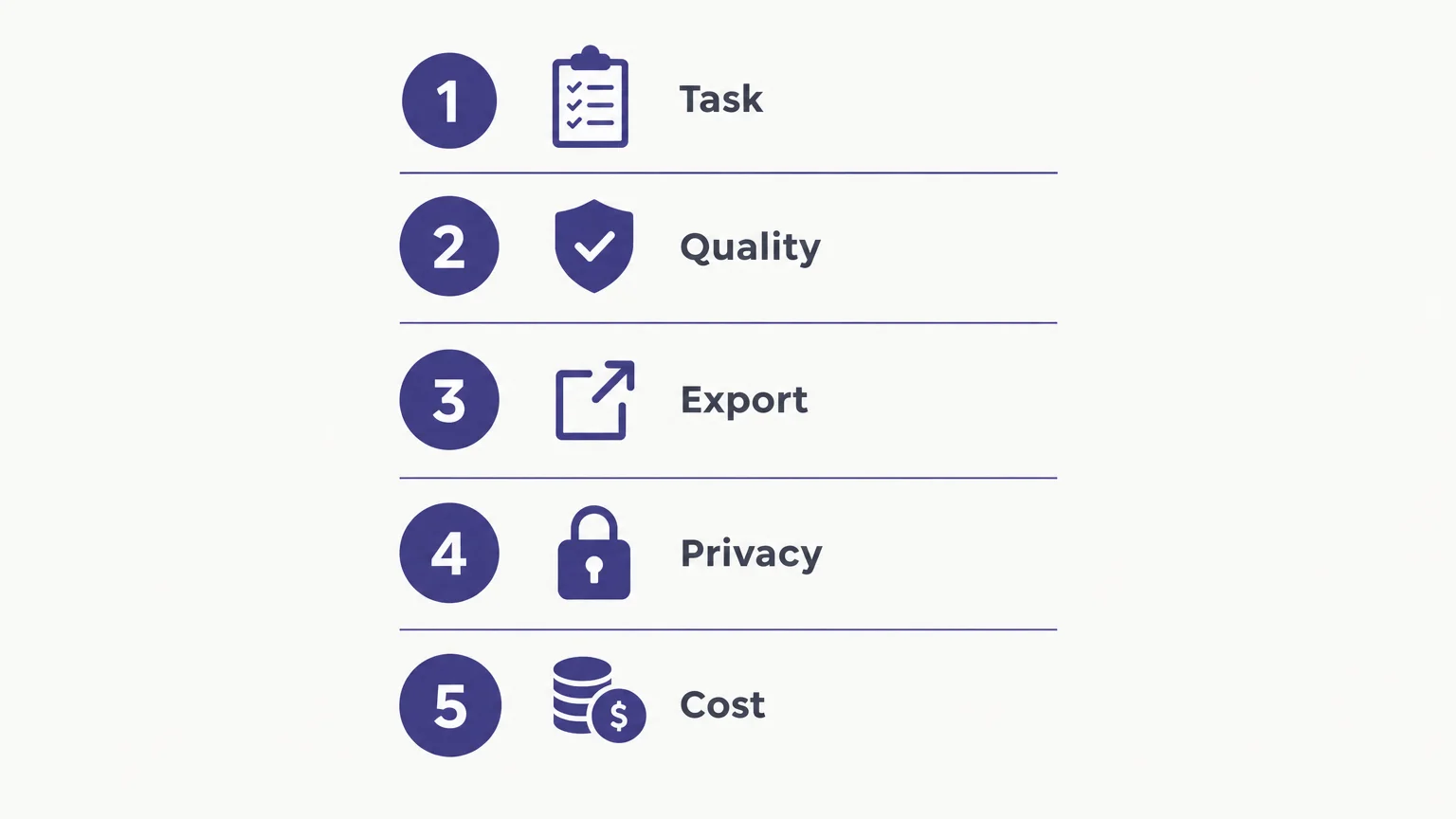
Before selecting a tool, apply the same checks to your intended image and use case. This keeps a convenient interface or attractive demo from distracting you from the details that determine whether the result is usable.
- Task fit: Confirm the tool supports the exact removal or background operation you need.
- Detail preservation: Test a difficult image and inspect the subject and repaired area at full size.
- Export limits: Verify file format, dimensions, and transparency requirements for your destination.
- Privacy and rights: Review file handling and use only images you are authorized to edit.
- Cost and workflow: Check account requirements, credits, usage limits, review steps, and export compatibility.
Keep the test consistent if you compare tools: use the same source image, remove the same area, and judge the result at the same size. That makes it easier to distinguish a genuinely suitable workflow from one that only looks impressive in a quick preview.
Choose for the Image You Need to Deliver
The right tool is the one that performs your specific cleanup, preserves the details that matter, exports a usable file, and fits your privacy and budget requirements. Test it on a difficult image, review the repair at full size, and confirm the terms before making it part of a recurring workflow. That practical check is more useful than choosing by feature count alone.
Try a Focused AI Cleanup Workflow
When you know which part of an image needs attention, a task-specific workspace can make the cleanup process clearer. Choose the removal task, upload a supported image, and review the result before deciding whether it is ready to use.

Our AI background remover separates a foreground subject and provides a transparent PNG when removal succeeds. The first run of each focused cleanup tool is complimentary; later runs require a verified account and credits, with the required credits shown before processing.
Frequently Asked Questions
What should you test first in an AI image cleanup tool?
Test a difficult image that resembles your real work, such as a product with reflective packaging or a person crossing a patterned background. Review the result at full size for altered details and visible artifacts.
Can AI cleanup recover the original background behind an object?
No. The tool generates a plausible replacement from surrounding image information rather than revealing hidden pixels. Inspect the reconstructed area closely, especially when accuracy matters.
Which file details should you check before uploading?
Check accepted formats and maximum file size before processing. Then confirm that the downloaded dimensions and format suit your publishing destination.
How can you estimate the cost of repeated cleanup?
Check whether the tool limits free runs, charges credits, or requires an account for later edits. Estimate your usual monthly volume and review the displayed charge before processing additional images.
When should you use a focused cleanup tool?
A focused tool is useful when you need a specific edit, such as removing a person, text, or background. Pixmage provides separate cleanup workspaces for those tasks, with before and after review before download.