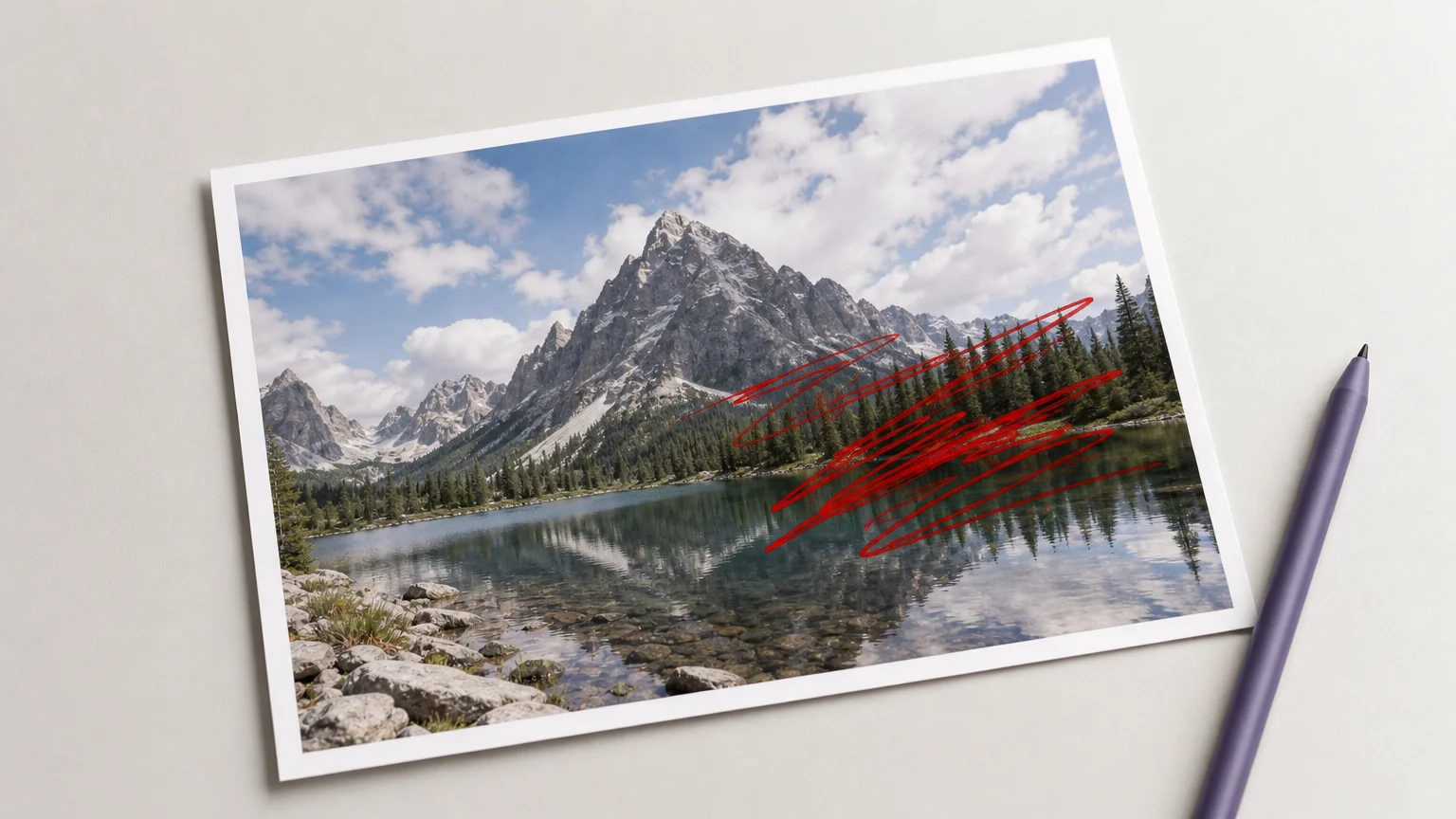
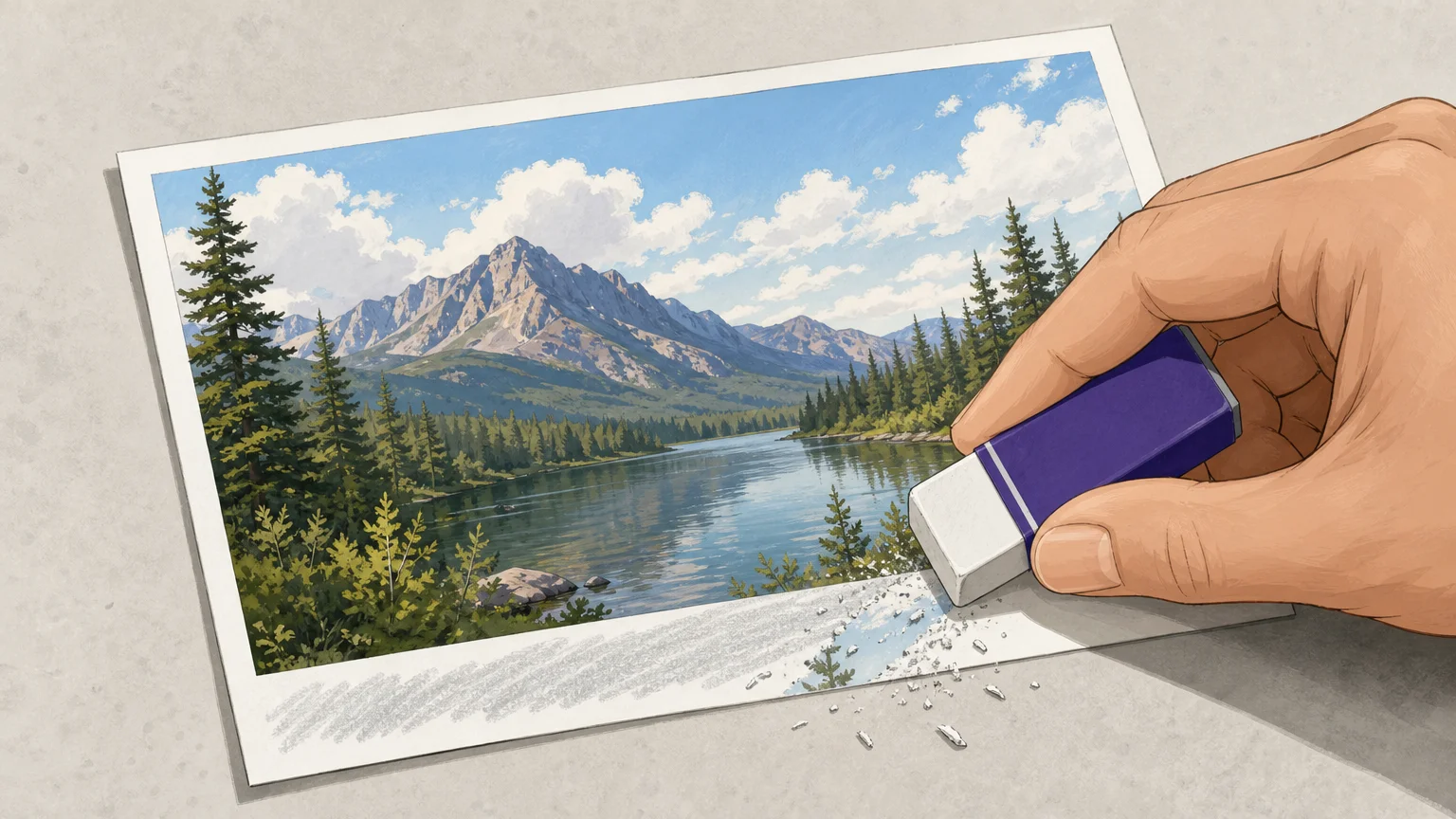

Text can obscure a useful photo, but removing it without leaving a visible patch takes more than deleting pixels. A text removal tool rebuilds the area behind captions, signs, labels, or timestamps, and the result depends on what the text covers. If your cleanup also involves handwritten marks, our guide to remove scribbles from a photo covers that related task.
For a short caption against a plain background, a quick cleanup may be enough. Text across a face, patterned fabric, or architectural detail calls for closer review and possibly a manual touch-up. The right choice depends on the image, the control you need, and whether you can edit the source content.
What kind of text do you need to remove?
Start by identifying the text and the surface behind it. A date stamp in an open sky is different from lettering across a product label or a busy street sign. Text over a simple, even area is often easier to reconstruct because nearby pixels provide a clear visual reference.
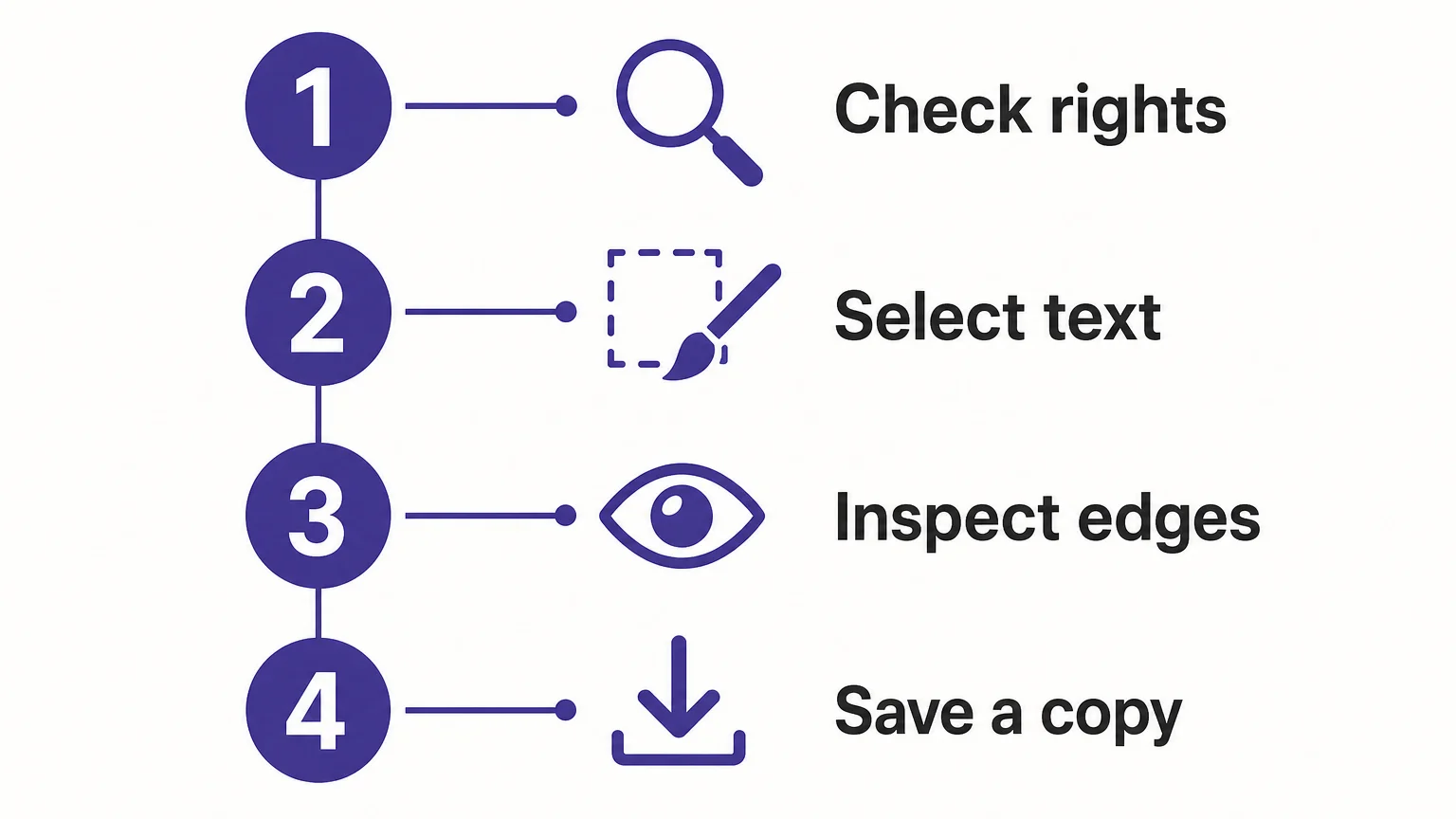
AI inpainting fills the selected region with newly generated or sampled content. A focused cleanup workspace can simplify the process: select the text, process the image, and inspect the result. Some tools detect text automatically, while others ask you to mark it with a brush or selection. Manual selection can help when you want to remove one phrase but preserve other lettering in the same image.
A broader editor may provide more direct control through selections, clone tools, or healing brushes. Those options can help with small corrections, but they may require more editing time and familiarity. Research on AI image editing also suggests that precise requests can remain challenging: an Adobe Research study analyzed 83,000 editing requests and found that human ratings judged only about 33% fulfillable by the tested AI editors. That study covered varied editing tasks, not text removal alone, so treat it as context rather than a text-removal success rate.
For authorized captions, dates, or timestamps, our watermark removal guidance offers related advice on preserving nearby image detail. Text and watermarks are different cleanup tasks, so choose a tool designed for the element you actually need to change.
How can you judge the quality of a result?
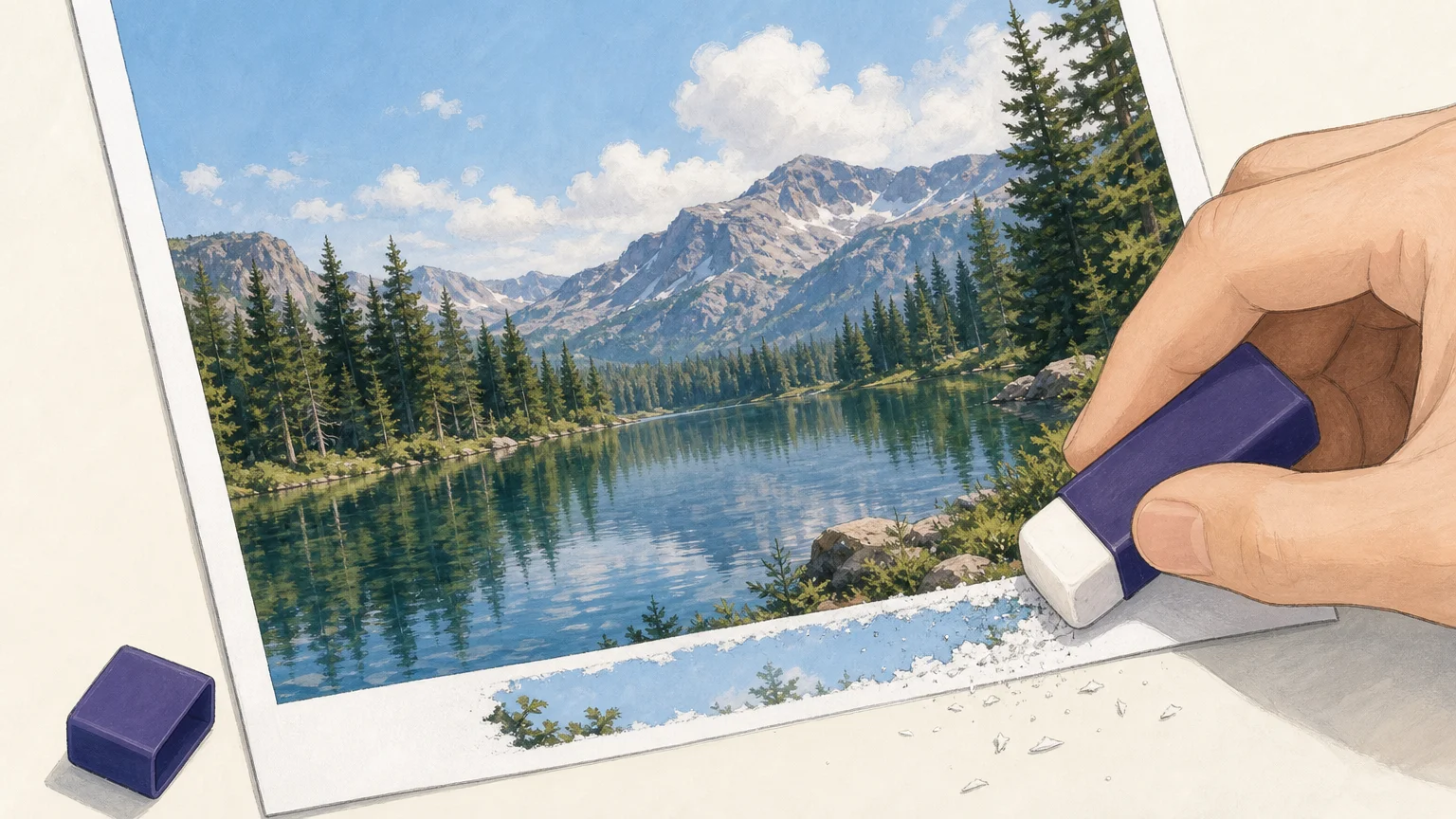
Look beyond whether the letters disappeared. The reconstructed area should fit the surrounding texture, lighting, perspective, and edges. Zoom in around the edit, then view the full image. A result can appear convincing at thumbnail size yet show repeated patterns, smudges, or softened detail when enlarged.
Text across a smooth wall may leave little evidence of editing, while text crossing hair, foliage, fabric, or a product edge can be harder to repair. A 2026 study of image-removal methods described artifacts and semantic inconsistencies as challenges for some approaches. This is a useful reminder to inspect the actual image rather than assuming every result will be seamless, as discussed in the AAAI image-removal research.
Background reconstruction can also struggle when the covered area contains dense detail. A 2026 paper on generalized text erasure notes that methods developed for scene text may perform poorly on document images with dense, complex backgrounds. That finding concerns particular research methods, not every consumer editor, but it highlights why the same tool may behave differently across a street photo, a document, and a patterned product image. The 2026 text-erasure study provides that technical context.
For detailed work, preserve the original file and compare the edited version against it. If the tool allows another pass or a smaller selection, make a focused correction rather than repainting a large region. Our AI image cleanup tools article can help you consider related image-editing workflows.
What should you check before uploading an image?
Check the image format and file-size limit before starting. Some online editors restrict formats or impose upload limits, while desktop software may offer a different workflow. If an image is sensitive, review the service’s privacy information and understand how it handles uploaded files before sending it.
File handling matters as much as editing quality. A browser-based tool can be convenient, but that alone does not tell you whether processing happens locally or on a remote server. Look for clear information about storage, retention, and deletion. If you cannot establish whether the handling suits your needs, consider an offline editor for sensitive material.
Also confirm your editing rights. Remove text only when you own the image or have permission to modify it. A visible watermark, brand mark, or attribution may communicate ownership or licensing information. Removing it does not grant permission to reuse the underlying image.
Which workflow fits your editing task?
For a one-off caption or timestamp, a dedicated cleanup workspace may be the most direct option. For a precise repair on a complex background, a broader editor can provide more hands-on control. In either case, work from the highest-quality source available, mark only the text you intend to remove, and review the image at both normal and enlarged scale.
Before choosing, check whether the tool supports your image format, whether a trial or account is required, and what further processing costs. Do not assume that “free” means unlimited use or that a tool can restore details that the original image does not contain. Some systems generate plausible replacement pixels rather than recover the exact hidden background.
Pixmage’s Remove Text workspace is designed for authorized text, captions, dates, and timestamps in uploaded images. It accepts JPG, PNG, WebP, and GIF files up to 15MB. The first Remove Text run is complimentary; later processing requires a verified account and credits, with the credit requirement displayed before processing.
Choose a tool by the image, not the promise
The right text removal tool should match the kind of text, the detail underneath it, and the control your edit requires. Check the reconstructed area carefully, confirm file and privacy terms, and make sure you are authorized to change the image. For important work, keep the original and compare the final result before sharing it.
Remove Text from Your Image with Pixmage
When you need to clear authorized captions, dates, or timestamps, a focused cleanup workspace can keep the task straightforward. Upload a supported image, process the selected text, and review the result before deciding whether to download it.

Our AI text removal tool accepts JPG, PNG, WebP, and GIF files up to 15MB. Your first Remove Text run is complimentary. Later runs require a verified account and credits, and the required credits appear before processing, so you can decide whether to continue.
Frequently Asked Questions
Can a text removal tool erase words from any image?
Tools can remove many kinds of text, but the result depends on the covered area and surrounding detail. Text across intricate textures or important edges may need additional editing.
Will removing text restore the exact background?
Usually, the software reconstructs a plausible background rather than recovering hidden original pixels. Compare the result closely, especially when accuracy matters.
Which image formats should I look for?
Check the tool’s supported formats and file-size limits before uploading. Pixmage’s Remove Text workspace accepts JPG, PNG, WebP, and GIF files up to 15MB.
Is it acceptable to remove a watermark or attribution?
Only edit text or other protected visual content when you own it or have permission to make that change. Removing a mark does not provide rights to reuse the image.
Does Pixmage require payment for every text removal?
Your first Remove Text run is complimentary. Further processing requires a verified account and credits, with the required credits shown before the edit begins.