

A professional portrait does not always require a new photoshoot. If you search for a way to put me in a suit, the most practical route is an AI photo editor that changes the clothing while preserving your face, pose, and lighting. Our AI photo editing prompts for putting yourself in a suit can help you describe the result precisely, from a charcoal business suit to a navy blazer and open collar.
The strongest choice depends on whether you want a dedicated suit template, a prompt-driven edit, or a full headshot generator. Look closely at identity preservation, collar and lapel quality, background control, output size, pricing, account requirements, and privacy. For resumes and LinkedIn, choose a natural head-and-shoulders result. For passports, visas, or IDs, verify current requirements before using any AI-edited image.
Which AI tool is right for putting yourself in a suit?
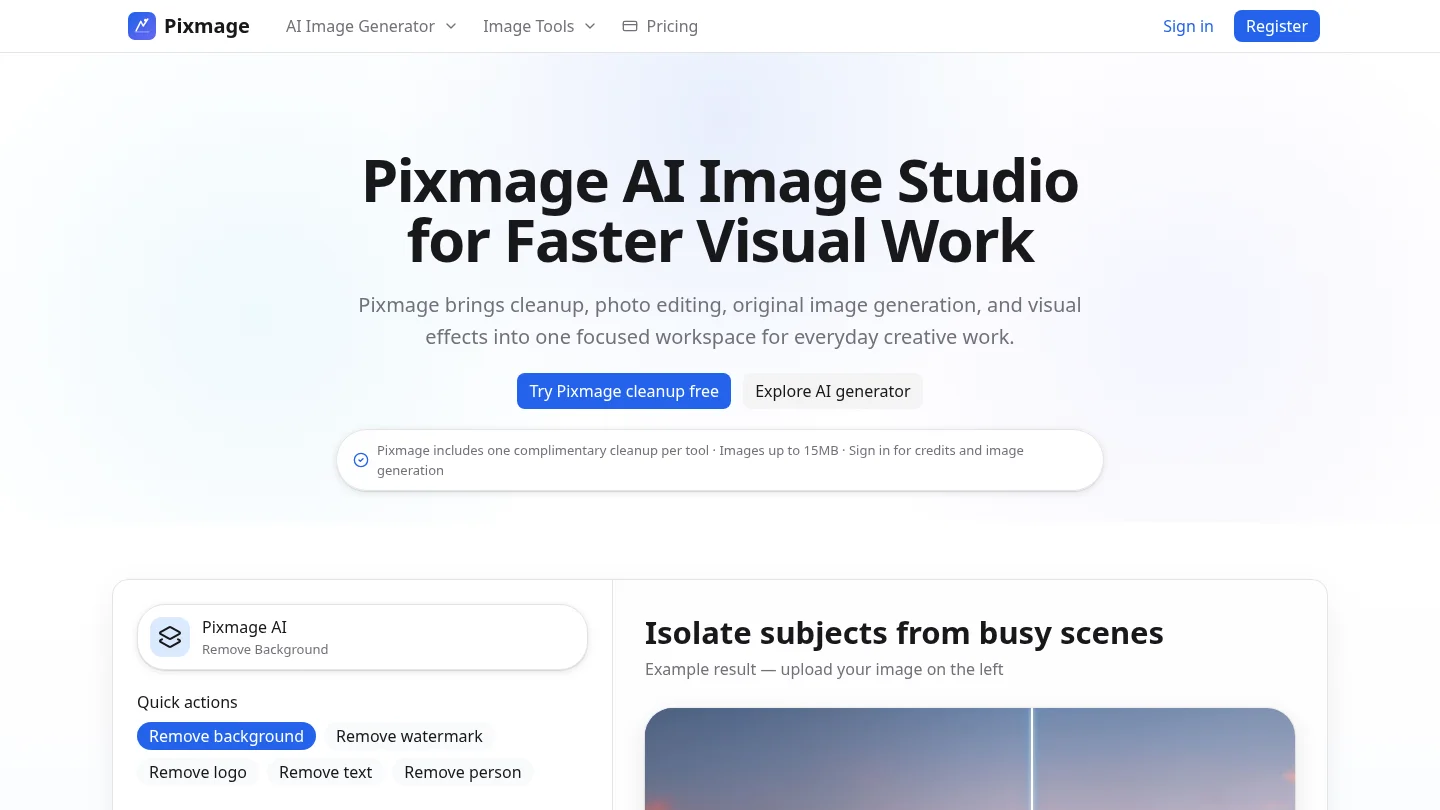
Pixmage is the best starting point when you want detailed control rather than a fixed clothing overlay. It combines photo editing, prompt control, model selection, output settings, and continued editing in one workspace.
Dedicated tools such as insMind, Fotor, Pixelbin, and Pokecut can be more direct when you want to select a suit style quickly. Adobe and Canva are useful when you need a broader headshot or design workflow. Photoroom is more relevant to clothing and product imagery than personal suit portraits.
| Rank | Tool | Best for | Key differentiator |
|---|---|---|---|
| 1 | Pixmage | Prompt-controlled suit edits | Photo editing, model controls, credits, and continued editing in one workspace |
| 2 | Adobe Firefly | Detailed professional headshots | Prompt control for attire, lighting, background, and style |
| 3 | Fotor | Suit replacement and style variety | Text prompts, outfit references, and multiple suit looks |
| 4 | Pokecut | Templates and coordinated backgrounds | Suit templates, custom clothing generation, and background editing |
| 5 | Kaze AI | Detailed outfit descriptions | Prompt-based suit, blazer, tuxedo, and formalwear edits |
| 6 | Canva | Quick headshots within a design platform | AI headshots connected to broader design and editing tools |
| 7 | Photoroom | Fashion and apparel visuals | Strong product and clothing presentation workflows rather than personal suit edits |
| 8 | insMind | Fast preset suit transformations | Suit and blazer styles with background customization |
| 9 | Pixelbin | Model and aspect-ratio choices | Suit styles, custom prompts, model selection, and output controls |
| 10 | Simple browser-based edits | Three-step workflow with suit styles and downloadable results |
1. Pixmage
Best for: Users who want a realistic suit edit with control over the prompt, model, output, and later refinements.
We recommend Pixmage first because it supports a broader editing workflow than a single-purpose virtual suit filter. You can upload a portrait, describe the formal outfit, choose a compatible model, review the displayed credit cost, and generate the result in the same workspace.
The main advantage is prompt-controlled editing. You can request a charcoal wool suit, a white shirt, a navy tie, natural shoulders, matched lighting, and a neutral professional background. You can also ask the editor to preserve your face, expression, camera angle, and skin texture while changing only the clothing.
Pixmage is also useful when the first result is close but not perfect. You can continue editing the output instead of restarting in another application. For more advanced work, our AI photo editor for changing outfits supports a broader approach to controlled photo changes and visual cleanup.
Pros:
- Prompt-based control over suit style, color, fit, lighting, and background.
- Model, input, output, and credit information stay in one workspace.
- Results can be downloaded or sent back into photo editing.
- Useful for professional portraits, campaign concepts, and controlled wardrobe changes.
Cons:
- It is not presented as a dedicated one-click suit template tool.
- AI image generation requires sign-in and a credit balance.
2. Adobe Firefly
Best for: Users who want a professional headshot with detailed control over attire, lighting, background, and overall style.
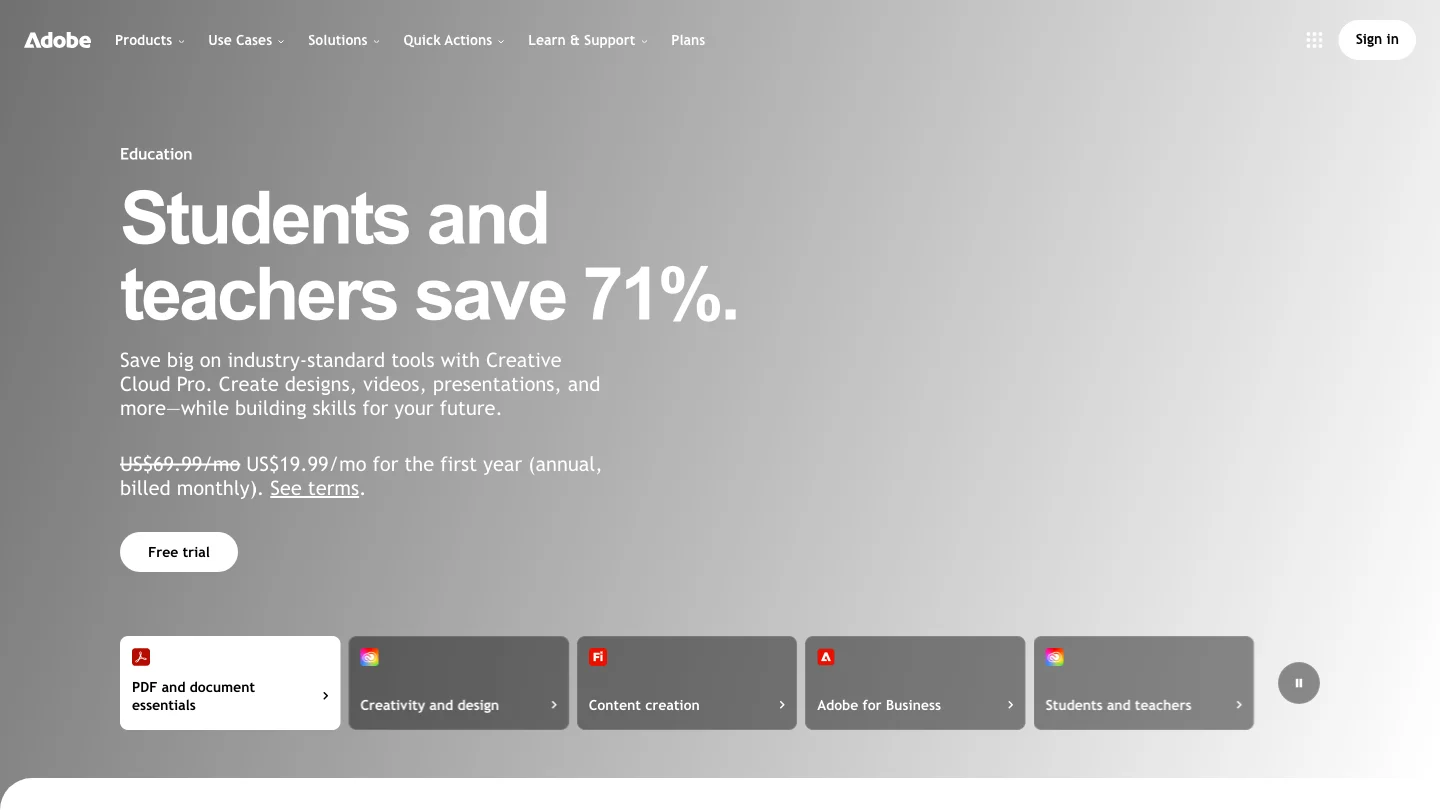
Adobe Firefly is a capable option when putting yourself in a suit is part of a broader portrait-editing task. Its professional headshot workflow accepts an image reference and a written description of the desired attire, lighting, background, and style.
This makes it suitable for a formal business portrait, company website image, press kit, or LinkedIn profile. A prompt can specify the suit color, shirt, tie, camera framing, background tone, and lighting direction. You can also use the wider Adobe ecosystem when the final image requires additional design work.
The main limitation is that Firefly is a broader creative platform rather than a dedicated suit try-on page. Users who want a quick preset may find insMind or Pixelbin more direct. Users who need flexible instructions and a wider editing environment may prefer Firefly.
Pros:
- Detailed prompt control for attire and portrait styling.
- Useful for professional headshots and company-facing images.
- Supports broader photo editing and design workflows.
- Suitable when the final portrait needs additional creative treatment.
Cons:
- It may require more prompt refinement than a dedicated suit template tool.
- The workflow is broader than the single task of changing clothing.
3. Fotor
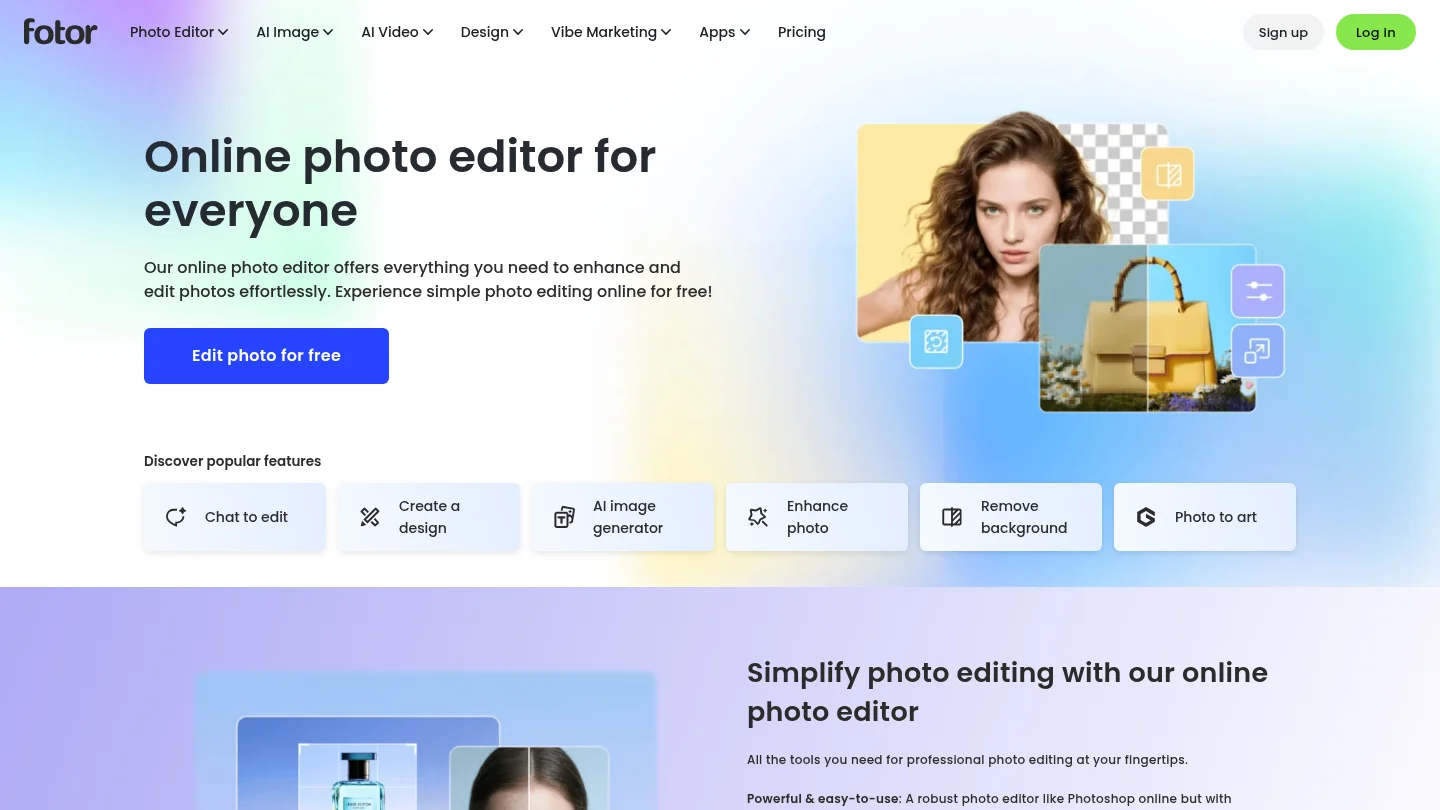
Best for: Users who want suit replacement, outfit references, and several formal style options in one online editor.
Fotor presents its suit tool as an AI clothes replacement workflow. You can upload a clear portrait, select or describe a suit, and generate a formal version while preserving the general appearance of the subject.
Its customization options include different suit styles, colors, and text prompts. You can also upload an outfit reference, which is useful when you want the result to follow a specific cut or visual direction instead of relying only on a generic business suit.
Fotor is a practical middle ground between a simple preset editor and a full creative workspace. It can help you produce a profile image quickly, although you should still inspect the collar, hands, shoulders, and fabric edges before downloading.
Pros:
- Direct suit replacement workflow.
- Supports text prompts and outfit reference images.
- Offers multiple suit styles and colors.
- Useful for professional profiles, resumes, and social images.
Cons:
- Results may need manual review for garment edges and facial consistency.
- The dedicated suit page provides less documented control over model selection than Pixmage.
4. Pokecut
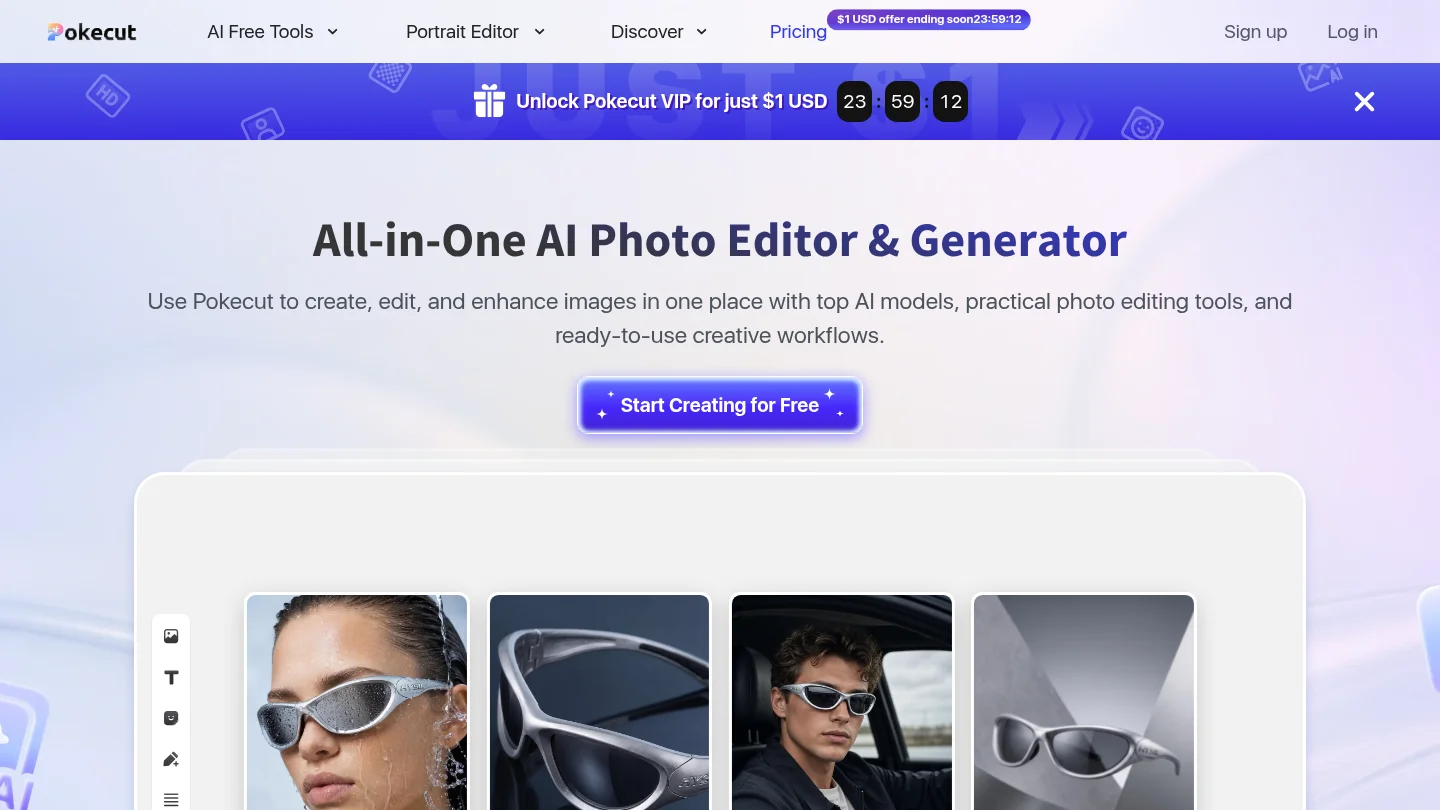
Best for: Users who want suit templates, custom clothing generation, and coordinated background changes.
Pokecut combines a suit photo editor with a broader AI clothing workflow. You can upload a portrait, select a formal template or provide a custom clothing description, preview the result, and download the finished image.
The ability to coordinate the suit with a plain background is helpful for application photos and professional profiles. Its template approach can also make it easier to test classic, modern, or business-casual looks without writing a detailed prompt each time.
Pokecut describes formal images for official uses, but you should not assume that an AI-edited portrait meets passport, visa, or identification requirements. Always confirm the current rules of the organization receiving the image.
Pros:
- Suit templates for fast experimentation.
- Custom clothing generation through prompts.
- Background editing can be combined with outfit changes.
- Accessible for users without advanced editing skills.
Cons:
- Template-led workflows may offer less detailed preservation control.
- Official-document use requires independent verification.
5. Kaze AI
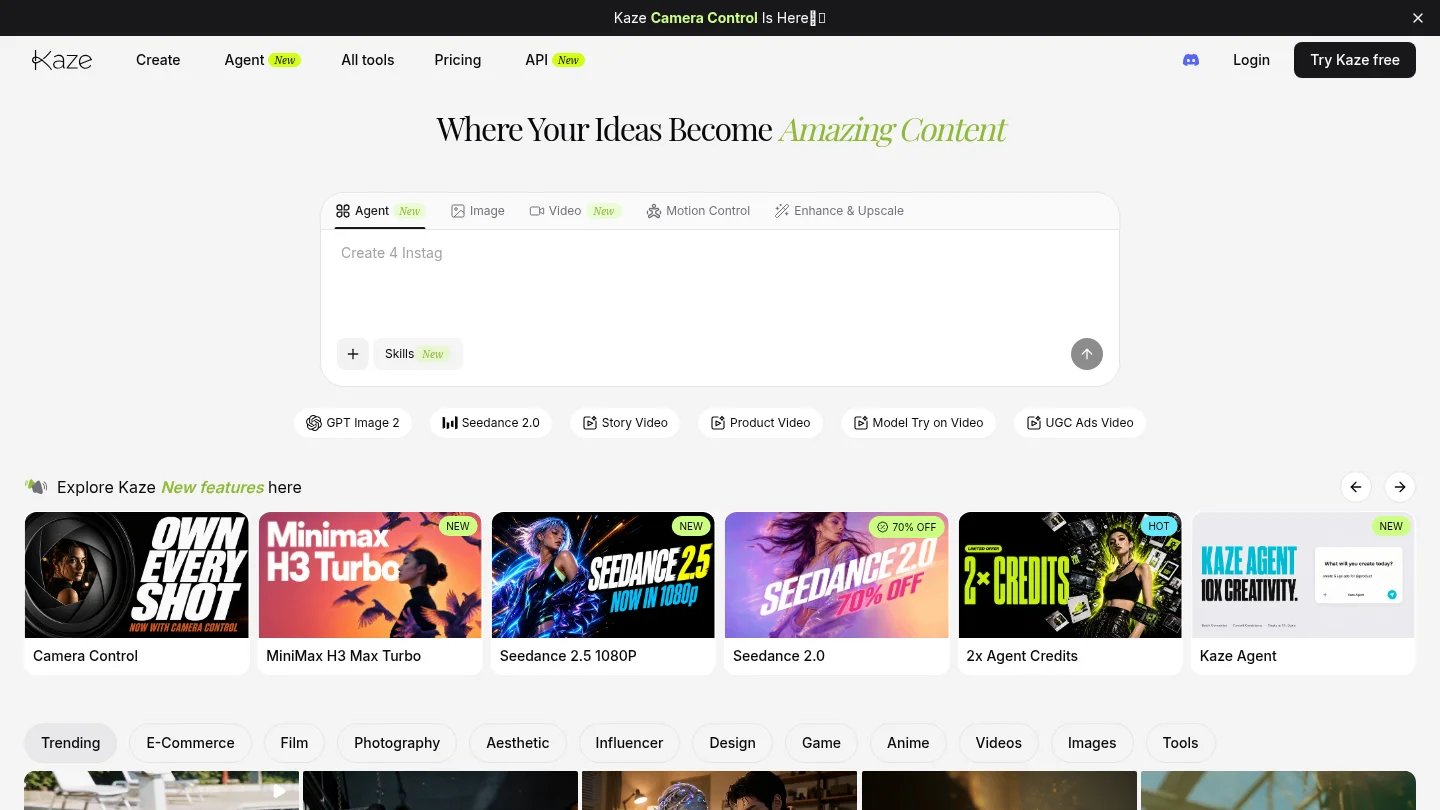
Best for: Users who want to describe a specific suit, blazer, tuxedo, shirt, tie, and pocket square in natural language.
Kaze AI is designed around prompt-based outfit changes. You can describe details such as a slim charcoal suit, light blue shirt, navy tie, satin lapels, or a white pocket square, then generate a formal portrait from an uploaded image.
This approach is useful when the desired outfit is more specific than a standard business template. It can also help you preview formalwear before an event, provided you treat the result as a visual concept rather than a precise tailoring simulation.
Kaze emphasizes browser-based access and a simple upload, describe, and download workflow. Compared with Pixmage, the supplied information documents fewer controls for model comparison, credit review, and continued editing after generation.
Pros:
- Detailed natural-language outfit descriptions.
- Supports suits, blazers, tuxedos, shirts, ties, and accessories.
- Simple browser-based workflow.
- Useful for professional and event-related portraits.
Cons:
- Output quality depends heavily on the clarity of the prompt and source portrait.
- The documented workflow offers fewer visible production controls than Pixmage.
6. Canva
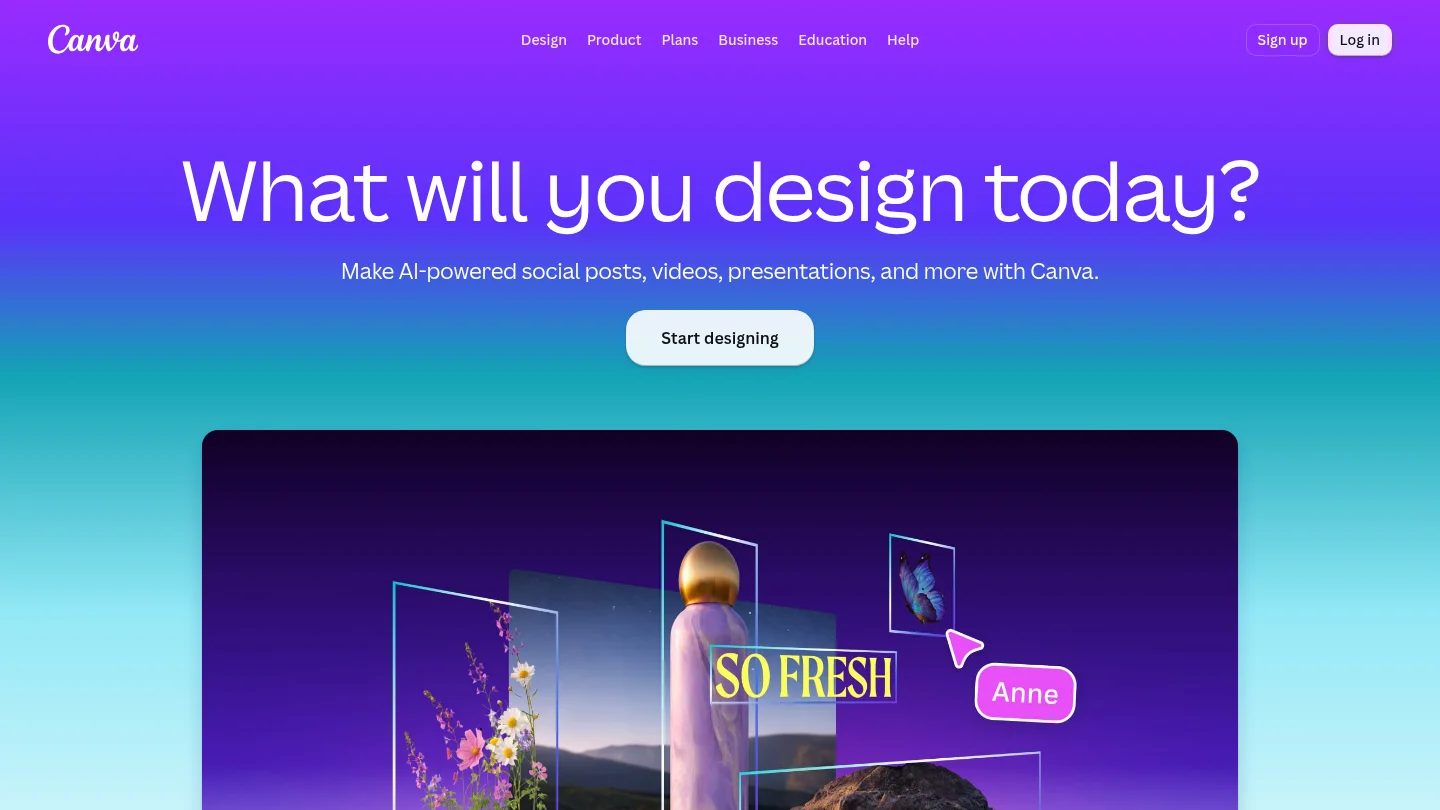
Best for: Users who want a quick professional headshot and plan to continue designing a resume, presentation, or social profile.
Canva is useful when the suit portrait is only one part of a larger design task. Its AI headshot workflow can turn a clear selfie into a polished professional image, with control over background and general visual style.
The broader platform is valuable for placing the result into a resume, business card, presentation, email signature, or social-media design. Canva can therefore reduce the number of tools required after the portrait is created.
The trade-off is that its headshot workflow is not as focused on detailed suit construction as a dedicated suit editor. The supplied information also describes a limited free credit allowance, so repeated generation may require additional access.
Pros:
- Fast professional headshot workflow.
- Useful design tools after image generation.
- Suitable for resumes, presentations, websites, and social content.
- Simple interface for non-designers.
Cons:
- Less specialized for exact suit and garment changes.
- The supplied page describes two free headshot credits before a waiting period or additional purchase.
7. Photoroom
Best for: Sellers and fashion teams creating clothing visuals, product images, and AI model presentations.
Photoroom is relevant to this topic because it supports fashion and apparel imagery. Its documented workflows focus on placing clothing products on AI fashion models, changing product presentation, removing backgrounds, and creating consistent visual assets.
That makes Photoroom a strong choice for a clothing business that needs to show suits on models. It is less directly suited to a person who simply wants to upload a selfie and add a suit to a personal portrait.
For individual professional headshots, a dedicated suit editor or prompt-driven image workspace is more appropriate. For ecommerce teams, however, Photoroom can be valuable because product accuracy, catalog consistency, and batch production matter more than personal identity preservation.
Pros:
- Strong focus on fashion and apparel imagery.
- Useful for product photos, AI fashion models, and ecommerce workflows.
- Supports background removal and consistent visual production.
- Better suited to sellers and creative teams than casual portrait editing.
Cons:
- The supplied evidence does not show a dedicated personal add-suit portrait workflow.
- It may be excessive for one individual professional headshot.
8. insMind
Best for: Users who want a direct suit or blazer transformation with preset styles and background options.
insMind is a strong choice for fast professional portraits. Its suit generator is designed around uploading a photo, selecting a formal style, choosing colors or backgrounds, generating the result, and downloading the image.
The tool is particularly suitable when you do not want to write a detailed prompt. You can experiment with classic business suits, modern blazers, double-breasted jackets, and smart-casual looks. Background options also make it easier to create a polished profile photo without separately editing the scene.
Its main trade-off is control. Presets can speed up the process, but a general prompt-driven workspace may provide more precise instructions for preserving a specific pose, changing only the jacket, or matching a particular lighting setup.
Pros:
- Dedicated suit and blazer workflow.
- Multiple colors, cuts, and professional styles.
- Background editing can be combined with the clothing change.
- Suitable for LinkedIn, resumes, business profiles, and team portraits.
Cons:
- Preset workflows may provide less precise control than a fully editable prompt.
- Official-document suitability should be checked with the relevant authority.
9. Pixelbin
Best for: Users who want an accessible suit editor with model choices, custom prompts, and aspect-ratio controls.
Pixelbin focuses directly on adding a suit to a photo. Its workflow allows you to upload a portrait, choose a suit style, select a model, define the background and aspect ratio, and generate the result.
This combination is useful when the same portrait must work across different destinations. You can create a square profile image, a resume-friendly portrait, or a different crop for social media. Custom prompts also allow more flexibility than selecting a single fixed template.
Pixelbin is strongest for users who value speed and visible options. It is less suitable when you need a long editing chain involving precise reconstruction, cleanup, or several controlled revisions after the suit has been added.
Pros:
- Dedicated add-suit workflow.
- Multiple AI model options.
- Custom prompts for personalized formalwear.
- Aspect-ratio choices for profiles, resumes, and social platforms.
Cons:
- Free access is limited according to the supplied tool information.
- Users needing extensive follow-up editing may prefer a broader workspace.
10.
Best for: Users who want a straightforward browser tool for turning a casual portrait into a formal-looking image.
presents a simple three-step process. You open the suit editor, upload a portrait, choose a suit or blazer style, and download the generated result after reviewing it.
The tool is appropriate for LinkedIn images, resume portraits, and social profiles when speed matters more than advanced control. Clear lighting, a simple background, and visible shoulders can improve the outcome.
is less compelling for users who need precise model selection, multi-reference inputs, or several rounds of prompt-driven revision. Pixmage is better suited to those controlled workflows, while remains convenient for a quick formal transformation.
Pros:
- Simple upload, style selection, and download process.
- Supports professional profiles, resumes, and social images.
- Offers several suit and blazer styles.
- Requires no complex editing knowledge.
Cons:
- Fewer documented model and input controls than Pixmage.
- Pricing and usage limits should be checked before repeated generation.
How to get a more realistic AI suit portrait
Start with a clear, front-facing image where your face, neck, shoulders, and upper torso are visible. Even lighting and a simple background help the editor distinguish your body from the surrounding scene. Avoid sunglasses, hats, heavy filters, extreme angles, and cropped shoulders.
Describe the clothing with enough detail to guide the result. Include the suit color, cut, shirt, tie, lapel style, background, camera framing, and desired level of formality. A useful prompt might request a tailored charcoal business suit, crisp white shirt, muted navy tie, natural fabric texture, realistic collar alignment, soft studio lighting, neutral gray background, and the original face and expression preserved.
Inspect the result at full size before using it. Check the eyes, ears, hairline, collar, lapels, tie knot, shoulders, hands, buttons, fabric edges, and shadows. AI editors can create an attractive first impression while still producing small errors that become obvious in a professional profile.
For more detailed prompt ideas, our guide to the best AI image generator for creating a suit portrait explains how to compare prompt control, image references, output settings, and editing flexibility.
What should you compare before choosing a tool?
First, compare identity preservation. The strongest result should still look like you, not like a generic model wearing formal clothing. A tool that changes your face, expression, body shape, or skin texture too heavily may weaken trust in a professional setting.
Next, review clothing detail. Suit shoulders, lapels, collars, ties, cuffs, buttons, and fabric texture should follow the pose and lighting of the source image. These details often distinguish a convincing edit from a pasted overlay.
Then consider the editing workflow. Presets are convenient, while editable prompts offer more control. Model selection, output resolution, aspect ratio, credit visibility, and the ability to continue editing can matter when the first result needs refinement.
Finally, check privacy and retention before uploading a personal portrait. Review account requirements, file handling, deletion terms, commercial-use conditions, and whether the image may be used for model improvement. Upload only images you own or have permission to edit.
Final advice for putting yourself in a suit
The best way of putting yourself in a suit depends on the level of control you need. Choose a dedicated suit editor for fast template testing, or choose a prompt-driven workspace when preserving your identity, specifying the garment, and refining the complete portrait matter most. Use a clear source image, write a specific outfit brief, inspect small details, and verify any rules that apply to official documents before publishing or submitting the result.
Take action with Pixmage
Once you have a clear portrait and a specific outfit brief, you can move from a casual source image to a polished formal concept without rebuilding the entire scene. Our workflow is designed for users who want more than a fixed template, whether you are preparing a professional profile, testing a campaign concept, or refining a personal portrait.
With our AI image generator, you can upload a photo, write or edit a prompt, compare compatible models, review credits before generation, and download or continue editing the result. Use it for a suit portrait, a controlled wardrobe change, or a broader visual concept. Review commercial-use terms and local requirements before publishing.
Frequently Asked Questions
Can AI put me in a suit without changing my face?
Yes. A well-written edit prompt can ask the tool to preserve your face, expression, pose, camera angle, and skin texture while changing only the clothing. Review the result carefully because some tools may still alter facial or body details.
What type of photo works best for an AI suit edit?
Use a clear, well-lit portrait with your face and upper torso visible. Front-facing or slightly angled photos with a simple background usually provide better clothing alignment and more natural shadows.
What should I include in a suit prompt?
Specify the suit color, cut, shirt, tie, lapel style, background, lighting, camera framing, and desired level of formality. Also request realistic fabric texture and preservation of your original face, expression, posture, and proportions.
Can I use an AI suit portrait on LinkedIn or a resume?
You can generally use it for professional profiles if the image represents you accurately and meets the platform's expectations. Choose a natural result, avoid excessive retouching, and review the tool's usage terms before using the image commercially.
Can I use an AI suit portrait for a passport or visa photo?
Do not assume that an AI-edited portrait satisfies passport, visa, or identification rules. Check the current requirements of the authority receiving the image, including rules about alterations, facial appearance, clothing, background, and image capture.