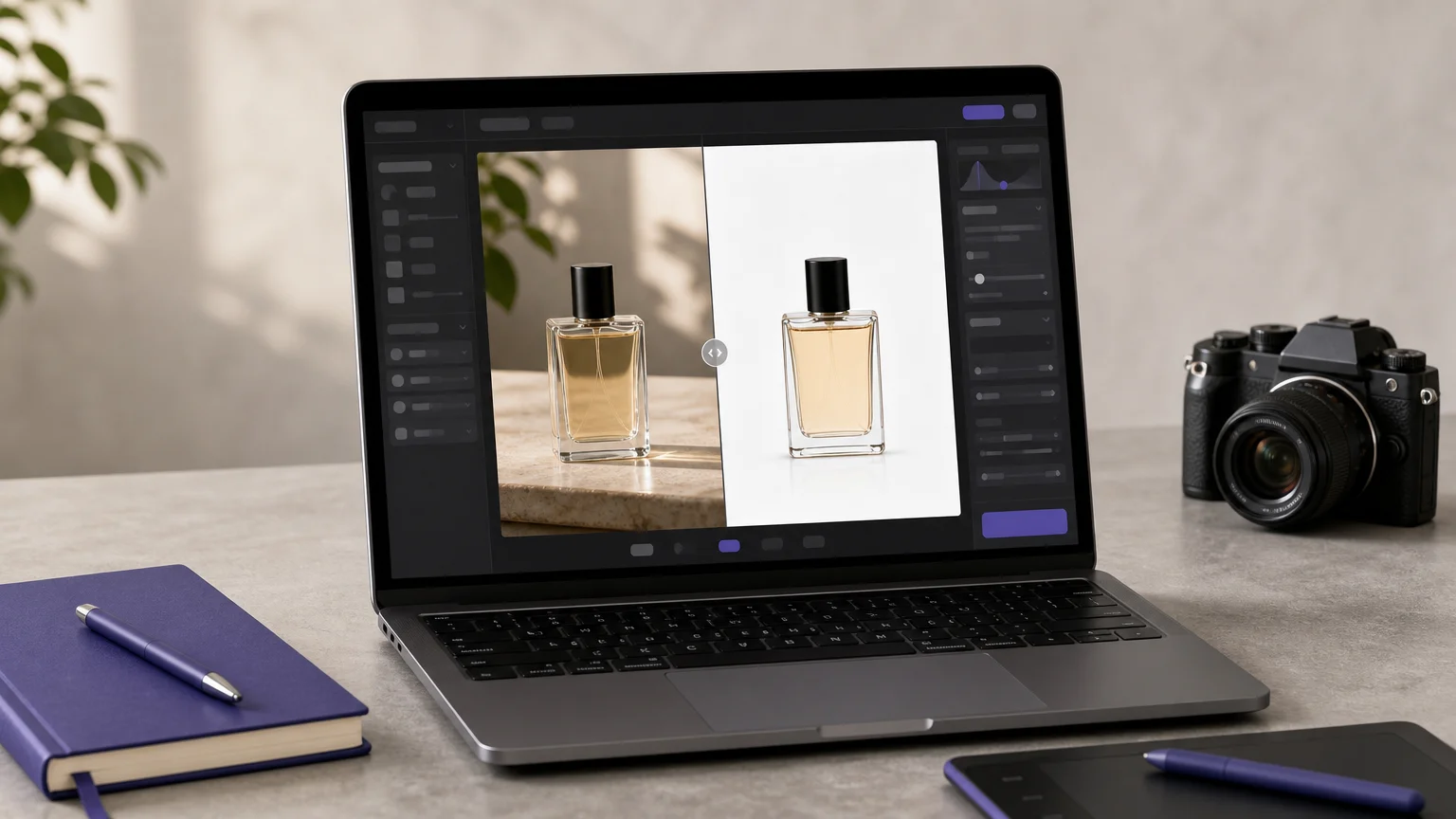
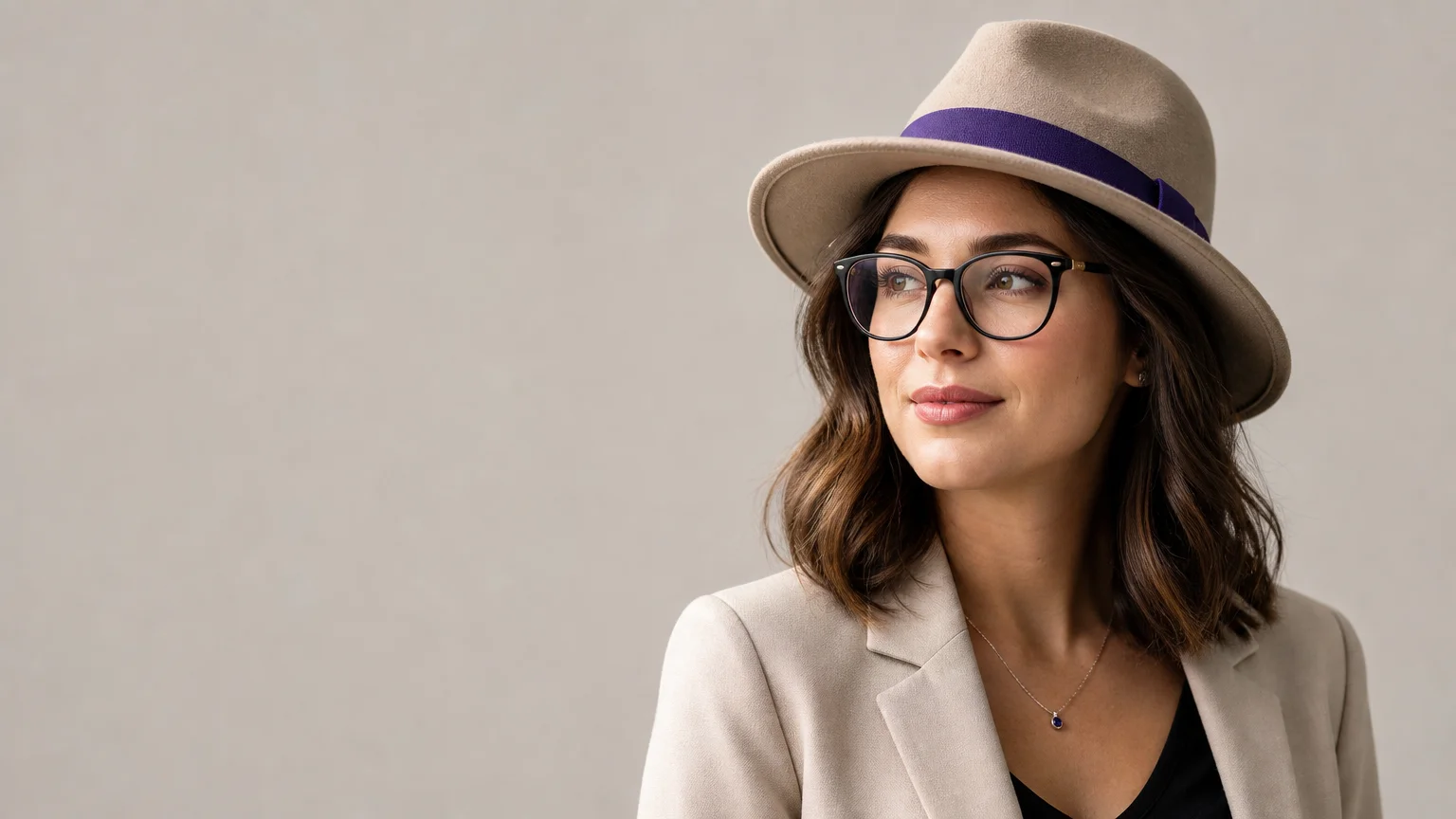

Realistic glasses, hats, jewelry, and watches require more than placing an object over a face. The tool must understand scale, perspective, lighting, shadows, and the original subject. If you are comparing AI tools that add accessories to photos, our best AI photo editors guide provides useful context for choosing between focused editing and broader creative workspaces.
The strongest options differ in how much control they provide. Some use dedicated accessory presets, while others rely on prompts, brushes, masks, or reference images. It is also important to review ownership and usage conditions. The AI copyright guidance from the U.S. Copyright Office explains that protection for AI-assisted work depends on the human contribution and creative control involved.
How to Choose an AI Tool for Adding Accessories
Start with the type of result you need. A dedicated accessory generator can be convenient for glasses, hats, earrings, necklaces, watches, or handbags. A general AI editor is more flexible when you want to add unusual objects, change the setting, preserve a product image, or continue editing the same photo afterward.
Placement control is especially important for wearable items. A hat should follow the head angle, glasses should align with the eyes and nose, and a necklace should sit naturally around the neckline. Tools that accept location details, marked regions, or reference images can provide more control than simple preset filters.
Look closely at how each service handles lighting and shadows. Metallic accessories need believable highlights, lenses need reflections, and objects worn on the body need contact shadows. A realistic result should preserve the original expression, pose, skin texture, hair, clothing, and background unless you specifically request another change.
Cost and workflow also matter. Some tools provide free trials or limited free generations, while others use credits or subscriptions. Pixmage displays applicable model and generation costs before processing, and its premium workspace keeps prompts, references, models, output settings, credits, and results together. For more structured instructions, you can also review our AI photo editing prompts.
| Rank | Tool | Accessory workflow | Placement and realism | Access and cost visibility | Best fit |
|---|---|---|---|---|---|
| 1 | Pixmage AI Image Studio | Uploaded-photo editing, curated effects, and reference-image workflows. No dedicated accessory preset is explicitly documented. | Preservation-oriented editing aims to retain the subject, room, light, camera angle, and textures where possible. | Premium generation requires sign-in, verification, and credits. Applicable cost information appears before generation. | Users who want controlled editing and a broader creative workspace. |
| 2 | Aragon AI | Dedicated accessory workflow for glasses, hats, jewelry, watches, handbags, and similar items. | Designed to match the original photo’s angle and lighting for a natural try-on effect. | Browser-based workflow with a free accessory generator described on its page. | Quick virtual try-ons for portraits and style decisions. |
| 3 | Pincel AI Photo Editor | Prompt-based accessory additions, including glasses, hats, earrings, necklaces, and watches. | Prompts can request natural shadows, realistic reflections, and perspective matching. | Its published material describes free credits without requiring a credit card. | Users who want fast, conversational accessory edits. |
| 4 | insMind | Brush or select an area, then describe the accessory or object to add. | The marked region helps guide placement, while the model blends the new element into the image. | Browser and mobile access are described. Free output conditions vary by quality and watermark requirements. | Flexible object addition on phones, tablets, and desktops. |
| 5 | starryai | Prompt-based insertion of accessories, props, products, animals, and other objects. | Prompts can specify position, size, lighting, shadows, and perspective. | Available through a browser and mobile applications, with free and paid access described. | Creative edits involving accessories and unusual objects. |
| 6 | Canva | Magic Edit allows users to brush over or select an area and describe a new element. | Useful for adding or replacing visual elements within a wider design workflow. | Free access is available, while some AI and brand features require a premium plan. | Social posts, presentations, marketing graphics, and quick edits. |
| 7 | Photoroom | Strong product-image, fashion-model, background, and catalog workflows. Accessory-specific editing of a user portrait is less clearly documented. | Product fidelity, clean cutouts, shadows, and consistent catalog imagery are central strengths. | Free starting access and business-oriented plans are described, with advanced features for larger workflows. | E-commerce sellers and teams creating product visuals at scale. |
| 8 | Adobe | Generative photo editing through prompt-based tools in a broader professional ecosystem. | Offers a deeper editing environment for users who need more control than a simple accessory preset. | Access depends on the relevant Adobe product and plan. | Professionals already working in advanced image-editing workflows. |
| 9 | Fotor | Brush over an area, describe the requested addition, and blend it into the photo. | Suitable for adding or replacing objects, with broader enhancement and design tools available. | Online and mobile editing are described, with free and premium capabilities. | General-purpose photo editing and fast creative variations. |
| 10 | AI object replacement and addition for product, marketing, and commercial creative workflows. | Designed to integrate new elements into a scene and support polished marketing visuals. | Commercial plans and credit-based workflows are described. | Brands producing product listings, ads, and creative variations. | |
| 11 | ImageGPT | Dedicated page for adding sunglasses, hats, necklaces, and similar accessories. | Simple accessory placement is the main documented use case. | Presented as an online tool with limited workflow details in the available material. | Users seeking a straightforward accessory edit with minimal setup. |
1. Pixmage AI Image Studio
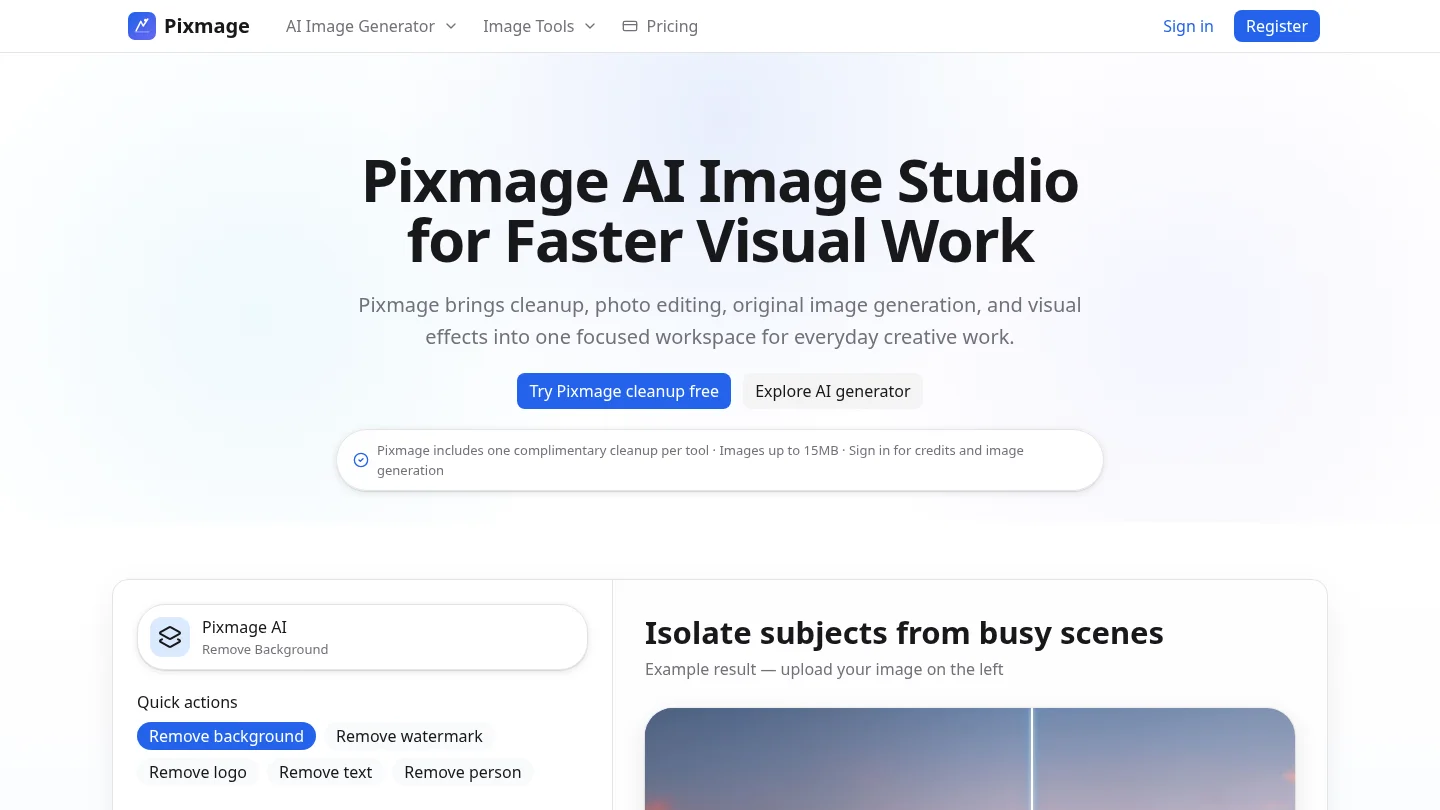
Best for: Users who want to edit an uploaded photo while keeping the option to apply effects, use references, compare results, and continue refining the image.
Our AI Image Studio supports uploaded-photo editing, curated effects, text-to-image creation, and multi-image fusion in one workspace. For an accessory-style edit, you can describe the requested change directly and use compatible image references when the selected model supports them. The workflow is not presented as a dedicated one-click accessory catalog, so it is better suited to controlled creative editing than to a fixed virtual try-on menu.
The main practical advantage is workflow continuity. You can review the selected model and displayed cost, generate the result, download it, or return it to photo editing. The editing approach aims to retain the subject, surrounding room, light, camera angle, and textures where possible. This is useful when adding a subtle accessory should not change the entire portrait.
Pros:
- Combines uploaded-photo editing, effects, prompts, references, and results in one workspace.
- Shows applicable model and credit information before premium generation.
- Supports continued editing after generation rather than ending with a single output.
- Serves personal portraits, product imagery, marketing assets, social content, and creative concepts.
- Works with named models selected according to supported tasks and input capabilities.
Cons:
- A dedicated accessory preset for glasses, hats, or jewelry is not explicitly documented.
- Premium generation requires sign-in, email verification, and a credit balance.
2. Aragon AI
Best for: Fast accessory try-ons for portraits, styling decisions, and previews before purchasing an item.
Aragon AI has a dedicated accessory generator focused on wearable and fashion-related additions. Its documented examples include glasses, hats, earrings, necklaces, watches, bracelets, rings, scarves, and handbags. Users upload a photo, choose accessories, and receive an edited portrait intended to match the original angle and lighting.
This focused approach is convenient when you already know the accessory category. It can be faster than writing a detailed prompt for every edit. The trade-off is that a specialist try-on workflow may provide less flexibility when you want to add an unusual object, alter the wider scene, or build a more complex composite.
Pros:
- Dedicated workflow for common fashion accessories.
- Useful for virtual try-ons and quick style comparisons.
- Accessory types include eyewear, hats, jewelry, watches, and handbags.
- Designed to match the source image’s lighting and position.
Cons:
- Its documented focus is accessory placement rather than broad photo restoration or multi-reference composition.
- Users seeking detailed scene changes may need a more general AI editor.
3. Pincel AI Photo Editor

Best for: Users who prefer describing an accessory in natural language instead of working with manual layers or overlays.
Pincel uses a prompt-based workflow for adding accessories to real photos. You upload an image, describe the desired item, generate the edit, and refine the instruction if the first result is not quite right. Example instructions can specify black aviator sunglasses, gold hoop earrings, a beige baseball cap, or a silver wristwatch.
The strongest feature is the balance between speed and descriptive control. You can request realistic reflections, natural shadows, a specific material, or a particular position. This makes the tool suitable for personal portraits, profile images, styling mockups, social posts, and quick e-commerce variations.
Pros:
- Supports prompt-based additions for glasses, hats, jewelry, watches, and other accessories.
- Allows realism cues such as reflections, shadows, materials, and perspective.
- Useful for stacking edits, such as adding glasses and then a hat.
- Published material describes 20 free credits without a credit card.
Cons:
- Results may require several prompt revisions when placement is difficult.
- Prompt wording remains important for subtle accessories and complex poses.
4. insMind
Best for: Users who want to mark a specific area before asking AI to add or replace an object.
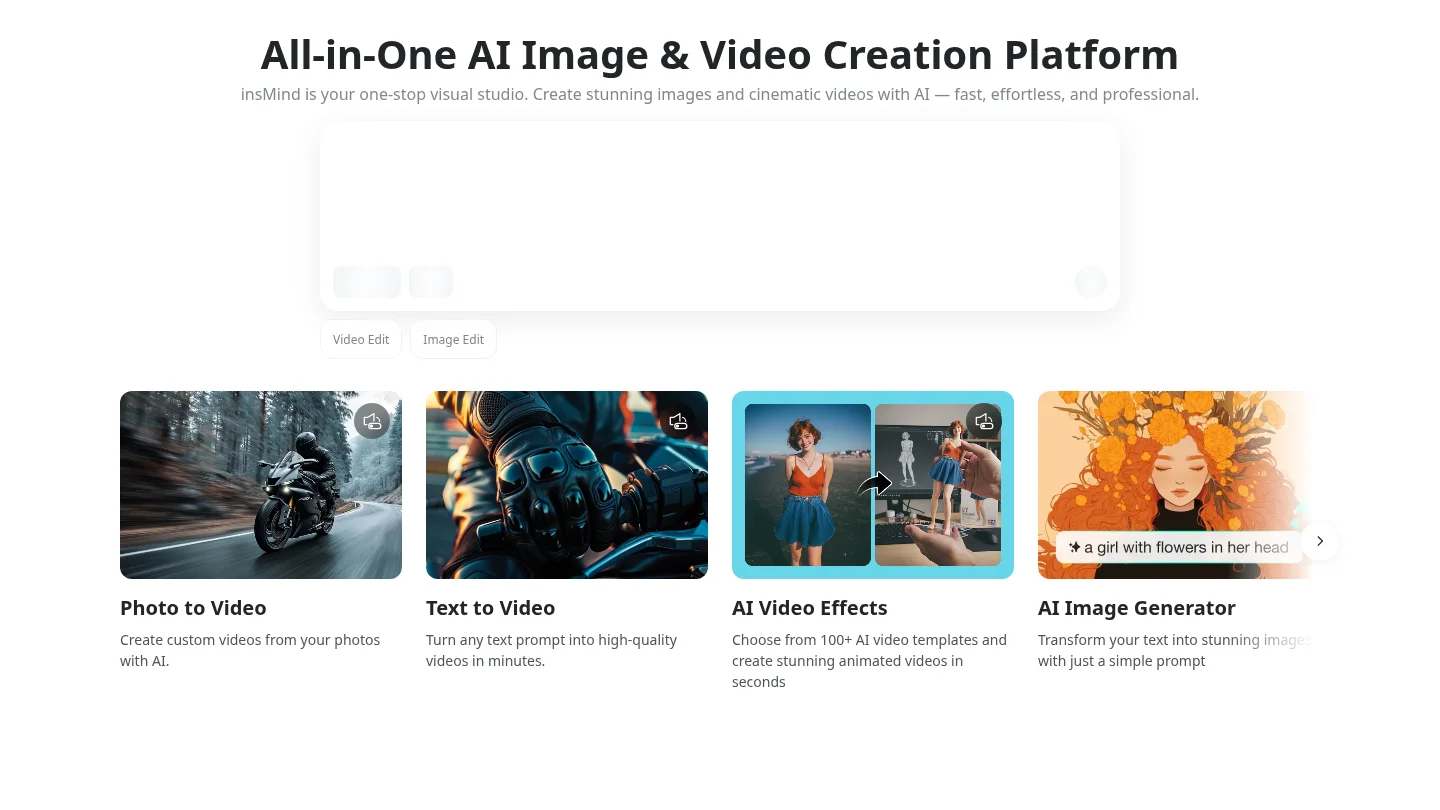
insMind combines regional selection with a text prompt. After uploading a photo, you can brush over or select the area where the new element should appear. You then describe the requested accessory or object and download the edited image when the result is satisfactory.
This workflow provides more location guidance than a prompt alone. It can help when adding earrings near the ears, a necklace around the neckline, or a watch near the wrist. The same system also supports broader object insertion, background changes, furniture additions, and replacements, making it a flexible choice beyond personal accessory edits.
Pros:
- Combines area marking with descriptive prompts.
- Supports accessories and many non-fashion objects.
- Works in a browser on mobile phones and tablets.
- Useful for portraits, product images, interiors, and social content.
Cons:
- Users must identify and mark the intended area for more precise edits.
- Free download quality and watermark conditions can vary by plan or output type.
5. starryai
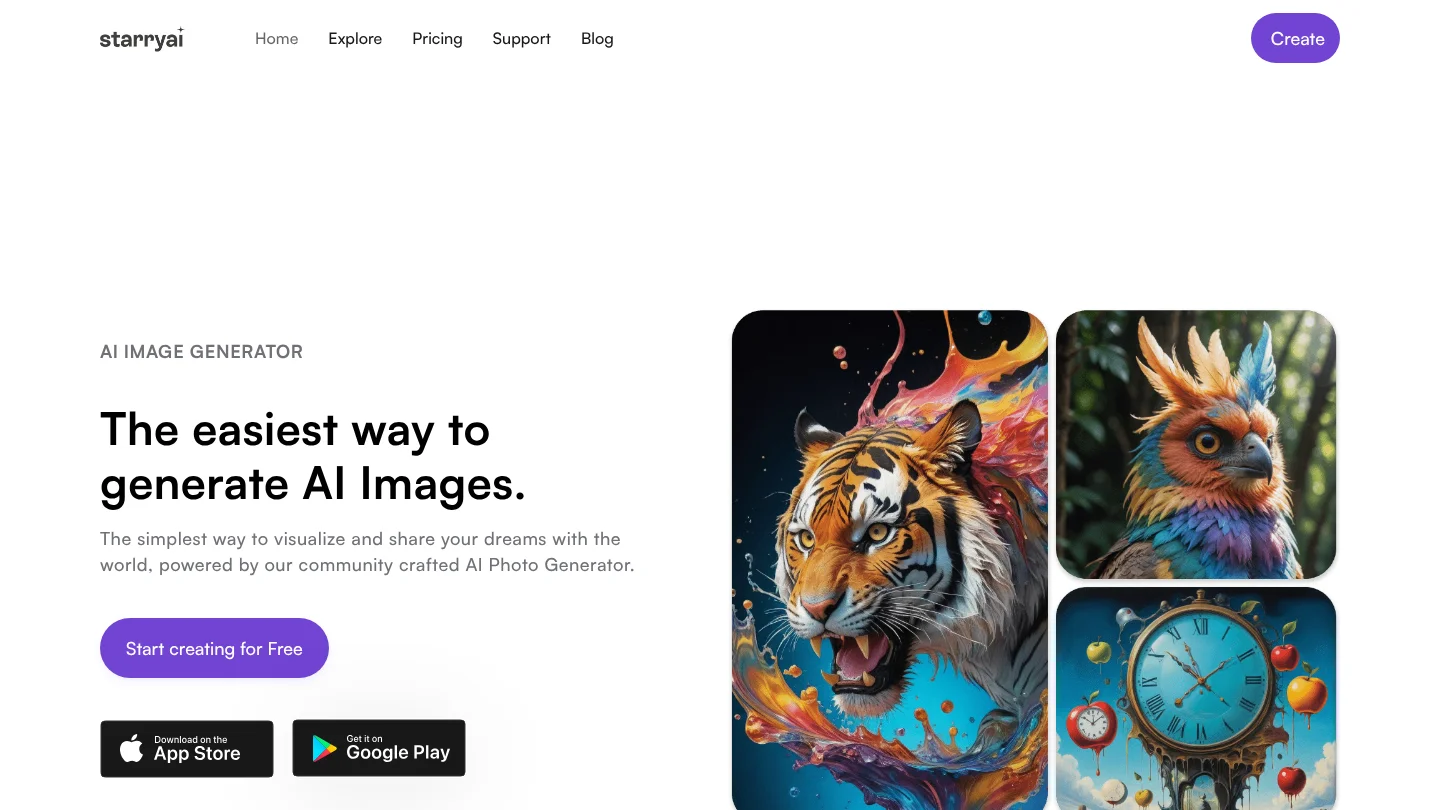
Best for: Creative users who want to add accessories, props, products, or imaginative objects with natural-language prompts.
starryai presents accessory addition as part of a broader AI object-editing workflow. You upload an image, describe what should be added and where it belongs, preview the result, and download the output. Prompts can include location, size, quantity, style, and visual details.
The tool is especially useful when an accessory is part of a larger concept. For example, you can add sunglasses to a portrait, place a crown on a subject, insert a product into a scene, or combine accessories with seasonal props. Its flexibility is valuable for creative exploration, although a broad object editor may require more prompt precision than a dedicated try-on tool.
Pros:
- Supports accessories and a wide range of custom objects.
- Prompts can describe placement, size, style, lighting, and perspective.
- Browser and mobile access are described.
- Useful for creative portraits, product mockups, and social content.
Cons:
- Users may need detailed prompts for wearable items that require exact alignment.
- Its broad creative scope is less specialized than a dedicated accessory generator.
6. Canva
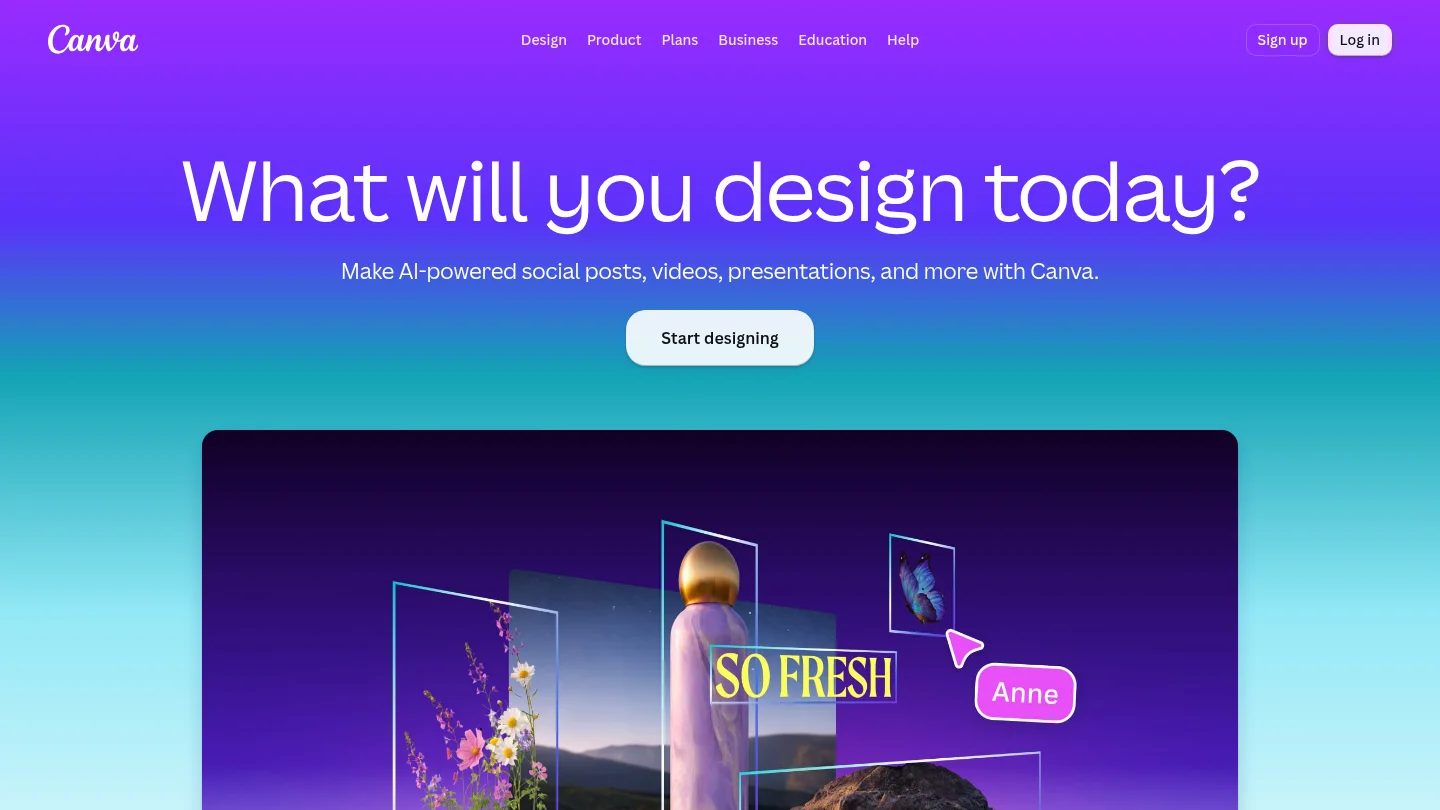
Best for: Designers and content creators who want to add accessories while preparing social posts, presentations, advertisements, or branded layouts.
Canva’s AI photo editor uses tools such as Magic Edit to add or replace visual elements with a text prompt. Users can click an area or brush over it, describe the desired change, and continue editing the image inside a broader design environment.
This makes Canva practical when the accessory is only one part of the final asset. You can add glasses or a hat, adjust the composition, add text, resize the design, and export it for a social platform or presentation. The trade-off is that the experience is designed around visual content creation rather than a dedicated fashion try-on workflow.
Pros:
- Combines AI photo editing with layouts, templates, text, and publishing tools.
- Supports regional selection and prompt-based additions.
- Useful for social graphics, presentations, marketing assets, and profile images.
- Supports common image formats and browser-based editing.
Cons:
- Accessory-specific placement is part of a broader design workflow.
- Some advanced AI and brand features require a premium plan.
7. Photoroom
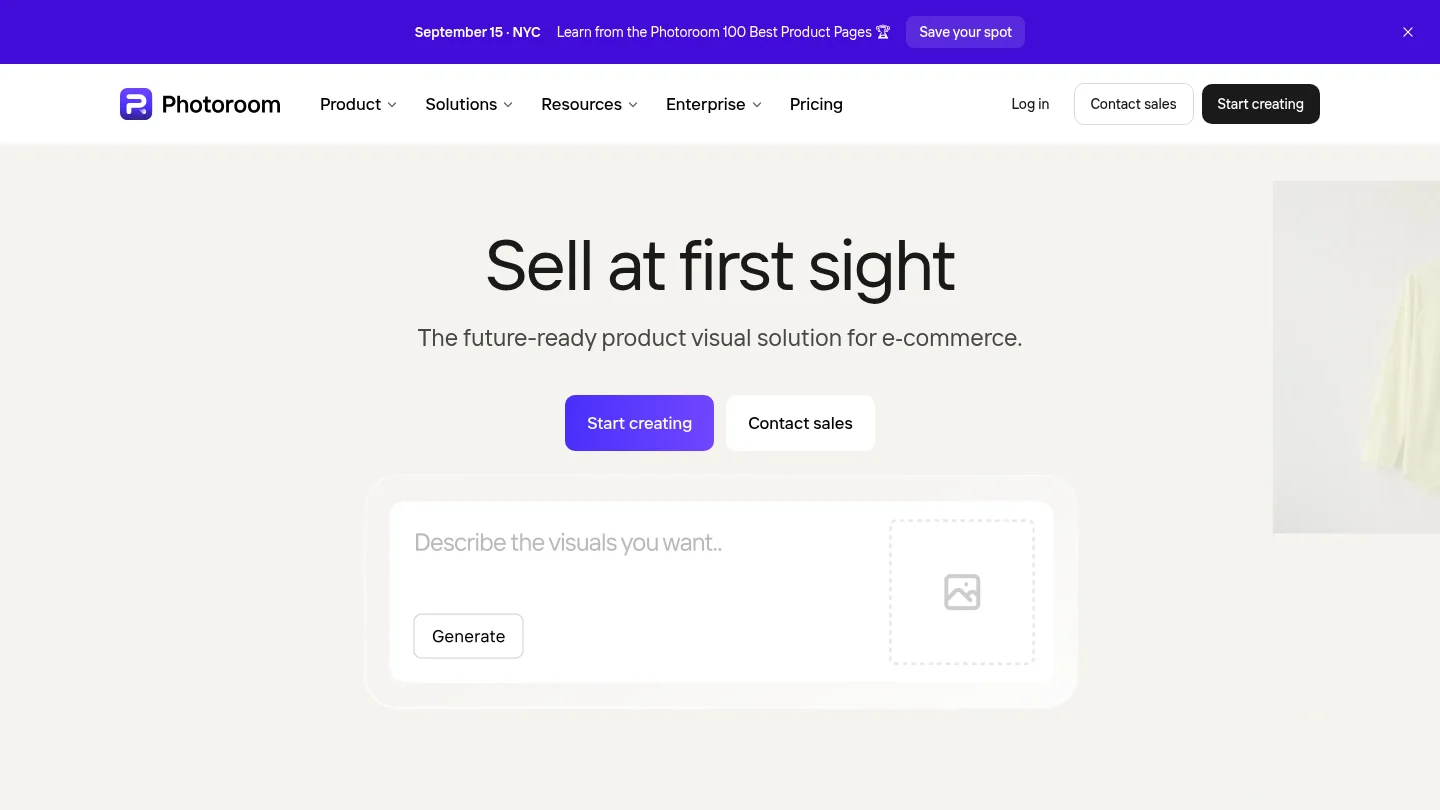
Best for: E-commerce sellers and product teams that need consistent accessory-related product visuals rather than personal portrait try-ons.
Photoroom is positioned around product photography, catalog imagery, background removal, lifestyle scenes, batch editing, and marketplace-ready outputs. Its documented fashion workflows include AI models and product presentation, which can help accessory sellers show items in more realistic commercial contexts.
For a product business, the value is less about placing a hat on an existing selfie and more about creating consistent product imagery at scale. It is a strong consideration when accessories are the products being sold. For a one-off personal portrait, a dedicated accessory generator or prompt-based editor may be more direct.
Pros:
- Strong focus on e-commerce and product-image workflows.
- Supports background removal, lifestyle scenes, shadows, and catalog consistency.
- Designed for higher-volume visual production and marketplace content.
- Useful for accessory retailers creating commercial product imagery.
Cons:
- Its strongest documented use case is product presentation rather than personal accessory editing.
- Users seeking a simple portrait try-on may find the broader commerce workflow unnecessary.
8. Adobe
Best for: Experienced creators who want AI-assisted accessory editing within a professional image-editing ecosystem.
Adobe’s generative photo tools support prompt-driven edits, object changes, and broader image transformation. This type of workflow can be useful for adding eyewear, hats, jewelry, props, or other elements when you also need detailed manual adjustments afterward.
The main advantage is depth. Professional users can combine AI generation with layered editing, retouching, masking, color correction, and compositing. That flexibility also creates a steeper learning curve than a focused accessory generator. It is most suitable when the accessory edit forms part of a larger production process.
Pros:
- Broad professional editing environment with AI-assisted changes.
- Suitable for detailed compositing and post-generation refinement.
- Useful for commercial, editorial, advertising, and design workflows.
- Offers more manual control than a simple preset-based tool.
Cons:
- Requires more editing knowledge than a dedicated accessory workflow.
- Users may need additional manual refinement for exact placement and product fidelity.
9. Fotor
Best for: Users who want accessory addition alongside enhancement, retouching, background editing, and other general photo tools.
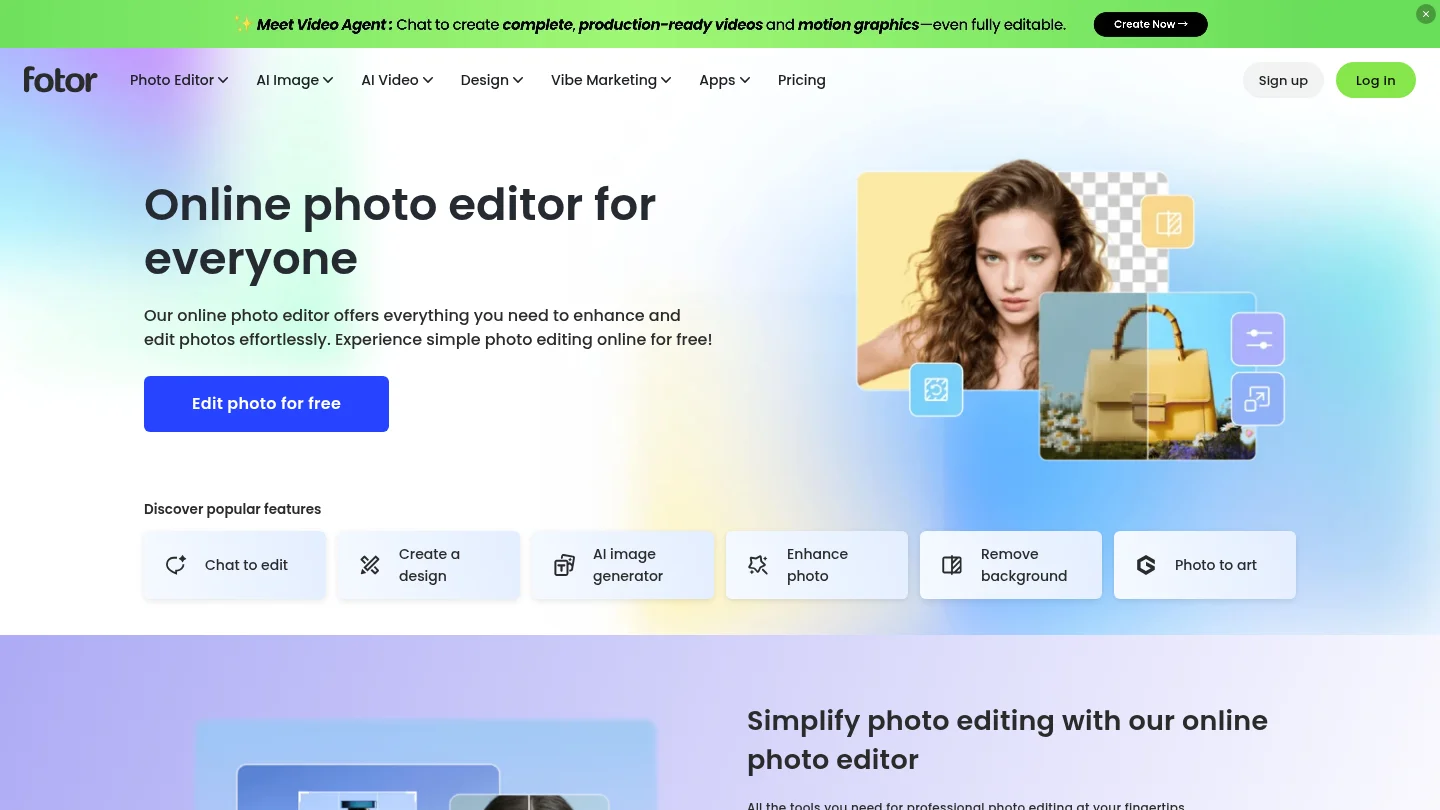
Fotor describes an AI Replace workflow in which users brush over an area, write what they want to add, and allow the system to blend the new element into the image. This can support accessories such as glasses, hats, jewelry, or watches, while also covering broader object replacement and photo enhancement.
Its general-purpose structure is useful for users who want to improve the source photo before or after adding an accessory. You can combine object editing with enhancement, background changes, filters, and other adjustments. The trade-off is that the workflow is less narrowly optimized for wearable accessory placement.
Pros:
- Combines AI object addition with enhancement and retouching tools.
- Uses a brush and prompt workflow for targeted edits.
- Supports online and mobile photo editing.
- Useful for personal photos, social content, and general creative work.
Cons:
- No dedicated accessory catalog is clearly established in the available material.
- Users may need to provide more placement detail for wearable items.
10.
Best for: Brands and marketing teams that want to add or replace visual elements in product, advertising, and campaign imagery.
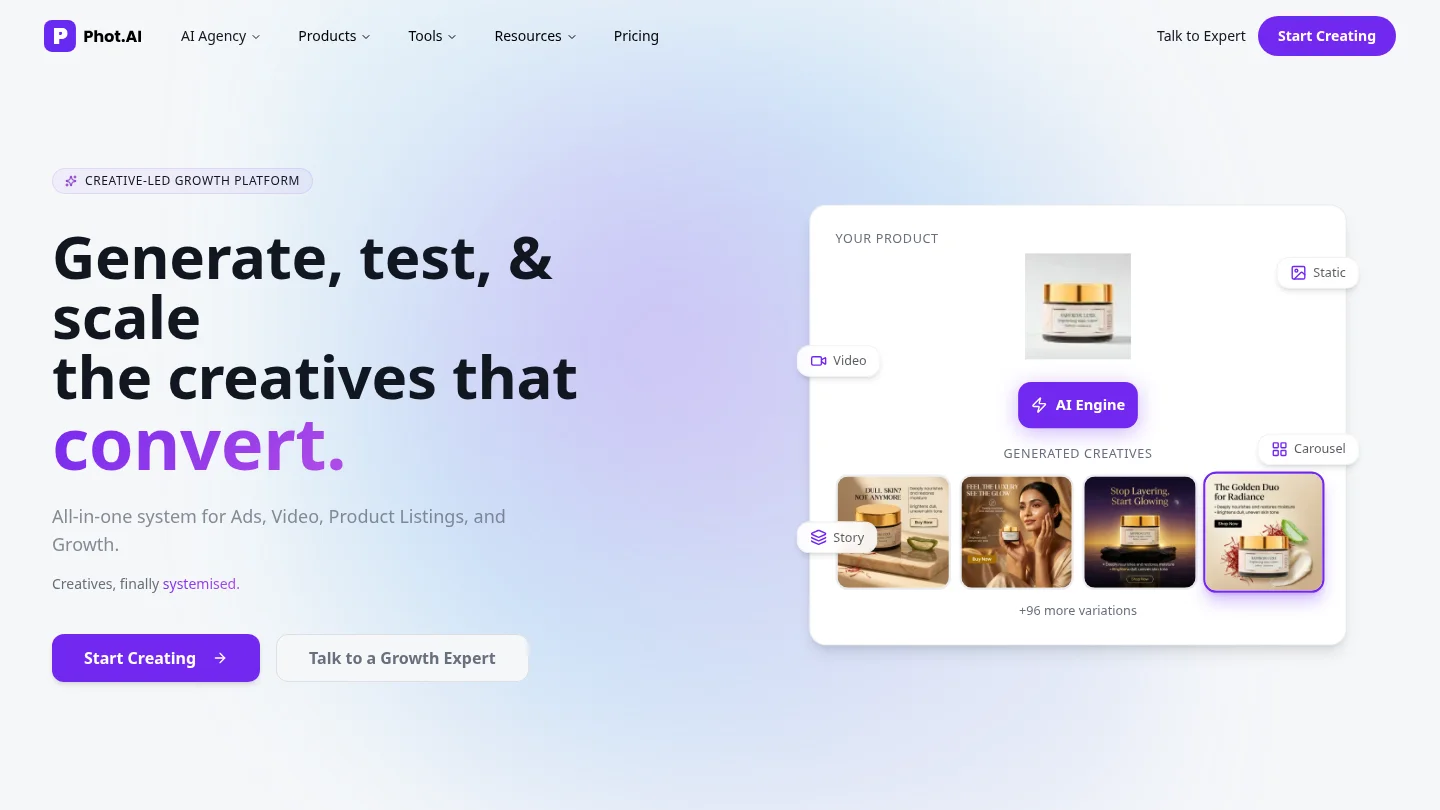
presents AI object replacement as part of a broader system for product listings, advertisements, creative variations, and growth workflows. Its object editor can add new elements or replace unwanted ones, which may include accessories in product or lifestyle scenes.
The platform is most relevant when accessory editing supports a commercial objective. For example, a seller could test different styling directions, add props to a product scene, or create variations for marketing materials. It is less clearly focused on personal virtual try-ons where facial alignment or wearable placement is the primary concern.
Pros:
- Strong orientation toward product imagery and marketing creatives.
- Supports adding and replacing objects in existing photos.
- Useful for campaign variations and commercial visual production.
- Suitable for teams that need more than a single portrait edit.
Cons:
- Accessory-specific portrait controls are less clearly documented.
- The broader commercial workflow may exceed the needs of casual personal editing.
11. ImageGPT
Best for: Users who want a simple online workflow for adding familiar accessories to an existing image.
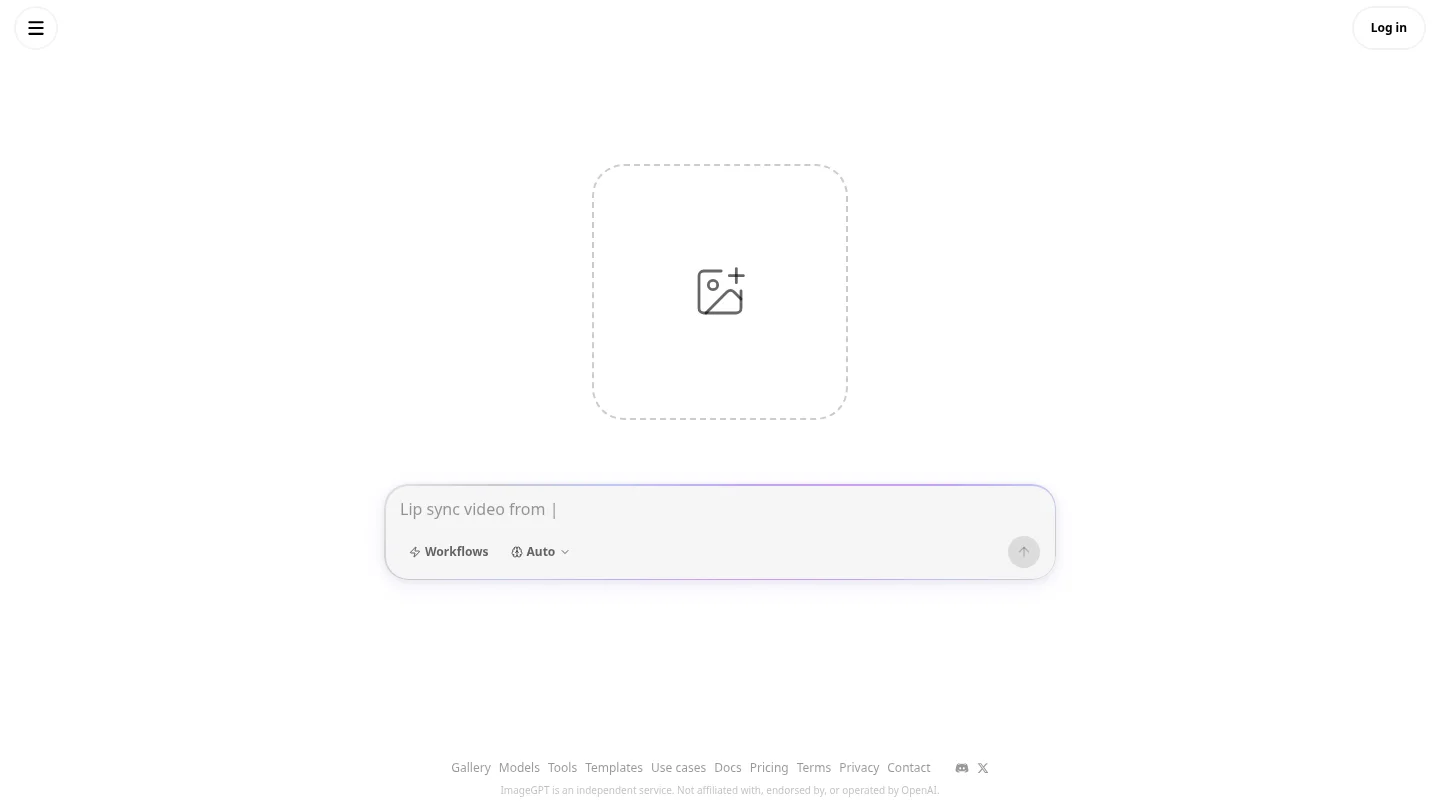
ImageGPT has a dedicated page for adding accessories to photos with AI. Its examples include sunglasses on a headshot, a hat on a portrait, and a necklace on a product photo. The concise workflow is suitable for users who want a quick style update without opening a complex editor.
The main limitation is the amount of documented control. Users who need a brush, mask, reference image, advanced prompt structure, or multi-step refinement may prefer a more fully described editing workspace. For a simple accessory concept, however, the focused page may be sufficient.
Pros:
- Dedicated accessory-editing page.
- Examples cover sunglasses, hats, necklaces, and product photos.
- Simple workflow for quick visual changes.
Cons:
- Detailed placement and reference-image controls are not established in the available material.
- Users needing advanced refinement may require a broader editing platform.
Important Rights and Privacy Checks
Before uploading a portrait, product image, or campaign asset, confirm that you have permission to edit and publish it. This is especially important when adding accessories to another person’s likeness, modifying commercial product photography, or working with logos and branded items.
AI editing also creates a provenance question. NIST identifies watermarking, authentication, detection, and provenance as important approaches for improving transparency around synthetic content in its synthetic-content transparency report. In practice, retain the original file, review the generated result, and record the edits when the image will be used in advertising, journalism, product claims, or other sensitive contexts.
Do not assume that an AI-edited image automatically has the same rights as the source photograph. Commercial use can also depend on the tool’s plan terms, the assets used, the person shown, and applicable local law. Review the output carefully before publishing it.
Final Recommendation
The right choice depends on the balance between speed, control, and the type of image you are creating. Dedicated tools such as Aragon AI and Pincel are convenient for familiar accessories, while insMind, starryai, Canva, Fotor, and Adobe provide broader prompt-based editing. For product and commercial workflows, Photoroom and are particularly relevant. Pixmage is the strongest client-first option when you want uploaded-photo editing, preservation-oriented changes, visible credit information, reference inputs, and a path to continue refining the result. Choose a tool that matches your source image, accessory placement, publishing needs, and required level of control.
Give Your Photos a More Creative Direction
When adding an accessory is part of a larger visual change, a simple preset may not be enough. Our workspace lets you start with an uploaded photo, choose a compatible editing mode, describe the change, review the model and cost information, and refine the result in the same creative flow.
Use our AI photo effects generator to explore uploaded-photo editing, curated effects, multi-image fusion, and prompt-driven transformations. Generated results can be downloaded or sent back into photo editing, so you can keep adjusting the image instead of starting over.
Frequently Asked Questions
Can AI add glasses, hats, and jewelry to an existing photo?
Yes, many AI editors can add common accessories to an uploaded portrait or product image. Results are usually better when the accessory, placement, material, lighting, and desired realism are described clearly.
What type of photo works best for adding an accessory?
Use a sharp, well-lit image where the relevant placement area is visible. A clear face helps with glasses and hats, while visible ears, necklines, hands, or wrists help with jewelry and watches.
How can I make an AI accessory edit look realistic?
Describe the accessory’s material, size, color, position, and angle. Add instructions about natural shadows, matching reflections, consistent lighting, and preserving the original face, pose, clothing, and background.
Is it better to use a dedicated accessory generator or a general AI editor?
A dedicated generator is usually faster for familiar items such as glasses, hats, and necklaces. A general editor is better when you need unusual objects, reference images, scene changes, product variations, or continued editing after the accessory is added.
Can I use AI-edited accessory photos commercially?
Commercial use depends on the tool’s terms, the source image rights, the accessories or trademarks shown, and applicable law. Confirm that you are authorized to edit the image and review the final result before using it in advertising, listings, or branded campaigns.